
Introduction
This manual provides detailed instructions for setting up, operating, maintaining, and troubleshooting your D-Link M15/3 Eagle Pro AI Mesh WiFi 6 Router System. The M15/3 is a modular whole-home WiFi Mesh system designed to provide smart, fast, and simple wireless internet connectivity. It features advanced AI capabilities to optimize your Wi-Fi performance and is compatible with voice assistants like Alexa and Google Assistant.
The system expands advanced AI capabilities to meet your home WiFi demands as online needs grow or your housing changes. Built-in AI continuously monitors and intelligently manages your Wi-Fi to keep it performing optimally in homes of any shape and size. You can expand coverage by adding more M15 units.
Package Contents
Verify that your package contains the following items:
- 1x D-Link M15 Router Unit
- Power Adapter
- Ethernet Cable
- Quick Installation Guide (QIG)
- Quick Installation Card (QIC)
- Voice Assistant Guide
- Additional M15 Router Units (for 3-Pack system)
Setup Instructions
Follow these steps to set up your D-Link M15/3 Mesh WiFi 6 Router System:
1. Initial Router Placement and Connection
Place the primary M15 router unit in a central location within your home, ideally near your internet modem. Ensure it is in an open area, away from obstructions and other electronic devices that may cause interference.
- Connect the provided power adapter to the primary M15 router unit and plug it into a power outlet.
- Wait for the status LED on the router to flash orange, indicating it is ready for setup.
- Connect one end of the supplied Ethernet cable to the INTERNET port on the back of the M15 router and the other end to your modem's Ethernet port.

Image: Initial setup steps for the D-Link M15 router, showing power and internet connections.

Image: Close-up of the D-Link M15 router's rear ports, including power, Internet, Ethernet, Reset, and WPS.
2. App Installation and Configuration
The D-Link Eagle Pro AI app guides you through the network configuration process.
- Download the EAGLE PRO AI App from the Apple App Store or Google Play Store.
- Open the app and follow the on-screen instructions to create your D-Link account and set up your new Wi-Fi network name (SSID) and password.
- The app will guide you through connecting to the router's default Wi-Fi network to begin configuration.
3. Adding Additional Mesh Units
For a 3-pack system, you will have two additional M15 units to extend your Wi-Fi coverage.
- Plug in the additional M15 units near the primary router. They should automatically detect and connect to the existing mesh network.
- Once connected (indicated by a solid white LED), you can move these units to desired locations within your home to expand coverage. Ensure they are within range of another M15 unit for optimal performance.
- The system provides up to 5,400 sq. ft. of seamless coverage with three units.
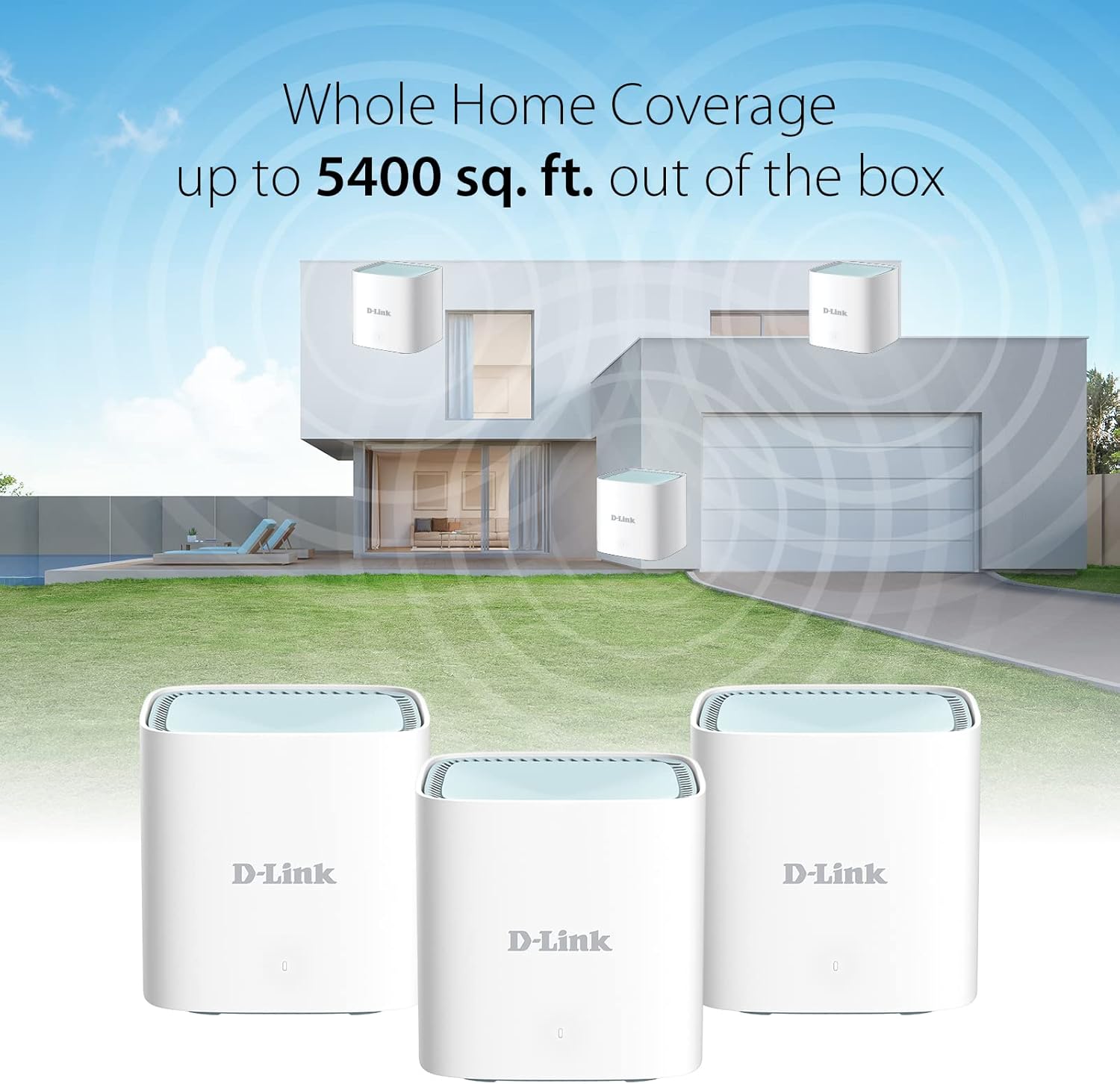
Image: Illustration of three D-Link M15 units providing extensive whole-home Wi-Fi coverage.

Image: Comparison of Wi-Fi coverage with different numbers of M15 units, demonstrating scalability.

Image: Scalable solution diagram illustrating how M15 units form a mesh Wi-Fi system.
Operating Your Mesh System
The D-Link M15/3 system utilizes advanced AI features to optimize your network performance.
AI Optimized Wi-Fi
- AI Wi-Fi Optimizer: A dedicated antenna continuously scans your environment to connect you to the cleanest Wi-Fi channel, reducing interference and improving signal quality.
- AI Mesh Optimizer: Unique AI Beamforming technology enhances reliable mesh connectivity between your router and extender units, ensuring stronger Wi-Fi throughout your home.
- AI Traffic Optimizer: This feature automatically allocates bandwidth to different applications, ensuring uninterrupted activities whether you are gaming, voice calling, video streaming, or downloading files.

Image: AI Wi-Fi Optimizer feature description, showing a couple using a tablet with the router in the foreground.

Image: AI Mesh Optimizer feature description, showing a person walking down stairs using a phone with the router in the foreground.

Image: AI Traffic Optimizer feature description, showing people engaged in video calls and online learning with the router in the foreground.
AI Assistant and Parental Controls
- AI Assistant: Collects performance information over time and provides detailed reports and recommendations to maintain optimal network performance.
- AI Parental Control: Offers customized management options, allowing you to create profiles for children, set schedules, block specific web domains, and pause internet access through the EAGLE PRO AI App.

Image: AI Assistant feature description, showing a person reviewing a weekly internet traffic report on a tablet.

Image: AI Parental Controls feature description, showing a father and son using devices with the router in the foreground.
Seamless Roaming and Wi-Fi 6
- Seamless Roaming: The mesh system creates a single network name and password, automatically connecting your devices to the strongest signal as you move throughout your home.
- Wi-Fi 6 (AX1500): Experience faster speeds (up to 1500 Mbps), greater efficiency, and higher capacity for device-dense homes. Wi-Fi 6 is up to 90% faster than previous generation Wi-Fi.

Image: Diagram illustrating the benefit of seamless roaming with a single Wi-Fi network name.

Image: Wi-Fi 6 advantages, emphasizing improved speed and efficiency for modern network demands.
Voice Control
The D-Link M15/3 system is compatible with Amazon Alexa and Google Assistant, allowing for convenient voice control of certain network functions.

Image: D-Link M15 system working with Amazon Alexa and Google Assistant for voice control.
Official Product Video
Video: An overview of the D-Link M15 Mesh WiFi 6 System, highlighting its AI features and smart home integration. This video provides a visual guide to the system's capabilities.
Maintenance
Regular maintenance helps ensure optimal performance and longevity of your D-Link M15/3 Mesh WiFi system.
- Firmware Updates: Ensure your router's firmware is always up-to-date. The EAGLE PRO AI App can notify you of available updates and guide you through the process. Firmware updates often include performance improvements, security patches, and new features.
- Restarting Devices: Periodically restarting your modem and all M15 router units can resolve minor connectivity issues and improve overall network stability. It is recommended to do this at least once a month.
- Physical Cleaning: Keep the router units clean and free from dust. Use a soft, dry cloth to wipe the exterior. Ensure ventilation openings are not blocked to prevent overheating.
- Optimal Placement: Review the placement of your mesh units periodically. If you rearrange furniture or add new devices, consider if repositioning a unit could improve coverage or reduce interference.
Troubleshooting
If you encounter issues with your D-Link M15/3 Mesh WiFi system, try the following troubleshooting steps:
- No Internet Connection:
- Check if your modem is working correctly. Restart your modem and wait for it to fully boot up.
- Ensure the Ethernet cable from your modem is securely connected to the INTERNET port of the primary M15 router.
- Restart the primary M15 router unit.
- Frequent Disconnections or Slow Speeds:
- Verify that all M15 units have a strong connection to each other. The LED indicator on each unit should be solid white. If it's orange or red, reposition the unit closer to another M15 unit.
- Ensure there are no physical obstructions or sources of interference (e.g., microwaves, cordless phones) near your M15 units.
- Check for and install any available firmware updates via the EAGLE PRO AI App.
- Use the AI Wi-Fi Optimizer feature in the app to scan for and switch to a cleaner Wi-Fi channel.
- Cannot Connect to Wi-Fi Network:
- Double-check your Wi-Fi network name (SSID) and password. Ensure you are connecting to the correct network.
- If you recently changed your network settings, ensure your devices are updated with the new credentials.
- Try restarting the M15 unit closest to your device.
- App Issues or Configuration Problems:
- Ensure your smartphone or tablet has a stable internet connection (e.g., cellular data) when initially setting up or troubleshooting via the app.
- Close and reopen the EAGLE PRO AI App. If issues persist, try reinstalling the app.
- For advanced settings, you can often access the router's web interface by typing its IP address (usually 192.168.0.1 or 192.168.1.1) into a web browser while connected to the network.
- Factory Reset:
- If all other troubleshooting fails, you may need to perform a factory reset. Locate the RESET button on the back of the M15 unit (refer to the image in the Setup section).
- With the unit powered on, use a paperclip or thin object to press and hold the Reset button for approximately 10 seconds until the LED changes color or flashes.
- After a factory reset, you will need to reconfigure your mesh system from scratch using the EAGLE PRO AI App.
Specifications
| Feature | Specification |
|---|---|
| Brand | D-Link |
| Model Name | M15/3 |
| Wi-Fi Generation | Wi-Fi 6 (802.11ax) |
| Data Transfer Rate | Up to 1500 Mbps (AX1500) |
| Frequency Band Class | Dual-Band (2.4 GHz and 5 GHz) |
| Connectivity Range | Up to 5400 square feet (with 3-pack) |
| Ports | 1x WAN Gigabit Ethernet, 1x LAN Gigabit Ethernet per unit |
| Security Protocol | WPA3 Encryption |
| Control Method | Voice (Alexa, Google Assistant), EAGLE PRO AI App |
| Special Features | WPS, AI Wi-Fi Optimizer, AI Mesh Optimizer, AI Traffic Optimizer, AI Parental Control, AI Assistant, SmartConnect, Auto Firmware Updates |
| Included Components | Router units, Power Adapters, Ethernet cable, Guides |
| Item Weight | 1.2 pounds (per unit, approximate) |
| Color | White |
Warranty and Support
Your D-Link M15/3 Eagle Pro AI Mesh WiFi 6 Router System comes with a limited warranty. Please refer to the warranty card included in your package for specific terms and conditions.
For technical support, product registration, or to access the latest documentation and software updates, please visit the official D-Link support website or contact D-Link customer service. Contact information can typically be found in the Quick Installation Guide or on the D-Link website.
It is recommended to register your product to receive timely updates and support notifications.


