
1. Product Overview
The Delton 20X Wireless Computer Headset is designed for clear communication and audio playback. It features a noise-canceling microphone, Bluetooth 5.0 connectivity, and a comfortable design for extended use. This headset supports both wireless and wired connections, offering versatility for various devices and situations.
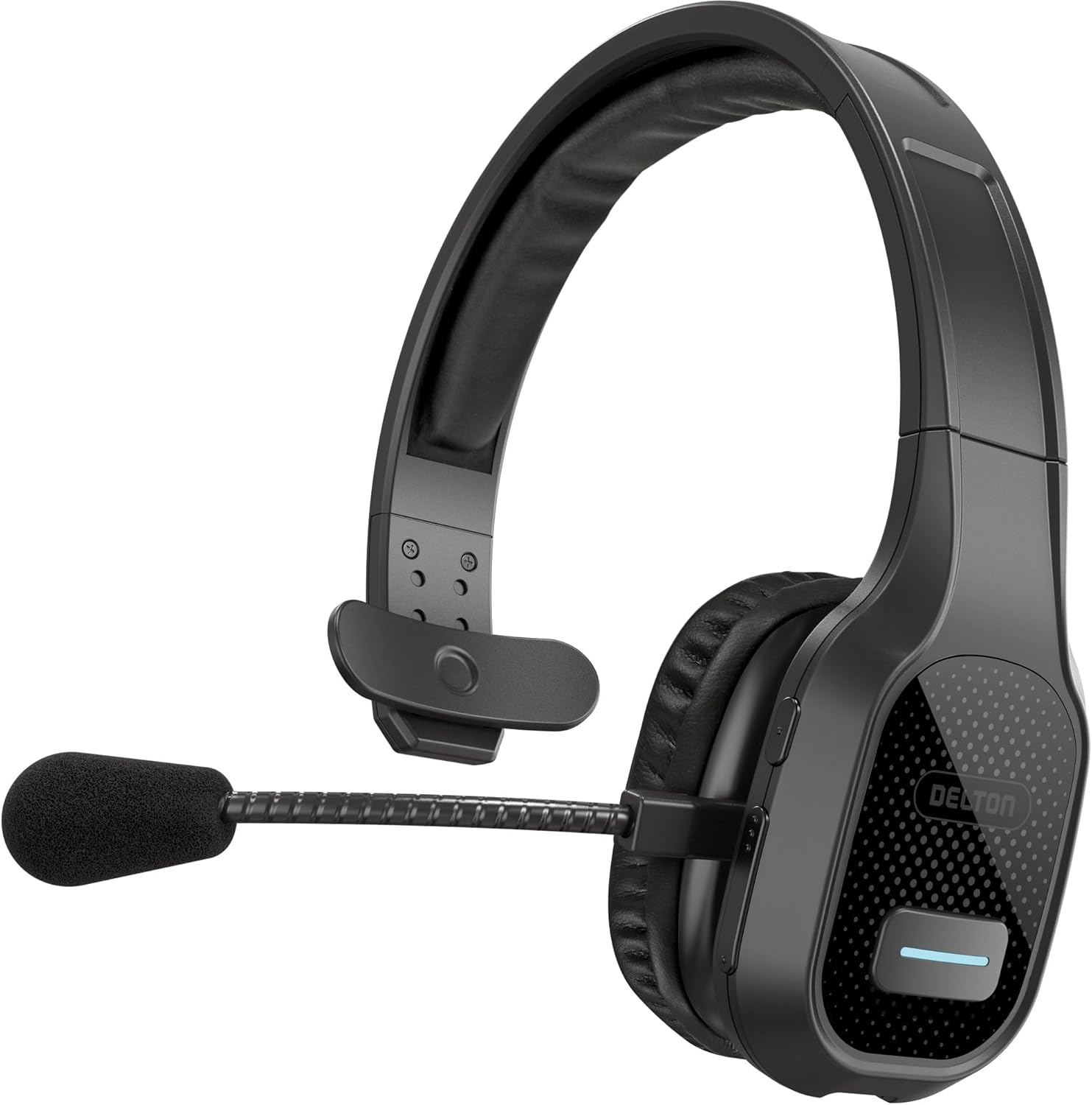
Image: Delton 20X Wireless Computer Headset, front view.
Key Features
- High-Fidelity Sound: Provides clear audio for conversations and media.
- Noise-Canceling Microphone: Reduces background noise for clear voice transmission.
- Dual Connectivity: Supports Bluetooth 5.0 for wireless use and a 3.5mm cable for wired connections.
- Extended Battery Life: Offers up to 35 hours of talk time and 40 hours of playback on a 2-hour charge, with up to 400 hours of standby time.
- Comfortable Design: Features plush ear cushions, an adjustable headband, and an anti-slip head pad for prolonged wear.
- Flexible Boom Mic: Rotates 270° for use on either the left or right ear.
- Intuitive Controls: Includes a multi-function button, volume adjustments, and a dedicated microphone mute button.
- Universal Compatibility: Works with smartphones, tablets, computers, and various communication platforms like MS Teams, Zoom, and Skype.

Image: Overview of Delton 20X headset features including 35 hours talk time, Bluetooth 5.0, adjustable headband, high fidelity sound, noise canceling mic, flexible boom mic, Type-C rapid charging, voice assistant support, and plush cushions.

Image: Graphic illustrating 35 hours of talk time, 40 hours of playtime, and 400 hours of standby time for the Delton 20X headset.
2. Getting Started
What's in the Box
- Delton 20X Wireless Computer Headset
- USB-C to 3.5mm Audio Cable
- User Manual (this document)
Charging the Headset
Before first use, fully charge the headset. Connect the provided USB-C cable to the charging port on the headset and the other end to a USB power source (e.g., computer USB port, wall adapter). The LED indicator will show charging status. A full charge takes approximately 2 hours.

Image: Delton 20X headset showing both wireless and wired connection options, highlighting the USB-C charging port.
3. Connectivity
Bluetooth Pairing
- Ensure the headset is charged and powered off.
- Press and hold the Multi-Function Button (MFB) for approximately 5-7 seconds until the LED indicator flashes blue and red alternately, indicating pairing mode.
- On your device (smartphone, tablet, computer), enable Bluetooth and search for available devices.
- Select "Delton 20X" from the list of found devices.
- Once connected, the LED indicator will flash blue slowly. The headset is now ready for use.
The headset supports Bluetooth 5.0, providing a stable connection up to 10 meters (30 feet) from your paired device.
Wired Connection
For devices without Bluetooth functionality or when the headset battery is low, you can use the included USB-C to 3.5mm audio cable. Connect the USB-C end to the headset and the 3.5mm end to your device's audio jack.

Image: Delton 20X headset illustrating both wireless Bluetooth and wired AUX cable connection options to a laptop.
Video: An official product video demonstrating the Delton 20X Wireless Headset with Microphone, showcasing its features and design.
4. Operation
Controls Overview
The headset features easily accessible control buttons on the earcup:
- Multi-Function Button (MFB):
- Press and hold for Power On/Off.
- Single press to Answer/End a call.
- Double press to Redial the last number.
- Single press to Play/Pause music.
- Volume Buttons (Vol+ / Vol-): Press to adjust the listening volume.
- Mic Mute Button: Press to mute or unmute the microphone. A dedicated LED indicator may show the mute status.

Image: Close-up view of the Delton 20X headset earcup, detailing the Multi-Function Button (MFB), Volume controls, and Mic Mute button.
Microphone Adjustment
The flexible boom microphone can be rotated 270 degrees, allowing you to position it on either your left or right ear for optimal comfort and voice pickup. Adjust the microphone's position so it is close to your mouth for the best noise cancellation performance.

Image: Diagram showing the 270-degree rotation of the Delton 20X headset microphone, indicating it can be used on either the left or right side.
Wearing the Headset
Adjust the headband to fit your head comfortably. The headset features an anti-slip head pad and plush ear cushions designed for extended wear without discomfort.

Image: Detailed view of the Delton 20X headset's ergonomic features, including adjustable headband, plush ear cushion, anti-slip head pad, and comfortable headband.
5. Specifications
| Feature | Specification |
|---|---|
| Model Name | 20X Monoaural Headset |
| Connectivity Technology | Wireless (Bluetooth), Wired (3.5mm) |
| Bluetooth Version | 5.0 |
| Bluetooth Range | Up to 10 meters (30 feet) |
| Battery Life (Talk Time) | Up to 35 hours |
| Battery Life (Playback) | Up to 40 hours |
| Standby Time | Up to 400 hours |
| Battery Charge Time | Approximately 2 hours |
| Microphone | Noise-Canceling, Flexible Boom, 270° Rotation |
| Ear Placement | On Ear |
| Impedance | 32 ohm |
| Frequency Response | 20 Hz - 20,000 Hz |
| Weight | 9.6 ounces |
| Color | Black |
6. Troubleshooting
No Power
- Ensure the headset is fully charged. Connect it to a power source using the USB-C cable.
- Press and hold the MFB for 3 seconds to power on.
Cannot Pair via Bluetooth
- Make sure the headset is in pairing mode (LED flashes blue and red alternately).
- Ensure Bluetooth is enabled on your device and it is within 10 meters of the headset.
- Turn off and on your device's Bluetooth, then try searching again.
- If previously paired, try forgetting the device on your phone/computer and re-pairing.
Poor Audio Quality or No Sound
- Adjust the volume on both the headset and your connected device.
- Ensure the headset is properly connected (either via Bluetooth or 3.5mm cable).
- Move closer to your Bluetooth device to avoid interference or range issues.
- If using a wired connection, ensure the 3.5mm cable is fully inserted into both the headset and your device.
Microphone Not Working
- Check if the microphone is muted using the Mic Mute button.
- Ensure the microphone boom is positioned correctly near your mouth.
- Verify that the headset is selected as the input device in your computer's or device's sound settings.
- Restart your communication application (e.g., Zoom, Teams).
7. Maintenance and Care
- Cleaning: Use a soft, dry cloth to clean the headset. Avoid using harsh chemicals or abrasive materials.
- Storage: Store the headset in a cool, dry place away from direct sunlight and extreme temperatures.
- Avoid Water: The headset is not water-resistant. Avoid exposure to liquids.
- Handle with Care: Do not drop or subject the headset to strong impacts.
8. Warranty and Support
Warranty Information
The Delton 20X Wireless Computer Headset comes with a 1-year manufacturer warranty. Please retain your proof of purchase for warranty claims.
Customer Support
For technical assistance, warranty claims, or further inquiries, please contact Delton customer support. Refer to the contact information provided with your product packaging or visit the official Delton website.


