
Targus DOCK423B
Targus USB-C Dual HDMI 4K Travel Dock User Manual
Model: DOCK423B
Introduction
The Targus USB-C Dual HDMI 4K Travel Dock is a versatile solution designed to expand the connectivity of your USB-C enabled devices. This compact docking station allows you to connect two 4K HDMI displays, multiple USB peripherals, an Ethernet network, and provides power pass-through charging for your host device. It is compatible with a wide range of operating systems, including Windows, macOS, iPadOS, Chrome OS, Android, and Linux.

Image: Angled view of the Targus USB-C Dual HDMI 4K Travel Dock, showcasing its compact design and various ports.
Package Contents
- Targus USB-C Dual HDMI Travel Dock
- Documentation (User Manual)
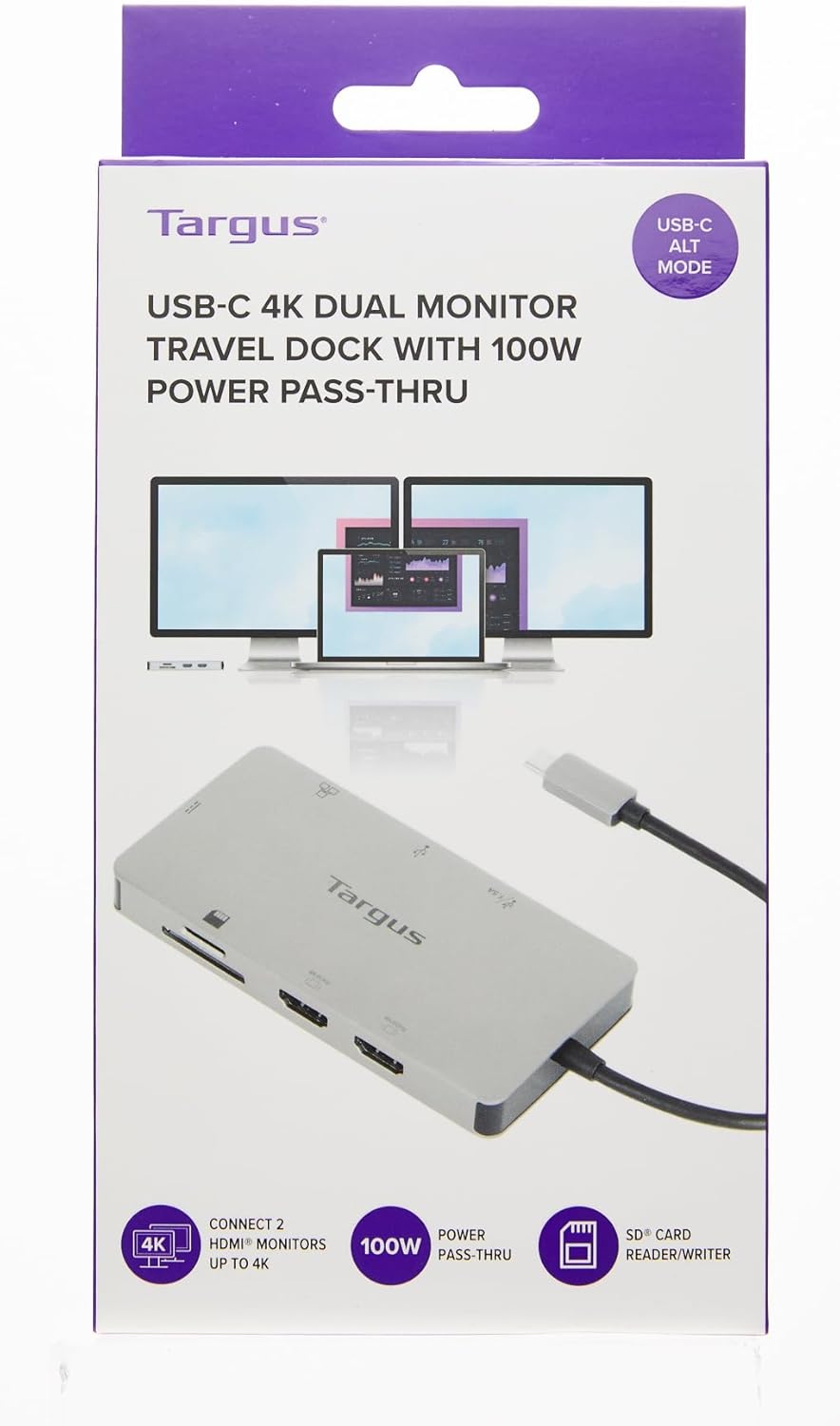
Image: Front view of the product packaging, indicating key features like 4K dual monitor support and 100W power pass-through.
System Requirements
- Host device with a USB-C port supporting DisplayPort Alternate Mode (DP Alt Mode)
- Compatible with Thunderbolt 3 enabled devices
- Operating Systems:
- Windows®
- macOS®
- iPadOS®
- Chrome OS™
- Android™
- Linux
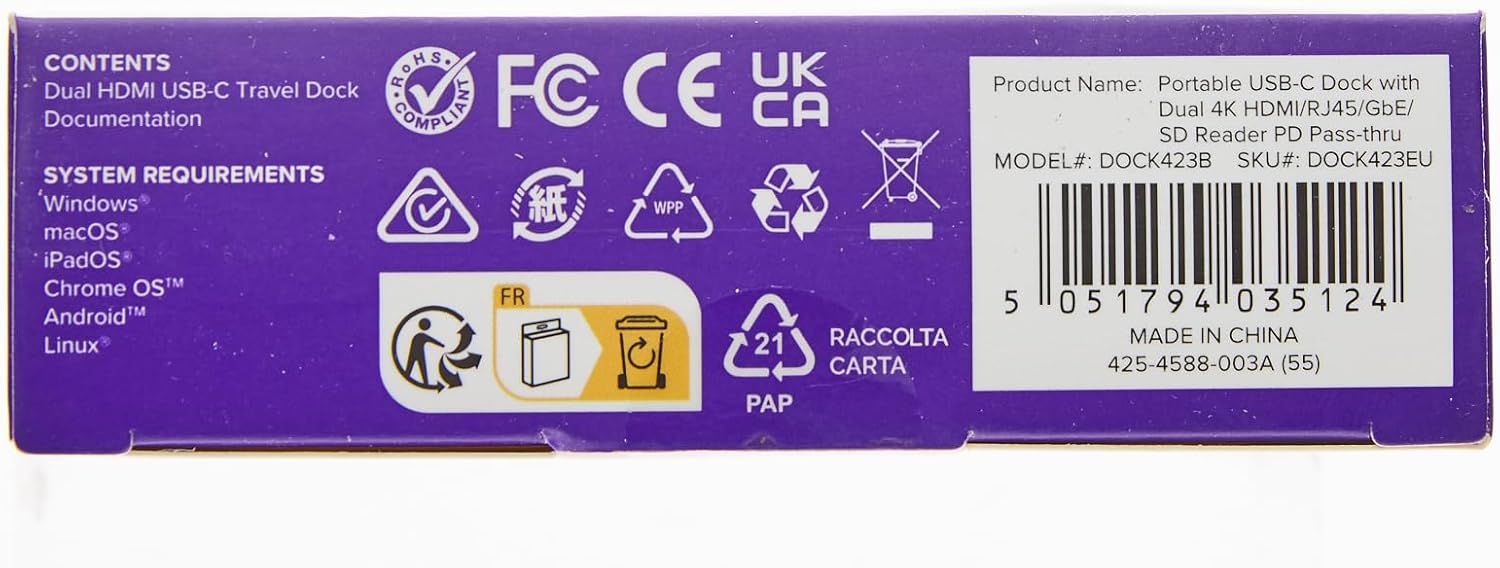
Image: Bottom panel of the product box, detailing system requirements and product identification information.
Setup Instructions
Connect to Host Device:
Plug the integrated USB-C cable from the travel dock into an available USB-C port on your laptop, tablet, or smartphone. Ensure your device's USB-C port supports DisplayPort Alternate Mode for video output.

Image: Close-up of the integrated USB-C connector, which connects the dock to your host device.
Connect External Displays:
Connect your HDMI monitors to the two HDMI ports on the travel dock using standard HDMI cables. The dock supports dual 4K resolution at 60Hz.
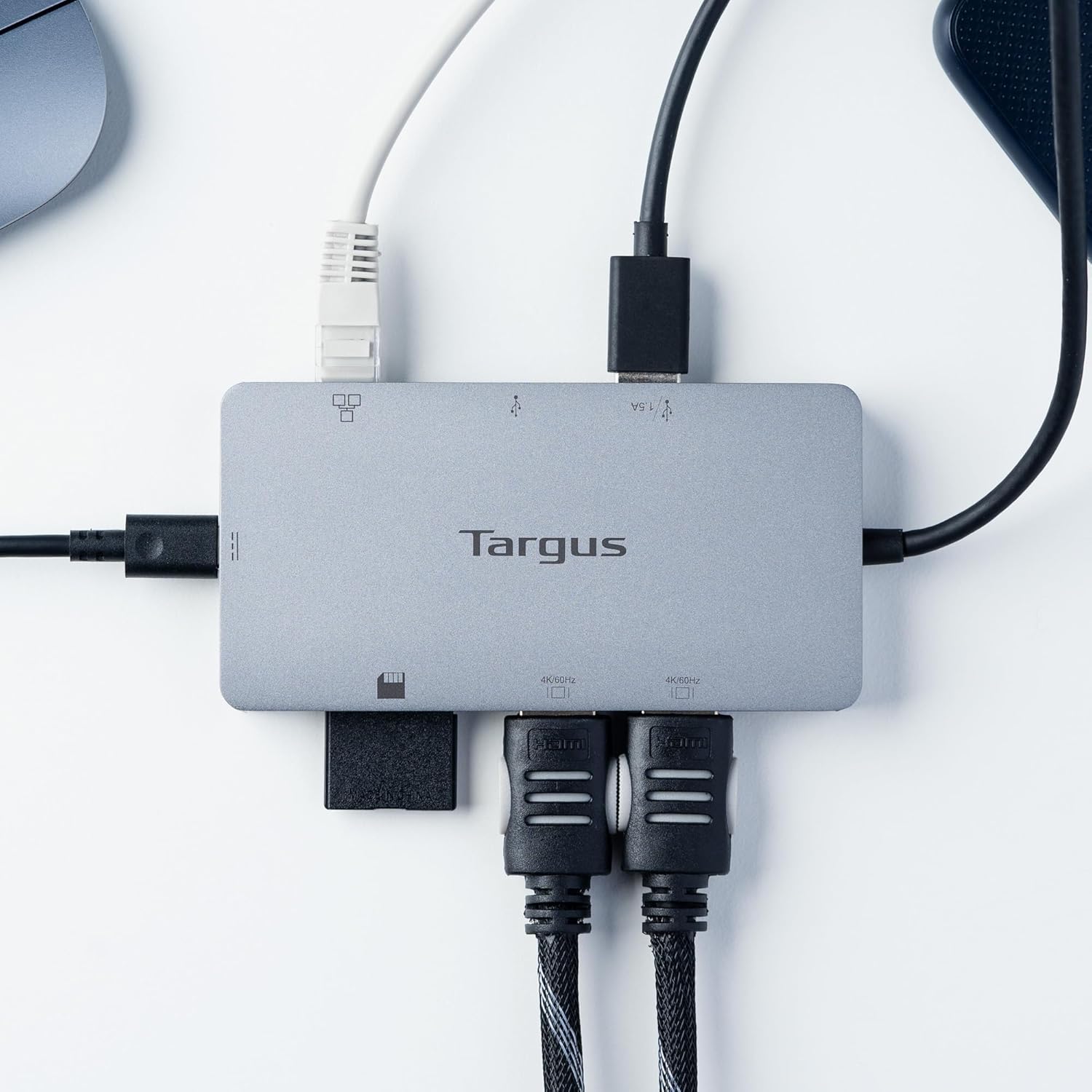
Image: The docking station with two HDMI cables connected, illustrating dual display setup.
Connect USB Peripherals:
Utilize the two USB 3.2 Gen 1 Type-A ports to connect your USB devices such as keyboards, mice, external hard drives, or USB flash drives. One Type-A port supports BC 1.2 at 1.5A for fast charging.

Image: Side view of the dock highlighting the USB-A ports and the Gigabit Ethernet port.
Connect to Network (Optional):
For a stable wired internet connection, connect an Ethernet cable from your router or modem to the Gigabit Ethernet port on the dock.
Insert SD/Micro SD Cards (Optional):
Insert your SD or Micro SD memory cards into the corresponding slots for data transfer. The dock supports Secure Digital v3.0 UHS-I.
Power Pass-Through (Optional):
If your host device requires charging, connect your USB-C Power Delivery (PD) charger (not included) to the USB-C PD port on the dock. The dock supports up to 100W power pass-through to charge your host device.
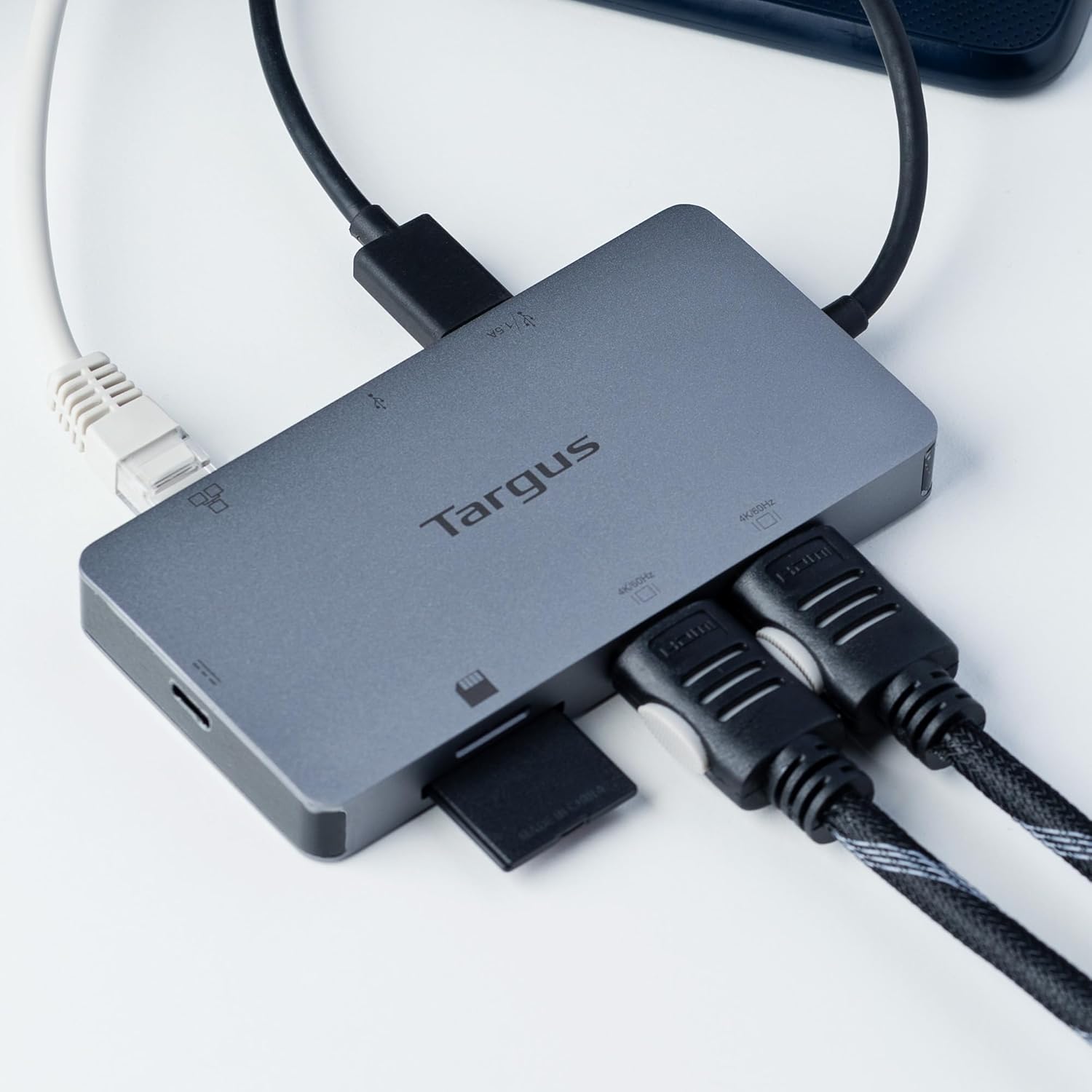
Image: The docking station with all ports in use, demonstrating a complete workstation setup.
Operating Instructions
Once connected, the Targus USB-C Dual HDMI 4K Travel Dock operates automatically. Your operating system should detect the connected displays and peripherals without requiring additional drivers for most functions. For optimal performance, ensure your host device's drivers are up to date.
- Display Configuration: Access your operating system's display settings to configure display modes (extended, mirrored) and resolutions for your external monitors. The dock supports up to dual 4K (3840x2160) at 60Hz.
- Data Transfer: Files can be transferred to and from connected USB storage devices and SD/Micro SD cards at speeds up to 5Gbps.
- Charging: The USB-C PD port will pass through power from your connected USB-C charger to your host device. The USB Type-A port with BC 1.2 support can charge compatible devices at 1.5A.
Maintenance
To ensure the longevity and optimal performance of your Targus USB-C Dual HDMI 4K Travel Dock, follow these maintenance guidelines:
- Cleaning: Use a soft, dry, lint-free cloth to clean the surface of the dock. Avoid using liquid cleaners, aerosols, or solvents.
- Storage: When not in use, store the dock in a cool, dry place away from direct sunlight and extreme temperatures.
- Handling: Avoid dropping the dock or subjecting it to strong impacts. Do not attempt to disassemble the device.
Troubleshooting
| Problem | Possible Cause | Solution |
|---|---|---|
| No display on external monitor(s) |
|
|
| USB peripherals not recognized |
|
|
| Slow data transfer speeds |
|
|
| Host device not charging |
|
|
Specifications
| Feature | Detail |
|---|---|
| Model Number | DOCK423B |
| UPC | 5051794035124 |
| Host Connection | Integrated USB-C cable (supports DP Alt Mode, Thunderbolt 3 compatible) |
| Video Ports | 2 x HDMI 4K |
| Max Resolution | Dual 4K (3840x2160) @ 60Hz |
| USB Data Ports | 2 x USB 3.2 Gen 1 Type-A (1 port supports BC 1.2 at 1.5A) |
| Ethernet Port | 1 x Gigabit Ethernet (RJ45) |
| Card Reader | 1 x SD Card Slot, 1 x Micro SD Card Slot (supports Secure Digital v3.0 UHS-I) |
| Power Delivery | USB-C PD Pass-Through up to 100W (requires compatible USB-C PD charger) |
| Operating Systems | Windows, macOS, iPadOS, Chrome OS, Android, Linux |
| Dimensions | (Dimensions not provided in input, omit or state N/A) |
| Weight | (Weight not provided in input, omit or state N/A) |
Warranty and Support
Targus provides a limited warranty for this product. The standard warranty period is 2 years. For customers in Portugal and Spain, a 3-year limited warranty applies, or as required by local laws.
For complete warranty details and a comprehensive list of Targus worldwide offices, please visit the official Targus website:
For technical support or further assistance, please visit the Targus support page or contact their customer service.
Related documentsDOCK423B


Ask a question about this manual
Ask about setup, troubleshooting, compatibility, parts, safety, or missing instructions. Manuals+ will review the question and use this page’s manual context to help answer it.