
1. Introduction
This manual provides essential instructions for the safe and efficient use of your Xiaomi Poco F3 smartphone. It covers device setup, basic operations, maintenance guidelines, and troubleshooting tips. Please read this manual thoroughly before using your device to ensure optimal performance and longevity.
2. Package Contents
Upon unboxing your Xiaomi Poco F3, please verify that all the following items are included:
- Xiaomi Poco F3 Smartphone
- Power Adapter
- USB Type-C Cable
- SIM Eject Tool
- Protective Case (availability may vary by region)
- Quick Start Guide
- Warranty Card
3. Device Layout and Components
Familiarize yourself with the physical components of your Xiaomi Poco F3.

Figure 3.1: Angled view of the Poco F3, highlighting the display and rear camera setup.
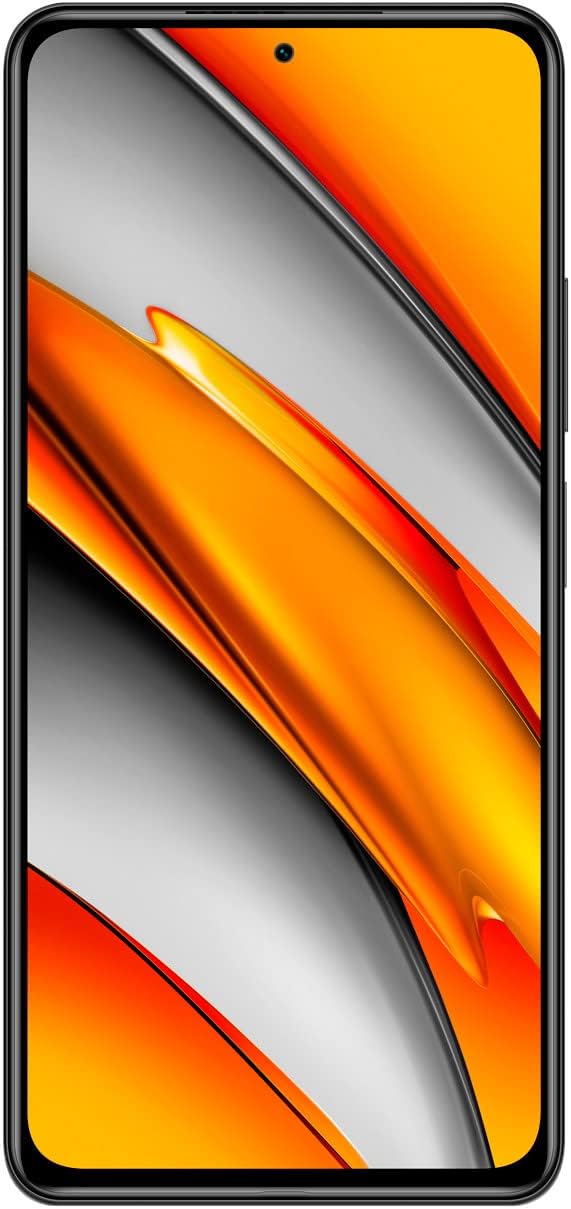
Figure 3.2: Front view of the Poco F3, showing the full display and front camera.

Figure 3.3: Rear view of the Poco F3, detailing the triple camera system and branding.

Figure 3.4: Right side view of the Poco F3, illustrating the power button and volume controls.

Figure 3.5: Bottom edge view of the Poco F3, displaying the SIM tray, USB-C port, and speaker.

Figure 3.6: Top edge view of the Poco F3, showing the secondary speaker, microphone, and IR blaster.
Key Components:
- Display: Large AMOLED screen for vibrant visuals.
- Front Camera: Located at the top center of the display for selfies and video calls.
- Rear Camera Module: Houses the triple camera setup and LED flash.
- Power Button/Fingerprint Sensor: On the right side, used for power control and biometric authentication.
- Volume Rocker: Located above the power button, for adjusting audio levels.
- SIM Card Tray: On the bottom edge, for inserting Nano-SIM cards.
- USB Type-C Port: On the bottom edge, for charging and data transfer.
- Loudspeakers: Stereo speakers located on the top and bottom edges for enhanced audio.
- Microphones: Primary microphone on the bottom, secondary microphone on the top for noise cancellation.
- IR Blaster: On the top edge, for controlling compatible home appliances.
4. Setup
4.1. Inserting the SIM Card
- Locate the SIM card tray on the bottom edge of your device.
- Insert the provided SIM eject tool into the small hole on the SIM tray. Press firmly until the tray pops out.
- Place your Nano-SIM card(s) into the tray with the gold contacts facing down. Ensure proper orientation as indicated on the tray.
- Carefully push the SIM tray back into the slot until it is flush with the device.
4.2. Powering On Your Device
Press and hold the Power Button (located on the right side) for a few seconds until the Xiaomi logo appears on the screen.
4.3. Initial Configuration
Upon first startup, follow the on-screen instructions to set up your device. This typically includes:
- Selecting your language and region.
- Connecting to a Wi-Fi network.
- Signing in with your Google account.
- Setting up screen lock (PIN, pattern, password, or fingerprint).
- Reviewing and accepting terms and conditions.
5. Operating Your Device
5.1. Power On, Off, and Restart
- Power On: Press and hold the Power Button until the device vibrates and the logo appears.
- Power Off: Press and hold the Power Button until the power menu appears, then tap 'Power off'.
- Restart: Press and hold the Power Button until the power menu appears, then tap 'Restart'.
5.2. Screen Navigation
Your Poco F3 features a touch-sensitive display. Use the following gestures for navigation:
- Tap: Select an item or open an app.
- Swipe: Scroll through screens or lists.
- Pinch: Zoom in or out on photos and web pages.
- Long Press: Access contextual menus or move icons.
5.3. Connectivity
Manage your device's network connections:
- Wi-Fi: Go to Settings > Wi-Fi to connect to available wireless networks.
- Bluetooth: Go to Settings > Bluetooth to pair with Bluetooth devices like headphones or speakers.
- Mobile Data/5G: Go to Settings > SIM cards & mobile networks to enable or disable mobile data and manage 5G connectivity.
5.4. Camera Basics
To use the camera:
- Open the Camera app from your home screen or app drawer.
- Tap the shutter button to take a photo.
- Swipe left or right to switch between different camera modes (e.g., Photo, Portrait, Video).
- Tap the camera switch icon to toggle between front and rear cameras.
5.5. Fingerprint Unlock
To set up fingerprint unlock:
- Go to Settings > Passwords & security > Fingerprint unlock.
- Follow the on-screen instructions to register your fingerprint(s).
- Once registered, you can unlock your device by placing your finger on the power button.
6. Maintenance
6.1. Cleaning Your Device
To maintain the appearance and functionality of your Poco F3:
- Use a soft, lint-free cloth to gently wipe the screen and body.
- Avoid using harsh chemicals, abrasive materials, or aerosol sprays.
- Keep ports free of dust and debris.
6.2. Software Updates
Regularly check for and install software updates to ensure your device has the latest features, security patches, and performance improvements.
- Go to Settings > About phone > MIUI version.
- Tap 'Check for updates' and follow the prompts if an update is available.
6.3. Battery Care
To prolong battery life:
- Use only the original charger and cable provided with your device.
- Avoid exposing the device to extreme temperatures (hot or cold).
- Optimize battery settings in Settings > Battery & performance.
- Avoid completely draining the battery frequently.
7. Troubleshooting
This section addresses common issues you might encounter with your Poco F3.
7.1. Device Not Turning On
- Ensure the battery is charged. Connect the device to its charger for at least 30 minutes.
- Attempt a force restart by pressing and holding the Power Button for approximately 10-15 seconds.
7.2. Network Connectivity Issues
- Check if the SIM card is correctly inserted and activated.
- Toggle Airplane Mode on and off from the Quick Settings panel.
- Restart your device.
- Verify your mobile data plan is active and you have coverage.
7.3. Applications Crashing or Freezing
- Clear the cache and data of the problematic app via Settings > Apps > Manage apps.
- Ensure the app is updated to its latest version from the Google Play Store.
- If the issue persists, try uninstalling and reinstalling the app.
7.4. Slow Performance
- Close unnecessary background applications.
- Clear cached data regularly via Settings > About phone > Storage.
- Ensure your device has sufficient free storage space.
- As a last resort, consider a factory reset (back up your data first). Go to Settings > About phone > Factory reset.
8. Specifications
Below are the key technical specifications for the Xiaomi Poco F3 (Model: M2012K11AG):
| Feature | Specification |
|---|---|
| Model Name | Poco F3 |
| Item Model Number | M2012K11AG |
| Operating System | MIUI 12 |
| RAM | 8 GB |
| Memory Storage Capacity | 256 GB (Internal) |
| Screen Size | 6.67 Inches |
| Display Technology | AMOLED |
| Resolution | 1080 x 2400 pixels |
| Refresh Rate | 120 Hz |
| Battery Capacity | 4520 Milliamp Hours (typ) |
| Product Dimensions | 6.44 x 3.01 x 0.31 inches |
| Item Weight | 6.9 ounces (196 Grams) |
| Connectivity Technologies | Wi-Fi, 5G, Bluetooth, GPS |
| Color | Night Black |
| Manufacturer | Xiaomi |
9. Warranty and Support
Your Xiaomi Poco F3 is covered by a limited warranty. Please refer to the warranty card included in your package for detailed terms and conditions, including warranty period and coverage.
For technical support, service, or further assistance, please visit the official Xiaomi support website or contact their customer service. Contact information can typically be found on the Xiaomi official website or in your Quick Start Guide.


