
1. Introduction
This manual provides essential information for the installation, operation, maintenance, and troubleshooting of your Kingston NV1 2TB M.2 2280 NVMe PCIe Internal Solid State Drive (SSD). The Kingston NV1 is designed to offer a substantial storage solution with enhanced performance for various computing needs.
The NV1 SSD delivers read/write speeds significantly faster than traditional SATA-based SSDs and hard drives, making it ideal for improving system responsiveness, application loading times, and data transfer rates. Its compact M.2 2280 form factor ensures compatibility with thin notebooks and systems with limited internal space.
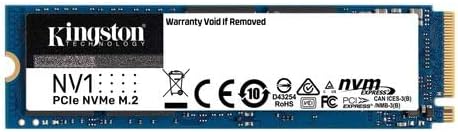
Image 1: The Kingston NV1 M.2 2280 NVMe PCIe Internal SSD module. This image displays the compact form factor of the SSD, highlighting its M.2 connector and the Kingston branding.
2. Installation Guide
Proper installation is crucial for the optimal performance and longevity of your Kingston NV1 SSD. Please follow these steps carefully.
2.1. Pre-Installation Checklist
- Compatibility: Ensure your motherboard or laptop has an available M.2 slot that supports NVMe PCIe SSDs. Refer to your system's manual for details.
- Tools: You will typically need a Phillips head screwdriver. Some systems may require a small M.2 screw.
- Safety: Power off your computer completely and disconnect it from the power source. Discharge any static electricity by touching a grounded metal object before handling components.
2.2. Physical Installation Steps
- Open your computer: Carefully open your desktop PC case or laptop chassis to access the motherboard.
- Locate the M.2 slot: Identify the M.2 slot on your motherboard. It is usually labeled and may have a small screw stand-off nearby.
- Insert the SSD: Gently slide the Kingston NV1 SSD into the M.2 slot at a slight angle (approximately 30 degrees). The gold contacts on the SSD should align with the slot.
- Secure the SSD: Once fully inserted, push the SSD down until it is parallel with the motherboard. Secure it with the M.2 screw. Do not overtighten.
- Close your computer: Reassemble your computer's case or chassis.

Image 2: A hand carefully installing the Kingston NV1 M.2 SSD into an open laptop. This illustrates the physical process of inserting the SSD into its designated slot on the motherboard.
2.3. Post-Installation Configuration
- Power On: Reconnect your computer to power and turn it on.
- BIOS/UEFI Check: Access your system's BIOS/UEFI settings (usually by pressing Del, F2, F10, or F12 during startup) to confirm the SSD is recognized. Ensure the M.2 slot is enabled if necessary.
- Initialize and Format: For a new SSD, you will need to initialize and format it within your operating system before it can be used for storage.
- Windows: Open Disk Management (right-click Start button > Disk Management). Locate the new SSD, right-click it, and select "Initialize Disk." Choose GPT partition style, then create a New Simple Volume and format it (NTFS recommended).
- macOS: Open Disk Utility. Select the new SSD, click "Erase," choose a name, format (APFS or Mac OS Extended), and scheme (GUID Partition Map).
- Linux: Use tools like GParted or
fdisk/mkfsto partition and format the drive.
3. Usage and Performance
The Kingston NV1 NVMe PCIe SSD significantly enhances your computer's performance by leveraging the PCIe interface for high-speed data transfer.
- Faster Boot Times: Experience quicker operating system startup.
- Rapid Application Loading: Applications and games will launch and load data much faster.
- Efficient Data Transfer: Move large files with superior speed compared to traditional hard drives.
- Improved Responsiveness: Overall system responsiveness is enhanced, leading to a smoother user experience.

Image 3: A user engaged with a computer, illustrating the benefit of quicker loading times provided by the NV1 SSD for various tasks.
The NV1 is suitable for a wide range of uses, from general computing and office tasks to more demanding applications like video editing and gaming, thanks to its high read/write speeds and ample storage capacity.

Image 4: A person editing video on a computer, demonstrating how the NV1 SSD's multiple capacities support demanding creative workflows and extensive data storage.
4. Maintenance and Best Practices
Solid State Drives require different maintenance practices than traditional Hard Disk Drives (HDDs). Follow these guidelines to ensure optimal performance and longevity of your Kingston NV1 SSD.
- TRIM Command: Ensure your operating system's TRIM command is enabled. Modern operating systems (Windows 7+, macOS, Linux) typically enable TRIM by default, which helps maintain SSD performance over time by efficiently managing deleted data blocks.
- Firmware Updates: Periodically check Kingston's official website for any available firmware updates for your NV1 SSD. Firmware updates can improve performance, stability, and compatibility.
- Avoid Defragmentation: Unlike HDDs, SSDs do not benefit from defragmentation. In fact, defragmenting an SSD can reduce its lifespan by causing unnecessary write cycles. Ensure your operating system's defragmentation utility is set to skip SSDs.
- Leave Some Free Space: It is recommended to leave a small percentage of the SSD's capacity (e.g., 10-15%) free. This allows the SSD's wear-leveling algorithms to function optimally and maintain performance.
- Ensure Proper Cooling: While SSDs generate less heat than HDDs, ensuring good airflow within your computer case or laptop can help maintain optimal operating temperatures, especially under heavy loads.
- Regular Backups: As with any storage device, regularly back up your important data to prevent loss in case of unforeseen issues.
5. Troubleshooting
If you encounter issues with your Kingston NV1 SSD, refer to the following common problems and solutions.
5.1. SSD Not Detected by System
- Check Physical Connection: Ensure the SSD is correctly seated in the M.2 slot and the retaining screw is in place.
- BIOS/UEFI Settings: Verify that the M.2 slot is enabled in your system's BIOS/UEFI settings. Some motherboards may require specific settings for NVMe drives.
- Driver Installation: Ensure your operating system has the necessary NVMe drivers. Windows 10/11 typically includes them, but older OS versions or specific motherboards might require manual installation.
- Initialize Disk: If it's a new SSD, ensure it has been initialized and formatted in Disk Management (Windows) or Disk Utility (macOS/Linux). Refer to Section 2.3.
- Test in Another System: If possible, test the SSD in another compatible system to rule out a motherboard issue.
5.2. Slow Performance
- TRIM Status: Confirm that the TRIM command is enabled in your operating system.
- Firmware: Check for and install any available firmware updates from Kingston.
- Free Space: Ensure there is adequate free space on the drive (at least 10-15%).
- Temperature: Monitor the SSD's temperature. Excessive heat can lead to thermal throttling and reduced performance. Ensure proper cooling.
- PCIe Lane Configuration: Verify that the M.2 slot is operating at its full PCIe lane capacity (e.g., PCIe Gen3 x4). Check your motherboard manual.
6. Product Specifications
Below are the technical specifications for the Kingston NV1 2TB M.2 2280 NVMe PCIe Internal SSD (Model SNVS/2000G).
| Feature | Specification |
|---|---|
| Brand | Kingston |
| Model Number | SNVS/2000G |
| Digital Storage Capacity | 2 TB |
| Hard Drive Interface | NVMe |
| Connectivity Technology | SATA (Note: NVMe uses PCIe lanes, but some M.2 slots can be SATA or NVMe. This product is NVMe.) |
| Hard Disk Form Factor | M.2 2280 |
| Read Speed (Max) | Up to 2,100 MB/s |
| Write Speed (Max) | Up to 1,700 MB/s |
| Hardware Platform | PC, Laptop |
| Item Weight | 0.247 ounces (approx. 7 grams) |
| Product Dimensions (LxWxH) | 3.15 x 0.87 x 0.14 inches (80 x 22 x 3.5 mm) |
| Manufacturer | Kingston Technology, Inc |
| Date First Available | March 29, 2021 |
7. Warranty and Support
Kingston Technology stands behind its products. For specific warranty terms and conditions applicable to your Kingston NV1 SSD, please refer to the official Kingston website or the documentation included with your purchase.
For technical assistance, product registration, or to access additional resources, please visit the official Kingston support portal. You may also find further details in the comprehensive User Guide (PDF) provided by Kingston.
Important: Attempting to remove the "Warranty Void If Removed" sticker or tampering with the drive may void your warranty. Always consult Kingston support for advanced troubleshooting or repair needs.


