
1. Introduction
The SKYSHL SS322T-3B1 is a versatile Optical Time Domain Reflectometer (OTDR) designed for comprehensive fiber optic network testing. This device integrates multiple essential functions including OTDR, Optical Power Meter (OPM), Optical Light Source (OLS), and Visual Fault Locator (VFL) into a single handheld unit. It features a 7-inch touch screen for intuitive operation and supports an APP module for connectivity with Android devices and Windows software for data analysis.
Optimized for Passive Optical Network (PON) applications, the SS322T-3B1 offers 1310nm, 1550nm, and 1625nm wavelengths with dynamic ranges of 40dB, 38dB, and 38dB respectively, allowing for a maximum test distance of up to 180km (112 miles). Its PON test mode automatically identifies PON network devices such as splitters, fusion splices, and connectors. The device boasts extremely short event dead zones (1.5m typical for SM) and attenuation dead zones (8.0m typical for SM), enabling the detection and measurement of closely spaced faults.
The SS322T-3B1 supports automatic testing, scheduled testing, and event mapping, simplifying operation for both experienced and new technicians. It is compatible with various connector types including SC, ST, FC, and LC, for both UPC and APC polishing types.

Figure 1: Front view of the SKYSHL SS322T-3B1 PON OTDR Tester, showing its 7-inch touch screen interface.
2. Setup
2.1 Powering On
Press and hold the power button located on the device to turn it on. The device will display an 'Initializing... please wait' message before loading the main user interface.
2.2 Connecting Test Fiber
Before connecting any fiber, ensure the interface type (UPC/APC) is confirmed. For standard connectors like SC, ST, or LC, use the appropriate FC-SC/ST/LC adapter if necessary. Connect the test fiber to the designated OTDR port on the device.
Video 1: Demonstrates how to connect the test fiber to the SKYSHL SS322T OTDR for fiber testing.
2.3 Initial Device Configuration
From the main menu, navigate to the 'System' icon to access general settings. Here you can set the language (English, French, German, Spanish, Italian, Portuguese), adjust screen brightness, and configure power management settings. Ensure the date and time are correctly set for accurate report generation.
Video 2: Provides an introduction to the SKYSHL SS322T OTDR user interface, including general settings and navigation.
2.4 Network Settings (Wi-Fi)
To connect the OTDR to a Wi-Fi network for app control or data transfer, go to 'System' -> 'Network Settings'. Turn on Wi-Fi, scan for available hotspots, select your network, and enter the password. If the IP address shows 0.0.0.0, click 'Break' and then 'Con.' to reconnect.
Video 3: Guide on how to connect the SKYSHL SS322T OTDR to Wi-Fi for remote control and data transfer.
3. Operating the Device
3.1 OTDR Testing
From the main menu, select the 'OTDR' icon. You can choose between 'Average' or 'Real-Time' test modes. For detailed parameter settings, click 'Setup' then 'Mea.Par.' to configure Wave, Mode, Time, Pulse, and Range. Press 'Enter' to save settings.
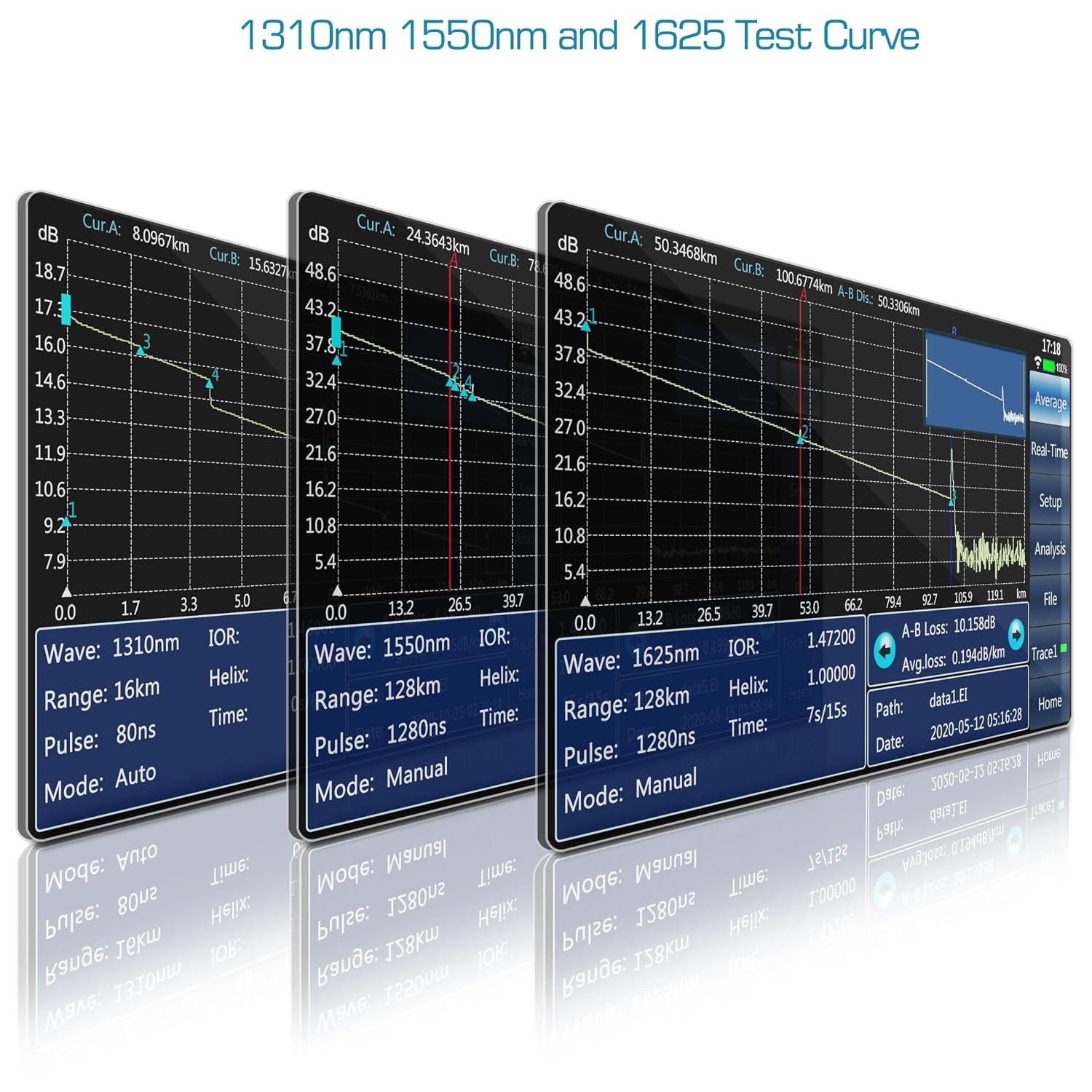
Figure 2: Display of OTDR test curves for different wavelengths (1310nm, 1550nm, 1625nm), showing distance, loss, and other parameters.
3.1.1 Real-Time Test
Select 'Real-Time' to continuously monitor the fiber link. This is useful for observing dynamic changes or making quick checks.
Video 4: Introduction to the real-time testing function of the SKYSHL SS322T OTDR.
3.1.2 Cursor Operation
During analysis, use the A/B button to switch between cursors and the arrow keys to move them. This allows for precise measurement of events and sections on the trace.
Video 5: Guide on how to operate the cursors on the SKYSHL SS322T OTDR for detailed analysis.
3.1.3 Event Map/Graphics Analysis Mode
The Event Map provides a simplified graphical representation of events on the fiber, making it easier to identify splices, connectors, and faults. This mode maximizes testing simplicity and helps locate network components and faults.

Figure 3: The Event Map/Graphics Analysis Mode displaying various events and their locations on the fiber optic link.
3.2 OPM, OLS, and VFL Functions
The SS322T-3B1 integrates Optical Power Meter (OPM), Optical Light Source (OLS), and Visual Fault Locator (VFL) functions. Select the respective icons from the main menu to access and operate these tools for comprehensive fiber testing.

Figure 4: Visual representation of the integrated OTDR, OPM, OLS, and VFL functions within the device.
3.3 File Management
The device allows for saving test traces, generating PDF reports, and copying files between internal memory, SD card, and USB flash disk. Supported formats include EI and SOR.
3.3.1 Generating PDF Reports
After completing a test, navigate to 'File' -> 'Print' -> 'PDF' to generate a PDF test report. You can choose to set the current date as the file name.
Video 6: Instructions on how to directly create PDF test reports from the SKYSHL SS322T OTDR.
3.3.2 Copying Files
To copy test files (SOR, PDF, JPG) between memory, SD card, and U-disk, go to 'File' -> 'Transfer'. Select the source and target locations, choose the file type, and then select the files to copy.
Video 7: Demonstrates how to copy test files between memory, SD card, and U-disk on the SKYSHL SS322T OTDR.
3.3.3 Deleting Files
To delete files, navigate to 'File' -> 'Delete'. Select the storage location (Memory, SD, U-disk) and the file type (SOR, PDF, JPG), then choose the files or folders to delete.
Video 8: Shows the process of deleting files on the SKYSHL SS322T OTDR.
3.4 Smart APP Module (Android Only)
The SS322T can be connected to Android phones/tablets via Wi-Fi for remote control and real-time viewing, sharing, analysis, and saving of test data. After connecting the OTDR to Wi-Fi, open the OTDR app on your Android device, input the IP address and port (8010), and connect. You can then set parameters and initiate testing from the app.
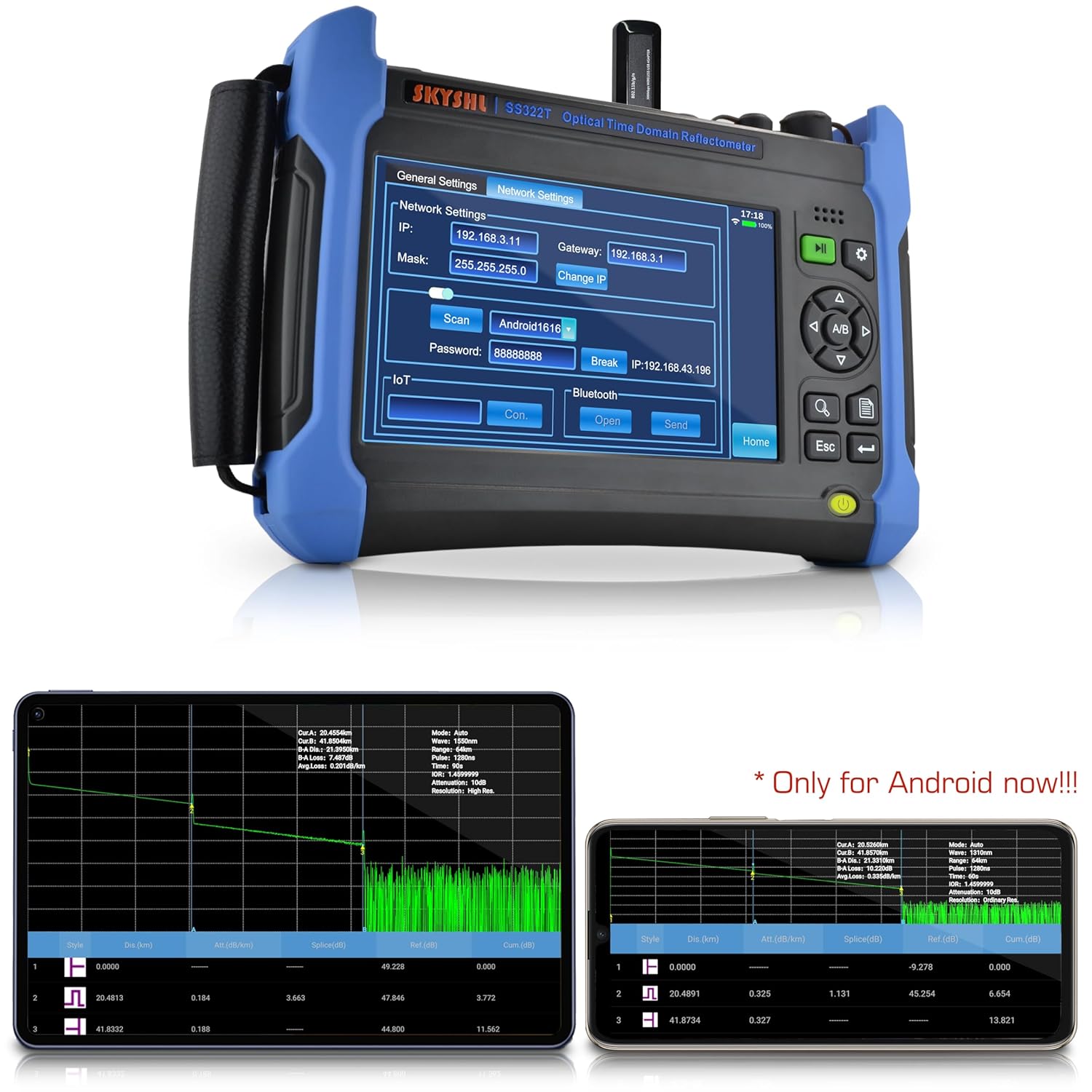
Figure 5: The SKYSHL SS322T OTDR displaying network settings, with an Android tablet showing the connected OTDR app interface.
4. Maintenance
4.1 General Care
Keep the device clean and free from dust and moisture. Regularly clean the optical connectors with appropriate fiber optic cleaning tools to ensure accurate measurements and prevent damage. Store the device in its protective carrying case when not in use.
4.2 Battery Management
The SS322T-3B1 is powered by an 11.1V 6800mAh lithium battery, providing up to 15 hours of continuous operation. Ensure the device is fully charged before extended use. Avoid completely draining the battery to prolong its lifespan.

Figure 6: Visual representation of the device's battery capacity and continuous working time.
5. Troubleshooting
This section addresses common issues you might encounter with the SKYSHL SS322T-3B1 OTDR Tester.
5.1 Inaccurate or Unstable Readings
- Check Fiber Connections: Ensure all fiber optic connectors are clean and properly seated. Dirty or loose connectors are a common cause of signal loss and inaccurate readings.
- Verify Test Parameters: Confirm that the selected wavelength, pulse width, and range settings are appropriate for the fiber length and type being tested. Incorrect parameters can lead to distorted traces or missed events.
- Inspect Launch Cable: If using a launch cable, ensure it is in good condition and properly connected. A damaged launch cable can introduce errors.
5.2 Device Not Powering On
- Check Battery Charge: Ensure the device battery is sufficiently charged. Connect the device to the AC adapter and allow it to charge for a period before attempting to power on again.
- Power Button Functionality: Confirm the power button is being pressed correctly and held for the required duration.
5.3 Wi-Fi Connection Issues
- Verify Hotspot Settings: Ensure the mobile hotspot on your Android device is active and correctly configured with the device name and password.
- Check IP Address: If the OTDR displays an IP address of 0.0.0.0, try clicking 'Break' and then 'Con.' in the network settings to re-establish the connection.
- App Compatibility: Remember that the Smart APP Module is currently only supported on Android devices.
5.4 Software Functionality (General)
While the device is designed for robust performance, occasional software anomalies may occur. Ensure the device firmware is up to date. If persistent software issues are encountered, contact SKYSHL technical support for assistance.
6. Specifications
| Feature | Specification |
|---|---|
| Model | SS322T-3B1 |
| Wavelengths | 1310nm, 1550nm, 1625nm |
| Dynamic Range | 40dB (1310nm), 38dB (1550nm), 38dB (1625nm) |
| Max Test Distance | Up to 180km / 112 miles |
| Event Dead Zone (EDZ) | 1.5m (typical for SM) |
| Attenuation Dead Zone (ADZ) | 8.0m (typical for SM) |
| Integrated Functions | OTDR, OPM, OLS, VFL, Event Map, APP Module |
| Display | 7-inch Touch Screen |
| Compatible Connectors | SC, ST, FC, LC (UPC & APC) |
| Power Source | Battery-powered (11.1V 6800mAh Lithium Battery), AC/DC (100-240V) |
| Item Weight | 7.9 Pounds |
| Item Dimensions | 9.83 x 7.08 x 2.16 inches |
| Supported Languages | English, French, German, Spanish, Italian, Portuguese |
| Certification | CE |
7. Warranty and Support
SKYSHL is committed to providing high-quality products and excellent customer service. We have over 10 years of experience in manufacturing optical fiber inspection equipment and adhere strictly to ISO9001 for production management.
7.1 Warranty Information
The SS322T-3B1 comes with a comprehensive warranty:
- 3-Year Free Replacement: For any product issues within three years of purchase.
- 5-Year Free Repair: For repairs needed within five years of purchase.
- Lifetime Limited Repair: Ongoing repair services for the product's lifespan.
7.2 Technical Support
Our professional team provides 24-hour technical support. Should you encounter any problems or require assistance, please do not hesitate to contact us. We are dedicated to being the strongest backing for our customers.

