
1. Introduction
This manual provides detailed instructions for the installation, setup, and operation of your LoraTap 5th Generation Smart Roller Shutter Switch. Please read this manual thoroughly before installation and use to ensure proper function and safety.
2. Safety Information
- Electrical Safety: Installation must be performed by a qualified electrician or a person with a thorough understanding of electrical systems. Always turn off power at the circuit breaker before installation or maintenance.
- Neutral Wire Required: This device requires a neutral wire for operation. Ensure your electrical box has a neutral wire available before attempting installation.
- Operating Voltage: The switch is designed for 240V AC systems. Do not connect to other voltage systems.
- Maximum Load: Do not exceed the maximum load of 2400W (10A) for connected devices.
- Indoor Use Only: This product is intended for indoor use in dry environments. Avoid exposure to moisture or extreme temperatures.
3. Product Overview
The LoraTap 5th Gen Smart Roller Shutter Switch offers advanced control over your roller blinds, curtains, or awnings. It is compatible with electronic or motorized actuators. Key features include:
- Percentage Control: Open or close blinds to a specific percentage (0-100%) via the Smart Life app or voice commands.
- Voice Control: Compatible with Amazon Alexa and Google Home for hands-free operation.
- Timer Function: Schedule automatic opening and closing times through the Smart Life app.
- Remote Control: Control your blinds from anywhere using the Smart Life/Tuya app on your smartphone.
- Group Control & Sharing: Control multiple switches as a group and share device access with family members.

Image: Overview of LoraTap Smart Roller Shutter Switch key features including percentage control, timer, voice control, and app remote control.

Image: The LoraTap Smart Roller Shutter Switch alongside a smartphone displaying the Smart Life app interface, highlighting the percentage control feature for blinds.

Image: Examples of compatible window coverings such as Venetian blinds, roller blinds, and awnings. The image includes a note indicating a typical motor wattage of less than 600W for such applications, while the switch itself supports up to 2400W.
4. Specifications
| Model Number | SC400W-EU-V5T2 |
| Brand | LoraTap |
| Operating Voltage | 240 Volt AC |
| Current Rating | 10 Ampere |
| Wattage | 2400 Watts (Max) |
| Connection Protocol | Wi-Fi |
| Mounting Type | Wall Mount |
| Material | ABS |
| IP Rating | IP20 |
| Compliance | CE Certified |
| Number of Positions | 101 (for 0-100% control) |
| Package Dimensions | 10.5 x 10.3 x 4.4 cm |
| Package Weight | 140 g |

Image: Front, side, and back dimensions of the switch, along with a wiring diagram showing input L, input N, output N, output L1, and output L2. Note: Earth wire connection is not required.
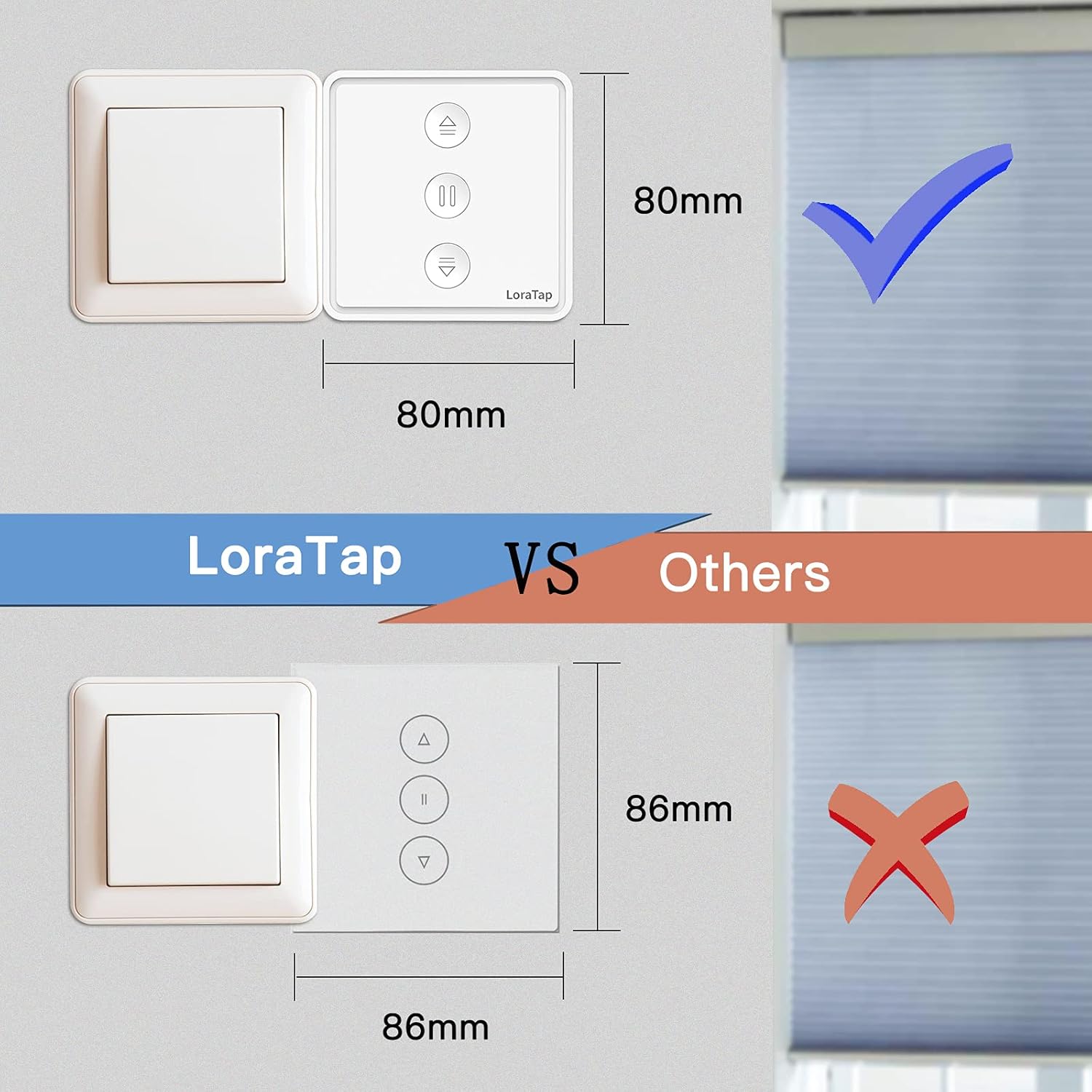
Image: A visual comparison illustrating the compact size of the LoraTap switch (80mm x 80mm) compared to larger standard switches (86mm x 86mm), indicating compatibility with standard wall boxes.
5. Installation
Important: Ensure power is turned off at the main circuit breaker before beginning installation. If you are unsure about electrical wiring, consult a qualified electrician.
- Prepare Wiring: Identify the Live (L), Neutral (N), and motor wires (Up/Down/Common) from your existing roller shutter system. This switch requires a neutral wire.
- Connect Wires: Refer to the wiring diagram below.
- Connect the Live wire from your power supply to the 'Input L' terminal on the switch.
- Connect the Neutral wire from your power supply to the 'Input N' terminal on the switch.
- Connect the motor's Common wire to the 'Output N' terminal on the switch.
- Connect the motor's Up wire to the 'Output L1' terminal on the switch.
- Connect the motor's Down wire to the 'Output L2' terminal on the switch.
- Note: An Earth wire connection is not required for this switch.
- Mount the Switch: Carefully place the wired switch into the wall box and secure it with screws. Attach the faceplate.
- Restore Power: Turn the power back on at the circuit breaker.
Image: Detailed wiring diagram for the LoraTap switch. Ensure correct connection of Input L (Live), Input N (Neutral), Output N (Motor Common), Output L1 (Motor Up), and Output L2 (Motor Down). The diagram explicitly states no need to connect the Earth Wire.
6. Setup
- Download App: Download the "Smart Life" or "Tuya Smart" app from your smartphone's app store (iOS or Android).
- Register/Login: Create an account or log in to your existing account.
- Enter Pairing Mode: After powering on the switch, the LED indicator should blink rapidly. If not, press and hold the central pause button for approximately 5 seconds until it blinks rapidly to enter pairing mode.
- Add Device: In the app, tap the "+" icon to add a device. The app should automatically discover the switch. If not, manually select "Curtain Switch" or "Roller Shutter Switch" from the device list.
- Connect to Wi-Fi: Follow the in-app instructions to connect the switch to your 2.4GHz Wi-Fi network. (5GHz Wi-Fi is not supported).
- Calibration: Once connected, the app will prompt you to calibrate the motor's travel time. This is crucial for accurate percentage control.
- Follow the app's instructions to fully open and fully close your blinds. The switch will record the time taken for each action.
- Accurate calibration ensures precise percentage positioning.
7. Operating Instructions
7.1 Manual Control
The switch has three physical buttons:
- Up Arrow (▲): Press to open the blinds.
- Pause (▮▮): Press to stop the blinds at their current position.
- Down Arrow (▼): Press to close the blinds.
7.2 App Control (Smart Life/Tuya App)
After successful setup, you can control your blinds via the app:
- Open/Close/Pause: Use the dedicated buttons in the app interface.
- Percentage Control: Use the slider in the app to set the blinds to any desired percentage (e.g., 50% open).
- Timer Function:
- In the app, navigate to the switch's control interface.
- Select the "Timer" or "Schedule" option.
- Set desired times for opening or closing the blinds. You can also specify the percentage for scheduled actions.
- Save your schedule.
- Group Control: Create groups of multiple LoraTap switches in the app to control them simultaneously.
- Device Sharing: Share control of the switch with other family members by inviting them through the app.

Image: A smartphone screen displaying the Smart Life app's timer function, allowing users to schedule automatic opening and closing of curtains at specific times, such as 8:00 AM and 10:00 PM.

Image: The LoraTap switch next to an illustration of device sharing, indicating that control of the smart switch can be easily shared with multiple family members via the app.
7.3 Voice Control
Integrate your LoraTap switch with Amazon Alexa or Google Home for voice commands:
- Link Account: In the Alexa or Google Home app, enable the "Smart Life" or "Tuya Smart" skill/action and link your account.
- Discover Devices: Ask your voice assistant to "Discover devices."
- Voice Commands: Use commands such as:
- "Alexa, open [Device Name]"
- "Hey Google, close [Device Name]"
- "Alexa, set [Device Name] to 50 percent"
- "Hey Google, pause [Device Name]"
8. Maintenance
- Cleaning: Wipe the switch surface with a soft, dry cloth. Do not use abrasive cleaners or solvents.
- Regular Checks: Periodically check the physical condition of the switch and wiring for any signs of damage.
- Software Updates: Keep your Smart Life/Tuya app updated to ensure optimal performance and access to new features.
9. Troubleshooting
| Problem | Possible Cause / Solution |
|---|---|
| Switch not responding / No power |
|
| Cannot pair with app |
|
| Inaccurate percentage control |
|
| Voice control not working |
|
10. Warranty and Support
LoraTap provides a 3-year warranty for this product. LoraTap has over 10 years of experience in the research, development, and production of radio and smart switches. All LoraTap products are certified according to European standards.
For technical support or warranty claims, please contact LoraTapuk customer service through your purchase platform or visit the official LoraTap website for contact information.


