
1. Introduction
This manual provides detailed instructions for setting up, operating, and maintaining your BenQ PD2725U Thunderbolt 3 Monitor. Designed for professional use with Mac devices, this 27-inch 4K IPS UHD monitor offers exceptional color accuracy and versatile connectivity to enhance your workflow.
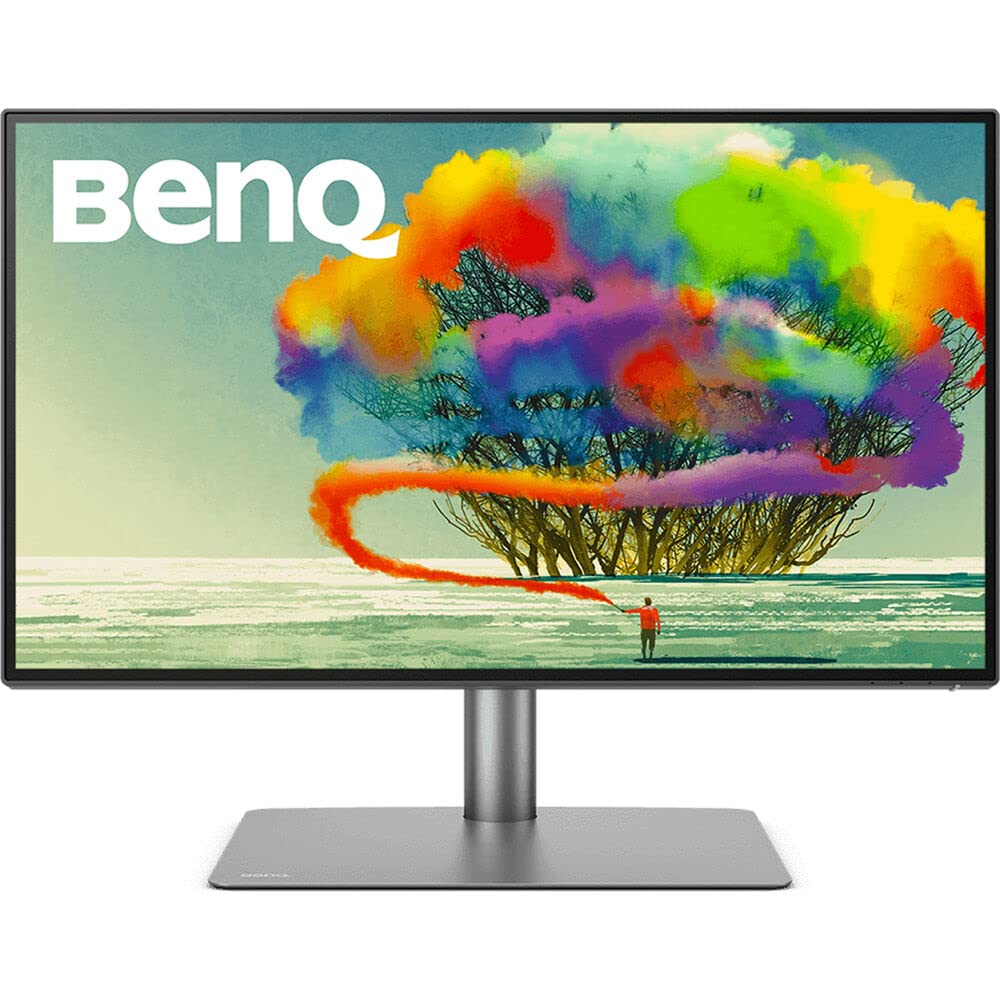
Figure 1: Front view of the BenQ PD2725U monitor.
2. What's in the Box
Verify that all the following items are included in your package:
- BenQ PD2725U Monitor
- Monitor Stand (Base and Arm)
- Power Cable
- HDMI Cable
- DisplayPort Cable
- USB-C to USB-C Cable (Thunderbolt 3 compatible)
- USB-B to USB-A Cable
- Hotkey Puck G2
- Quick Start Guide
- Factory Calibration Report
3. Setup
3.1. Assembling the Monitor Stand
- Place the monitor face down on a soft, clean surface to prevent scratches.
- Attach the stand arm to the back of the monitor by aligning the two prongs on the arm with the slots on the monitor and pushing down until it clicks into place.
- Attach the stand base to the stand arm by aligning the screw on the arm with the hole in the base and tightening the screw.

Figure 2: Rear view of the monitor with the stand attached, highlighting the connectivity ports.
3.2. Connecting the Monitor
The BenQ PD2725U offers various connectivity options. Choose the appropriate cable for your device:
- Thunderbolt 3 (USB-C): Connects your Mac for video, data, and up to 65W power delivery with a single cable. This port also supports daisy-chaining to a second compatible monitor.
- HDMI: Use an HDMI cable to connect to devices supporting HDMI output.
- DisplayPort: Use a DisplayPort cable for DisplayPort compatible devices.
- USB Hub: Connect the USB-B to USB-A cable from your computer to the monitor's upstream USB port to enable the monitor's 3-port USB hub.
- Power: Connect the power cable to the monitor and a power outlet.
Video 1: BenQ PD2725U 4K Monitor for Mac by John Branch IV. This video demonstrates the unboxing and initial setup of the monitor, including connecting cables.
4. Key Features
4.1. Thunderbolt 3 Connectivity
The Thunderbolt 3 port provides a single-cable solution for synchronizing images, videos, and data seamlessly, while also charging your Mac devices with up to 65W power delivery. Its 40 Gb/s bandwidth supports extending your workspace to dual 4K monitors via daisy-chain technology.
4.2. AQCOLOR Technology for Color Accuracy
Experience precise color tuning with AQCOLOR technology, offering 100% sRGB & Rec.709, 95% P3 color space coverage, and a DeltaE≤3 for exceptional color accuracy. The monitor is factory-calibrated and Pantone Validated, ensuring consistent and reliable color performance.
Video 2: Display ColorTalk Color Consistency Software. This video explains how BenQ's software ensures color consistency across devices.
4.3. KVM Switch and Hotkey Puck G2
The built-in KVM switch allows you to control two different computer systems with a single keyboard and mouse connected to the monitor. The Hotkey Puck G2 provides quick access to OSD settings and custom functions, streamlining your workflow.
4.4. Ergonomic Design
The monitor stand offers extensive ergonomic adjustments including height, tilt, swivel, and pivot, allowing you to find the most comfortable viewing position for extended work sessions.

Figure 3: The monitor's ergonomic stand allows for height, tilt, swivel, and pivot adjustments.
5. Operating the Monitor
5.1. Using the Hotkey Puck G2
The Hotkey Puck G2 provides convenient control over the monitor's On-Screen Display (OSD) settings. Use the dial to navigate menus and the customizable buttons for quick access to frequently used functions like input switching or color modes.
5.2. Color Modes and Display Pilot Software
The monitor features specialized color modes such as M-book mode (to match Mac colors), CAD/CAM mode, Animation mode, and Darkroom mode. Utilize the BenQ Display Pilot software for Mac to easily switch between these modes, adjust settings, and ensure color synchronization with your Mac device.
Video 3: BenQ iKeyboard Control adjusts brightness via MacBook. This video demonstrates how to control monitor settings directly from your MacBook.
Video 4: PD Series Palette Master Ultimate Software Calibration. This video explains the advanced calibration software for BenQ PD series monitors.
6. Maintenance
6.1. Cleaning the Monitor
To clean the monitor screen, gently wipe it with a soft, lint-free cloth. For stubborn marks, lightly dampen the cloth with water or a mild, non-abrasive screen cleaner. Avoid using harsh chemicals or abrasive materials.
6.2. General Care
Keep the monitor in a well-ventilated area. Avoid exposing it to direct sunlight, excessive heat, or moisture. Ensure cables are neatly organized to prevent damage and maintain a tidy workspace.
7. Troubleshooting
- No Display/No Signal: Ensure all cables (power, Thunderbolt 3/HDMI/DisplayPort) are securely connected to both the monitor and your computer. Verify the correct input source is selected on the monitor using the OSD or Hotkey Puck.
- Flickering Screen: Check cable connections. Ensure your graphics card drivers are up to date. Try a different cable or port.
- Color Inaccuracy: Run the BenQ Display Pilot software to ensure proper color synchronization with your Mac. Perform a hardware calibration if you have a colorimeter.
- KVM Switch Issues: Ensure both computers are properly connected to the monitor's USB upstream ports and video inputs. Verify the KVM switch settings in the OSD.
8. Specifications
| Feature | Specification |
|---|---|
| Standing screen display size | 27 Inches |
| Screen Resolution | 3840x2160 (4K UHD) |
| Max Screen Resolution | 3840 x 2160 Pixels |
| Number of USB 3.0 Ports | 4 |
| Brand | BenQ |
| Series | PD2725U |
| Item model number | PD2725U |
| Item Weight | 18.3 pounds |
| Product Dimensions | 10.8 x 24.2 x 17.7 inches |
| Color | Black |
| Voltage | 240 Volts |
| Manufacturer | BenQ |
| Aspect Ratio | 16:9 |
| Screen Surface Description | Matte |
9. Warranty and Support
The BenQ PD2725U monitor typically comes with a standard manufacturer's warranty. For specific warranty terms, technical support, and service inquiries, please refer to the official BenQ website or contact their customer support directly.


