1. Introduction
Thank you for purchasing the Edifier M601DB Bookshelf Coaxial Bluetooth Speaker System. This 2.1 speaker system features two compact satellite speakers and an 8-inch wireless subwoofer, designed to deliver a powerful and immersive audio experience. With versatile connectivity options including Bluetooth 5.1 with AptX, Optical, Coaxial, Line In, and AUX, the M601DB is compatible with a wide range of devices such as computers, tablets, mobile phones, and televisions. This manual provides detailed instructions for setup, operation, maintenance, and troubleshooting to ensure optimal performance and longevity of your speaker system.

Image 1.1: The Edifier M601DB speaker system, showcasing the two satellite speakers, the wireless subwoofer, and the included remote control.
2. Safety Instructions
- Read all instructions carefully before using the product.
- Retain this manual for future reference.
- Do not expose the product to rain or moisture.
- Do not use the product near water or heat sources.
- Clean only with a dry cloth.
- Do not block any ventilation openings.
- Use only attachments/accessories specified by the manufacturer.
- Unplug the product during lightning storms or when unused for long periods.
- Refer all servicing to qualified service personnel.
3. Package Contents
Please check the box contents to ensure all items are present:
- Active Satellite Speaker (1)
- Passive Satellite Speaker (1)
- Wireless Subwoofer (1)
- Remote Control (1)
- Speaker Connection Cable (1)
- RCA to 3.5mm Audio Cable (1)
- Optical Audio Cable (1)
- Power Cable (1)
- User Manual (1)

Image 3.1: The Edifier M601DB speaker system with protective grilles installed, along with the remote control, illustrating the complete product package.
4. Product Overview
4.1 Satellite Speakers
The system includes one active (main) satellite speaker and one passive satellite speaker. The active speaker houses the main controls and input ports.
- Top Panel Controls: Volume up, Volume down, Power/Input selection button.
- Rear Panel Ports: Speaker output to passive speaker, Optical input, Coaxial input, Line In input, AUX input, Power switch, Power cable input.

Image 4.1: A detailed view of the active satellite speaker's top panel, highlighting the power button (with an illuminated ring) and the volume adjustment buttons.
4.2 Wireless Subwoofer
The 8-inch wireless subwoofer connects automatically to the satellite speakers upon power-up, providing deep bass frequencies.

Image 4.2: The rear panel of the wireless subwoofer, featuring the bass reflex port and the power connection point.
4.3 Remote Control
The included remote control allows for convenient adjustment of volume, input selection, and power from a distance.

Image 4.3: A detailed image of the remote control, displaying its various buttons for power, volume, input source selection, and media playback control.
5. Setup
5.1 Speaker Placement
For optimal sound quality, place the satellite speakers at an equal distance from your listening position, ideally at ear level. The wireless subwoofer can be placed on the floor, preferably in a corner or near a wall to enhance bass response. Ensure adequate ventilation around all components.
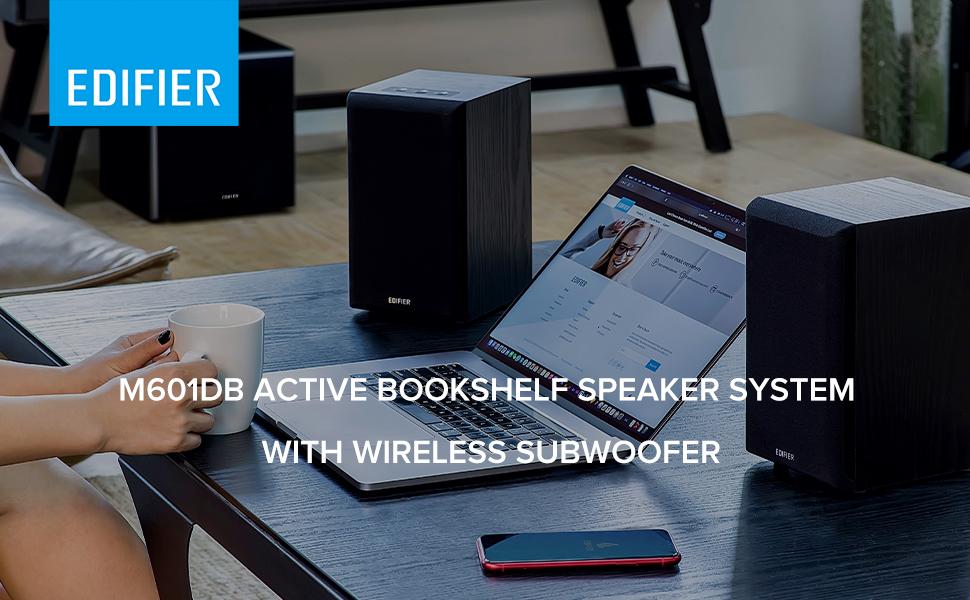
Image 5.1: An example setup of the M601DB speaker system in a living room environment, demonstrating ideal placement of satellite speakers and the subwoofer.
5.2 Connecting Satellite Speakers
- Connect the speaker connection cable from the 'OUT' port on the active satellite speaker to the input port on the passive satellite speaker.
5.3 Power Connection
- Connect the power cable to the active satellite speaker and then plug it into a power outlet.
- Connect the power cable to the wireless subwoofer and then plug it into a power outlet.
5.4 Subwoofer Pairing
The wireless subwoofer is designed to automatically pair with the active satellite speaker when both are powered on. If pairing does not occur automatically, ensure both units are powered on and within range. Refer to the troubleshooting section if issues persist.
6. Operating Instructions
6.1 Powering On/Off
Press the power button on the top panel of the active satellite speaker or the power button on the remote control to turn the system on or off. The LED indicator on the active speaker will illuminate when powered on.
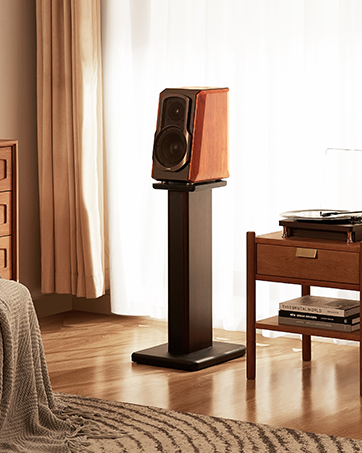
Image 6.1: A user's hand interacting with the top panel controls of the active satellite speaker, demonstrating the power button functionality.
6.2 Input Selection
Press the power/input selection button on the top panel of the active satellite speaker or the corresponding input button on the remote control (AUX, Line In, Optical, Coaxial, Bluetooth) to cycle through available input sources. The LED indicator will change color to indicate the selected input.
6.3 Bluetooth Pairing
- Select Bluetooth input on the speaker system. The LED indicator will flash rapidly, indicating it is in pairing mode.
- On your device (e.g., smartphone, tablet, computer), search for Bluetooth devices and select "EDIFIER M601DB".
- Once paired, the LED indicator on the speaker will glow steadily.
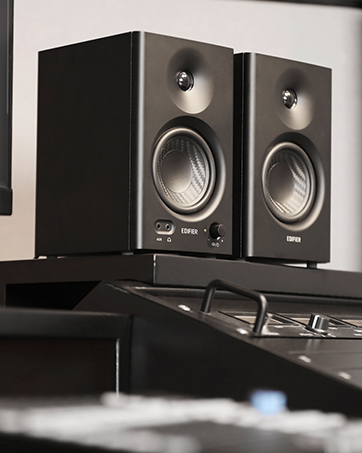
Image 6.2: A smartphone connected via Bluetooth to the Edifier M601DB speaker, demonstrating wireless audio streaming.
6.4 Volume Control
Adjust the volume using the '+' and '-' buttons on the top panel of the active satellite speaker or the volume buttons on the remote control.
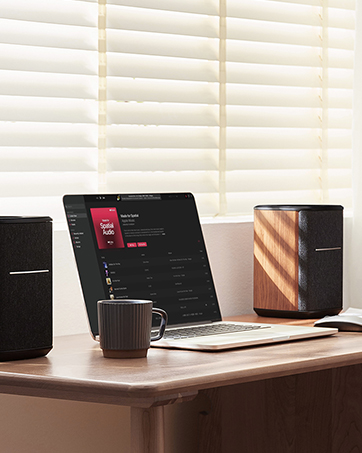
Image 6.3: The speaker system integrated into a desktop setup with a laptop, showing the convenience of controlling the system with the remote.
7. Maintenance
- Cleaning: Use a soft, dry cloth to clean the surfaces of the speakers and subwoofer. Do not use abrasive cleaners, waxes, or solvents.
- Storage: If storing the system for an extended period, unplug all cables and store in a cool, dry place away from direct sunlight and extreme temperatures.
- Ventilation: Ensure that the speakers and subwoofer have adequate airflow and that ventilation openings are not blocked.
8. Troubleshooting
If you encounter any issues with your Edifier M601DB speaker system, please refer to the following troubleshooting guide:
| Problem | Possible Cause | Solution |
|---|---|---|
| No sound | Power not connected; Incorrect input selected; Volume too low; Cables loose. | Ensure power is connected and unit is on; Select correct input source; Increase volume; Check all cable connections. |
| Bluetooth not connecting | Speaker not in pairing mode; Device not discoverable; Interference. | Select Bluetooth input and ensure LED is flashing; Make sure device's Bluetooth is on and visible; Move device closer to speaker; Try re-pairing. |
| Distorted sound | Volume too high; Source audio quality poor; Loose connections. | Reduce volume on both speaker and source device; Try a different audio source; Check all cable connections. |
| Subwoofer not working | Subwoofer not powered; Not paired with satellite speakers. | Ensure subwoofer is plugged in and powered on; Subwoofer should automatically pair, if not, power cycle both speakers and subwoofer. |
9. Specifications
| Feature | Detail |
|---|---|
| Model Name | M601DB |
| Speaker Type | Multimedia 2.1 System |
| Connectivity Technology | AUX, Bluetooth 5.1 (with AptX), Coaxial, Line In, Optical |
| Speaker Maximum Output Power | 220 Watts (RMS) |
| Subwoofer Diameter | 8 Inches |
| Material | Wood |
| Color | Black |
| Item Weight | 25.44 Pounds |
| Product Dimensions | 0.39"D x 0.39"W x 0.39"H (Overall, approximate) |
| Signal-to-Noise Ratio | 85 dB |
| Control Method | Remote, Top Panel Controls |
| Included Components | Wireless Subwoofer, Two Compact Satellite Speakers, Remote Control |
10. Warranty & Support
Edifier products are designed with quality and reliability in mind. This product comes with a full manufacturer's warranty. For detailed warranty terms and conditions, please refer to the warranty card included in your package or visit the official Edifier website.
For technical support, service inquiries, or to purchase replacement parts, please contact Edifier customer service through their official website or the contact information provided in your product documentation. Please have your model number (M601DB) and proof of purchase ready when contacting support.


