
1. Introduction
The BOBOVR Z5 is a virtual reality headset designed to provide an immersive experience for smartphone users. It features integrated stereo headphones and an ergonomic design for comfort during extended use. This manual provides essential information for setting up, operating, maintaining, and troubleshooting your BOBOVR Z5 VR Headset.

Image 1.1: The BOBOVR Z5 VR Headset, showcasing its design and integrated headphones, designed for immersive virtual reality experiences with a 120-degree field of view and 3D stereo sound.
2. Setup
2.1. Smartphone Compatibility
The BOBOVR Z5 is compatible with most smartphones ranging from 4.7 inches to 6.5 inches in screen size. This includes various models from Samsung (e.g., Galaxy Note series, S series, J series) and Apple (e.g., iPhone 11/Pro/MAX, XS Max/XS/XR, X, 8/Plus, 7/Plus, 6s/Plus, 5c/5s), as well as LG, Moto, Huawei, Nexus, Nokia, and HTC devices.

Image 2.1: A visual representation of smartphone compatibility, indicating support for devices with screen sizes between 4.7 and 6.0 inches, with an open design accommodating phones larger than 6.0 inches.
2.2. Inserting Your Smartphone
- Install VR Application: Before inserting your phone, search for and install a suitable VR application from your phone's app store (Apple App Store or Google Play Store).
- Open Headset Compartment: Gently open the front compartment of the VR headset.
- Position Smartphone: Place your smartphone into the compartment. Ensure the split line displayed on your phone's screen aligns with the center line between the two lenses of the headset. This alignment is crucial for proper 3D viewing.
- Secure Smartphone: Close the compartment securely.
2.3. Adjusting the Headset
- Head Straps: Adjust the T-shaped head straps to ensure a snug yet comfortable fit. The flexible support structure helps distribute weight and reduce pressure on your forehead and eyes.
- Pupillary Distance (PD) Adjustment: Use the pupillary distance adjustment wheel (often a wave wheel) to move the left and right lenses simultaneously until the image appears clear and comfortable for your eyes. This adjusts the distance between the lenses to match your eye spacing.
- Diopter Adjustment (Focus): Use the diopter adjustment wheel to fine-tune the focus. Adjust until the image is sharp. This feature allows users with minor vision impairments to use the headset without their prescription glasses.

Image 2.2: The multi-function wave wheel on the BOBOVR Z5, highlighting the diopter adjustment for clear vision without glasses and the pupillary distance adjustment for optimal image calibration.
3. Operating the Headset
3.1. Audio Connection
The BOBOVR Z5 features built-in stretchable headphones with a 3.5mm jack. Connect the 3.5mm audio cable from the headset to your smartphone's headphone jack. The soft memory foam earcups provide noise reduction and stereo sound. If your smartphone does not have a 3.5mm jack, you may need an adapter (not included).

Image 3.1: A detailed view of the optimized viewing window and the high-sensitivity 98dB headphones, designed to deliver balanced, rich, and delicate sound quality, restoring real-scene audio effects.
3.2. Using the Remote Control
The included ergonomic remote control connects via Bluetooth (check your phone's Bluetooth settings to pair). It allows for various functions, including:
- Video playback control (play/pause)
- Volume adjustment
- E-book page flipping
- Navigation within VR applications (functionality may vary by app)
Refer to the remote control's separate instructions for specific pairing and button functions.
3.3. Immersive Experience
The BOBOVR Z5 offers a field of view (FOV) ranging from 96° to 120°, providing an immersive experience for gaming and entertainment. The high-quality spherical resin lenses minimize distortion, reducing the likelihood of dizziness during prolonged use.

Image 3.2: A user experiencing an upgraded and more immersive field of view (120° FOV+) with the BOBOVR Z5, featuring hyperboloid high lenses and anti-blue light coating for extended comfortable wear.
4. Maintenance
4.1. Cleaning the Lenses
Use a soft, dry microfiber cloth specifically designed for optical lenses to clean the headset lenses. Do not use abrasive materials, solvents, or alcohol-based cleaners, as these can damage the lens coating.
4.2. Cleaning the Headset Body and Fabric
The headset features a skin-friendly fabric and an ABS holder. The fabric components are designed to be removable and cleanable. Gently wipe the headset body with a slightly damp, soft cloth. For fabric parts, refer to the specific cleaning instructions provided with the product, or gently hand wash with mild soap and water if removable.

Image 4.1: A side profile of the BOBOVR Z5, emphasizing its skin-friendly fabric, aesthetic appearance, and soft, natural feel for enhanced user comfort.
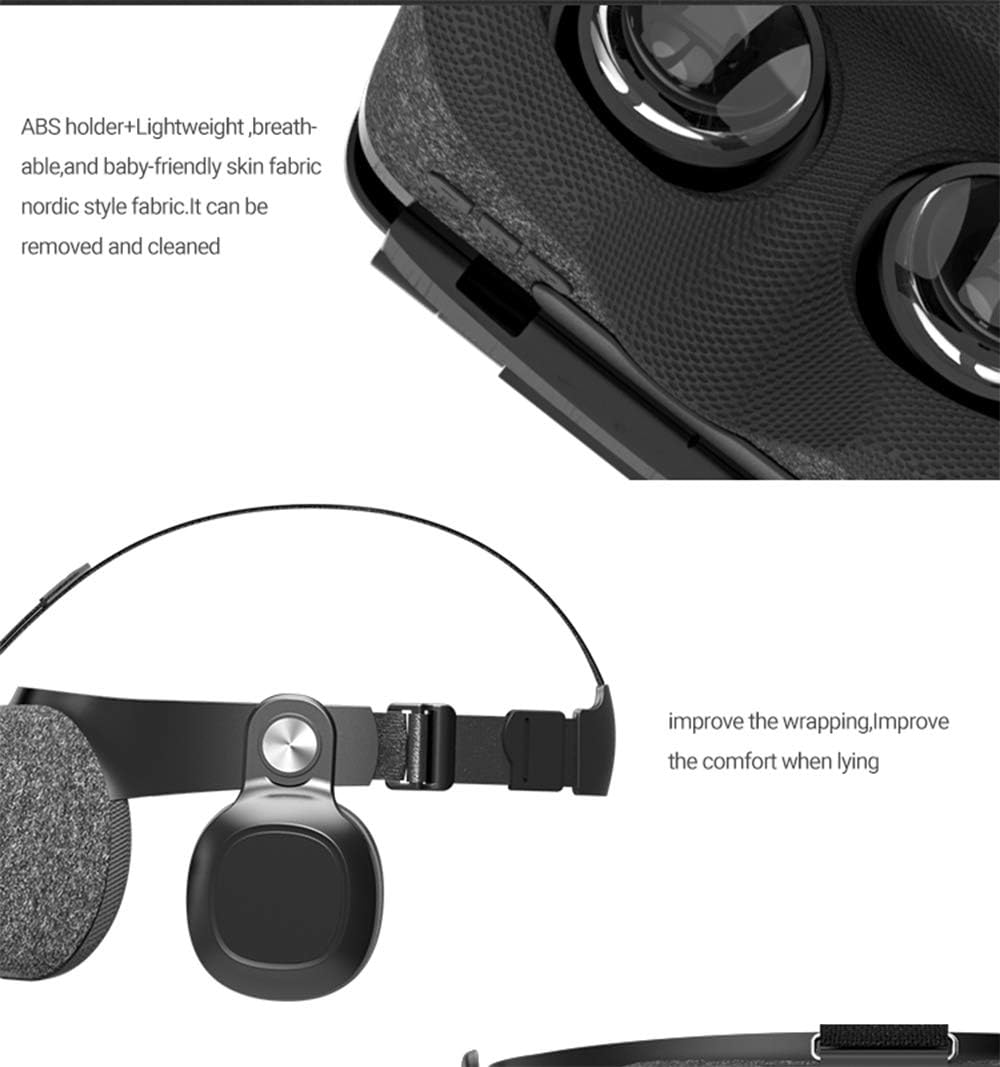
Image 4.2: Close-up view of the ABS holder and lightweight, breathable, baby-friendly Nordic style fabric, which is removable and cleanable, contributing to improved comfort, especially when lying down.
4.3. Heat Dissipation
The headset incorporates a heat dissipation design to help cool your phone during use. Ensure that the ventilation areas are not obstructed to maintain optimal performance and prevent overheating.
5. Troubleshooting
- Blurred Image:
- Ensure your smartphone screen's split line is perfectly aligned with the headset's center line.
- Adjust the pupillary distance (PD) wheel until the image is clear.
- Adjust the diopter (focus) wheel until the image is sharp.
- Verify that the VR application is correctly configured for your phone's screen size and resolution.
- No Sound or Poor Audio Quality:
- Check if the 3.5mm audio jack is fully inserted into your smartphone.
- Ensure your phone's volume is turned up.
- If using an adapter for phones without a 3.5mm jack, ensure the adapter is functioning correctly.
- Test with another audio source or headphones to rule out phone issues.
- Remote Control Not Responding:
- Ensure the remote control is powered on and has sufficient battery.
- Verify that Bluetooth is enabled on your smartphone and the remote is paired.
- Try re-pairing the remote control with your smartphone.
- Some VR applications may have limited or no support for external controllers.
- Discomfort During Use:
- Re-adjust the head straps to relieve pressure points.
- Ensure the headset is not too tight or too loose.
- Take regular breaks during extended VR sessions.
- Phone Overheating:
- Ensure the headset's ventilation areas are clear.
- Close unnecessary background applications on your phone.
- Reduce screen brightness if possible.
- Take breaks to allow your phone to cool down.
6. Specifications
| Feature | Specification |
|---|---|
| Model Name | Z5 |
| Brand | BOBOVR |
| Compatible Screen Size | 4.7 - 6.5 inches |
| Field of View (FOV) | 96° - 120° |
| Lens Type | Spherical Resin Lens |
| Audio | Integrated Stereo Headphones (3.5mm Jack) |
| Remote Control Connectivity | Bluetooth |
| Operating System Compatibility | Android, iOS |
| Special Features | Lightweight, Heat Dissipation Design, Adjustable PD & Diopter |
| Item Weight | 350 Grams |
| UPC | 606267028018 |
7. Warranty and Support
For warranty information and customer support, please refer to the documentation included with your purchase or visit the official BOBOVR website. Keep your proof of purchase for warranty claims.
For further assistance, you may also contact the retailer where the product was purchased.


