
Introduction
This manual provides detailed instructions for the installation, operation, and maintenance of your XTRONS Android 10 Car Stereo. Please read this manual thoroughly before using the product to ensure proper functionality and safety. Keep this manual for future reference.
Applicable Models & Years:
- Mercedes Benz ML-Class W164 (ML300 / ML450 / ML500) (2005-2011)
- Mercedes Benz GL-Class X164 (G320 / G350 / G420 / GL450 / GL500) (2006-2012)
Setup and Installation
1. Package Contents
Verify that all items are present in the package:
- 1 × ISO Wiring Harness
- 1 × RCA Cable
- 2 × USB Cable
- 1 × Camera Cable
- 1 × CANbus Box
- 1 × GPS Antenna
- 1 × Radio Adapter Cable
- 1 × Radio Antenna Adapter
- 1 × User Manual

2. Compatibility Notes
Please observe the following important compatibility information:
- If your vehicle has a COMAND APS NTG 2 system or COMAND APS NTG 2.5 system, an extra optical decoder box (XTRONS FOBB02) is required to retain your car's original COMAND system.
- The original CD changer will not function after installing this unit.
- This unit does not support your vehicle's air conditioning information display.

3. Wiring Diagram
Refer to the detailed wiring diagram below for correct connections. Ensure all connections are secure before powering on the unit.

4. Installation Overview
The XTRONS car stereo is designed for a seamless integration into your Mercedes Benz ML W164 or GL X164. Professional installation is recommended. The image below shows a comparison of the dashboard before and after installation.

Operating Instructions
1. Basic Operation and Interface
The unit features a 9-inch 1024*600 HD IPS 2.5D Curved Capacitive Touch Screen, offering a highly sensitive touch experience and clear display from any angle. The Android 10.0 OS provides a fast and smooth user experience.

You can choose between two themes for the user interface to suit your preference.
Video demonstrating the XTRONS Android 10 Car Stereo's features, including the user interface, Bluetooth 5.0, GPS navigation, screen mirroring, multi-window view, PIP mode, built-in DSP, and various optional accessories. This video highlights the responsiveness and functionality of the unit.
2. Bluetooth 5.0 Connectivity
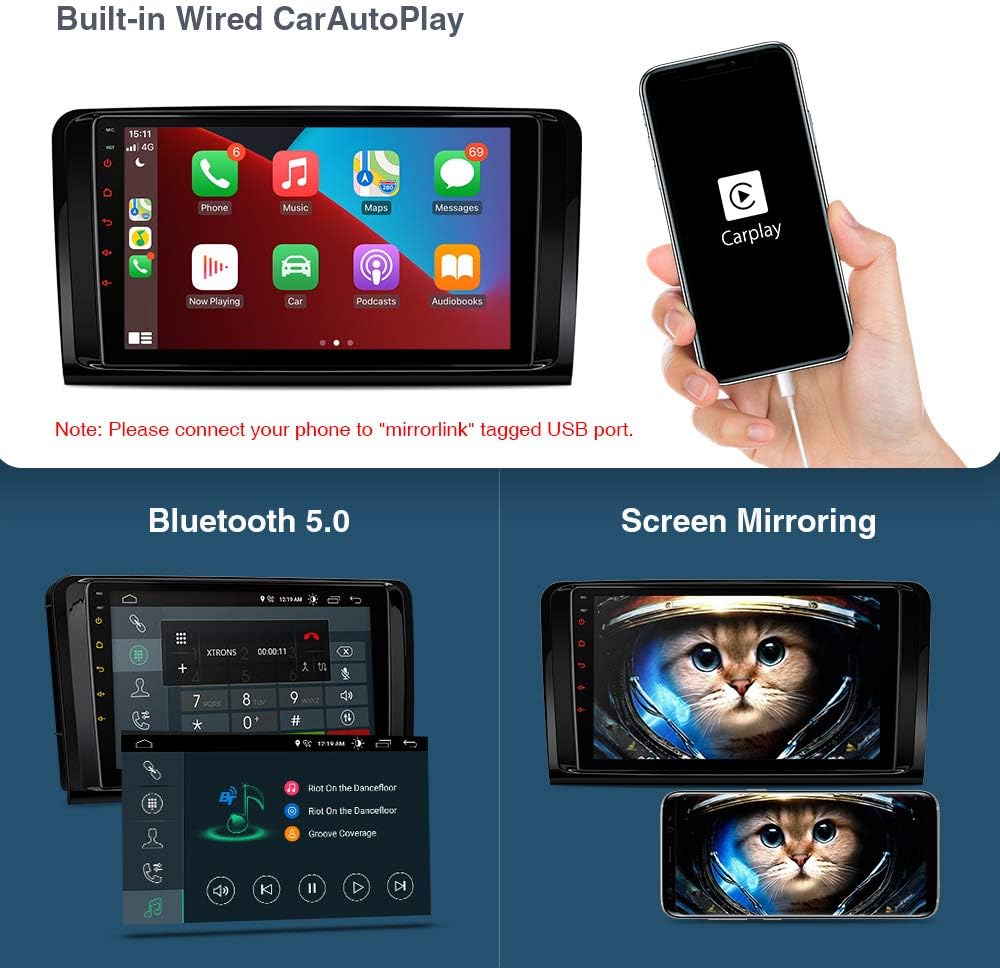
Connect your mobile phone via the built-in Bluetooth 5.0 for hands-free calls, access your phone book, call logs, search contacts, and listen to Bluetooth music.
3. GPS Navigation
The unit supports various Android navigation software, including Google Maps, Sygic, IGO, and Waze. Ensure your GPS antenna is properly connected for optimal performance.
4. Built-in Wired CarAutoPlay and Screen Mirroring
Connect your iPhone via a compatible cable to use Built-in Wired CarAutoPlay, accessing GPS, calls, music, Google Assistant, or Siri safely while driving. Screen mirroring allows you to display your smartphone's content directly on the car stereo screen.
5. Digital Sound Processor (DSP)
The built-in DSP enhances audio quality, offering features like sound presets (Rock, Pop, Jazz, Classic, User), fader and balance control, and digital time delay for an optimized listening experience.

6. Multi-Window View and PIP Mode
The multi-window view allows you to run two applications side-by-side, for example, navigation software alongside your music player. Picture-in-Picture (PIP) mode is available for the built-in video player, allowing you to watch videos while multitasking.
7. Full RCA Output
Utilize the full RCA output function to share all features simultaneously with passengers in the back seat, connecting to external monitors.

8. Built-in WiFi and Optional 3G/4G Dongle
The unit features built-in WiFi for faster LTE download speeds. It also supports an external 3G/4G dongle (optional) for extended internet connectivity.
9. Optional Accessories Integration
The unit supports various optional accessories to enhance your driving experience:
- OBD2: Connect an OBD2 scanner (e.g., ASIN: B015MU8UN6 / B08HQ9LQ9X) to monitor vehicle data.
- TPMS: Integrate a Tire Pressure Monitoring System (e.g., ASIN: B07WQFKV5G) for real-time tire pressure information.
- Front / Reversing Camera: Connect compatible cameras (e.g., ASIN: B07HMLYLJJ / B00GY3BVT6) for improved visibility.
- External DVR: Add an external Digital Video Recorder (e.g., ASIN: B07MBYCG4C / B08MF1ZRJ3 / B08ZN33K1M) for recording driving footage.
- DAB+: Digital Audio Broadcasting Plus for enhanced radio quality.
- Microphone: External microphone for clearer calls.
- Keyboard: For easier text input.
Maintenance
1. Cleaning the Screen
To clean the 9-inch IPS touch screen, gently wipe it with a soft, lint-free cloth. Do not use abrasive cleaners or solvents, as these can damage the screen surface. For stubborn smudges, lightly dampen the cloth with water or a screen-safe cleaning solution.
2. Software Updates
Periodically check for software updates to ensure optimal performance and access to the latest features. Updates can typically be found on the XTRONS official website or through the unit's system settings if an over-the-air (OTA) update feature is available. Follow the on-screen instructions carefully during any update process.
3. General Care
Avoid exposing the unit to extreme temperatures, direct sunlight for prolonged periods, or excessive moisture. Ensure proper ventilation around the unit to prevent overheating. If the unit is not functioning correctly, refer to the troubleshooting section before attempting any repairs.
Troubleshooting
This section addresses common issues you might encounter with your XTRONS car stereo. If you experience problems not listed here, please contact XTRONS technical support.
1. Unit Does Not Power On
- Check all power connections according to the wiring diagram.
- Ensure the vehicle's ignition is on.
- Verify that the vehicle's fuse for the stereo is intact.
2. No Audio Output
- Check speaker connections.
- Ensure the volume is not muted or set to minimum.
- Verify audio settings in the DSP menu.
- If using an optical decoder box, ensure it is correctly installed and functioning.
3. GPS Signal Issues
- Ensure the GPS antenna is properly connected and placed in an area with a clear view of the sky.
- Check GPS settings within the unit to ensure GPS is enabled.
4. Bluetooth Connection Problems
- Ensure Bluetooth is enabled on both the car stereo and your mobile device.
- Delete previous pairings and attempt to re-pair the devices.
- Move your mobile device closer to the car stereo.
5. Touch Screen Unresponsive or Freezing
- Perform a soft reset by pressing the RST button (if available) or by turning off the vehicle and restarting.
- Ensure the screen is clean and free from debris.
- If the issue persists, contact technical support.
Specifications
| Operating System | Android 10.0 |
| CPU | Quad Core Processor |
| RAM | 2GB |
| ROM | 32GB |
| Display Size | 9 Inches |
| Display Resolution | 1024*600 HD |
| Touch Screen | 2.5D Curved Capacitive Touch Screen |
| Connectivity Technology | Bluetooth 5.0, WiFi |
| Audio Output Mode | Stereo, Built-in DSP |
| Supported Internet Services | Maps, YouTube |
| Compatible Devices | Smartphone (via CarAutoPlay/Screen Mirroring) |
| Connector Type | RCA, USB |
| Color | Black |
Warranty and Support
1. Warranty Information
XTRONS provides a 1-year warranty for this unit. Please retain your proof of purchase for warranty claims.
2. Technical Support
For any technical assistance or inquiries, please do not hesitate to contact XTRONS professional technical support. You can reach them via Amazon email for prompt assistance.


