
Introduction
This manual provides detailed instructions for setting up, operating, and maintaining your OMOTON Full-Size Multi-Device Bluetooth Keyboard. Designed for Mac OS devices, this keyboard offers a comfortable and efficient typing experience with its multi-device connectivity and ergonomic design. Please read this manual thoroughly before using the product.
Package Contents
- 1 x OMOTON Wireless Bluetooth Keyboard
- 1 x USB-C Charging Cable
- 1 x User Manual
Product Overview

Image Description: A top-down view of the OMOTON Full-Size Bluetooth Keyboard in silver, showcasing its complete QWERTY layout with a numeric keypad and Mac-specific function keys.

Image Description: An overview of the OMOTON keyboard on a desk setup, highlighting its multi-device capability with three Bluetooth connection indicators (BT1, BT2, BT3) and its rechargeable feature.
Key Features:
- Full-Size QWERTY Layout: Standard 19mm key spacing with a numeric keypad for comfortable and efficient typing.
- Durable Construction: Made from metallic aluminum and ABS material for robustness and wear resistance.
- Scissor Switch Keys: Provides a smooth, precise, and quiet typing experience.
- Ergonomic Design: Engineered for comfortable long-term use.
- Rechargeable Battery: Built-in 450mAh Lithium-polymer battery offers approximately 320 hours of working time on a 2-3 hour charge via USB-C.
- Triple Mode Pairing: Connects to up to 3 devices simultaneously via Bluetooth 4.0, allowing quick switching between them.
- Mac OS Function Keys: Includes dedicated function keys for Mac OS features such as brightness control, Mission Control, Launchpad, and media playback.
- Compatibility: Optimized for Mac OS 10.10 or higher, including iMac, Mac Pro, Mac mini, MacBook Air, and MacBook Pro models.

Image Description: A close-up view illustrating the scissor switch mechanism beneath a keycap, emphasizing the comfortable and precise typing experience.
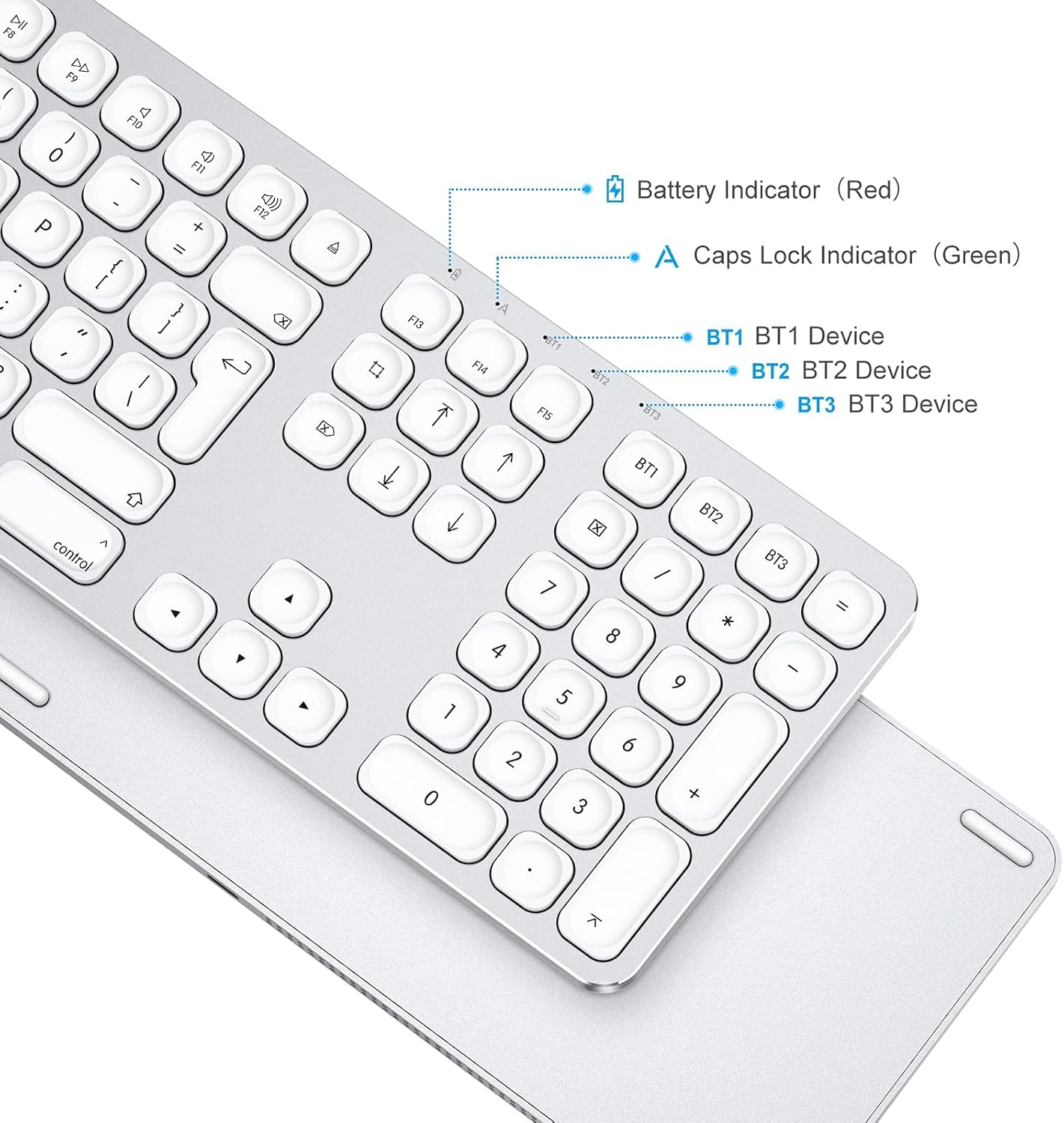
Image Description: An angled view of the keyboard's upper right section, pointing out the Battery Indicator (red), Caps Lock Indicator (green), and the BT1, BT2, BT3 device indicators.
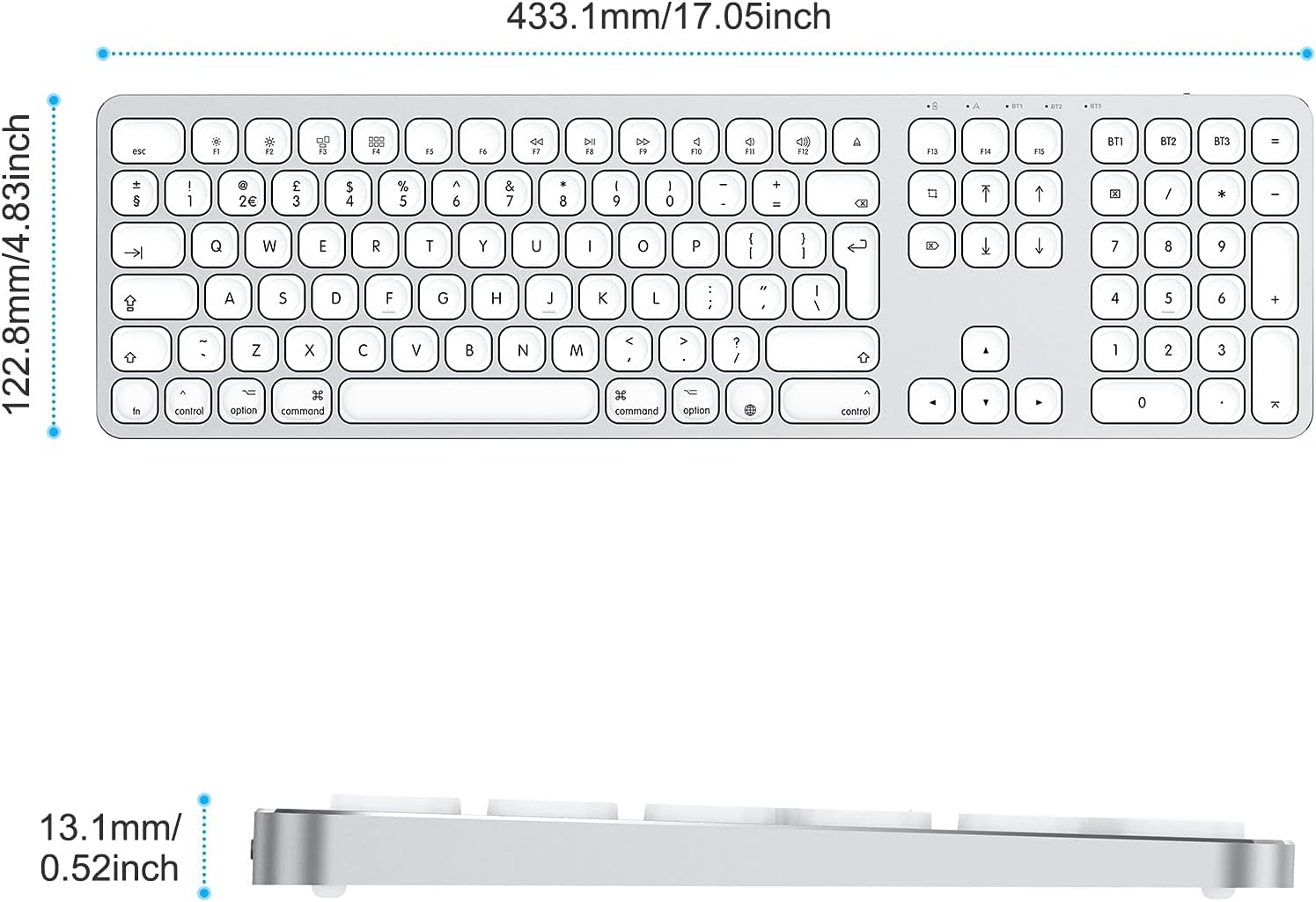
Image Description: A diagram showing the top and side dimensions of the keyboard. The top view indicates a width of 433.1mm (17.05 inches) and a depth of 122.8mm (4.83 inches). The side view shows a thickness of 13.1mm (0.52 inches).

Image Description: A side profile view of the keyboard, highlighting its ultra-slim metallic design.
Setup
1. Charging the Keyboard
Before initial use, fully charge the keyboard. Connect the supplied USB-C cable to the keyboard's charging port and the other end to a USB power source (e.g., computer USB port, USB wall adapter). The battery indicator will illuminate red during charging and turn off when fully charged.

Image Description: A close-up of the keyboard's USB-C charging port with a USB-C cable connected, indicating the built-in 450mAh Li-ion battery and its charging capabilities (320-hour working time, 2-3 hour fast charge).

Image Description: An underside view of the keyboard's right side, showing the USB-C Micro Charging Port, the ON/OFF Switch, and anti-slip rubber pads.
2. Powering On/Off
Locate the ON/OFF switch on the right side of the keyboard. Slide the switch to the 'ON' position to power on the keyboard. Slide it to 'OFF' when not in use to conserve battery.
3. Bluetooth Pairing
The OMOTON Bluetooth Keyboard supports connecting to up to three devices simultaneously. Follow these steps to pair your keyboard with a Mac OS device:
- Ensure the keyboard is powered on.
- Select a Bluetooth channel (BT1, BT2, or BT3) by pressing the Fn key simultaneously with the desired BT1, BT2, or BT3 key. The corresponding indicator light will flash slowly.
- Press and hold the selected BT key (e.g., BT1) for 5 seconds until the blue LED indicator flashes rapidly. This indicates the keyboard is in pairing mode.
- On your Mac OS device, go to System Settings (or System Preferences) > Bluetooth.
- Ensure Bluetooth is turned on. Your Mac will search for nearby Bluetooth devices.
- Locate and click on "OMOTON Keyboard" in the list of available devices to initiate the pairing process.
- Once paired, the blue LED indicator on the keyboard will stop flashing and remain solid for a moment, then turn off. The keyboard is now connected and ready for use.

Image Description: A circular diagram illustrating the four steps for Bluetooth pairing: 1. Turn on power switch, 2. Switch channel by pressing Fn+BT button, 3. Press and hold BT key for 5 seconds until blue light flashes, 4. Tap "OMOTON Keyboard" on your device to start pairing.

Image Description: An illustration showing the keyboard connected to three different Mac devices (iMac, MacBook, Mac mini) via BT1, BT2, and BT3 channels, demonstrating its 3-channel multi-device capability.

Image Description: A visual representation of the keyboard connected to a MacBook, iMac, and iPad, with arrows indicating the ability to quickly switch between the three devices using BT1, BT2, and BT3 channels.

Image Description: An image showing the keyboard positioned between a MacBook, an iMac, and an iPhone, with a circular graphic indicating a 33ft (approximately 10 meters) connection distance for Bluetooth.
Operating Instructions
1. Switching Between Paired Devices
To switch between your three paired devices, simply press the Fn key along with the corresponding Bluetooth channel key (BT1, BT2, or BT3). The keyboard will connect to the selected device within a few seconds.
2. Mac OS Multimedia Hotkeys
The keyboard features 12 dedicated Mac OS multimedia hotkeys for quick access to various functions:

Image Description: A visual guide to the 12 Mac OS multimedia hotkeys (F1-F12) on the keyboard. These include Escape, Decrease Brightness (F1), Increase Brightness (F2), Open Mission Control (F3), Open Launchpad (F4), Previous Track (F7), Play/Pause (F8), Next Track (F9), Mute (F10), Decrease Volume (F11), and Increase Volume (F12), and Eject (F12).
- Esc: Escape
- F1: Decrease Brightness
- F2: Increase Brightness
- F3: Open Mission Control
- F4: Open Launchpad
- F7: Previous Track
- F8: Play/Pause
- F9: Next Track
- F10: Mute
- F11: Decrease Volume
- F12: Increase Volume
- Eject: Eject (functionality may vary based on Mac model and connected drives)
Note: Some function keys, such as brightness and sound control, may require specific Mac OS settings or may not be fully supported on all Mac models.
Maintenance
Cleaning the Keyboard
- Ensure the keyboard is powered off before cleaning.
- Use a soft, lint-free cloth slightly dampened with water or a mild cleaning solution to wipe the surface of the keyboard.
- Avoid using harsh chemicals, abrasive cleaners, or solvents, as these can damage the keyboard's finish.
- For cleaning between keys, use compressed air to remove dust and debris.
Battery Care
- To prolong battery life, avoid fully discharging the keyboard frequently.
- Charge the keyboard regularly, especially if it will not be used for an extended period.
- Store the keyboard in a cool, dry place away from extreme temperatures.
Troubleshooting
Keyboard Not Connecting/Pairing
- Check Power: Ensure the keyboard is powered on and has sufficient battery charge.
- Bluetooth On: Verify that Bluetooth is enabled on your Mac OS device.
- Pairing Mode: Make sure the keyboard is in pairing mode (blue LED flashing rapidly) by pressing and holding the desired BT key for 5 seconds.
- Forget Device: If previously paired, try removing "OMOTON Keyboard" from your Mac's Bluetooth device list and then re-pair.
- Restart Devices: Restart both your keyboard and your Mac OS device.
- Interference: Move the keyboard closer to your Mac and away from other wireless devices that might cause interference.
Input Lag or Disconnections
- Battery Level: Low battery can affect performance. Charge the keyboard fully.
- Distance: Ensure the keyboard is within the 33ft (10m) operating range of your Mac.
- Interference: Minimize interference from other 2.4GHz wireless devices.
- Re-pair: Try unpairing and re-pairing the keyboard.
Keys Not Responding
- Power Cycle: Turn the keyboard off and then on again.
- Clean Keys: Check for any debris under the keys and clean if necessary using compressed air.
- Test on Another Device: If possible, test the keyboard with another compatible device to determine if the issue is with the keyboard or the original device.
Compatibility Issues
- Ensure your Mac OS version is 10.10 or higher.
- Some specific Mac OS features or hotkeys may behave differently depending on your exact Mac model and software configuration.
Specifications
| Brand | OMOTON |
| Model | Bluetooth Keyboard |
| Color | Silver |
| Connectivity Technology | Bluetooth 4.0 |
| Special Features | Ergonomic, Rechargeable |
| Compatible Devices | Mac OS Laptops, PCs (Mac OS 10.10 or higher) |
| Battery Type | Lithium-polymer (450mAh) |
| Charging Port | USB-C |
| Operating Range | Up to 33 feet (10 meters) |
| ASIN | B09129RKPH |
Warranty and Support
OMOTON products are designed for reliability and performance. For any issues or questions regarding your OMOTON Bluetooth Keyboard, please refer to the following:
- Warranty Information: Specific warranty details may vary by region and retailer. Please retain your proof of purchase for any warranty claims.
- Customer Support: For technical assistance or further inquiries, please contact OMOTON customer support through the retailer's platform or the official OMOTON website.


