
TechniSat 0000/3954
TechniSat DIGITRADIO 380 CD IR - User Manual
Model: 0000/3954
Introduction
Welcome to the user manual for your new TechniSat DIGITRADIO 380 CD IR. This compact micro-system is designed to bring a world of music into your home, offering a wide array of playback options and intuitive controls.
Whether you prefer traditional radio broadcasts via DAB+ and FM, or want to explore exotic sounds from around the globe with Internet radio, the DIGITRADIO 380 CD IR has you covered. It also supports playback from your personal music archives, including CDs, USB sticks, and streaming from your PC or smartphone via Bluetooth. Enjoy your favorite Spotify playlists with ease.
Despite its extensive features, the DIGITRADIO 380 CD IR is user-friendly, featuring intuitive rotary knob controls, a clear color display, a remote control, and convenient app control via the free TechniSat Connect app. Experience impressive stereo quality through its two powerful 20W speakers.
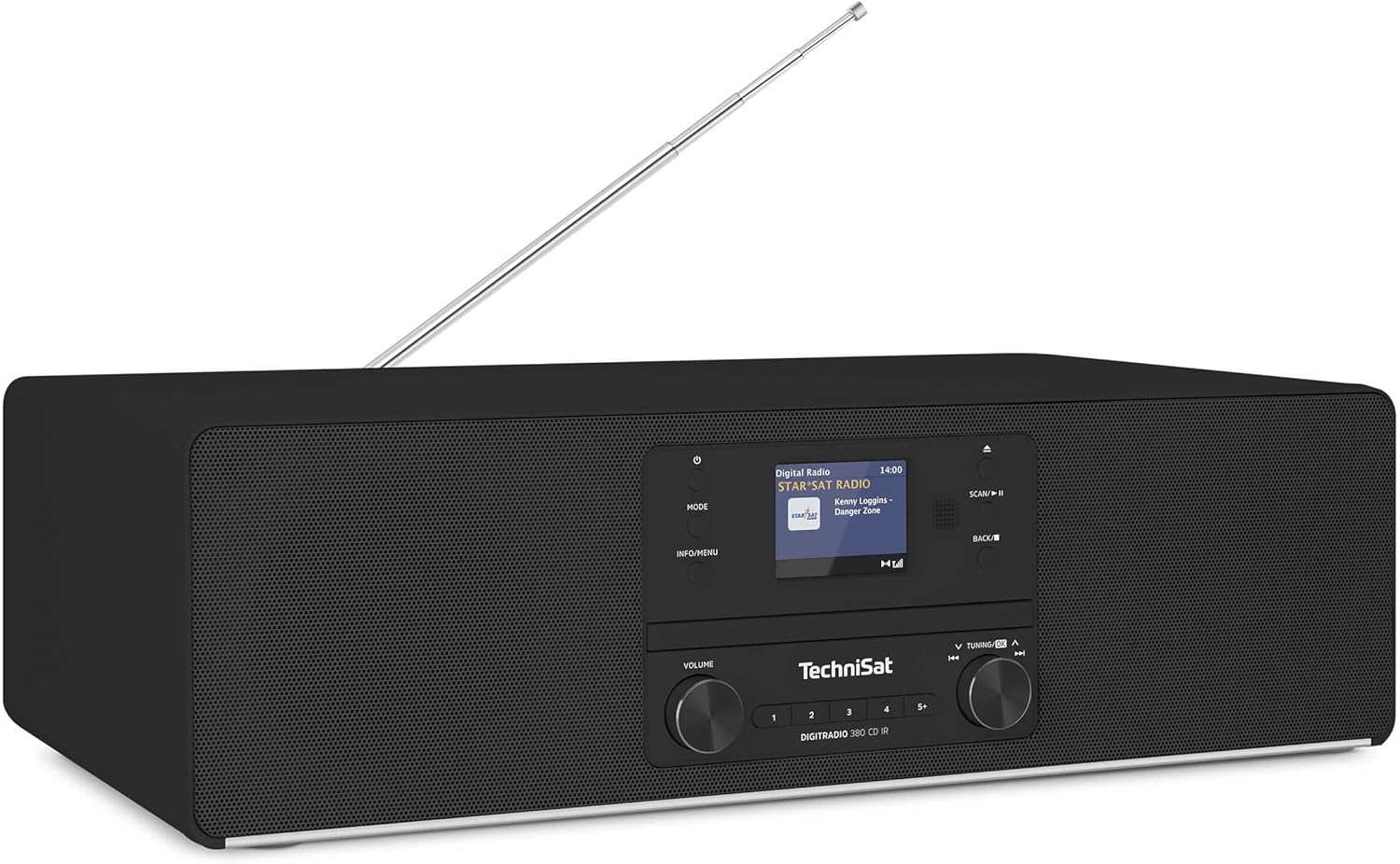
Figure 1: Front view of the TechniSat DIGITRADIO 380 CD IR, showcasing its sleek design, display, and control knobs.
Setup Guide
1. Unpacking and Placement
- Carefully remove all components from the packaging.
- Place the DIGITRADIO 380 CD IR on a stable, flat surface. Ensure adequate ventilation around the unit.
- Keep the unit away from direct sunlight, heat sources, and moisture.
2. Power Connection
- Connect the power cable to the AC IN port on the back of the unit.
- Plug the other end of the power cable into a suitable wall outlet.
- The unit will enter standby mode. Press the power button (⏻) to turn it on.
3. Antenna Setup
- Extend the telescopic antenna fully for optimal DAB+ and FM reception.
- Adjust the antenna direction to improve signal strength if needed.
4. Network Connection (for Internet Radio & Spotify)
- Upon first power-on, the unit will guide you through the network setup.
- Select your Wi-Fi network from the list displayed on the color screen.
- Enter your Wi-Fi password using the control knobs and buttons.
- Alternatively, use the TechniSat Connect app for easier setup.

Figure 2: The 2.4-inch color display provides clear information and navigation during setup and operation.
Operating Instructions
1. Basic Controls
- Power Button (⏻): Turns the unit on/off or puts it into standby.
- Volume Knob: Adjusts the audio output level.
- Mode Button: Switches between different audio sources (DAB+, FM, Internet Radio, CD, Bluetooth, USB, AUX-in).
- Info/Menu Button: Accesses information about the current track/station or enters the main menu for settings.
- Scan/Play/Pause Button: Initiates station scan in radio modes, or plays/pauses media playback.
- Back/Stop Button: Navigates back in menus or stops media playback.
- Tuning/OK Knob: Navigates through menus, lists, or tunes radio frequencies. Press to confirm selection.
2. Radio Modes (DAB+/FM/Internet Radio)
- Press the Mode button to select DAB+, FM, or Internet Radio.
- DAB+ / FM: Use the Scan button to automatically scan for available stations. Use the Tuning/OK knob to manually tune or select from the station list.
- Internet Radio: Browse stations by genre, location, or search for specific stations. A stable Wi-Fi connection is required.
- Preset Stations: Save your favorite stations by pressing and holding one of the numbered preset buttons (1-5+). Briefly press to recall a preset.

Figure 3: Enjoy a wide variety of digital radio programs in high quality via DAB+ and FM.

Figure 4: Access a boundless variety of music from the internet via Internet Radio.
3. CD Player
- Press the Mode button to select CD.
- Gently insert a CD into the CD slot. The unit will automatically load and begin playback.
- Use the Scan/Play/Pause and Back/Stop buttons for playback control.

Figure 5: The integrated CD player allows you to enjoy your favorite audio CDs.
4. Bluetooth Audio Streaming
- Press the Mode button to select Bluetooth. The display will show "Pairing".
- On your smartphone or tablet, enable Bluetooth and search for "DIGITRADIO 380 CD IR".
- Select the device to pair. Once connected, you can stream audio from your device to the radio.
- NFC (Near Field Communication) is also supported for quick pairing with compatible devices.

Figure 6: Enjoy wireless music streaming from your smartphone or tablet via Bluetooth.
5. USB Playback
- Insert a USB flash drive containing MP3 audio files into the USB port.
- Press the Mode button to select USB. The unit will automatically detect and play compatible files.
- Use the navigation controls to browse folders and select tracks.
6. AUX-in and Headphone Jack
- Connect external audio devices (e.g., MP3 players) to the AUX-in port using a 3.5mm audio cable. Select AUX-in mode.
- Connect headphones to the 3.5mm headphone jack for private listening.
7. Spotify Free
- Ensure your unit is connected to the internet.
- Select Spotify Free mode. Follow the on-screen instructions to link your Spotify account.
- You can then browse and play Spotify content directly from the radio.
8. Alarm Clock, Sleep Timer, and Snooze
- Access these functions via the main menu (Info/Menu button).
- Set alarms with your preferred source (radio, buzzer).
- Configure the sleep timer to automatically turn off the unit after a set period.
- Use the snooze function to temporarily pause an alarm.
9. TechniSat Connect App Control
- Download the free "TechniSat Connect" app from your smartphone's app store.
- Ensure your smartphone and the DIGITRADIO 380 CD IR are connected to the same Wi-Fi network.
- Open the app and follow the instructions to connect to your radio.
- The app allows for convenient control of all functions, including setup, source selection, and volume.

Figure 7: Experience excellent stereo sound with 2 x 20 Watt RMS power, including an equalizer for sound customization.
Maintenance
Cleaning the Unit
- Always unplug the unit from the power outlet before cleaning.
- Use a soft, dry, lint-free cloth to wipe the exterior surfaces.
- For stubborn marks, slightly dampen the cloth with water, then wipe dry immediately.
- Do not use abrasive cleaners, waxes, or solvents as they may damage the finish.
- Avoid spraying liquids directly onto the unit.
CD Player Care
- Handle CDs by their edges to avoid fingerprints and scratches.
- Clean CDs with a soft, lint-free cloth, wiping from the center outwards.
- Do not use scratched or damaged CDs, as they may damage the player mechanism.
Troubleshooting
| Problem | Possible Cause | Solution |
|---|---|---|
| No power | Power cable not connected; power outlet faulty. | Ensure power cable is securely connected. Try a different power outlet. |
| No sound | Volume too low; wrong source selected; headphones connected. | Increase volume. Press Mode to select correct source. Disconnect headphones if sound is desired from speakers. |
| Poor radio reception (DAB+/FM) | Antenna not extended; weak signal area. | Fully extend and adjust the telescopic antenna. Try repositioning the unit. |
| Internet radio not connecting | Incorrect Wi-Fi password; weak Wi-Fi signal; router issue. | Re-enter Wi-Fi password. Move unit closer to router. Restart your Wi-Fi router. |
| Bluetooth pairing failed | Device not in pairing mode; device too far; already connected to another device. | Ensure radio is in Bluetooth pairing mode. Keep devices within 10 meters. Disconnect from other Bluetooth devices. |
| CD not playing | CD inserted incorrectly; CD scratched/dirty; wrong mode selected. | Re-insert CD correctly. Clean or replace CD. Ensure CD mode is selected. |
Specifications
| Feature | Detail |
|---|---|
| Model Number | 0000/3954 |
| Dimensions (W x H x D) | 45 x 14 x 26.5 cm (17.7 x 5.5 x 10.4 inches) |
| Weight | 4.58 kg (10.1 lbs) |
| Audio Output Power | 2 x 20 W RMS (Total 40 Watts) |
| Speaker Type | Stereo |
| Connectivity | DAB+, FM, Internet Radio, Bluetooth (v4.2), USB, AUX-in, Headphone (3.5mm), Wi-Fi, NFC |
| Display | 2.4" Color Display |
| Power Source | AC Cable (Internal Power Supply) |
| Compatible Devices | Smartphone, Tablet, Headphones |
| Special Features | CD Player (MP3 compatible), Spotify Free, Alarm Clock, Sleep Timer, Snooze, TechniSat Connect App Control, Equalizer |
Warranty and Support
For detailed warranty information, please refer to the warranty card included with your product packaging or visit the official TechniSat website.
If you encounter any issues not covered in this manual or require further assistance, please contact TechniSat customer support. Contact details can typically be found on the TechniSat website or in your product's documentation.
Related documents0000/3954


Ask a question about this manual
Ask about setup, troubleshooting, compatibility, parts, safety, or missing instructions. Manuals+ will review the question and use this page’s manual context to help answer it.