
Introduction
Thank you for purchasing the FamBrow FHD 1080P Camcorder. This manual provides detailed instructions for the proper use, maintenance, and troubleshooting of your new device. Please read this manual thoroughly before operating the camcorder to ensure optimal performance and longevity.
Safety Information
- Do not expose the camcorder to water or moisture.
- Avoid dropping or subjecting the camcorder to strong impacts.
- Keep the device away from extreme temperatures and direct sunlight.
- Use only the specified power adapter and accessories.
- Do not attempt to disassemble or repair the camcorder yourself. Contact customer support for assistance.
- Keep out of reach of children.
Package Contents
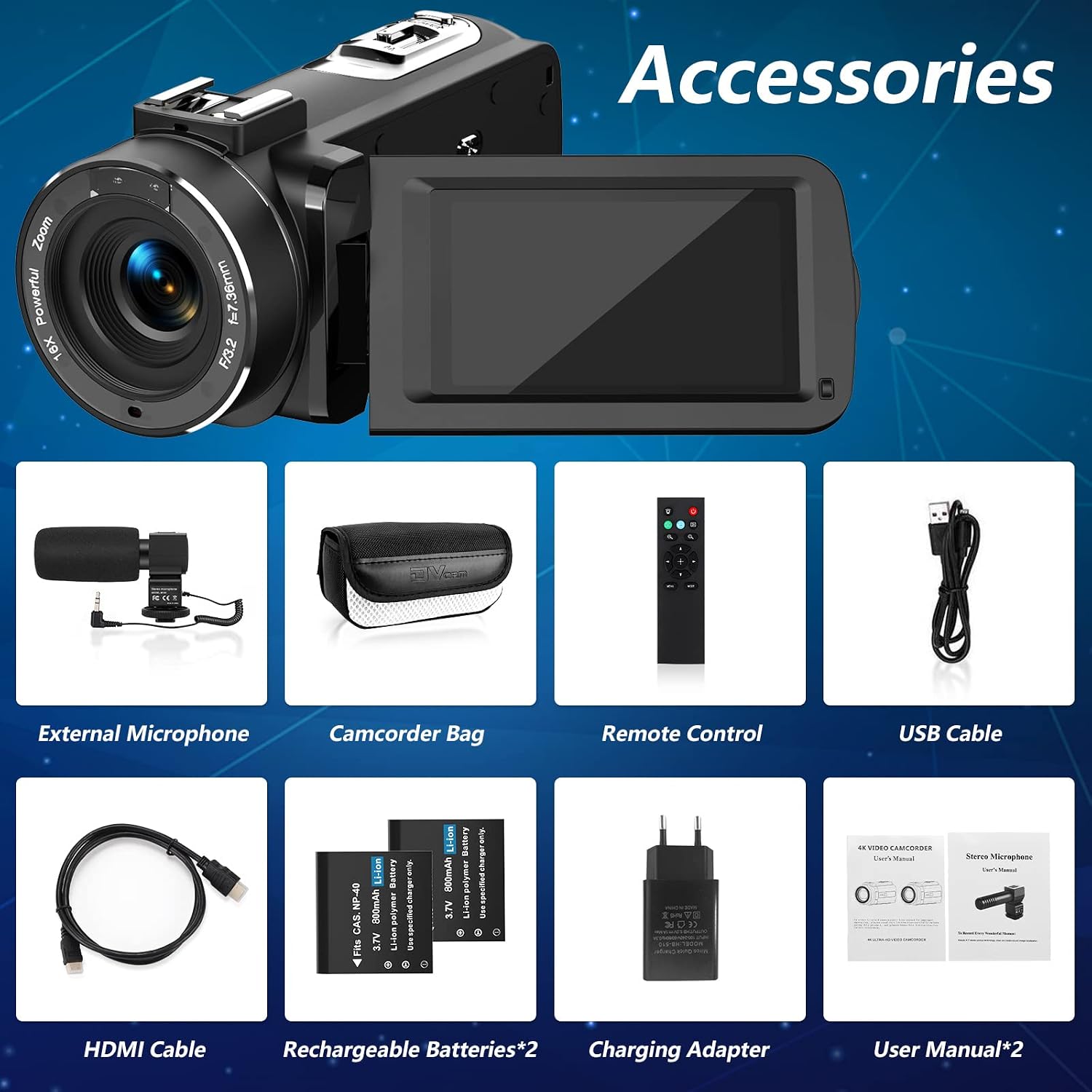
Please check the package contents to ensure all items are present:
- FamBrow FHD 1080P Camcorder
- External Microphone
- Camcorder Bag
- Remote Control
- USB Cable
- HDMI Cable
- Rechargeable Batteries (x2)
- Charging Adapter
- User Manual (x2)
Product Overview
The FamBrow FHD 1080P Camcorder features a 3.0-inch IPS screen with 270° rotation, 16X digital zoom, and supports 1080P video recording. It comes with an external stereo microphone for enhanced audio quality.


Setup
1. Battery Installation and Charging
- Open the battery compartment cover.
- Insert a rechargeable battery, ensuring correct polarity.
- Close the battery compartment cover.
- Connect the camcorder to the charging adapter using the USB cable. Plug the adapter into a power outlet. The charging indicator will illuminate.
- Charge until the indicator turns off, signifying a full charge.
2. SD Card Installation
- The camcorder supports SD cards up to 128GB (not included).
- Locate the SD card slot.
- Insert the SD card with the metal contacts facing the correct direction until it clicks into place.
- To remove, press the card gently until it pops out.
3. External Microphone Attachment
- Slide the external microphone onto the hot shoe mount on top of the camcorder.
- Connect the microphone cable to the microphone input port on the camcorder.
4. Powering On/Off
- To power on, open the LCD screen.
- To power off, close the LCD screen or press and hold the power button.
Operating Instructions
1. Basic Video Recording and Photo Capture
- Power on the camcorder.
- Select video mode or photo mode using the mode button.
- Press the Record/Shutter button to start recording or take a photo. Press again to stop recording.
2. Digital Zoom
Use the zoom rocker switch on the top of the camcorder to zoom in (T) or zoom out (W). The camcorder features 16X digital zoom.

3. Using the 2.4G Remote Control
The included 2.4G wireless remote control allows you to operate the camcorder from a distance of up to 60 feet (20 meters) without line-of-sight restrictions. This is useful for selfies, group shots, or recording from a fixed position.

4. Pause Function
During video recording, press the Pause button to temporarily stop recording. Press it again to resume recording within the same file. This feature is ideal for capturing continuous events without creating multiple video files.
5. Webcam Function
Connect the camcorder to your computer via the USB cable. Select "PC Camera" mode on the camcorder's screen. Your camcorder can now be used as a webcam for live streaming on platforms like YouTube, Facebook, or for video chats.

6. TV Output (HDMI)
Connect the camcorder to a TV or monitor using the provided HDMI cable to view your recordings on a larger screen.
7. IR Night Vision
Activate the IR Night Vision mode for recording in low-light or dark conditions. The camcorder will capture clear black and white footage.

8. Additional Features
- Anti-shake: Helps stabilize footage for clearer videos.
- Face Detection: Automatically detects and focuses on faces.
- Smile Capture: Automatically takes a photo when a smile is detected.
- Self-timer: Set a delay before taking a photo (e.g., 2s, 5s, 10s).
- Continuous Shooting: Capture multiple photos in quick succession.
- Record While Charging: The camcorder can operate while connected to a power source, extending recording time.

Maintenance
1. Cleaning
- Use a soft, dry cloth to clean the camcorder body.
- For the lens, use a specialized lens cleaning cloth and solution. Avoid touching the lens with your fingers.
- Do not use harsh chemicals or abrasive cleaners.
2. Storage
- When not in use, store the camcorder in a cool, dry place, away from direct sunlight and dust.
- Remove batteries if the camcorder will not be used for an extended period.
Troubleshooting
| Problem | Possible Cause | Solution |
|---|---|---|
| Camcorder does not power on. | Battery is dead or incorrectly inserted. | Charge the battery or reinsert it correctly. |
| Cannot record video/take photos. | SD card is full, not inserted, or corrupted. | Insert a formatted SD card, free up space, or replace the card. |
| Poor video/audio quality. | Low light conditions, dirty lens, or microphone not connected properly. | Ensure adequate lighting, clean the lens, or check microphone connection. |
| Remote control not working. | Remote battery is dead or camcorder is not in remote mode. | Replace remote battery. Ensure camcorder is ready to receive remote commands. |
| Camcorder freezes. | Software glitch. | Remove and reinsert the battery to reset the device. |
Specifications
| Feature | Detail |
|---|---|
| Brand | FamBrow |
| Photo Sensor Technology | CMOS |
| Video Recording Resolution | 1080p |
| Flash Memory Type | SD (up to 128GB, not included) |
| Screen Size | 3.0 Inches (IPS, 270° Rotation) |
| Connectivity Technology | HDMI, USB |
| Special Features | Infrared Night Vision, Webcam Function, Pause Function, 2.4G Remote Control, Anti-shake, Face Detection, Smile Capture, Self-timer, Record While Charging |
| Camcorder Type | Video Camera |
| Lens Type | Zoom |
| Image Stabilization | No (Digital Zoom Stabilization) |
| Optical Sensor Technology | CMOS |
| Digital Zoom | 16x |
| Form Factor | Compact |
| Wireless Technology Type | Infrared (for remote) |
| File Format | AVI |
| Batteries Included | Yes (2 rechargeable) |
| UPC | 750073948906 |
| ASIN | B08ZSQNQYV |
Warranty and Support
FamBrow offers a one-year refund or replacement policy for this product. For any questions, technical support, or warranty claims, please contact FamBrow customer service through your purchase platform or the contact information provided with your product packaging.
Please retain your proof of purchase for warranty purposes.