
AMprime 1+32G(Mirror Link)
AMprime 10-inch Android Car Stereo User Manual
Model: 1+32G(Mirror Link)
Brand: AMprime
Product Overview
The AMprime 1+32G Android Double Din Car Stereo is a high-definition 10-inch touchscreen in-dash unit designed to enhance your in-car entertainment and navigation experience. It features built-in GPS navigation, WiFi connectivity, Bluetooth for hands-free calls and music, FM radio, EQ ASP sound adjustments, USB support, and Android/iOS Mirror Link functionality. A rear view camera is also included for improved safety.

Image: AMprime 10-inch Android Car Stereo with included accessories.
What's in the Box
Your package should contain the following items:
- Car Stereo
- Camera
- Mic
- Cable set (including power cable, RCA cables, USB cables, GPS antenna, rear camera cable)
- Brackets
- User Manual

Image: All components included in the product package.
Setup
Before installation, ensure your vehicle's power is disconnected. Professional installation is recommended.
Physical Installation
The car stereo is designed for double DIN slots. Refer to the dimensions below to ensure compatibility with your vehicle's dashboard.

Image: Product dimensions and rear connection ports.
Connect the wiring harness to the corresponding ports on the back of the head unit. Ensure all connections are secure.

Image: Comprehensive wiring diagram for the car stereo system.
For the rear view camera, connect the camera's video output to the head unit's AV input and the power cable to the car's reversing light circuit. The reverse control wire on the power cord (marked "Reverse" or "Back") should be connected to the positive pole of the car reversing light.

Image: Rear view camera connection diagram.
Initial Power On
After completing all physical connections, reconnect your vehicle's power. The unit should power on automatically or by pressing the power button.
Network Connection (WiFi)
To access online features and download applications, connect the head unit to a WiFi network. Navigate to the settings menu, select "WiFi," and choose your desired network. Enter the password if prompted.

Image: WiFi and GPS Navigation interface.
GPS Setup
The unit has built-in GPS navigation. You can download offline navigation maps directly from the Play Store. After connecting to WiFi, online maps can also be used for real-time traffic and updates.
Operating Instructions
Mirror Link Function
The Mirror Link feature allows you to project your mobile phone's screen onto the car stereo display. This is ideal for viewing videos or using navigation apps from your phone on the larger screen. Select the "PhoneLink" APP on the head unit to initiate the connection.
Video: Steps to connect an iPhone using the Mirror Link (PhoneLink) feature.

Image: Mirror Link in action, displaying phone content on the car stereo.
Bluetooth Connectivity
The unit supports Bluetooth for hands-free calls, synchronizing your address book, and playing music from your mobile phone. Pair your device through the Bluetooth settings on the head unit.

Image: Bluetooth and FM Radio interface.
FM Radio Operation
Enjoy your favorite radio stations with the built-in FM radio, supporting frequencies from 87.5-108 MHz. You can also transmit music to the car stereo through FM.
Steering Wheel Control Function
Control the car audio system using your vehicle's original steering wheel buttons for more convenient and safer operation. The unit supports learning functions for various steering wheel controls.
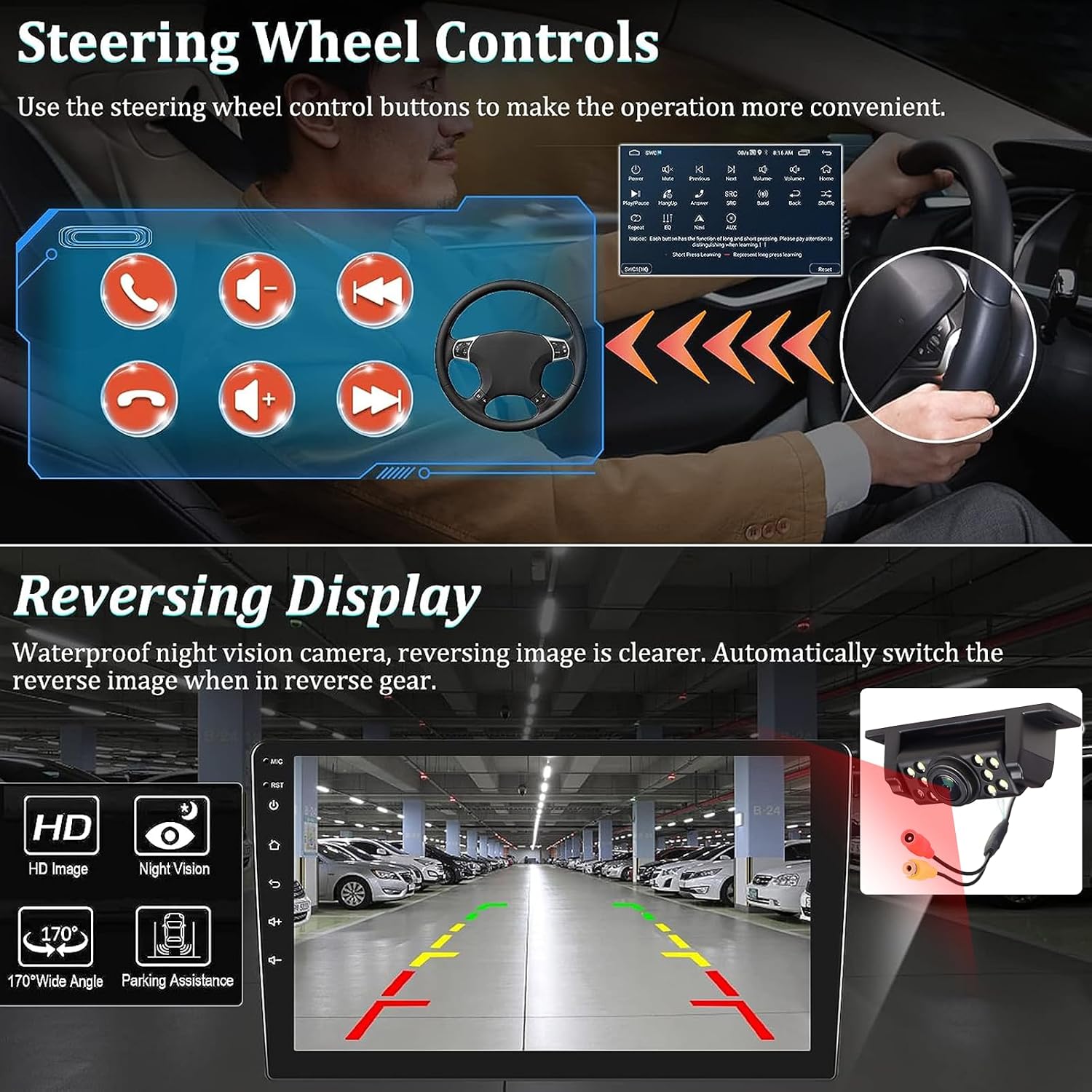
Image: Steering Wheel Controls and Reversing Display.
Backup Camera Display
The included ultra-clear wide-angle backup camera provides a clear reversing line and excellent night vision with 9 bright LED lights. The display automatically switches to the reverse image when the vehicle is in reverse gear, ensuring safer and easier maneuvering.
Split Screen Function
Utilize the split screen feature to view two applications simultaneously. You can operate the left and right screens independently, enhancing multitasking capabilities.
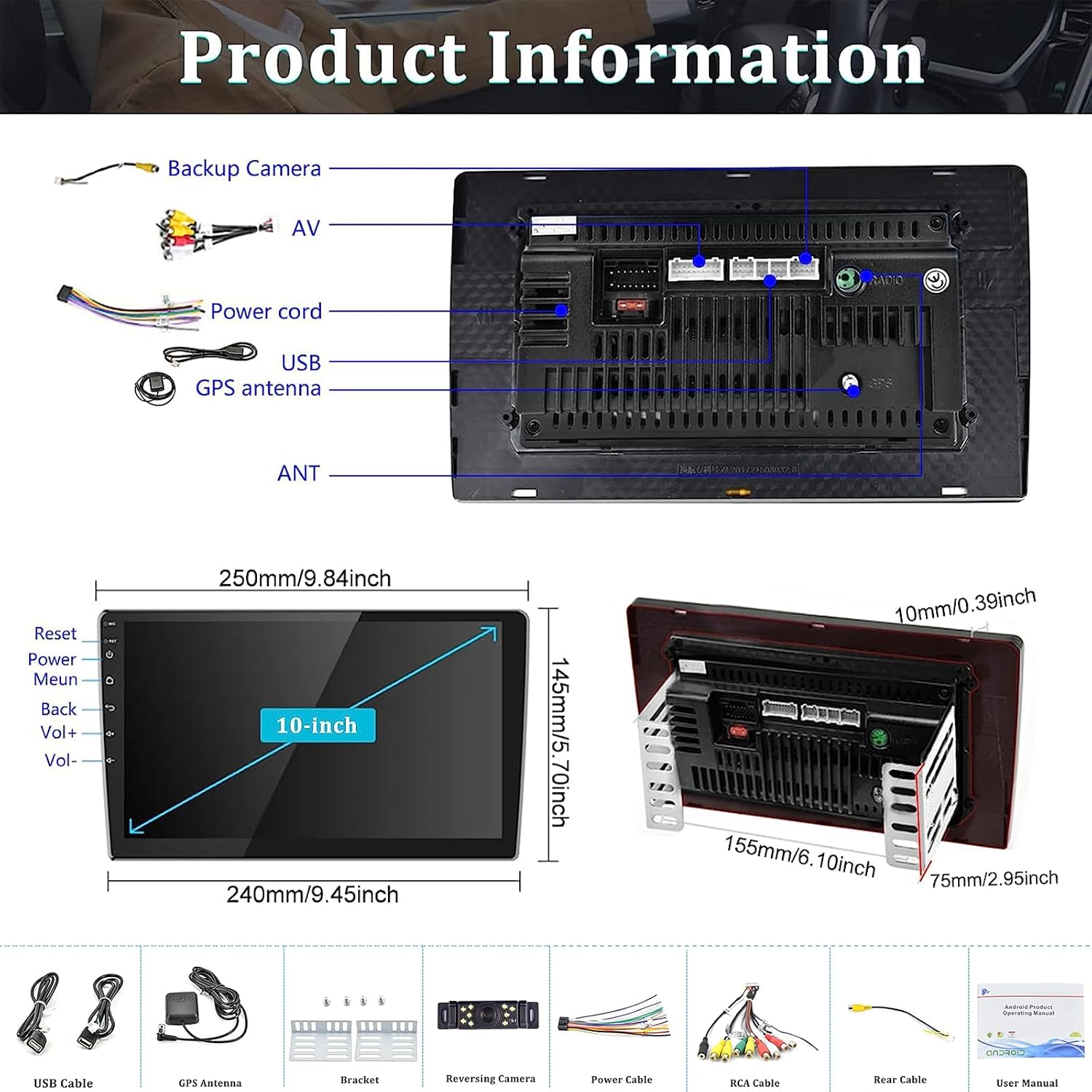
Image: Split Screen Functionality.
EQ ASP Sound Adjustments
Adjust various popular sound effects to achieve optimal audio quality. The EQ ASP feature improves high and low sounds and surround stereo sound, providing a pleasant and perfect listening experience.
Maintenance
To ensure the longevity and optimal performance of your AMprime car stereo, follow these maintenance guidelines:
- Cleaning: Use a soft, dry cloth to clean the touchscreen and exterior. Avoid abrasive cleaners or solvents that may damage the surface.
- Temperature: Do not expose the unit to extreme temperatures. Operating temperature range is -40°C to 80°C.
- Moisture: Keep the unit dry. Moisture can cause damage to internal components.
- Software Updates: Periodically check for software updates to ensure the system runs efficiently and has the latest features.
Troubleshooting
If you encounter issues with your car stereo, refer to the following common problems and solutions:
| Problem | Possible Cause | Solution |
|---|---|---|
| No Power | Loose power connection, blown fuse. | Check power cables and vehicle fuses. Ensure proper wiring. |
| No Sound | Volume too low, incorrect audio source, speaker wiring issue. | Increase volume, select correct audio source (FM, Bluetooth, USB), check speaker connections. |
| GPS Signal Lost | GPS antenna obstruction or faulty connection. | Ensure GPS antenna has a clear view of the sky and is securely connected. |
| Mirror Link Not Connecting | Incorrect WiFi hotspot settings, app not open on phone. | Verify phone's personal hotspot is active and connected to the head unit. Ensure "PhoneLink" app is open. |
| Rear Camera Not Displaying | Incorrect camera wiring, faulty camera. | Check camera video input and reverse trigger wire connections. Test camera functionality. |
If the problem persists after attempting these solutions, please contact customer support.
Specifications
| Feature | Detail |
|---|---|
| System | Android 13 |
| Display Size | 10 Inches |
| Screen Resolution | 1920x1080 |
| Memory (RAM) | 1GB |
| Storage (ROM) | 32GB |
| Power Output | 4*45W |
| Bluetooth Version | 4.0 |
| Radio Band | FM (87.5-108 MHz) |
| Connectivity | WiFi, Bluetooth, USB |
| Mirror Link | Android/iOS Support |
| GPS | Built-in, supports offline maps |
| Item Weight | 3 pounds |
| Product Dimensions | 7 x 4 x 1 inches |
| Operating Temperature | -40°C to 80°C |
Warranty and Support
This AMprime car stereo comes with a 1-year warranty from the date of purchase. For warranty claims, technical assistance, or further support, please contact the seller directly or visit the official AMprime store.
Official AMprime Store: AMprime Car Stereo Radio Store
Related documents1+32G(Mirror Link)

Ask a question about this manual
Ask about setup, troubleshooting, compatibility, parts, safety, or missing instructions. Manuals+ will review the question and use this page’s manual context to help answer it.