
Inrico T522A
User Manual for Inrico T522A 4G/LTE Network Radio
Model: T522A
Introduction
This manual provides comprehensive instructions for the Inrico T522A 4G/LTE Network Radio. Designed for reliable communication, this device integrates 4G/LTE connectivity with Zello and ZelloWork platforms, offering long-range, clear audio transmission. Please read this manual thoroughly before operating the device to ensure proper usage and optimal performance.
Product Overview
The Inrico T522A is a robust network radio built for demanding environments. It features a durable design, including waterproof and dustproof capabilities (IP66 rating), and supports various network functionalities for seamless communication.
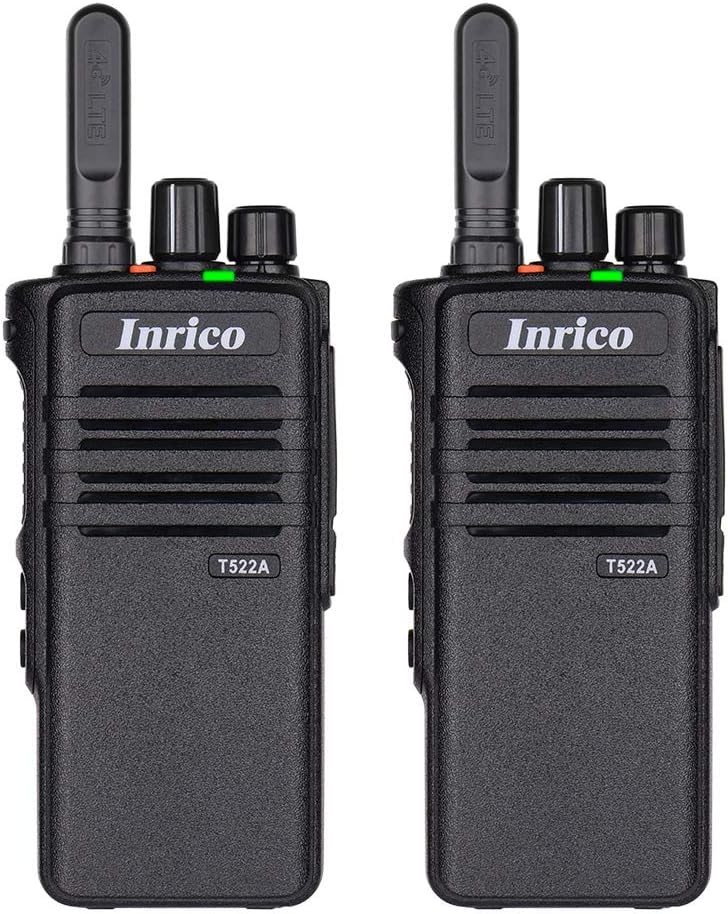
Figure 1: Front view of two Inrico T522A network radios, showing the Inrico branding and T522A model number.

Figure 2: Various angles of the Inrico T522A radio, including front, side, and back views, highlighting its compact design and belt clip.
Key Components:
- Antenna: For 4G/LTE signal reception.
- Power/Volume Knob: To turn the device on/off and adjust volume.
- Channel/Function Knob: For selecting channels or functions.
- PTT (Push-to-Talk) Button: For initiating voice transmissions.
- Speaker/Microphone: Integrated for audio input and output.
- Battery Compartment: Houses the removable battery.
- Belt Clip: For convenient carrying.
- Charging Contacts: Located at the bottom for cradle charging.
Setup
1. Battery Installation:
- Ensure the radio is powered off.
- Locate the battery compartment on the back of the radio.
- Align the battery with the contacts and gently push it into place until it clicks.
- Secure the battery cover if applicable.
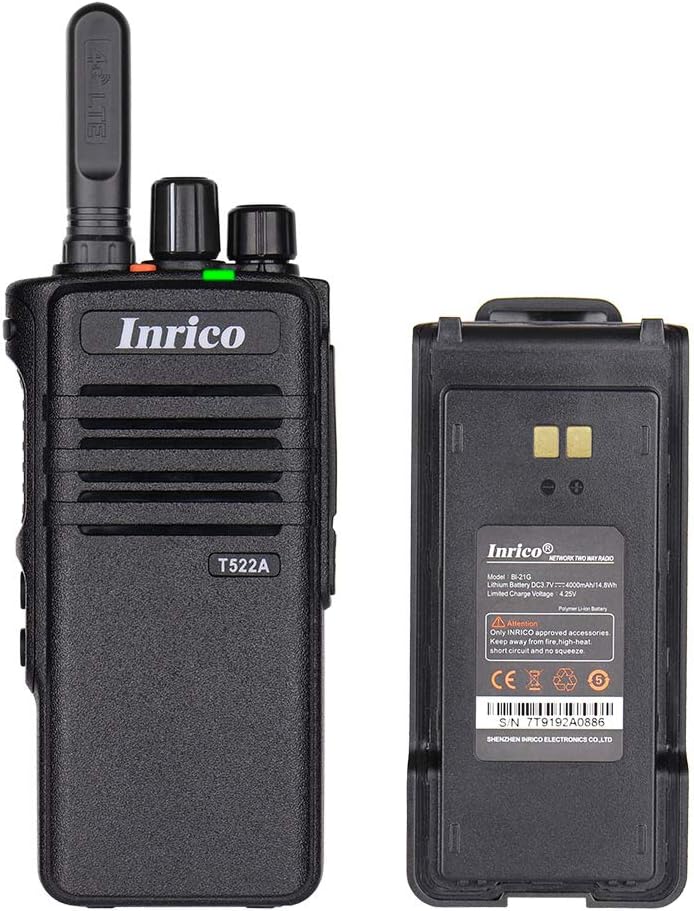
Figure 3: The Inrico T522A radio shown alongside its removable battery pack, illustrating the battery's connection points.
2. Charging the Battery:
Before first use, fully charge the battery.
- Place the radio into the charging cradle, ensuring the charging contacts align.
- Connect the charging cradle to a power source using the provided adapter.
- The charging indicator light will illuminate (typically red) during charging and change color (typically green) when fully charged.

Figure 4: The Inrico T522A radio securely placed in its dedicated charging cradle, ready for power replenishment.
3. Network Connectivity:
The T522A supports 4G/LTE and WLAN connectivity. Ensure a valid SIM card is inserted for 4G/LTE operation, or configure Wi-Fi settings for WLAN use.

Figure 5: The Inrico T522A radio depicted with "4G LTE" and Android logos, indicating its cellular and operating system capabilities.

Figure 6: The Inrico T522A radio shown with a WLAN (Wi-Fi) symbol, indicating its wireless local area network connectivity.
Operating Instructions
Power On/Off:
- To power on, rotate the Power/Volume knob clockwise until you hear a click.
- To power off, rotate the Power/Volume knob counter-clockwise until you hear a click.
Adjusting Volume:
- Rotate the Power/Volume knob clockwise to increase volume and counter-clockwise to decrease volume.
Using Zello/ZelloWork:
The Inrico T522A is optimized for Zello and ZelloWork applications.
- Ensure the Zello or ZelloWork application is installed and configured on the device.
- Log in to your Zello/ZelloWork account.
- Select the desired channel or contact.
- Press and hold the PTT button to transmit your voice. Release the PTT button to listen.
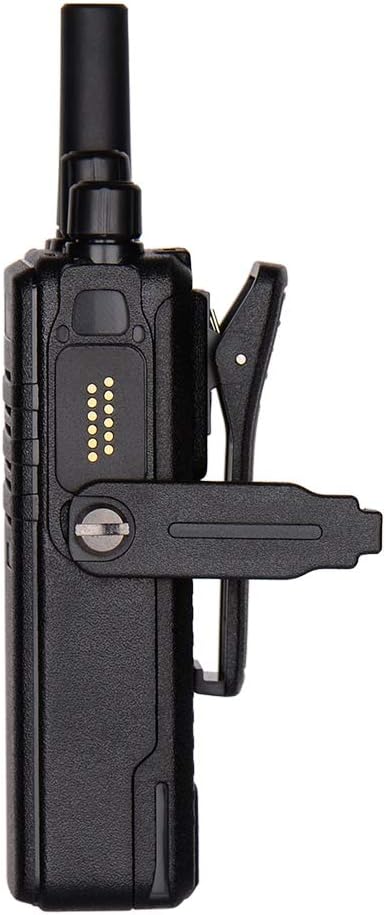
Figure 7: Two Inrico T522A radios displayed in front of a computer monitor showing a dispatch system interface, illustrating their integration with communication platforms.
Maintenance
- Cleaning: Use a soft, damp cloth to clean the exterior of the radio. Do not use harsh chemicals or abrasive cleaners.
- Battery Care: To prolong battery life, avoid fully discharging the battery frequently. Store the radio and battery in a cool, dry place when not in use for extended periods.
- Environmental Protection: While the radio is waterproof and dustproof (IP66), avoid prolonged exposure to extreme temperatures or direct sunlight.
Troubleshooting
| Problem | Possible Cause | Solution |
|---|---|---|
| Radio does not power on. | Battery is low or not installed correctly. | Charge the battery or re-install it securely. |
| No audio from speaker. | Volume is too low; speaker is blocked; network issue. | Increase volume; check for obstructions; verify network connection. |
| Cannot transmit/receive. | No network signal; Zello/ZelloWork not logged in; incorrect channel. | Check network signal strength; log into Zello/ZelloWork; select correct channel. |
| Poor audio quality. | Weak network signal; interference. | Move to an area with better signal; avoid sources of interference. |
Specifications
| Feature | Detail |
|---|---|
| Brand | Inrico |
| Model | T522A |
| Connectivity | 4G/LTE, WLAN |
| Compatible Devices | Zello, ZelloWork, 4G/LTE devices on the same frequency band, internet-capable devices |
| Water Resistance Level | Waterproof (IP66) |
| Special Features | Long Range, Waterproof, Dust Proof |
| Included Components | 2 x Radio (as per product listing) |
| Color | Black |
Warranty and Support
For warranty information and technical support, please refer to the official Inrico website or contact your authorized dealer. Keep your purchase receipt as proof of purchase.
Manufacturer: Inrico
Related documentsT522A


Ask a question about this manual
Ask about setup, troubleshooting, compatibility, parts, safety, or missing instructions. Manuals+ will review the question and use this page’s manual context to help answer it.