
Visioneer 8RH216
Visioneer Xerox W110 Duplex Production Scanner User Manual
Model: 8RH216
Introduction
This manual provides comprehensive instructions for the setup, operation, and maintenance of your Visioneer Xerox W110 Duplex Production Scanner. Designed for high-volume document management, this scanner offers efficient and reliable performance for various business needs. Please read this manual thoroughly before using the device to ensure proper operation and to maximize its capabilities.

The Visioneer Xerox W110 Duplex Production Scanner, showcasing its document feeder and output tray with paper loaded, ready for high-volume scanning operations.
Safety Information
Always observe the following safety precautions to prevent injury or damage to the scanner:
- Ensure the scanner is placed on a stable, level surface.
- Do not block ventilation openings.
- Use only the power adapter supplied with the scanner.
- Avoid exposing the scanner to water or excessive humidity.
- Do not attempt to disassemble or repair the scanner yourself. Refer to qualified service personnel.
- Keep hands and loose clothing clear of the document feeder during operation.
Package Contents
Verify that all items are present in the box:
- Xerox W110 Scanner with Network & Imprinter
- DVD with User's Manual, Software & Driver
- Quick Installation Guide
- Warranty Card
- Power Supply & Adapter
- Registration Information
- USB 3.1 Cable

An illustration detailing the various components included in the Xerox W110 Scanner package, such as the scanner unit, cables, and documentation.
Product Overview
The Xerox W110 scanner is designed for efficient document processing. Key features include a large automatic document feeder (ADF) and intuitive controls.
This short video provides a 360-degree view of the Xerox W110 Scanner, showcasing its design and various angles.

An infographic highlighting the scanner's capabilities, including scanning documents up to 12.1 inches wide and 236 inches long, support for color, black/white, and grayscale, and OneTouch scanning to email, network, or cloud destinations.
Setup
1. Unpacking and Placement
- Carefully remove the scanner and all accessories from the packaging.
- Place the scanner on a sturdy, flat surface with adequate space for document feeding and output.
- Ensure proper ventilation around the unit.
2. Connecting to Power
- Connect the power adapter to the scanner's power input.
- Plug the power cord into a grounded electrical outlet.
3. Connecting to Computer
- For USB connection: Connect the supplied USB 3.1 cable from the scanner to an available USB port on your computer.
- For Ethernet connection: Connect an Ethernet cable from the scanner's network port to your network router or switch.

This image illustrates the connectivity options, including 3.1 USB compatibility, PC compatibility, and the ability to scan one or two-sided documents.
4. Software Installation
- Insert the provided DVD into your computer's optical drive.
- Follow the on-screen instructions to install the scanner drivers and bundled software (e.g., Visioneer Acuity, OneTouch).
- If your computer does not have an optical drive, download the latest drivers and software from the Visioneer support website.
Operating the Scanner
Loading Documents
- Fan the edges of the documents to prevent misfeeds.
- Adjust the paper guides in the Automatic Document Feeder (ADF) to fit the width of your documents.
- Place the documents face-down in the ADF, ensuring they are properly aligned. The scanner can handle up to 500 sheets.
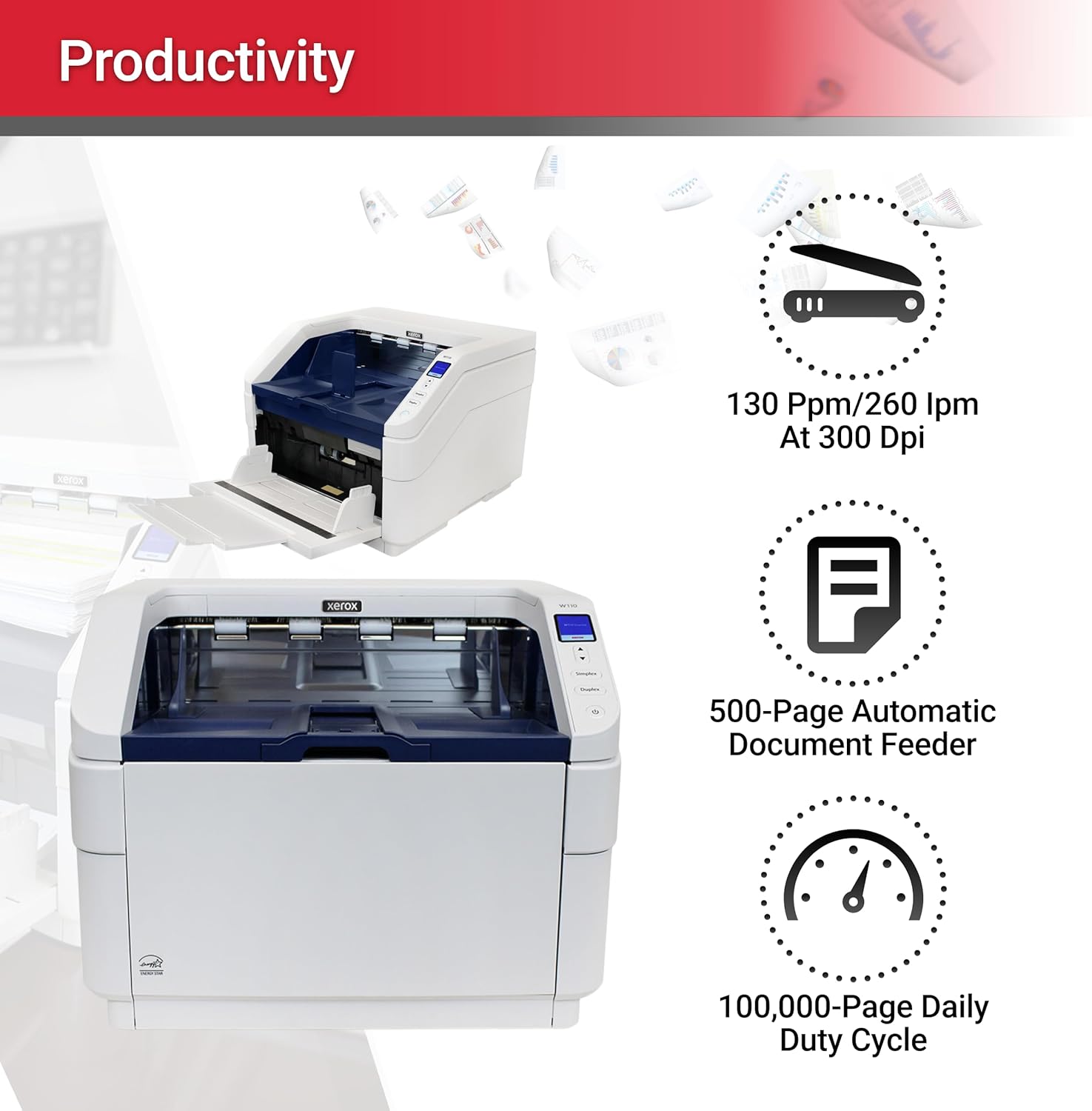
This image highlights the scanner's productivity, including speeds of 130 ppm/260 ipm at 300 dpi, a 500-page Automatic Document Feeder, and a 100,000-page daily duty cycle.
Scanning Basics
- Simplex Scanning: Scans one side of the document. Select the Simplex option on the scanner's control panel or in the scanning software.
- Duplex Scanning: Scans both sides of the document simultaneously. Select the Duplex option. The Xerox W110 is a duplex production scanner, optimized for two-sided scanning.
OneTouch Scanning
- The OneTouch feature allows you to quickly scan documents to predefined destinations (e.g., email, network folder, cloud service) by pressing a single button.
- Configure OneTouch profiles using the Visioneer OneTouch software installed on your computer.
Image Enhancement Technology
- The Visioneer Acuity Intelligent Imaging Processing technology automatically improves the visual clarity of scanned images.
- This feature helps achieve perfect scans even from imperfect originals, correcting issues like skewed documents, blank pages, or poor contrast.
Network Scanning
- The Visioneer network technology enables shared scanning for multiple users on a network.
- This allows for centralized document management and efficient workflow in a multi-user environment.

This image displays the physical dimensions of the scanner (18.1 in x 17.6 in x 14.3 in) and highlights its thin scanning capability, on-board Visioneer VAST Network® Technology, and compatibility with web-based TWAIN Direct® Apps, along with its weight of 50 lbs.
Maintenance
Cleaning the Scanner
- Exterior: Wipe the exterior with a soft, damp cloth. Do not use abrasive cleaners or solvents.
- Glass Surfaces: Use a lint-free cloth and a non-abrasive glass cleaner to clean the scanner's glass surfaces.
- Rollers: Periodically clean the feed rollers with a damp cloth to ensure smooth document feeding. Refer to the detailed cleaning instructions in the full user manual (on DVD) for specific roller cleaning procedures.
Consumables
The scanner's rollers and separation pads are consumable parts that may need replacement over time due to wear. Consult the full user manual or Visioneer support for information on replacement parts and procedures.
Troubleshooting
If you encounter issues with your scanner, try the following solutions:
| Problem | Possible Solution |
|---|---|
| Scanner not powering on | Check power cable connections. Ensure the power adapter is securely plugged into both the scanner and a working electrical outlet. |
| Documents not feeding properly | Ensure documents are fanned and aligned correctly in the ADF. Adjust paper guides. Clean feed rollers if they appear dirty. |
| Scanned images are blurry or streaky | Clean the scanner's glass surfaces and rollers. Ensure documents are free of dust or debris. |
| Scanner not recognized by computer | Verify USB or Ethernet cable connection. Reinstall scanner drivers. Restart both the scanner and the computer. |
| Software errors during scanning | Ensure scanner software is up-to-date. Close other applications. Restart the scanning software. |
For more detailed troubleshooting, refer to the comprehensive user manual provided on the installation DVD or visit the Visioneer support website.
Specifications
| Feature | Detail |
|---|---|
| Model Number | 8RH216 |
| Product Dimensions | 18.1 x 17.6 x 14.3 inches |
| Item Weight | 50 pounds |
| Scanner Type | Document Scanner |
| Media Type | Paper, Photo, Receipt |
| Connectivity Technology | Ethernet, USB 3.1 |
| Resolution | 600 dpi |
| Color Depth | 24 bpp |
| Sheet Size | Letter (and wider, up to 12.1 inches) |
| Scan Speed | Up to 120 ppm / 240 ipm |
| Daily Duty Cycle | 100,000 pages/day |
| Automatic Document Feeder (ADF) Capacity | 500 sheets |
| Manufacturer | Xerox Scanner |
Warranty and Support
The Visioneer Xerox W110 Duplex Production Scanner comes with a standard warranty. Please refer to the Warranty Card included in your package for specific terms and conditions. For technical support, driver downloads, and additional resources, please visit the official Visioneer support website or contact their customer service.
Online Support: www.visioneer.com/support
Brand Store: Visioneer Amazon Store
Ask a question about this manual
Ask about setup, troubleshooting, compatibility, parts, safety, or missing instructions. Manuals+ will review the question and use this page’s manual context to help answer it.