
1. Introduction
The WIWU Smart Pro Pen is an advanced stylus designed for seamless interaction with compatible iPad models. It features tilt writing functionality and palm rejection technology, allowing for a natural writing and drawing experience. The pen is equipped with a pressure sensor for precise input and a magnetic body for convenient attachment to your tablet.
This manual provides detailed instructions on how to set up, operate, and maintain your Smart Pro Pen, along with troubleshooting tips and product specifications.
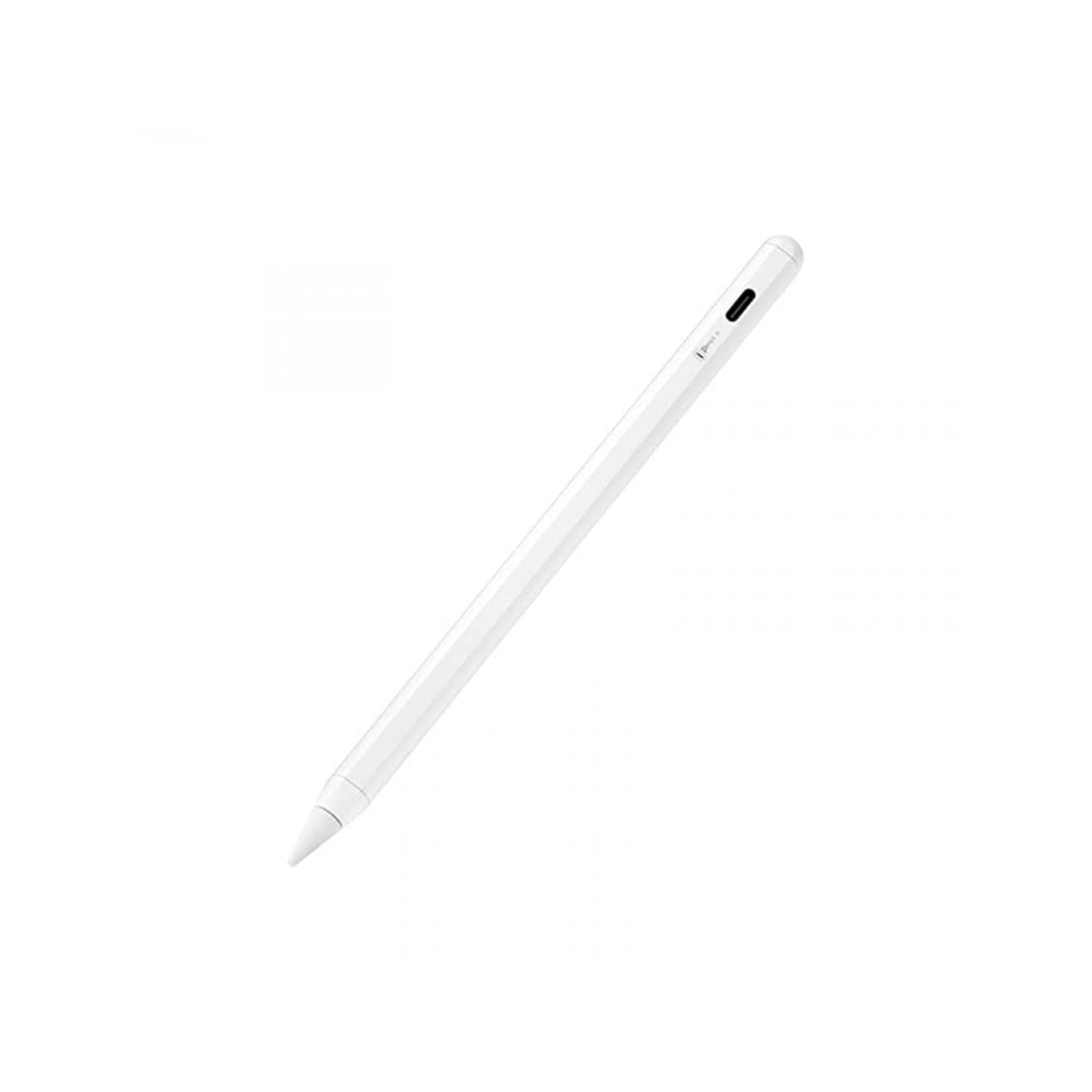
Image: The WIWU Smart Pro Pen, a sleek white stylus.
2. Package Contents
Please ensure all items are present in your package:
- WIWU Smart Pro Pen
- USB-C Charging Cable
- Replaceable Pen Tip (one included)
- User Manual

Image: The WIWU Smart Pro Pen in its retail packaging, positioned next to a tablet displaying a note-taking application.
3. Setup
3.1 Charging the Pen
Before first use, fully charge your WIWU Smart Pro Pen.
- Locate the USB-C charging port on the side of the pen.
- Connect the provided USB-C cable to the pen and plug the other end into a compatible USB power adapter (not included) or a computer's USB port.
- The LED indicator on the pen will show the charging status. A full charge takes approximately 1.5 hours.

Image: A close-up view of the WIWU Smart Pro Pen, highlighting its USB-C charging port.
3.2 Powering On/Off
To power on the pen, press and hold the power button located on the side of the pen until the LED indicator lights up. To power off, press and hold the power button again until the LED indicator turns off.
3.3 Compatibility
The WIWU Smart Pro Pen is designed for specific iPad models. Please ensure your device is compatible before use. This pen is compatible with iPad models from 2018, 2019, and 2020, including:
- iPad 6th/7th Generation
- iPad Air 3rd Generation
- iPad Mini 5th Generation
- iPad Pro 11-inch (2018, 2020)
- iPad Pro 12.9-inch (3rd Gen 2018, 4th Gen 2020)
For detailed model numbers, refer to the compatibility chart below.

Image: A detailed compatibility list showing supported iPad models and their corresponding model numbers for the WIWU Smart Pro Pen.
4. Operating Instructions
4.1 Basic Usage
Once powered on and your iPad is compatible, the pen is ready for use. Simply touch the pen tip to the iPad screen to interact with applications, write, or draw.

Image: A hand holding the WIWU Smart Pro Pen, actively drawing on an iPad screen.
4.2 Palm Rejection
The Smart Pro Pen features advanced palm rejection technology. This allows you to rest your hand naturally on the iPad screen while writing or drawing, without your palm interfering with the input.
4.3 Tilt Function
The pen supports tilt sensitivity, which means you can shade or vary line thickness in supported applications by tilting the pen, similar to using a traditional pencil.

Image: A collage showing various uses of the WIWU Smart Pro Pen, including drawing detailed illustrations and taking notes on an iPad.
4.4 Magnetic Attachment
The pen contains built-in magnets, allowing it to attach securely to the side of compatible iPad models for convenient storage. Note that this magnetic attachment does not provide wireless charging.
5. Maintenance
5.1 Cleaning
To clean the pen, gently wipe it with a soft, dry, lint-free cloth. Do not use abrasive cleaners or solvents, as these may damage the pen's finish.
5.2 Tip Replacement
The pen comes with one replaceable tip. If the tip becomes worn or damaged, gently twist it counter-clockwise to remove and replace it with a new one. Ensure the new tip is securely fastened by twisting clockwise.
5.3 Battery Care
To prolong battery life, avoid fully discharging the pen frequently. Charge the pen regularly, especially if it will not be used for an extended period.
6. Troubleshooting
6.1 Pen Not Responding
- Ensure the pen is powered on.
- Check the battery level and charge the pen if necessary.
- Verify that your iPad model is compatible with the pen (refer to Section 3.3).
- Restart your iPad.
- Ensure there are no other active styluses or Bluetooth devices interfering with the connection.
6.2 Charging Issues
- Ensure the USB-C cable is securely connected to both the pen and the power source.
- Try using a different USB-C cable or power adapter.
- Check the charging port on the pen for any debris or damage.
6.3 Inaccurate or Intermittent Input
- Ensure the pen tip is clean and free of debris.
- Check if the pen tip is securely attached or if it needs replacement.
- Make sure your iPad screen is clean.
7. Specifications
| Feature | Description |
|---|---|
| Brand Name | WIWU |
| Item Model Number | B08ZM41KH8 |
| Color | White |
| Material | Nylon (Body), POM (Tip) |
| Product Dimensions | 0.9 x 5.9 x 3 cm (0.35 x 2.32 x 1.18 inches) |
| Item Weight | 100 grams |
| Compatible Devices | Tablets (Specific iPad models 2018-2020) |
| Number of Batteries | 1 Lithium Ion battery (included) |
| Batteries Included | Yes |
| Batteries Required | No (battery is built-in) |
| Battery Charge Time | 1.5 hours |
8. Warranty and Support
For warranty information or technical support, please refer to the documentation included with your purchase or contact WIWU customer service through their official website or the retailer where the product was purchased.
No relevant seller videos were found for this product.