
Introduction
This manual provides detailed instructions for the setup, operation, and maintenance of your INPHIC V930B Mechanical Wireless Keyboard. The V930B is a compact 60% layout keyboard featuring dual-mode connectivity (Bluetooth 5.0 and Type-C wired), RGB backlighting, and responsive blue mechanical switches. Designed for both office and gaming use, its ergonomic design aims to provide comfort during extended use.
Key Features
Compact 60% Layout

The V930B features a 60% compact layout with 61 keys, optimizing desk space while retaining essential functionality through Fn key combinations. Dimensions are approximately 291mm x 102mm.
Blue Mechanical Switches
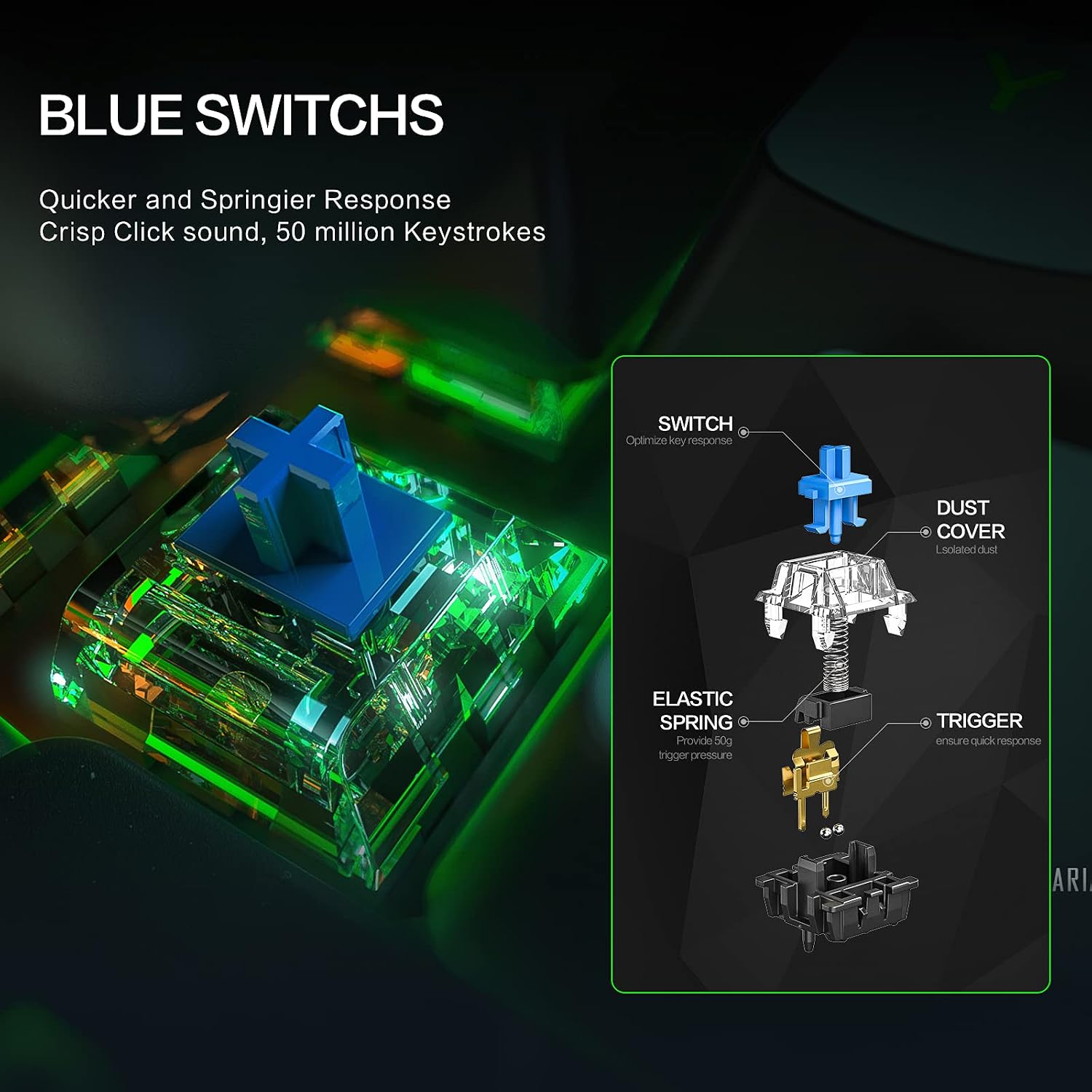
Equipped with blue mechanical switches, the keyboard provides a tactile bump and an audible click, offering a responsive and satisfying typing experience ideal for typists and gamers.
Ergonomic Design

The keyboard features an 8° tilt angle and a sculpted key design to reduce wrist strain, promoting comfortable use during long typing sessions.
Package Contents
Please verify that all items are present in the package:
- INPHIC V930B Mechanical Wireless Keyboard
- Detachable Type-C Cable
- User Manual (this document)
Setup
1. Wired Connection
To use the keyboard in wired mode:
- Connect the provided Type-C cable to the keyboard's Type-C port.
- Connect the other end of the cable to an available USB port on your computer or device.
- The keyboard will automatically be recognized and ready for use.

Image: The INPHIC V930B keyboard illustrating its dual-mode connection capability, showing the Type-C port for wired connection and a Bluetooth icon for wireless pairing. This highlights the flexibility of connecting via cable or wirelessly.
2. Wireless (Bluetooth) Connection
The keyboard supports Bluetooth 5.0 and can connect to up to three devices simultaneously.
- Switch to Bluetooth Mode: Press Fn + Tab to switch the keyboard to Bluetooth mode. The indicator light will flash, indicating it's ready for pairing.
- Select a Bluetooth Channel: Press Fn + Q, Fn + W, or Fn + E to select one of the three available Bluetooth channels. The corresponding key (Q, W, or E) will flash slowly.
- Enter Pairing Mode: Press and hold Fn + Q (or W/E) for 3-5 seconds until the Q (or W/E) key flashes rapidly. This indicates the keyboard is in pairing mode.
- Pair with Your Device:
- On your device (PC, laptop, tablet), open Bluetooth settings.
- Search for new devices.
- Select "INPHIC V930B" (or similar name) from the list of available devices.
- Follow any on-screen prompts to complete the pairing process.
- Switching Between Devices: Once paired, you can switch between connected devices by pressing Fn + Q, Fn + W, or Fn + E.
Operating Instructions
1. Function Key (Fn) Combinations
The INPHIC V930B is a 61-key keyboard that utilizes the Function (Fn) key to access additional commands and multimedia controls. Press and hold the Fn key, then press the desired key for its secondary function.
| Key Combination | Function |
|---|---|
| Fn + Tab | Switch between Wired and Bluetooth modes. |
| Fn + Q/W/E | Select/Switch between Bluetooth devices 1, 2, or 3. |
| Fn + A | Previous Track |
| Fn + S | Play/Pause |
| Fn + D | Next Track |
| Fn + F | Volume Down |
| Fn + G | Volume Up |
| Fn + H | Mute |
| Fn + J | Insert |
| Fn + K | Home |
| Fn + L | Page Up |
| Fn + ; | Page Down |
| Fn + ' | End |
| Fn + P | Print Screen |
| Fn + [ | Decrease Backlight Brightness |
| Fn + ] | Increase Backlight Brightness |
| Fn + \\ | Switch Backlight Mode (12 modes) |
| Fn + Enter | Toggle Arrow Keys (Right Shift, Fn, Ctrl, Alt become arrow keys) |
2. Backlight Control
The keyboard features 12 adjustable RGB backlight modes. Use the following combinations to control the lighting:
- Fn + \\ (Backslash key): Cycle through 12 different RGB lighting effects.
- Fn + [ (Left Bracket key): Decrease backlight brightness.
- Fn + ] (Right Bracket key): Increase backlight brightness.

Image: The INPHIC V930B keyboard displaying its vibrant RGB backlighting. The image also illustrates the key combinations for switching light effects, adjusting brightness, and controlling speed.
Maintenance
To ensure the longevity and optimal performance of your INPHIC V930B keyboard, follow these maintenance guidelines:
- Cleaning: Use a soft, dry cloth to wipe the surface of the keyboard. For deeper cleaning, use a can of compressed air to remove dust and debris from between the keycaps. Avoid using liquid cleaners directly on the keyboard.
- Storage: Store the keyboard in a cool, dry place away from direct sunlight and extreme temperatures.
- Cable Care: Handle the detachable Type-C cable with care. Avoid bending or twisting it excessively to prevent damage.
- Battery: The keyboard contains a built-in Lithium Polymer battery. Do not attempt to replace the battery yourself.
Troubleshooting
If you encounter issues with your INPHIC V930B keyboard, refer to the following common problems and solutions:
| Problem | Possible Solution |
|---|---|
| Keyboard not responding in wired mode. |
|
| Keyboard not pairing via Bluetooth. |
|
| Backlight is not working or stuck. |
|
| Cursor keys are not working as expected. |
|
| Keys are not registering or double-typing. |
|
Specifications
| Feature | Detail |
|---|---|
| Model Number | V930B |
| Layout | 60% Compact, 61 Keys |
| Switch Type | Blue Mechanical Switches |
| Connectivity | Bluetooth 5.0 (Wireless), Type-C (Wired) |
| Multi-Device Support | Up to 3 Bluetooth devices |
| Backlighting | RGB, 12 adjustable modes |
| Battery | 1 Lithium Polymer battery (included) |
| Item Weight | 1.94 pounds (approx. 880g) |
| Package Dimensions | 14.25 x 5.83 x 2.01 inches |
| Compatible Devices | PC, Laptop, Pad |
| Material | Plastic |
Warranty and Support
INPHIC products are designed for reliability and performance. For specific warranty details, please refer to the warranty card included with your purchase or visit the official INPHIC website. If you encounter any issues or require technical assistance, please contact INPHIC customer support through their official channels.
For further information or support, please visit the INPHIC Store on Amazon.