
eero eero 6+
eero 6+ Mesh WiFi System User Manual
Model: eero 6+ (3-pack)
1. Introduction
This manual provides comprehensive instructions for setting up, operating, and maintaining your eero 6+ Mesh WiFi System. The eero 6+ is designed to provide reliable, high-speed internet coverage throughout your home, supporting gigabit speeds and connecting numerous devices.
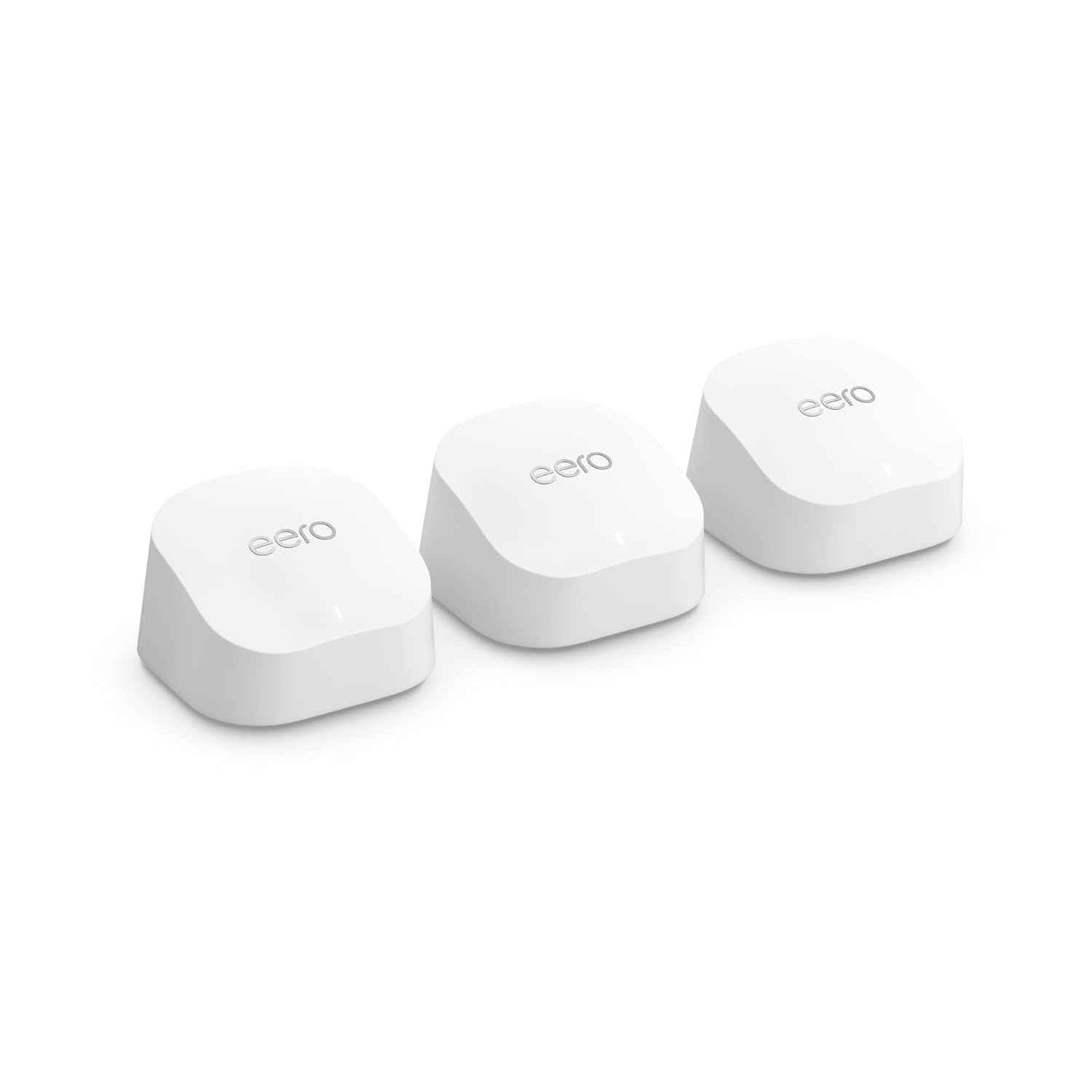
Image: Three eero 6+ devices, showcasing their compact and uniform design.
2. Setup Guide
Setting up your eero 6+ system is designed to be quick and straightforward using the eero app.
2.1 What's in the Box
- eero 6+ devices (3-pack)
- Power adapters for each eero device
- Ethernet cable
- Quick Start Guide
2.2 Requirements
- Supported iOS or Android device (for the eero app)
- Internet service (with cable or DSL modem, if required by your ISP)
2.3 Installation Steps
Download the eero App: On your mobile device, download the eero app from the App Store (iOS) or Google Play Store (Android).
Connect the First eero: Disconnect your existing router and connect one eero 6+ device to your modem using the provided Ethernet cable. Plug in the power adapter.

Image: A person using the eero app on a smartphone to set up an eero device on a desk.
Follow In-App Instructions: Open the eero app and follow the on-screen prompts to create your eero account and set up your first eero device. The app will guide you through naming your network and setting a password.
Place Additional eero Devices: Once the first eero is set up, the app will guide you on where to place the additional eero devices to extend your Wi-Fi coverage. For optimal performance, place them strategically to cover your desired area, avoiding large electronics that may cause interference.

Image: An illustration demonstrating how multiple eero devices provide comprehensive Wi-Fi coverage across different rooms and floors of a house.
Verify Connection: The eero app will confirm when your network is successfully established and all eero devices are connected.
3. Operating Your eero 6+ System
3.1 Key Features
- Gigabit Speeds: Supports internet plans up to a gigabit, providing fast connectivity for all your devices.
- Wi-Fi 6 (802.11ax): Utilizes Wi-Fi 6 dual-band concurrent 2:2 technology for improved bandwidth and efficiency, especially with 160 MHz radio channel support.
- eero TrueMesh: Patented technology intelligently routes traffic to minimize drop-offs and eliminate dead spots, ensuring reliable coverage.
- Smart Home Hub: Built-in hub connects compatible Thread and Zigbee devices with Alexa, reducing the need for separate smart home hubs.
- Extensive Coverage: A 3-pack system covers up to 4,500 sq ft and can connect 75+ devices simultaneously.
3.2 Managing Your Network with the eero App
The eero app is your central control panel for your mesh network.
- View Connected Devices: See all devices connected to your network, their signal strength, and data usage.
- Create Profiles: Manage internet access for specific family members or devices.
- Guest Network: Easily set up a separate network for guests.
- Parental Controls: (Requires eero Plus subscription) Filter content and pause internet access.
- Network Security: Monitor network activity and receive security alerts.
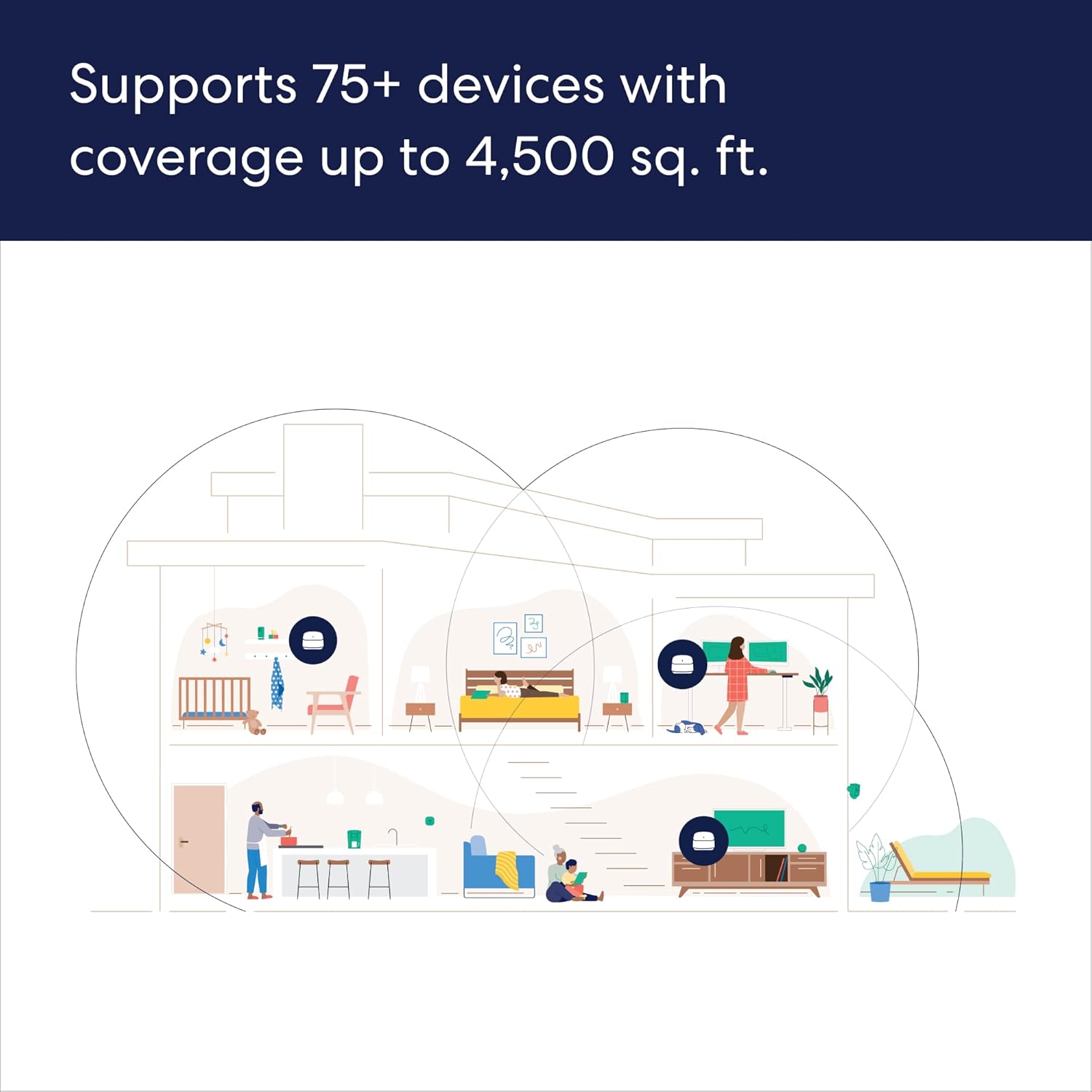
Image: Screenshot of the eero app displaying a list of connected devices and user profiles.
3.3 Smart Home Integration
The eero 6+ includes a built-in smart home hub, allowing seamless integration with compatible Thread and Zigbee devices.
- Alexa Integration: Link your Amazon account to control smart home devices using Alexa voice commands.
- Simplified Setup: Use Amazon Frustration Free Setup for compatible devices.

Image: An eero device positioned on a media console next to a television and an Amazon Echo Dot, illustrating smart home connectivity.
4. Maintenance
Your eero 6+ system is designed to be low-maintenance, with automatic updates ensuring optimal performance and security.
4.1 Automatic Software Updates
eero devices receive automatic software security updates to keep your network safe and secure. These updates are delivered over the air and typically occur during off-peak hours to minimize disruption.
4.2 Cleaning Your eero Devices
To clean your eero devices, gently wipe them with a soft, dry cloth. Do not use liquid cleaners or aerosols.
5. Troubleshooting
If you encounter issues with your eero 6+ system, consider the following common solutions:
- No Internet Connection:
- Check if your modem is working correctly.
- Ensure the Ethernet cable between your modem and the primary eero is securely connected.
- Restart your modem and then your primary eero device.
- Slow Speeds or Dead Spots:
- Review the placement of your eero devices using the eero app's signal strength indicator. Try repositioning them for better coverage.
- Ensure eero devices are not placed near large electronic appliances or metal objects that can cause interference.
- If using older MoCA adapters, ensure they are compatible and not limiting your network speed. Upgrade to 2.5v MoCA adapters if necessary.
- Device Not Connecting:
- Ensure the device's Wi-Fi is enabled and it is attempting to connect to the correct eero network.
- Restart the problematic device.
- If the issue persists, try restarting the nearest eero device.
- App Issues:
- Ensure your eero app is updated to the latest version.
- Try force-closing and reopening the app.
- Restart your mobile device.
For more detailed troubleshooting or persistent issues, refer to the eero support website or contact customer support.
6. Specifications
| Feature | Detail |
|---|---|
| Wifi coverage | Covers up to 4,500 sq ft (3-pack) |
| Type | Router (connects to modem as primary router) |
| Supported speeds | Supports ISP plans up to a gigabit |
| Wi-Fi connectivity | Wi-Fi 6 dual-band concurrent 2:2 (802.11ax); compatible with older wifi standards |
| Wired connectivity | Two auto-sensing gigabit Ethernet ports per eero device |
| Speed Rating | AX3000 |
| Smart home connectivity | Works with Alexa, Amazon Frustration Free Setup, 802.15.4 radio (Zigbee, Thread), Bluetooth Low Energy 5.0. |
| Electrical Rating | 100-240V AC, 50-60 Hz |
| Processor, memory, and storage | 1 GHz dual-core processor, 512MB RAM, 4GB flash storage |
| Network security and services | Profiles, WPA3 (eero Labs feature), WPA2, TLS v1.2+, VPN passthrough, IPv6, NAT, UPnP, port forwarding, DHCP, static IP, and cloud connectivity. |
| Temperature Rating | Operating: 0°C-40°C; Storage: -25°C-60°C; Operating humidity: 0%-90%, non-condensing; Operating altitude: <3000m |
| Dimensions | 3.9 in x 3.8 in x 2.6 in (99.4 mm x 97 mm x 65.8 mm) per eero device |
Note: Actual size and weight may vary by manufacturing process. Combining eero 6+ devices with older generation eero devices on the same network may result in reduced performance across the network.
7. Warranty and Support
7.1 Warranty Information
Your eero 6+ Mesh WiFi System comes with a 1-year limited warranty. Please retain your proof of purchase for warranty claims.
7.2 Customer Support
For any questions or assistance, eero provides world-class customer support:
- Phone: +1-877-659-2347 (US)
- Email: support@eero.com
- Online Resources: Visit support.eero.com for FAQs, guides, and community forums.
Free customer support is available 7 days a week.
Related documentseero 6+


Ask a question about this manual
Ask about setup, troubleshooting, compatibility, parts, safety, or missing instructions. Manuals+ will review the question and use this page’s manual context to help answer it.