Introduction
This manual provides comprehensive instructions for the QEBIDUM Y2000 Mini DV Camera. Please read this guide thoroughly before operating the device to ensure proper usage and optimal performance. The Y2000 is a compact digital video recorder designed for various applications, including personal video recording and use as a webcam.
Product Overview
The QEBIDUM Y2000 is notable for its extremely small size and lightweight design, making it highly portable. It features a 2.0-megapixel lens capable of capturing video and still images.

Image: The QEBIDUM Y2000 Mini DV Camera shown from various angles, including an attached keychain for portability. This image illustrates the camera's compact form factor and design.
Key Features:
- Compact Design: Smallest digital video camera.
- Video Recording: Supports AVI video format with 640x480 resolution.
- Photo Capture: 1280x1024 resolution in JPG format.
- Webcam Functionality: Can be used as a webcam for network chat.
- Storage: Supports TF/Micro SD cards up to 32GB (not included).
- Connectivity: USB for data transfer and charging.
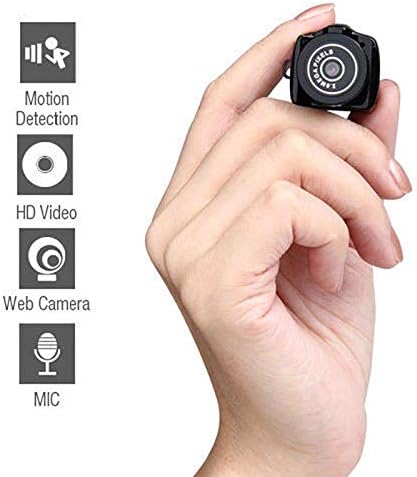
Image: A hand holding the QEBIDUM Y2000 Mini DV Camera, highlighting its small size. Accompanying icons indicate features such as motion detection, HD video, webcam functionality, and a built-in microphone.
Setup
1. Charging the Battery
Before first use, fully charge the camera's internal lithium polymer battery. Connect the camera to a USB power source (e.g., computer USB port or USB wall adapter) using the provided USB cable. The indicator light will show charging status (refer to specific light patterns in the original manual if available, otherwise, assume a standard charging indicator).
2. Inserting a Memory Card
The camera requires a TF (Micro SD) card for storing recordings and photos. Insert a Micro SD card (up to 32GB, not included) into the designated slot on the camera. Ensure the card is inserted correctly until it clicks into place. Incorrect insertion may damage the card or the camera.
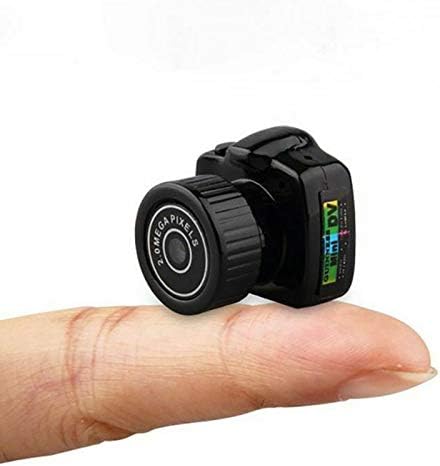
Image: The QEBIDUM Y2000 Mini DV Camera resting on a fingertip, emphasizing its extremely small and lightweight design, which is crucial for portable applications.
Operating Instructions
Power On/Off
- Power On: Press and hold the Power button for approximately 2-3 seconds until the indicator light illuminates.
- Power Off: Press and hold the Power button again for approximately 2-3 seconds until the indicator light turns off.
Video Recording
- Ensure the camera is powered on and a formatted Micro SD card is inserted.
- Press the Mode button to select video recording mode (indicator light will confirm, refer to specific light patterns in the original manual).
- Press the Record button once to start recording. The indicator light will flash during recording.
- Press the Record button again to stop recording. The video file will be saved to the Micro SD card.
Photo Capture
- Ensure the camera is powered on and a formatted Micro SD card is inserted.
- Press the Mode button to select photo capture mode (indicator light will confirm).
- Press the Record button once to take a photo. The indicator light will flash briefly, and the photo will be saved.
Webcam Mode
- Connect the camera to your computer using the USB cable while the camera is powered off.
- The computer should detect the camera as a webcam. If prompted, install necessary drivers (usually automatic on modern operating systems).
- Open your preferred video conferencing or webcam application to use the Y2000 as your webcam.
Connecting to Computer
To transfer recorded videos and photos, connect the Y2000 camera to your computer using the provided USB cable. The camera will be recognized as a removable disk. You can then access the files stored on the Micro SD card directly from your computer's file explorer.

Image: The QEBIDUM Y2000 Mini DV Camera connected to a laptop via a USB cable. This demonstrates how to connect the device to a computer for data transfer or webcam functionality.
Maintenance
- Keep the camera clean and free from dust and moisture. Use a soft, dry cloth for cleaning.
- Avoid dropping the camera or subjecting it to strong impacts.
- Store the camera in a cool, dry place when not in use.
- Do not attempt to disassemble or repair the camera yourself, as this will void any warranty.
- Regularly back up your recorded data to prevent loss.
Troubleshooting
- Camera does not power on:
- Ensure the battery is fully charged. Connect to a USB power source and allow it to charge for at least 30 minutes before attempting to power on again.
- Cannot record video/take photos:
- Verify that a Micro SD card is properly inserted and has sufficient free space. The card may need to be formatted (refer to your computer's instructions for formatting Micro SD cards).
- Computer does not recognize the camera:
- Try connecting to a different USB port or a different computer. Ensure the USB cable is not damaged. For webcam mode, ensure the camera is powered off before connecting to the computer.
- Poor video/photo quality:
- Ensure the lens is clean. Record in well-lit environments. The camera's resolution is 640x480 for video and 1280x1024 for photos, which is standard for a device of this type.
Specifications
| Video Format | AVI |
| Video Code | M-JPEG |
| Video Resolution | 640x480 (480p) |
| Picture Mode | JPG |
| Picture Resolution | 1280x1024 |
| Supported Systems | Windows me/2000/xp/2003/vista; Mac OS 10.4; Linux |
| Recharge Voltage | DC-5V |
| Data Transfer Interface | USB cable |
| Memory Card Support | TF (Micro SD), up to 32GB (not included) |
| Dimensions | 27x26x26mm (1.02 x 1.02 x 1.02 inches) |
| Weight | 11g (0.38 ounces) |
| Battery | High capacity lithium polymer battery |
| Photo Sensor Technology | CMOS |
| Maximum Focal Length | 30 Millimeters |
| Maximum Aperture | 2.8 f |
Warranty and Support
For warranty information or technical support, please refer to the documentation included with your purchase or contact QEBIDUM customer service directly. Keep your purchase receipt as proof of purchase for warranty claims.