
Introduction
Thank you for choosing the VOYEE Wireless Controller for PlayStation 4. This manual provides detailed instructions on how to set up, operate, maintain, and troubleshoot your new controller. Please read this manual thoroughly before use to ensure optimal performance and longevity of your device.
Product Overview
Key Features
- Wireless Connectivity: Seamless connection to your PlayStation 4 console.
- Dual Vibration Feedback: Enhanced haptic feedback for immersive gaming.
- 6-Axis Motion Sensor: Integrated gyroscope and accelerometer for precise motion control.
- Multi-touch Touchpad: Interactive input for various game functions.
- Integrated Speaker: Delivers additional sound effects directly from the controller.
- 3.5mm Headphone Jack: Connect your headset for private audio and chat.
- Ergonomic Design: Comfortable grip for extended gaming sessions.
- Fast Charging Port: Efficient charging for minimal downtime.
Controller Components
Familiarize yourself with the various buttons and features of your VOYEE Wireless Controller:
- Action Buttons: Triangle, Circle, Cross, Square.
- Directional Pad (D-Pad): Up, Down, Left, Right.
- Analog Sticks: Left and Right analog sticks for movement and camera control.
- L1/R1 Buttons & L2/R2 Triggers: Shoulder buttons and triggers.
- PS Button: Powers on the controller, accesses the PS Home screen.
- SHARE Button: Shares gameplay content.
- OPTIONS Button: Accesses in-game menus and options.
- Touchpad: Interactive surface for gestures and clicks.
- Light Bar: Indicates player number, health, and other game information.
- Micro-USB Port: For charging and wired connection.
- EXT Port: For connecting accessories.
- Speaker: Built-in mono speaker.
- Headset Jack: 3.5mm port for headsets.

Figure 1: Front view of the VOYEE Wireless Controller, highlighting its ergonomic design and button layout.

Figure 2: Detailed view of the SHARE, OPTIONS, and VOYEE buttons, along with the D-pad and R1 trigger.
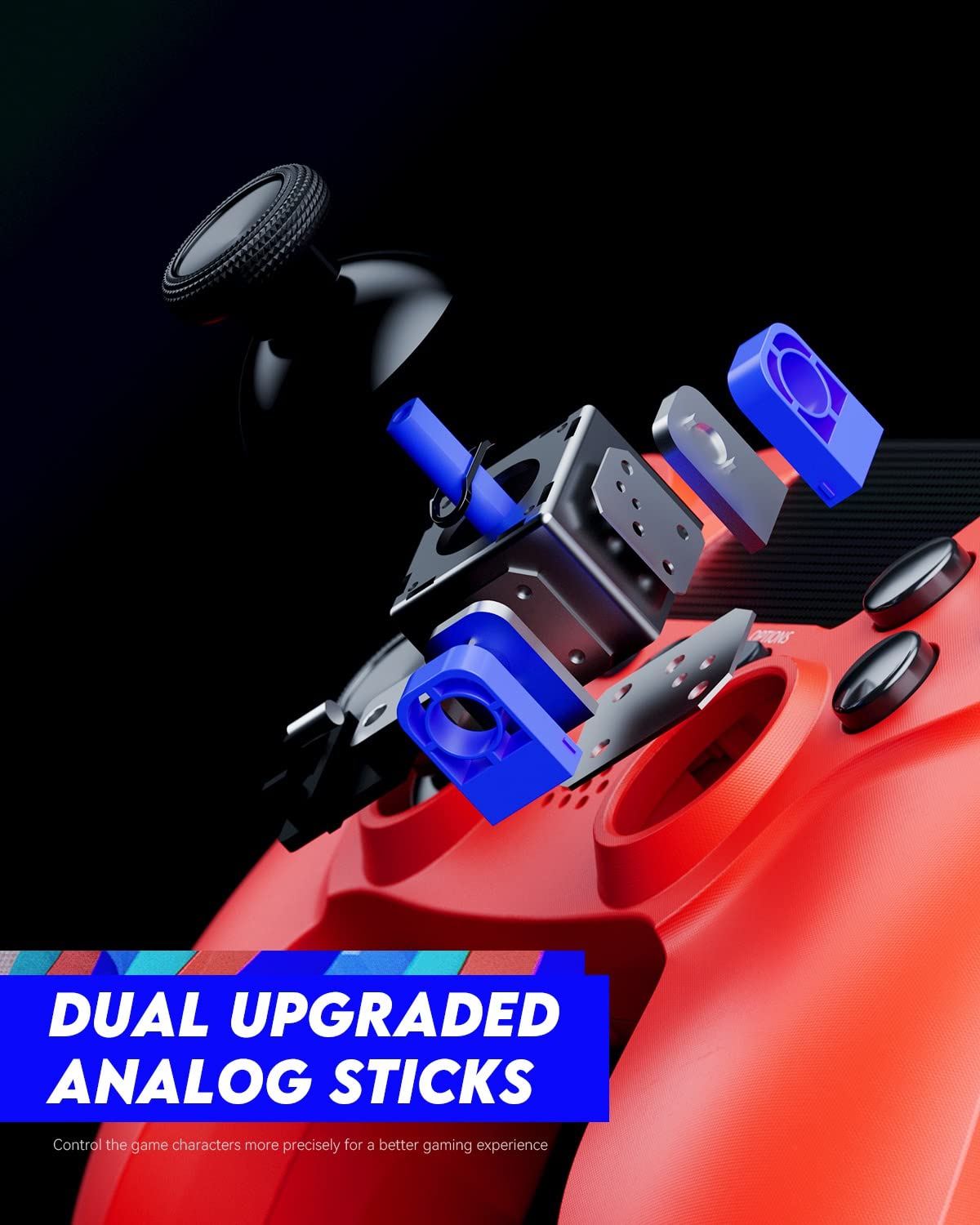
Figure 3: An exploded diagram illustrating the internal components of the dual analog sticks, emphasizing precision control.
Setup
Charging the Controller
Before first use, fully charge the controller. The controller features an 800mAh battery for extended playtime.
- Connect the supplied USB cable to the Micro-USB port on the controller.
- Connect the other end of the USB cable to a USB port on your PlayStation 4 console (console must be powered on or in rest mode) or a compatible USB wall charger.
- The light bar on the controller will slowly blink orange while charging and turn off when fully charged.

Figure 4: The controller's light bar illuminates, indicating power or charging status.
Pairing with PlayStation 4
To use the controller wirelessly, it must be paired with your PlayStation 4 console.
- Ensure your PlayStation 4 console is powered on.
- Connect the controller to the PS4 console using the USB cable.
- Press the PS button on the controller. The controller will power on and automatically pair with the console.
- Once paired, you can disconnect the USB cable and use the controller wirelessly.
- To pair additional controllers, repeat these steps for each controller. The light bar will indicate the player number (Player 1: Blue, Player 2: Red, Player 3: Green, Player 4: Pink).
Operating Instructions
Basic Controls
The VOYEE Wireless Controller functions similarly to the original PlayStation 4 controller. Refer to your game's instructions for specific button mappings.
- Analog Sticks: Use for character movement, camera control, and menu navigation.
- D-Pad: For precise directional input, often used in menus or fighting games.
- Action Buttons (Triangle, Circle, Cross, Square): Perform in-game actions such as jumping, attacking, or confirming selections.
- L1/R1 Buttons: Often used for quick actions or weapon switching.
- L2/R2 Triggers: Typically used for aiming, shooting, or acceleration/braking in driving games.
- PS Button: Press once to return to the PS Home screen. Press and hold to access the Quick Menu.
- SHARE Button: Press to open the Share menu, allowing you to take screenshots or record video clips.
- OPTIONS Button: Press to pause games or access in-game options/menus.
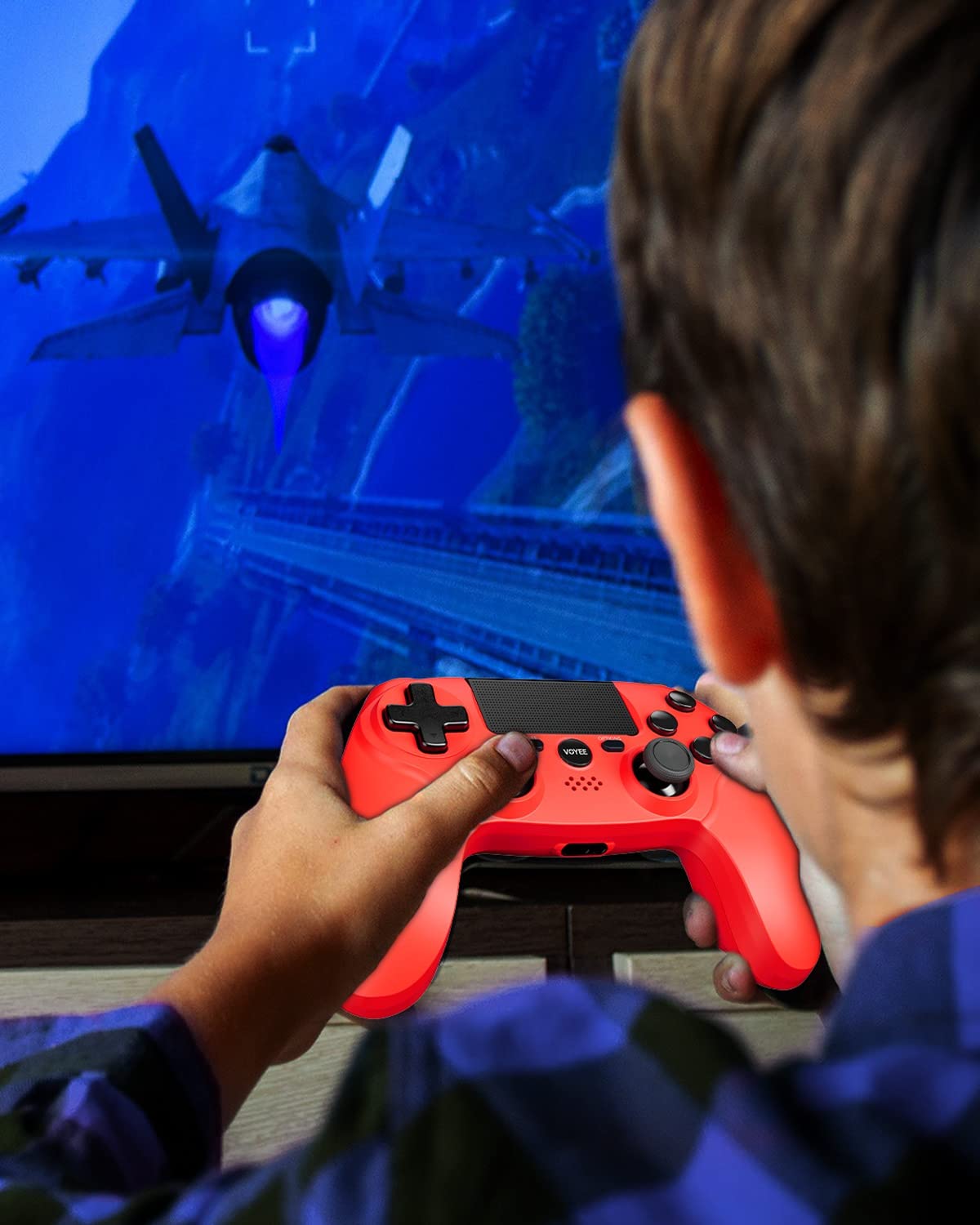
Figure 5: A user actively engaged in gameplay using the VOYEE Wireless Controller.
Using Special Features
- Touchpad: Swipe, tap, or click the touchpad for various in-game interactions, depending on the game's design.
- Motion Sensor: Tilt and move the controller to control certain game elements, such as steering in racing games or aiming in shooters.
- Vibration Feedback: The controller will vibrate to provide tactile feedback during gameplay, such as impacts, explosions, or specific in-game events.
- Headphone Jack: Plug any standard 3.5mm headset into the jack for game audio and voice chat. Adjust audio settings via the PS4 Quick Menu.

Figure 6: Two players using VOYEE Wireless Controllers for a shared gaming experience.
Maintenance
Cleaning
To keep your controller in optimal condition:
- Wipe the controller regularly with a soft, dry cloth.
- For stubborn dirt, slightly dampen the cloth with water or a mild cleaning solution. Avoid harsh chemicals.
- Do not allow liquids to enter the controller's openings.
Storage
When not in use, store the controller in a cool, dry place away from direct sunlight and extreme temperatures.
Battery Care
The controller contains a rechargeable lithium-ion battery. To maximize battery life:
- Avoid fully discharging the battery frequently.
- Charge the controller regularly, even if not in constant use.
- Do not expose the controller to temperatures above 60°C (140°F).
Troubleshooting
Connection Issues
- Controller not connecting: Ensure the controller is charged. Connect it to the PS4 with a USB cable and press the PS button to re-pair.
- Frequent disconnections: Ensure there are no obstructions between the controller and the PS4. Move closer to the console. Other wireless devices might cause interference.
Charging Problems
- Controller not charging: Try a different USB cable or a different USB port on the PS4 or wall charger. Ensure the PS4 is powered on or in rest mode.
- Slow charging: Use the original USB cable or a high-quality replacement. Ensure the power source provides sufficient current.
Button/Stick Unresponsiveness
- Buttons or analog sticks not responding: Reset the controller by inserting a small, pointed object (like a straightened paperclip) into the small hole on the back of the controller near the L2 button. Hold for 5 seconds. Then, re-pair the controller with the PS4.
- Drift in analog sticks: Perform a controller reset. If the issue persists, contact customer support.
Specifications
| Brand | VOYEE |
| Compatible Devices | PlayStation 4 |
| Controller Type | Gamepad |
| Connectivity | Wireless |
| Special Features | Ergonomic, Headphone Jack, Rumble, Touchpad, 6-Axis Motion Sensor |
| Number of Buttons | 16 |
| Battery Capacity | 800mAh (Internal) |
| Item Dimensions (L x W x H) | 6.61 x 4.53 x 2.95 inches |
Safety Information
Please observe the following safety precautions:
- Do not expose the controller to extreme temperatures, direct sunlight, or high humidity.
- Avoid dropping or subjecting the controller to strong impacts.
- Keep the controller away from water and other liquids.
- Do not attempt to disassemble or modify the controller. This may void your warranty and cause damage.
- Keep out of reach of small children.
Warranty and Support
For warranty information or technical support, please refer to the documentation included with your purchase or contact VOYEE customer service through the retailer where the product was purchased. Please have your product model and purchase date available when contacting support.


