
1. Introduction
This manual provides essential information for setting up, operating, and maintaining your Microsoft Bluetooth Mouse - Forest Camo. Designed for precise scrolling and navigation, this compact and modern mouse offers wireless convenience for various computing platforms.
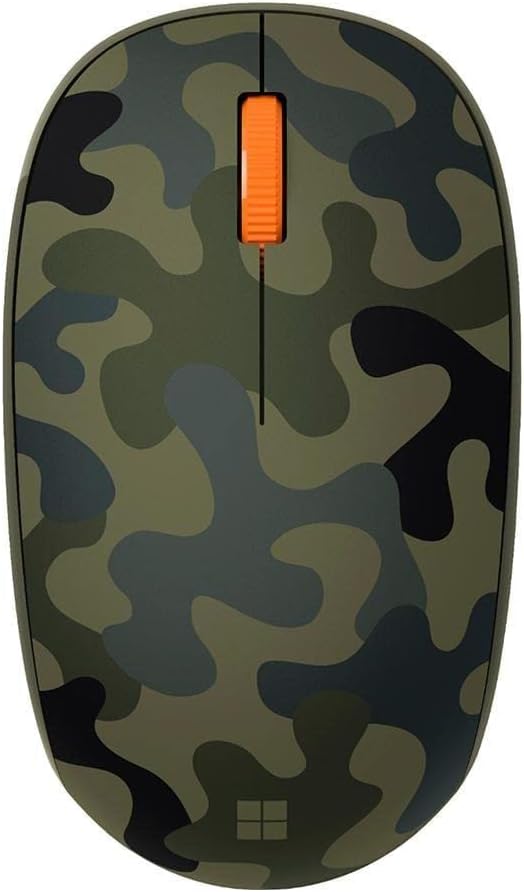
Figure 1: Microsoft Bluetooth Mouse - Forest Camo
2. Package Contents
- Microsoft Bluetooth Mouse - Forest Camo
- 1 AA Alkaline Battery (pre-installed)
3. Setup and Pairing
3.1. Battery Installation
The mouse comes with a pre-installed AA battery. To activate the mouse, locate the battery compartment on the underside of the mouse. Remove any protective pull-tab if present. Ensure the battery is correctly seated according to the polarity indicators.

Figure 2: Underside of the mouse with battery compartment
3.2. Bluetooth Pairing
- Turn on the mouse by sliding the power switch (usually located on the underside) to the 'On' position. A small LED indicator may light up.
- On your computer (PC or Mac), open your Bluetooth settings.
- Select 'Add Bluetooth or other device' (Windows) or 'Bluetooth Preferences' (Mac).
- The computer should detect 'Microsoft Bluetooth Mouse'. Select it from the list of available devices.
- Follow any on-screen prompts to complete the pairing process. The LED on the mouse may change from flashing to solid to indicate a successful connection.
The mouse is compatible with Windows 10, Windows 8.1, and Mac operating systems.
4. Operating Instructions
The Microsoft Bluetooth Mouse features a standard three-button design with a scroll wheel for intuitive navigation.
- Left-Click Button: Used for selecting items, opening files, and activating functions.
- Right-Click Button: Used for accessing context menus and additional options.
- Scroll Wheel: Roll up or down to scroll through documents and web pages. The scroll wheel can also be pressed down for a middle-click function, depending on your software settings.
To conserve battery life, turn off the mouse when not in use for extended periods.
5. Features
- Compact and modern design for comfortable use.
- Wireless Bluetooth connectivity, eliminating the need for a USB dongle.
- Fast tracking sensor for precise navigation.
- Up to 12 months of battery life on a single AA battery.
- Designed for both right and left-hand use.
6. Specifications
| Feature | Detail |
|---|---|
| Model Number | 8KX-00003 |
| Brand | Microsoft |
| Color | Forest Camo |
| Connectivity Technology | Bluetooth |
| Movement Detection | Optical |
| Hardware Platform | Laptop, PC |
| Operating System | Windows 10, Windows 8.1 |
| Item Weight | 3.84 ounces |
| Product Dimensions (LxWxH) | 3.11 x 5.83 x 2.01 inches |
| Average Battery Life | 12 months |
| Batteries Required | 1 AA (included) |

Figure 3: Mouse dimensions
7. Troubleshooting
7.1. Mouse Not Connecting
- Ensure the mouse is turned on and the battery is correctly installed.
- Check your computer's Bluetooth settings to confirm Bluetooth is enabled.
- Try re-pairing the mouse by removing it from your device list and adding it again.
- Ensure the mouse is within range of your computer (typically up to 10 meters).
7.2. Intermittent Connection or Lag
- Replace the AA battery with a fresh one.
- Minimize interference from other wireless devices operating on the same frequency.
- Ensure your computer's Bluetooth drivers are up to date.
8. Maintenance
8.1. Cleaning
To clean your mouse, use a soft, lint-free cloth lightly dampened with water or a mild cleaning solution. Avoid harsh chemicals or abrasive materials. Do not allow moisture to enter any openings.
8.2. Battery Replacement
When the mouse's performance degrades or the LED indicator suggests low battery, replace the AA battery. Open the battery compartment on the underside, remove the old battery, and insert a new AA battery, observing correct polarity.
9. Warranty and Support
For warranty information, technical support, or further assistance, please refer to the official Microsoft support website or contact Microsoft customer service. Keep your proof of purchase for warranty claims.
Visit the Microsoft Store for additional product information and resources.


