

Introduction
Welcome to the user manual for your AMICCOM Z5-Updated Outdoor Security Camera. This comprehensive guide provides detailed instructions for setting up, operating, and maintaining your camera to ensure optimal performance and enhanced security for your property.
The AMICCOM Z5-Updated camera offers 1080P Full HD video, two-way audio communication, robust IP66 waterproofing, advanced night vision capabilities, and intelligent motion detection with activity alerts. It is designed for versatile outdoor surveillance, suitable for homes, offices, garages, stores, warehouses, and farms.

Figure 1: AMICCOM Z5-Updated Outdoor Security Camera. This image shows the white bullet-style camera with its antenna and mounting bracket.

Figure 2: Key Features Overview. This graphic highlights the camera's main features including wireless support, HD night vision, quick & easy setup, 110° viewing angle, motion detection, IP66 weatherproofing, two-way talk, and 1080p HD resolution.
What's Included
Please check the package contents to ensure all items are present:
- AMICCOM Z5-Updated Outdoor Security Camera Unit
- Power Adapter
- Mounting Screws and Wall Anchors
- User Manual (this document)
Setup Guide
1. App Installation
To begin, download the official 'MobiCam' application on your smartphone or tablet. The app is available for both iOS and Android devices through their respective app stores.
2. Camera Connection & Pairing
Follow these steps to connect your camera to the MobiCam app and your Wi-Fi network:
- Sign in to the MobiCam app using your registered username and password.
- On the IP Camera page, tap "Add Device" to initiate the connection process.
- Tap "Connecting my camera" when prompted.
- Enter your 2.4GHz Wi-Fi network name and password. Note: This camera only supports 2.4GHz Wi-Fi networks.
- Move your phone's speaker close to the camera and hold it steady.
- Tap "Send Sound Wave" in the app. The app will send an audible signal to the camera for pairing.
- Wait for the camera to confirm "Wireless network established." The connection will be confirmed within a few seconds.
Video 1: AMICCOM Outdoor Security Camera Z5 Upgraded Setup Guide. This video demonstrates the initial setup process for the AMICCOM Z5-Updated Outdoor Security Camera, including app login, device pairing via sound wave, and connecting to your wireless network.
3. Mounting the Camera
Select a suitable outdoor location for mounting. Consider areas that provide a clear view of the desired surveillance zone and are within reliable Wi-Fi range. Use the provided screws and anchors to securely attach the camera to a wall or sturdy surface. Ensure the camera is positioned to avoid direct sunlight or strong backlighting that could affect image quality.
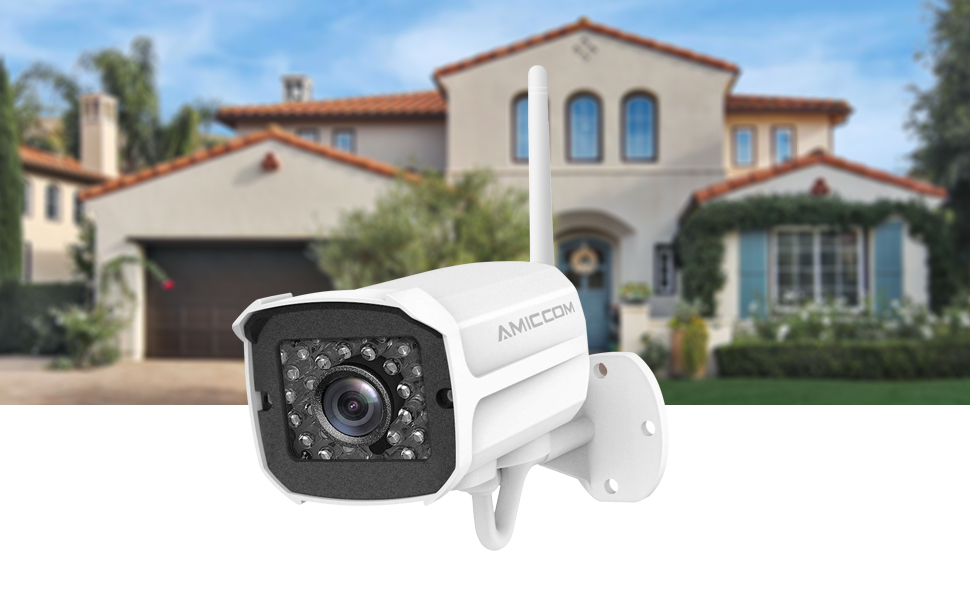
Figure 3: Camera Mounted on a House. This image shows the AMICCOM camera securely mounted on the exterior of a residential building, demonstrating a typical installation scenario.
Operating Instructions
1. Live View & Multi-Camera Monitoring
From the MobiCam app's homepage, tap the camera image to access the live video feed. You can view multiple camera feeds simultaneously by tapping the multi-view icon (often a grid or rectangle icon) within the live view interface.
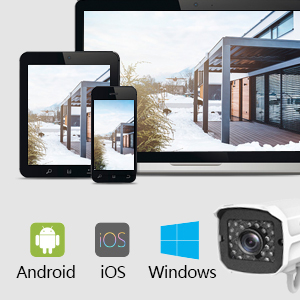
Figure 4: Multi-Device Viewing. This image illustrates the capability to view the camera feed on various devices such as Android phones, iOS phones, and Windows computers.
2. Two-Way Audio
The camera is equipped with a built-in microphone and speaker, enabling two-way audio communication. In the live view, tap the microphone icon to speak through the camera and the speaker icon to hear audio from the camera's location. This feature is useful for interacting with visitors or deterring intruders.
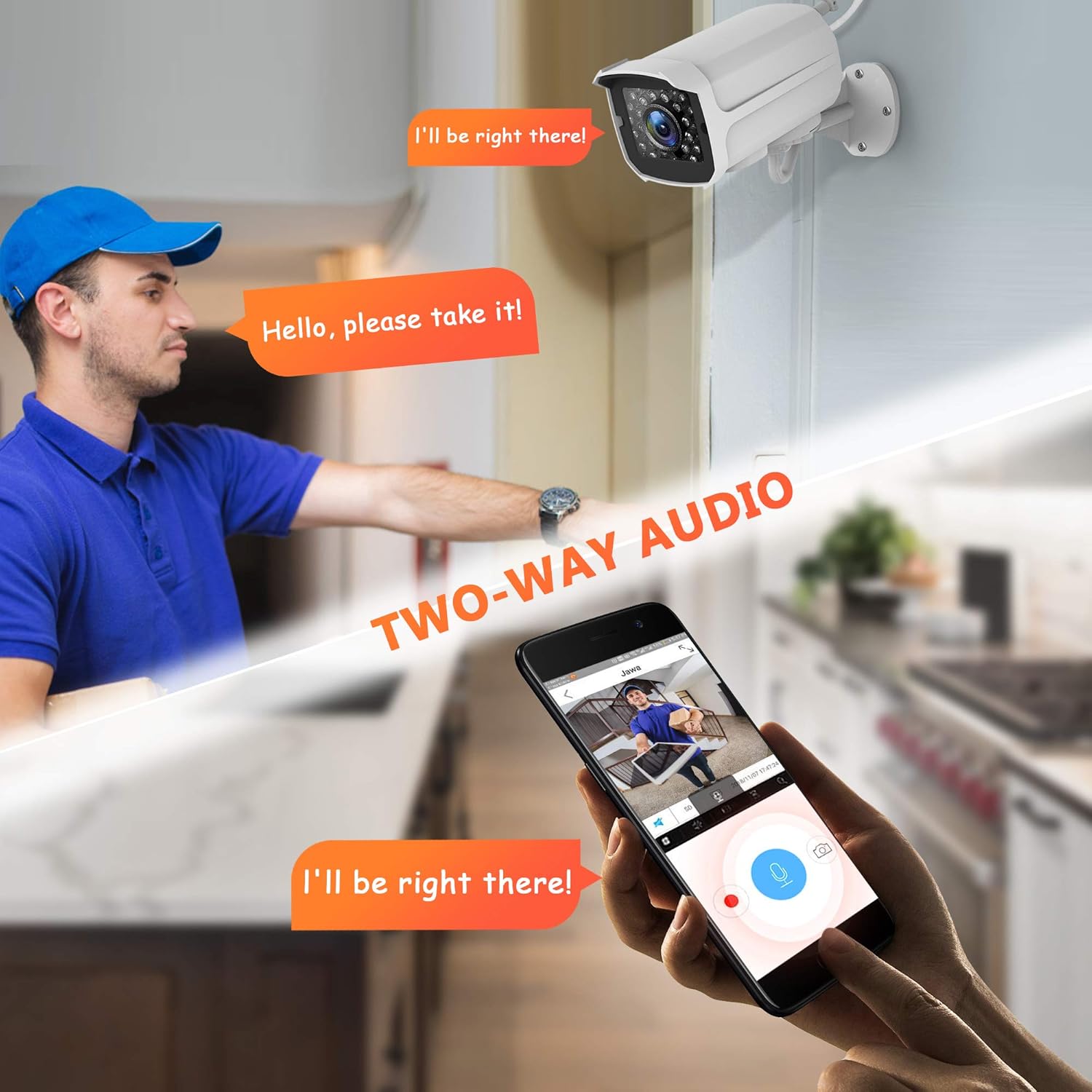
Figure 5: Two-Way Audio. This image depicts a person speaking into a smartphone, with a speech bubble indicating "Hello, please take it!" directed towards a delivery person near the camera, demonstrating the two-way audio function.
3. Motion Detection & Alerts
The camera features advanced motion detection with a range of up to 65 feet. When motion is detected, the camera can automatically send activity alerts with snapshots to your mobile device, allowing you to monitor your property effectively. You can configure motion sensitivity and alert preferences in the app's settings.

Figure 6: Smart Motion Detection. This image shows a smartphone displaying an "Alarm message" from the MobiCam app, with a highlighted area on the camera's view indicating detected motion, and icons for email, FTP, and push notifications.
4. Night Vision
Equipped with powerful infrared LEDs, the camera provides clear 1080P HD night vision up to 32 feet (10 meters). This ensures continuous surveillance and detailed footage even in complete darkness.

Figure 7: Night Vision Comparison. This image compares a 720P view with a 1080P view of an indoor setting at night, highlighting the superior clarity of 1080P night vision up to 24 meters.

Figure 8: Day and Night Vision. This graphic illustrates the camera's 110° field of view and its ability to capture clear 1080P HD images both during the day and in complete darkness using night vision.
5. Video Storage
The camera supports local storage via a Micro SD card (up to 128GB, not included). Insert the SD card into the designated slot on the camera. Ensure the card is formatted to FAT32 for proper functionality. Continuous recording or event-triggered recording can be configured in the app's video storage settings.
6. User Management & Video Lock
To add multiple users to your camera account, navigate to "Settings" then "Sub-account Management" in the MobiCam app. Enter your account login password and tap "Add" to create a new user account. For enhanced privacy, you can secure your camera's live feed by creating an unlock pattern under the "Video Lock" setting.
Maintenance
Care and Cleaning
To maintain optimal performance, periodically clean the camera lens and exterior casing. Use a soft, lint-free cloth, slightly dampened with water if necessary. Avoid using harsh chemicals, abrasive cleaners, or solvents, as these can damage the camera's finish or lens coating.
Weather Resistance
The AMICCOM Z5-Updated camera boasts an IP66 waterproof rating, making it highly resistant to dust and water jets. It is designed to operate reliably in a wide temperature range from -4°F to 122°F (-20°C to 50°C), ensuring continuous recording even in challenging weather conditions like rain or snow.

Figure 9: IP66 Weatherproof Rating. This image shows the camera being splashed with water, illustrating its IP66 weatherproof design, capable of withstanding rain, snow, and extreme temperatures.
Troubleshooting
If you encounter issues with your AMICCOM Z5-Updated camera, please refer to the following common troubleshooting steps:
- Camera Not Connecting to Wi-Fi:
- Ensure your Wi-Fi network is 2.4GHz. This camera does not support 5.0GHz networks.
- Verify the Wi-Fi password is entered correctly in the app.
- Move the camera closer to your Wi-Fi router to improve signal strength.
- Restart both your Wi-Fi router and the camera, then attempt the pairing process again.
- If using the sound wave pairing method, ensure your phone's volume is up and the speaker is close to the camera.
- Micro SD Card Not Recognized or Recording:
- Ensure the Micro SD card (up to 128GB) is inserted correctly into the camera's slot.
- Format the SD card to FAT32 using a computer before inserting it into the camera. For cards larger than 32GB, you may need third-party software to format to FAT32.
- Try a different Micro SD card to rule out card malfunction.
- No Live View or Camera Appears Offline:
- Check if the camera's power adapter is securely connected and receiving power.
- Verify your mobile device has an active internet connection (Wi-Fi or mobile data).
- Restart the MobiCam app.
- If the issue persists, try re-pairing the camera with the app.
- Poor Image Quality / Night Vision Issues:
- Ensure the camera lens is clean and free from dust or smudges.
- Check for obstructions in the camera's field of view.
- For night vision, ensure there are no reflective surfaces close to the camera that could cause glare.
Specifications
| Feature | Detail |
|---|---|
| Model Number | Z5-Updated |
| Video Capture Resolution | 1080p FHD |
| Connectivity Technology | Wireless (Wi-Fi) |
| Wi-Fi Frequency | 2.4GHz only |
| Night Vision Range | Up to 32 Feet |
| International Protection Rating | IP66 (Waterproof) |
| Operating Temperature | -4°F to 122°F (-20°C to 50°C) |
| Two-Way Audio | Yes |
| Motion Detection | Yes (up to 65 feet) |
| Local Storage | Micro SD Card (Max 128GB, FAT32 format) |
| Compatible Devices | iOS, Android |
| Dimensions (L x W x H) | 4.3 x 3.5 x 5 inches |
| Item Weight | 14.9 ounces |
Warranty and Support
AMICCOM is dedicated to providing reliable and high-quality security solutions. For detailed warranty information, technical assistance, or customer support, please refer to the contact details provided on your product packaging or visit the official AMICCOM website. Our support team is available to assist you with any questions or concerns regarding your Z5-Updated Outdoor Security Camera.