
1. Introduction
This manual provides essential information for the safe and effective operation of your DJI FPV Drone Combo. Please read this manual thoroughly before use and retain it for future reference. The DJI FPV Drone offers an immersive flight experience with advanced features designed for both new and experienced pilots.
2. What's in the Box
The DJI FPV Drone Combo typically includes the following components:
- DJI FPV Drone
- DJI FPV Goggles V2
- DJI FPV Remote Controller
- Flight Battery
- Propellers (set)
- Power Adapter and AC Power Cable
- USB-C OTG Cable
- Gimbal Protector
- USB-C Data Cable
- Lanyard
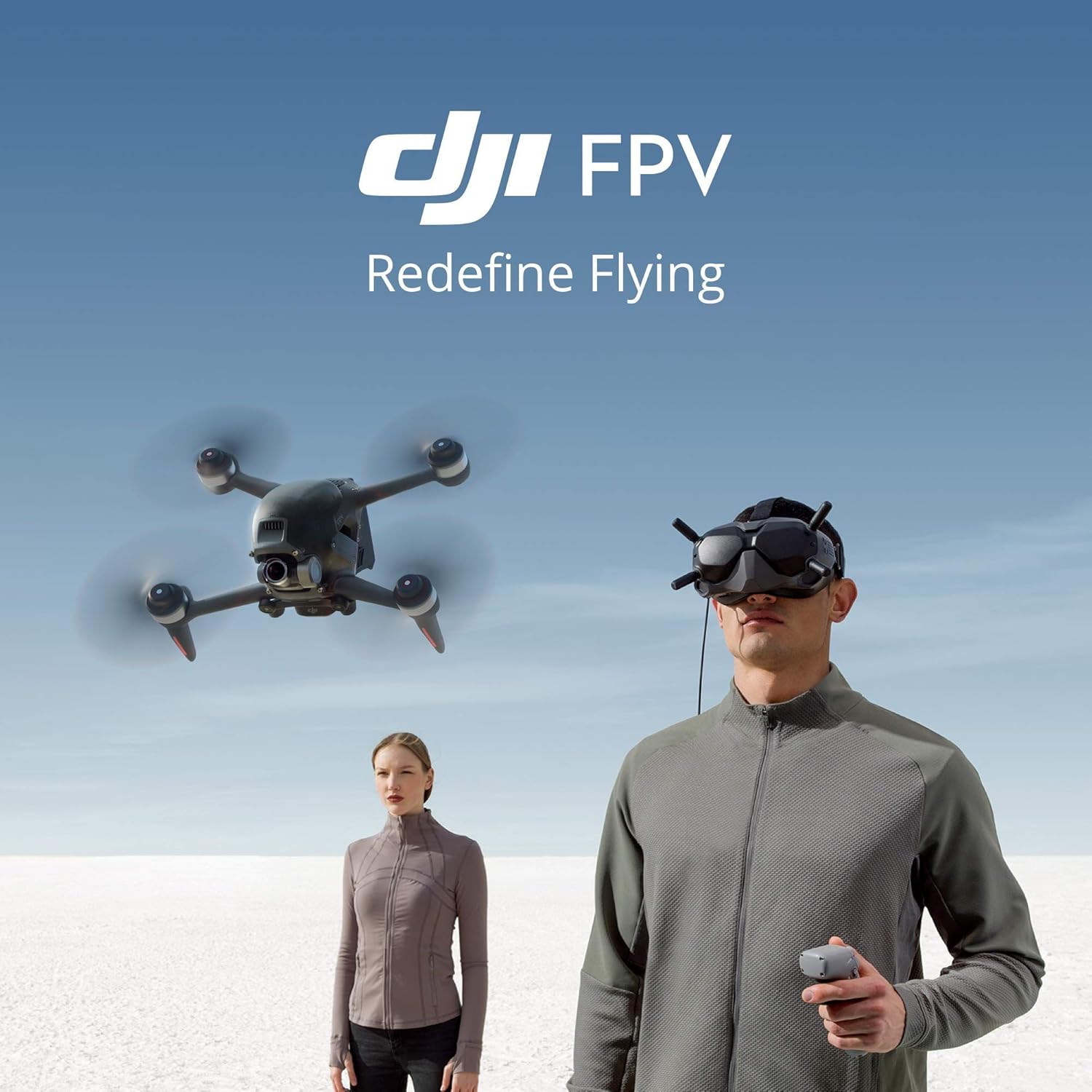
Figure 1: The DJI FPV Drone, Goggles V2, and Remote Controller, typically included in the combo package, displayed on a metallic case.
3. Key Features
- Immersive Flight Experience: Enjoy a thrilling first-person view with DJI FPV Goggles V2 and a super-wide 150° FOV for an ultra-smooth, real-time flight view.
- 4K/60FPS Video: Record high-quality video at up to 120 Mbps, capturing crisp details.
- Brand-New S Mode: A hybrid flight mode that combines the dynamic feel of FPV with the safety features of N Mode, ideal for dynamic FPV footage.
- Advanced Safety Features: Includes an auxiliary bottom light, Smart Return to Home (RTH), Low Battery RTH, and forward/downward obstacle sensing for safe operation.
- OcuSync 3.0 Transmission System: Provides crystal-clear, real-time, and HD Low-Latency Transmission video over distances up to 6.2 miles.
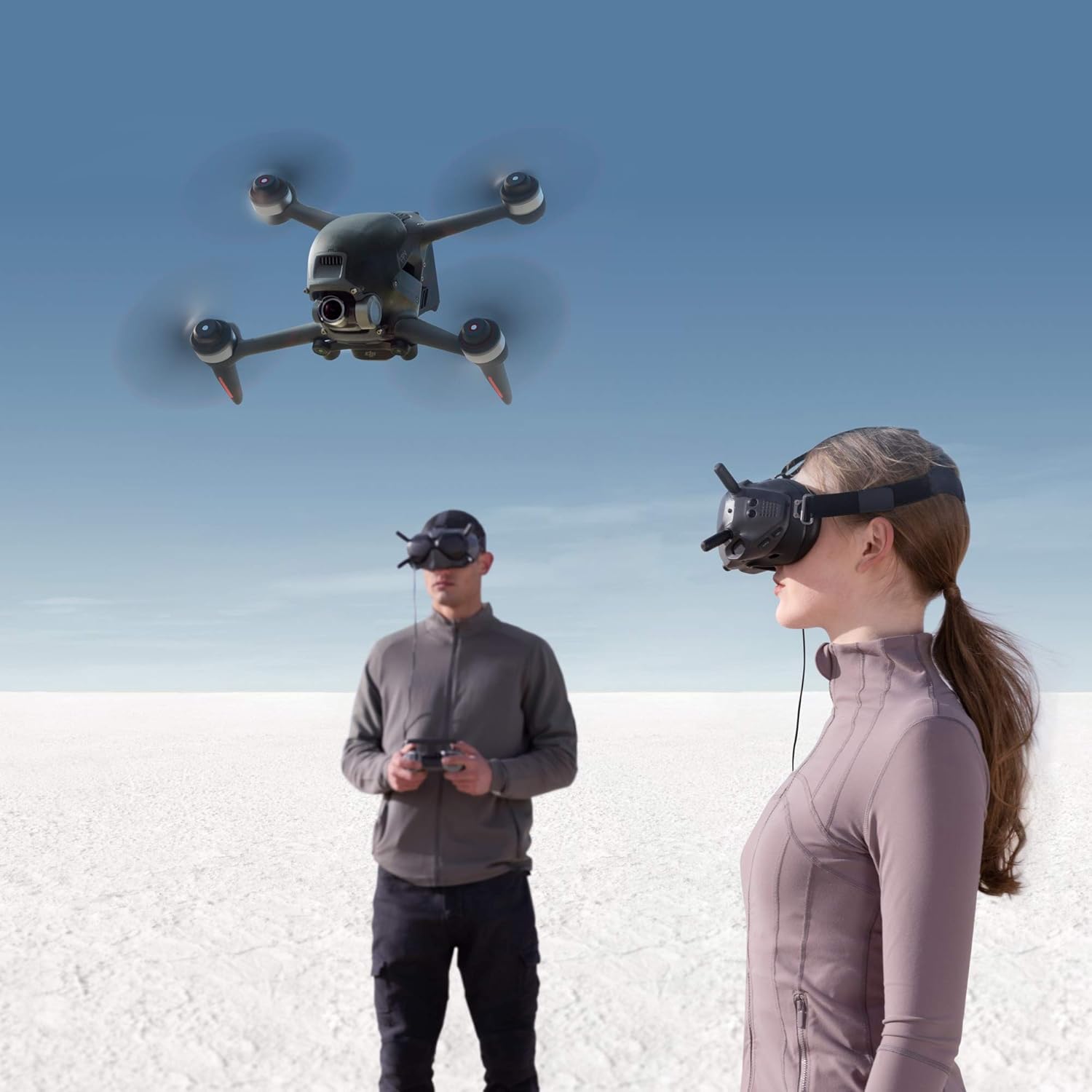
Figure 2: Two users experiencing immersive flight with the DJI FPV Drone and Goggles, highlighting the first-person view capability.
4. Setup
4.1 Charging Batteries
Ensure all batteries (drone, remote controller, goggles) are fully charged before first use. Use the provided power adapter and cables.
- Drone Battery: Insert the flight battery into the drone. Connect the power adapter to the drone's charging port.
- Remote Controller: Connect the USB-C cable to the remote controller's charging port.
- Goggles: Connect the USB-C cable from the power adapter to the goggles' power input.
4.2 Attaching Propellers
Attach the propellers to the motor shafts. Match the colored markings on the propellers to the corresponding motor shafts. Press down and twist to secure.

Figure 3: A close-up view of the DJI FPV Drone, showcasing its design and attached propellers.
4.3 Powering On
Power on the remote controller first, then the goggles, and finally the drone. Follow the prompts displayed in the goggles for initial setup and linking.
Video 1: A detailed review of the DJI FPV Drone, covering its features and user experience after one month of use. This video provides insights into powering on the drone and its components.
5. Operating the Drone
5.1 Flight Modes
The DJI FPV Drone features multiple flight modes to suit different skill levels:
- Normal Mode (N Mode): Offers traditional DJI drone controls with GPS positioning and obstacle sensing for a stable and safe flight. Recommended for beginners.
- Sport Mode (S Mode): A hybrid mode that combines the dynamic feel of FPV with the safety features of N Mode, allowing for faster speeds and more agile maneuvers.
- Manual Mode (M Mode): Provides full manual control for experienced FPV pilots, disabling most safety features for ultimate freedom and advanced acrobatics.
5.2 Remote Controller Usage
The remote controller is designed for intuitive operation. Familiarize yourself with the joystick controls and function buttons. The controller allows for precise command over the drone's movement and camera.

Figure 4: A user wearing DJI FPV Goggles and holding the Remote Controller, with the drone flying in the background, illustrating the immersive flight experience.
5.3 FPV Goggles V2
The FPV Goggles V2 provide a live, high-definition feed from the drone's camera. Adjust the head strap for a comfortable fit. The goggles are essential for the immersive flight experience and display critical flight information.
6. Maintenance
6.1 Battery Care
- Store batteries in a cool, dry place.
- Do not overcharge or over-discharge batteries.
- Inspect batteries for any damage before each flight.
6.2 Propeller Inspection and Replacement
- Regularly inspect propellers for cracks, bends, or other damage.
- Replace damaged propellers immediately to ensure safe flight.
- Follow the attachment instructions carefully when replacing propellers.
6.3 Cleaning
- Clean the drone, goggles, and remote controller with a soft, dry cloth.
- Avoid using harsh chemicals or solvents.
- Ensure camera lenses and sensor windows are clean for optimal performance.
7. Troubleshooting
If you encounter issues, refer to the following common troubleshooting steps:
- No Power: Ensure all batteries are fully charged and correctly inserted. Check power cables for damage.
- Connection Issues: Verify that the remote controller, goggles, and drone are linked correctly. Ensure no strong interference sources are nearby.
- Unstable Flight: Check propellers for damage or incorrect installation. Perform IMU calibration if necessary.
- Goggles Display Issues: Ensure the goggles' battery is charged and connected. Check for firmware updates.
For more detailed troubleshooting, consult the official DJI support resources.
8. Specifications
| Feature | Detail |
|---|---|
| Brand | DJI |
| Model Name | CRTDJPFPVCOMBORB |
| Manufacturer Part Number | CP.FP.00000001.01 |
| Special Feature | Advanced Safety Features |
| Age Range (Description) | Adult |
| Color | Black |
| Video Capture Resolution | 1080p (Note: Drone records 4K/60fps) |
| Connectivity Technology | Bluetooth |
| Skill Level | Intermediate |
| Item Weight | 1.8 Pounds (Drone) |
| Maximum Range | 6.2 Miles |
| Material | Carbon Fiber/Aluminum Composite |
| Product Dimensions | 12.3"L x 10"W x 5"H |
| GTIN / UPC | 649661820826 |
9. Warranty & Support
This product is offered as an Amazon Renewed item, which means it has been professionally inspected and tested to work and look like new. Renewed products are eligible for replacement or refund under the Amazon Renewed Guarantee if you are not satisfied with your purchase.
For specific product support, technical assistance, or warranty claims, please refer to the official DJI support channels or contact Amazon Renewed customer service.


