
1. Introduction
Thank you for purchasing the Ejoyous MQ-6104 61-Key Electronic Keyboard. This portable digital piano is designed for beginners, especially children aged 1-6, to foster musical talent and finger dexterity. It features a compact design, a variety of sounds, rhythms, and demonstration songs, making it an ideal instrument for learning and practice.
Please read this manual thoroughly before using the product to ensure proper operation and maintenance.
2. Package Contents
Verify that all items listed below are included in your package. If any items are missing or damaged, please contact customer support.
- 1 x MQ-6104 Electronic Keyboard (Batteries not included)
- 1 x Microphone
- 1 x Music Stand
- 1 x USB Power Cable
- 1 x User Manual

Image: The MQ-6104 Electronic Keyboard shown with its accessories: a microphone and a USB power cable. The keyboard is black with 61 mini keys, a control panel, and a detachable music stand.
3. Setup
3.1 Powering the Keyboard
The MQ-6104 keyboard supports dual power supply options:
- USB Power: Connect the provided USB power cable to the DC 5V input port on the keyboard and plug the other end into a compatible USB power adapter (not included) or a USB port on a computer.
- Battery Power: Open the battery compartment on the underside of the keyboard. Insert 4 x 1.5V AA batteries (not included), ensuring correct polarity (+/-). Close the battery compartment securely.

Image: A diagram illustrating the two power options for the keyboard. On the left, a USB cable is shown connecting to the keyboard's power input. On the right, an open battery compartment reveals slots for four AA batteries.
3.2 Attaching the Music Stand
Locate the slot at the top rear of the keyboard. Insert the base of the music stand into this slot until it is firmly in place. The music stand is designed to hold sheet music securely during play.
3.3 Connecting the Microphone
Plug the microphone's jack into the microphone input port on the keyboard. The microphone allows users to sing along while playing.
4. Operating Instructions
The MQ-6104 keyboard offers a range of features to enhance your musical experience. Familiarize yourself with the control panel for optimal use.
4.1 Basic Functions
- Power On/Off: Press the POWER button to turn the keyboard on or off.
- Volume Control: Use the VOLUME UP and VOLUME DOWN buttons to adjust the overall sound level.
- Tone Selection: The keyboard features 16 different tones (instrument sounds). Press the TONE button and then use the number keys or arrow keys to select your desired tone.
- Rhythm Selection: Choose from 10 built-in rhythms. Press the RHYTHM button and then use the number keys or arrow keys to select a rhythm. Press START/STOP to begin or end the rhythm.
- Percussion Sounds: Access 8 percussion instrument sounds. These are typically assigned to specific keys or dedicated buttons on the control panel.
- Demonstration Songs: Play one of the 6 pre-recorded demonstration songs. Press the DEMO button to cycle through the songs.

Image: A close-up of the keyboard's control panel, visually indicating the availability of 16 different tones (timbres), 8 percussion instrument sounds, 10 rhythms, and 6 demonstration songs.
4.2 Advanced Functions (if applicable)
- Metronome: Activate the metronome function to help with timing. Look for a METRONOME button or a combination of keys.
- Recording/Playback: Some models may include a recording function. Press RECORD to start recording your play, and PLAY to listen to your recorded melody.
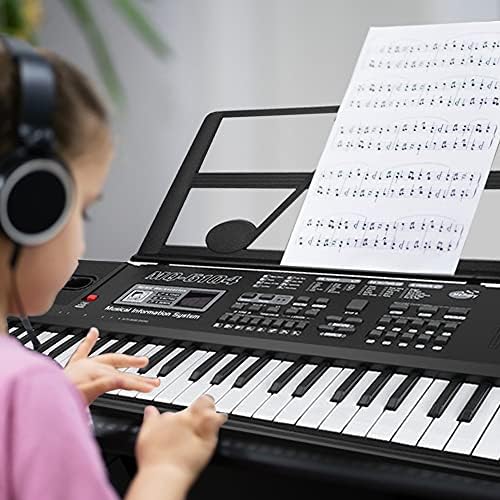
Image: A young child wearing headphones is shown playing the MQ-6104 electronic keyboard. Sheet music is placed on the detachable music stand, demonstrating the product in use for learning.
5. Maintenance
Proper care will extend the life of your electronic keyboard.
- Cleaning: The keyboard is made of high-quality ABS material with a smooth surface. It can be easily cleaned with a dry or slightly damp cloth.
- Important Cleaning Note: Do not wipe the keys with a wet cloth, as this may affect the sound quality.
- White Keys Protection: To prevent oxidation of the white keys, it is recommended to cover them with a cloth when not in use for extended periods.
- Storage: Store the keyboard in a cool, dry place away from direct sunlight and extreme temperatures.
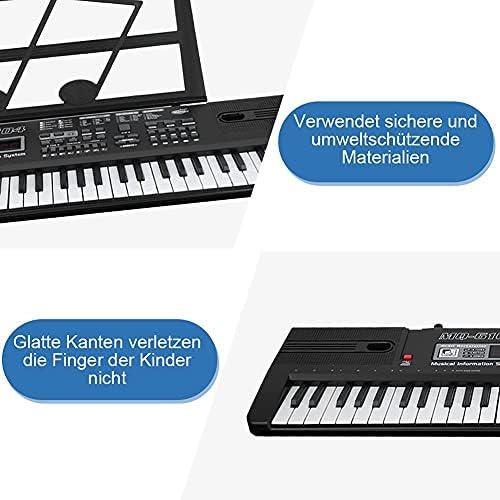
Image: A visual emphasizing the smooth, child-safe edges of the keyboard and highlighting that it is constructed from safe and environmentally friendly materials.
6. Troubleshooting
| Problem | Possible Cause | Solution |
|---|---|---|
| Keyboard does not power on. | No power supply; batteries are dead or incorrectly inserted; USB cable is not connected properly. | Ensure USB cable is securely connected or replace batteries with new ones, checking polarity. |
| No sound from the keyboard. | Volume is too low; speaker issue; internal malfunction. | Increase volume using the volume buttons. If problem persists, contact customer support. |
| Microphone not working. | Microphone not plugged in correctly; microphone is faulty. | Ensure microphone is fully inserted into its port. Test with another microphone if available. |
| Keys are sticky or unresponsive. | Dirt or debris under keys; liquid damage. | Clean the keyboard surface carefully. Avoid liquid contact. If problem persists, contact support. |
7. Specifications
| Model: | MQ-6104 |
| Brand: | Ejoyous |
| Keys: | 61 Mini Keys |
| Tones (Timbres): | 16 |
| Percussion Sounds: | 8 |
| Rhythms: | 10 |
| Demonstration Songs: | 6 |
| Display: | LED |
| Power Supply: | 4 x AA Batteries (not included) or USB DC 5V, 500mA |
| Material: | High-quality ABS + Electronic Components |
| Dimensions (L x W x H): | 66 x 19 x 5.5 cm (25.98 x 7.48 x 2.17 inches) |
| Weight: | Approx. 1.22 kg (2.69 lbs) |
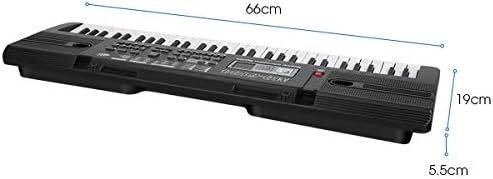
Image: A technical drawing illustrating the physical dimensions of the MQ-6104 keyboard, with measurements of 66 cm in length, 19 cm in width, and 5.5 cm in height.
8. Warranty and Support
For any questions, technical assistance, or warranty inquiries regarding your Ejoyous MQ-6104 Electronic Keyboard, please contact the retailer or manufacturer directly. Refer to your purchase documentation for specific warranty terms and contact information.
You can also visit the Ejoyous brand page on Amazon for more information: Ejoyous Store on Amazon