1. Introduction
This manual provides instructions for the BAOFENG ABBREE PL2303 USB Programming Cable. This cable is designed to facilitate programming and customizing various two-way radios, including models like UV-5R, BF-F8HP, UV-21R, and others, using compatible software such as CHIRP.
The cable features a PL2303 chip, which often provides drive-free compatibility with modern operating systems, simplifying the setup process for users. Its robust design ensures reliable data transfer for efficient radio management.
2. Setup
2.1 System Requirements
- Operating System: Windows 10, Windows 11, or macOS.
- Available USB Port.
- Compatible radio programming software (e.g., CHIRP).
2.2 Driver Installation
The BAOFENG ABBREE PL2303 USB Programming Cable is designed to be drive-free for most modern operating systems. In many cases, your computer will automatically install the necessary drivers upon first connection.
- Connect the USB end of the programming cable to an available USB port on your computer.
- Allow your operating system to detect the device and attempt automatic driver installation.
- Verify successful installation in your computer's Device Manager (Windows) or System Information (macOS). Look for a "Prolific USB-to-Serial Comm Port" or similar entry under "Ports (COM & LPT)" or "USB Devices."
If automatic installation fails or if you encounter issues, you may need to manually install drivers. Drivers are typically provided on a CD included with the cable or can be downloaded from the Prolific Technology website. Ensure you download the correct driver for the PL2303 chip and your operating system version.

Figure 1: BAOFENG ABBREE PL2303 USB Programming Cable with included Driver CD. The cable is red with a USB-A connector on one end and a two-pin K-type connector on the other. The USB connector housing is labeled "ABBREE".
3. Operation
3.1 Connecting to a Radio
- Ensure your two-way radio is powered off.
- Connect the two-pin K-type connector of the programming cable to the microphone/speaker jack on your radio. Ensure a secure fit.
- Connect the USB end of the cable to your computer.
- Power on your two-way radio.

Figure 2: The red BAOFENG USB Programming Cable connected to a Baofeng UV-5R two-way radio and a laptop. This illustrates the typical setup for programming.
3.2 Using Programming Software (CHIRP Example)
This cable is compatible with various radio programming software, including CHIRP. The following steps outline a general process using CHIRP:
- Launch your preferred radio programming software (e.g., CHIRP) on your computer.
- In the software, navigate to the "Radio" menu and select "Download From Radio" or "Upload To Radio" depending on your task.
- Select the correct COM port that corresponds to your programming cable. This can usually be found in your computer's Device Manager.
- Choose your radio's manufacturer and model from the software's list.
- Initiate the read/write process. Follow any on-screen prompts from the software.
For detailed instructions on using specific programming software, refer to the software's documentation or online resources.
Video 1: Official BAOFENG USB Programming Cable overview. This video demonstrates the cable's features and general use for programming two-way radios.
4. Maintenance
4.1 Cable Care
- Avoid sharp bends or kinks in the cable to prevent internal wire damage.
- Store the cable in a clean, dry environment when not in use.
- Do not expose the cable to extreme temperatures or direct sunlight for prolonged periods.
- Clean the connectors periodically with a dry, lint-free cloth to ensure good contact.
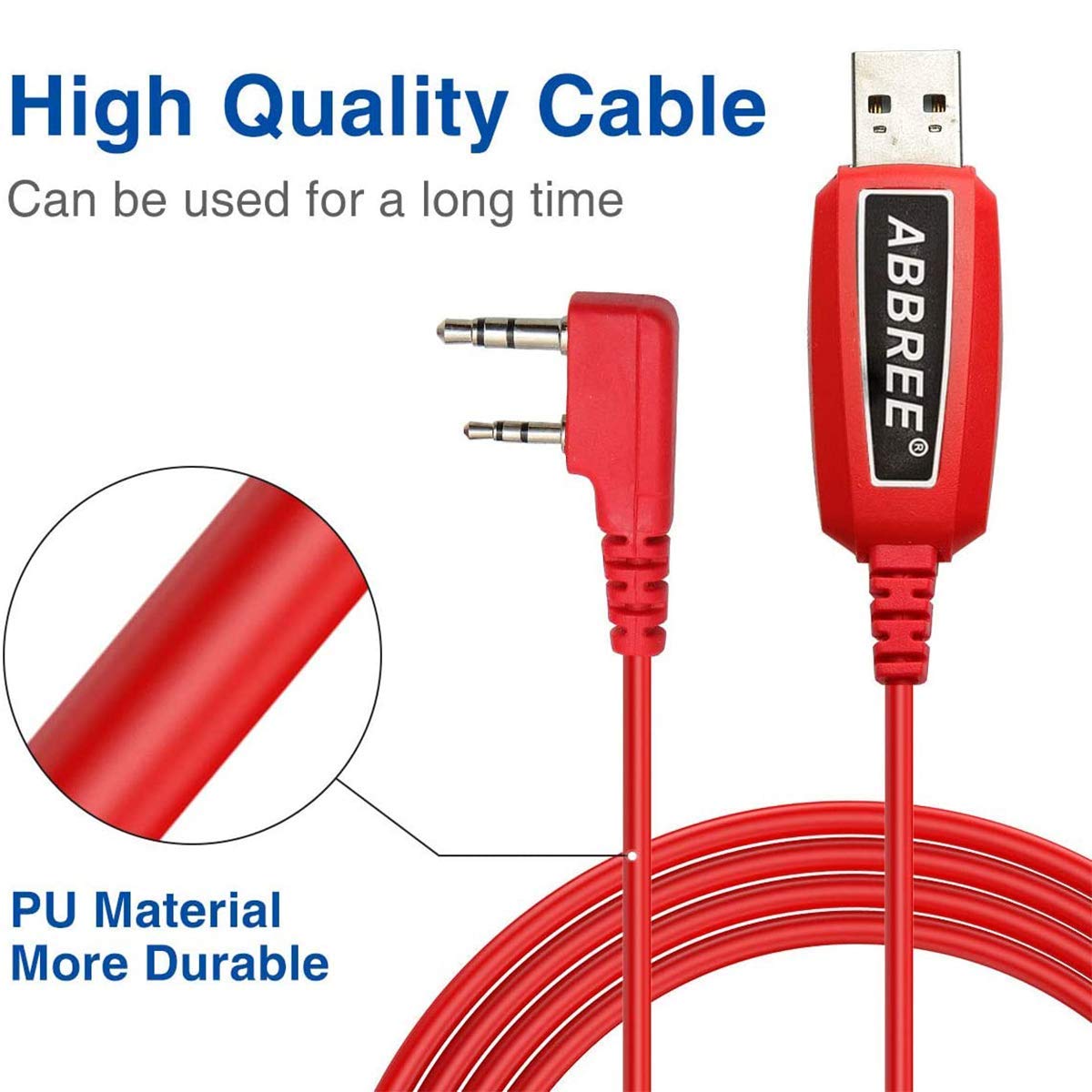
Figure 3: Close-up view highlighting the durable PU material of the red programming cable, designed for longevity and resistance to wear.
5. Troubleshooting
5.1 Common Issues and Solutions
- Cable Not Detected:
- Ensure the cable is firmly connected to both the computer and the radio.
- Try a different USB port on your computer.
- Verify driver installation in Device Manager. If the driver is missing or shows an error, manually install the correct PL2303 driver.
- Restart your computer and try again.
- Communication Error with Radio:
- Confirm the radio is powered on and the cable is securely connected.
- In your programming software, ensure the correct COM port, radio manufacturer, and model are selected.
- Close other applications that might be using the COM port.
- Try a different version of the programming software if available.
- Intermittent Connection:
- Check for physical damage to the cable or connectors.
- Ensure the radio's battery is sufficiently charged.
- Avoid placing the cable near sources of electromagnetic interference.
6. Specifications
| Feature | Detail |
|---|---|
| Brand | BAOFENG |
| Model Number | PL2303 |
| Connector Type | Auxiliary, USB (K-type 2-pin to USB-A) |
| Cable Type | USB Programming Cable |
| Compatible Devices | PC, various Baofeng two-way radios (e.g., UV-5R, BF-F8HP, UV-21R, UV-5G Plus, GM-5RH, K5PLUS, AR-152, UV-17R, BF-888S, GM-15PRO, UV-S9 Plus) |
| Special Feature | Data Transfer, Drive-Free (PL2303 Chip), CHIRP Support |
| Recommended Uses | Programming and customizing two-way radios |
| Connector Gender | Male-to-Male |
| Number of Pins | 4 (on K-type connector) |
| Cable Length | Approximately 39 inches (100 cm) |
| Material | PU (Polyurethane) for durability |
| Item Weight | 1.76 ounces |
| Package Dimensions | 6.1 x 5.43 x 0.59 inches |

Figure 4: Detailed measurements of the two-pin K-type connector, showing pin lengths of 12mm and 15mm, and an 8mm spacing between them, with an 11mm width.
7. Warranty & Support
For warranty information and technical support, please refer to the documentation included with your product or contact BAOFENG customer service directly. Keep your purchase receipt for warranty claims.
Online resources and community forums for CHIRP software and Baofeng radios can also provide valuable assistance for programming-related queries.


