1. Introduction
This manual provides essential information for setting up, operating, maintaining, and troubleshooting your MSI GF63 Thin gaming laptop. Please read this manual thoroughly before using your device to ensure proper functionality and longevity.
Package Contents
Upon opening the package, verify that all items are present and in good condition. The standard package includes:
- MSI GF63 Thin Laptop
- Power Adapter
- Power Cord
- Quick Start Guide (if applicable)
- Warranty Card (if applicable)
If any items are missing or damaged, contact your retailer or MSI customer support immediately.
2. Setup
2.1 Initial Power-On
- Connect Power: Plug the power adapter into the laptop's power input port, then connect the power cord to the adapter and a wall outlet.
- Open Display: Gently lift the display panel to an comfortable viewing angle.
- Power On: Press the power button, typically located above the keyboard or on the side. The power indicator light will illuminate.
- Operating System Setup: Follow the on-screen instructions to complete the Windows 10 initial setup, including language, region, network connection, and user account creation.
2.2 Connecting Peripherals
The MSI GF63 Thin laptop features various ports for connecting external devices:
- USB Ports: Connect USB devices such as mice, keyboards, external hard drives, or flash drives. The laptop has 3 USB 3.0 ports.
- HDMI Port: Connect an external monitor or TV for extended display.
- Ethernet Port: Connect to a wired network for stable internet access.
- Audio Jacks: Connect headphones or external speakers.

Figure 2.2.1: Left side view of the MSI GF63 Thin laptop, illustrating the placement of USB and audio ports for connecting external devices.

Figure 2.2.2: Right side view of the MSI GF63 Thin laptop, displaying additional USB ports and the power input port.
3. Operation
3.1 Keyboard and Touchpad
The laptop features a full-size keyboard and a multi-touch touchpad. Refer to the Windows operating system documentation for detailed gestures and shortcuts.
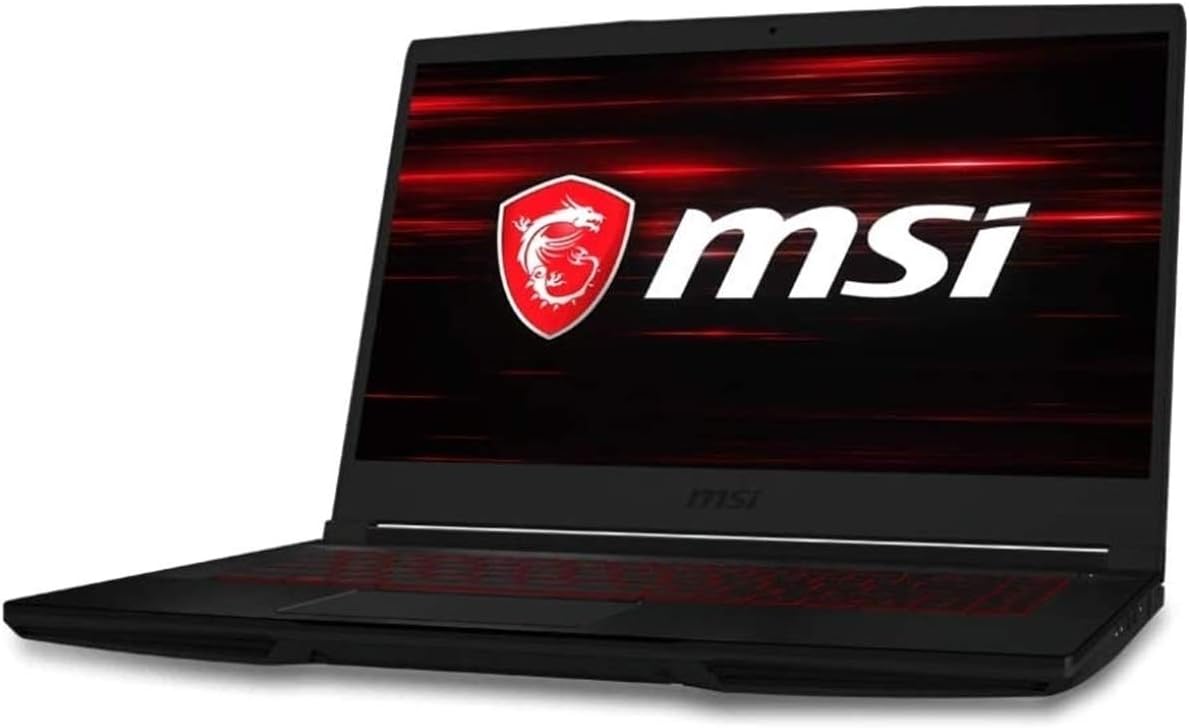
Figure 3.1.1: Front view of the MSI GF63 Thin laptop, showcasing the keyboard and touchpad area.
3.2 Display Settings
The 15.6-inch IPS display offers a resolution of 1920 x 1080 pixels. You can adjust display settings such as brightness, resolution, and multiple display configurations through Windows settings.
3.3 Wireless Connectivity
The laptop supports 802.11abg wireless standards and Bluetooth. To connect to a Wi-Fi network or pair Bluetooth devices, access the network and internet settings in Windows.
4. Maintenance
4.1 Cleaning the Laptop
- Screen: Use a soft, lint-free cloth slightly dampened with water or a screen cleaner. Do not spray liquid directly onto the screen.
- Keyboard and Chassis: Use a soft, dry cloth. For stubborn dirt, a slightly damp cloth can be used, ensuring no liquid enters openings.
- Ventilation: Regularly check and clean the ventilation grilles to prevent dust buildup, which can affect cooling performance. Use compressed air to gently clear dust from vents.
4.2 Battery Care
The laptop's battery has an average life of 7 hours. To maximize battery lifespan:
- Avoid extreme temperatures.
- Do not fully discharge the battery frequently.
- If storing the laptop for an extended period, ensure the battery is charged to approximately 50-60%.
4.3 Software Updates
Regularly update your Windows operating system, drivers, and MSI utilities to ensure optimal performance, security, and compatibility.
5. Troubleshooting
| Problem | Possible Cause | Solution |
|---|---|---|
| Laptop does not power on. | No power, faulty adapter, or battery issue. | Ensure power adapter is securely connected. Try a different power outlet. If battery is removable, try powering on without battery (using AC power only). |
| No display on screen. | Display brightness too low, external monitor connected, or hardware issue. | Increase brightness using function keys. Disconnect external monitors. Restart the laptop. |
| Wi-Fi connection issues. | Wi-Fi disabled, incorrect password, or router issue. | Ensure Wi-Fi is enabled in Windows settings. Verify password. Restart router and laptop. |
| Laptop runs slowly or overheats. | Too many applications running, dust in vents, or outdated drivers. | Close unnecessary applications. Clean ventilation grilles. Update drivers and operating system. Consider using MSI Dragon Center for fan control. |
For further assistance, refer to the MSI support website or contact customer service.
6. Specifications
| Feature | Detail |
|---|---|
| Model | MSI GF63 Thin |
| Processor | Intel Core i5-10300H (Quad-Core, 2.5GHz, 8MB Cache) |
| Graphics | NVIDIA GeForce GTX 1650 (4.1GB Dedicated Video Memory) |
| Display | 15.6-inch IPS, 1920 x 1080 pixels |
| RAM | 8GB DDR4 |
| Storage | 256GB PCIe NVMe Solid State Drive (SSD) |
| Operating System | Windows 10 |
| Wireless Connectivity | 802.11abg, Bluetooth |
| USB Ports | 3 x USB 3.0 |
| Battery Life (Average) | 7 Hours |
| Dimensions (LxWxH) | 9.99 x 14.14 x 0.85 inches |
| Weight | 4.1 pounds |
7. Warranty and Support
MSI provides a limited warranty for its products. Please refer to the warranty card included in your package or visit the official MSI website for detailed warranty terms and conditions specific to your region.
For technical support, driver downloads, and frequently asked questions, please visit the official MSI support website:
When contacting support, please have your laptop's serial number and proof of purchase readily available.


