
Holy Stone HS420
Holy Stone HS420 Mini Drone User Manual
Model: HS420
1. Introduction
Welcome to the Holy Stone HS420 Mini Drone User Manual. This guide provides detailed instructions to help you safely and effectively operate your new drone. Please read this manual thoroughly before first use to ensure optimal performance and to prevent damage.
What's in the Box

Image: The Holy Stone HS420 Mini Drone, remote control, three batteries, USB charging cables, extra propellers, and a propeller screwdriver are shown laid out.
- 1 x HS420 Mini Drone
- 1 x Remote Control
- 3 x 3.7V 300mAh Drone Batteries
- 2 x USB Charging Cables
- 4 x Extra Propellers
- 1 x Propeller Screwdriver
- 1 x User Manual
2. Safety Guidelines
Always prioritize safety when operating the drone. Failure to follow these guidelines may result in injury, damage to the drone, or property damage.
- Read the Manual: Familiarize yourself with all features and operations before flying.
- Age Recommendation: This drone is suitable for children and adults. Adult supervision is recommended for younger users.
- Environment: Fly in open, clear areas, away from people, animals, buildings, and obstacles. Avoid flying near power lines or in crowded spaces.
- Weather Conditions: Do not fly in strong winds, rain, snow, or other adverse weather conditions.
- Battery Safety: Use only original Holy Stone batteries and charging cables. Do not overcharge or short-circuit batteries. Discontinue use if batteries are damaged or swollen.
- Propeller Safety: Keep fingers, hair, and loose clothing away from rotating propellers. The drone includes propeller guards for added safety.
- Visual Line of Sight: Always maintain visual line of sight with the drone during flight.
- Emergency Stop: Familiarize yourself with the emergency stop function on the remote control.
3. Setup
3.1 Charging the Batteries
The Holy Stone HS420 comes with modular batteries for extended flight time. Ensure all batteries are fully charged before first use.
- Connect the USB charging cable to a USB power adapter (5V/1A recommended) or a computer USB port.
- Connect the other end of the charging cable to the drone battery.
- The indicator light on the charging cable will show the charging status (e.g., red for charging, green for fully charged).
- Charging typically takes approximately 40-60 minutes per battery.
3.2 Installing Batteries
Drone Battery: Gently slide the charged modular battery into the battery compartment on the rear of the drone until it clicks into place.
Remote Control Batteries: Open the battery cover on the back of the remote control and insert 3 x AAA batteries (not included), ensuring correct polarity. Close the cover.
3.3 Pairing the Drone and Remote Control
Follow these steps to pair your drone with the remote control:
- Place the drone on a flat, level surface.
- Turn on the drone by pressing the power button. The drone's indicator lights will flash.
- Turn on the remote control.
- Push the left joystick (throttle) all the way up, then pull it all the way down. The drone's lights will stop flashing and become solid, indicating successful pairing.
3.4 App Installation (Optional)
For advanced features like FPV view and Trajectory Flight, download the Holy Stone app from your device's app store. Search for "Holy Stone" or scan the QR code provided in the quick start guide (if applicable).
4. Operating the Drone
4.1 Basic Controls
Familiarize yourself with the remote control layout and basic flight movements:
- Left Joystick (Throttle): Up/Down for altitude, Left/Right for rotation (yaw).
- Right Joystick (Direction): Up/Down for forward/backward, Left/Right for sideward flight (strafe).
- One-Key Takeoff/Landing Button: Initiates automatic takeoff or landing.
- Speed Switch Button: Toggles between low, medium, and high-speed modes.
4.2 Flight Functions

Image: The Holy Stone HS420 drone is shown lifting off from an open palm, illustrating the 'Throw to Go' or 'One-Key Takeoff' feature.
One-Key Takeoff/Landing
After pairing, press the One-Key Takeoff/Landing button. The drone will automatically ascend to a certain height and hover. Press it again to initiate an automatic landing.

Image: A Holy Stone HS420 drone is depicted flying, with compass points (N, S, E, W) around it, symbolizing the Headless Mode feature.
Headless Mode
In Headless Mode, the drone's orientation is locked to the remote control's orientation. This means forward on the remote is always forward for the drone, regardless of which way the drone's front is facing. Activate this mode by pressing the Headless Mode button on the remote.

Image: A family is shown posing for a photo, with a Holy Stone HS420 drone in the air and a smartphone displaying the drone's camera view, demonstrating the gesture selfie feature.
Gesture Selfie
With the drone's camera active, make specific hand gestures (refer to the app's instructions for exact gestures) to trigger photo or video recording. This allows for hands-free aerial photography.

Image: A person is shown gently tossing the Holy Stone HS420 drone into the air, illustrating the 'Throw to Go' feature where the drone automatically stabilizes and hovers after being thrown.
Throw to Go
After pairing and calibration, gently toss the drone into the air. Its intelligent sensors will detect the launch and automatically activate the motors, stabilizing the drone in a hover.

Image: A young child looks up excitedly as two Holy Stone HS420 drones are shown performing 360-degree flips in the air, demonstrating the stunt capability.
360° Flips
To perform a 360-degree flip, press the 3D Flip button (if available on your remote) and then push the right joystick in the desired direction (forward, backward, left, or right). The drone will perform an acrobatic flip.

Image: Two Holy Stone HS420 drones are shown in a circular flight path, illustrating the 'Circle Fly' feature where the drone orbits a central point.
Circle Fly
Activate Circle Fly mode via the remote or app. The drone will automatically fly in a circular path around a central point, capturing dynamic footage. Adjust the radius and speed through the app.
Altitude Hold
The drone is equipped with an Altitude Hold function, allowing it to maintain a stable height automatically. This makes it easier for beginners to control and capture steady photos/videos.
Trajectory Flight
Using the Holy Stone app, you can draw a desired flight path on your smartphone screen. The drone will then follow this trajectory automatically, providing a pre-programmed flight experience.
5. Maintenance
Proper maintenance ensures the longevity and performance of your Holy Stone HS420 drone.
- Cleaning: Use a soft, dry cloth to clean the drone after each flight. Avoid using water or solvents.
- Propeller Replacement: If propellers are damaged or bent, replace them immediately using the provided screwdriver and spare propellers. Ensure you match the correct propeller (A or B) to the corresponding motor.
- Battery Care: Store batteries in a cool, dry place. Do not store fully charged or completely depleted batteries for extended periods. Charge them to about 50% for long-term storage.
- Storage: Store the drone and remote control in a safe, dry place away from direct sunlight and extreme temperatures.
6. Troubleshooting
If you encounter issues with your Holy Stone HS420, refer to the common problems and solutions below:
| Problem | Possible Cause | Solution |
|---|---|---|
| Drone does not respond to remote. | Not paired; low battery; out of range. | Re-pair the drone and remote. Charge batteries. Ensure drone is within operating range. |
| Short flight time. | Battery not fully charged; old battery; aggressive flying. | Fully charge batteries. Replace old batteries. Fly more gently. |
| Drone drifts during flight. | Not calibrated; damaged propeller. | Perform gyroscope calibration (refer to quick start guide). Check and replace damaged propellers. |
| Camera not working/FPV not displaying. | App not connected to drone Wi-Fi; app issue. | Ensure your phone is connected to the drone's Wi-Fi network. Restart the app and drone. |
| Drone crashes easily. | Beginner pilot; strong winds; obstacles. | Practice in open areas. Avoid flying in windy conditions. Ensure clear flight path. |
7. Specifications
| Feature | Detail |
|---|---|
| Brand | Holy Stone |
| Model | HS420 |
| Item Weight | 31 g |
| Product Dimensions (L x W x H) | 8.4 x 9 x 3.4 cm |
| Batteries | 3 x Lithium Polymer (3.7V 300mAh) |
| Specific Features | High-Speed Rotation, Portable, Adjustable Camera Angle |
| Video Recording Resolution | 720p |
| Connectivity Technology | Wi-Fi |
| Skill Level | Beginner |
| Video Capture Format | MP4 |
| Color | Red |
8. Warranty Information
Holy Stone products are manufactured to the highest quality standards. For specific warranty details, please refer to the warranty card included with your product or visit the official Holy Stone website. The warranty typically covers manufacturing defects for a specified period from the date of purchase.
9. Customer Support
If you have any questions, concerns, or require technical assistance, please contact Holy Stone customer support:
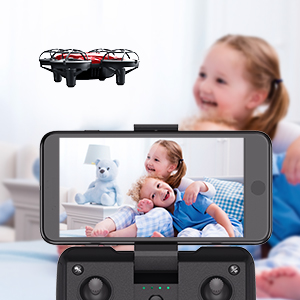
Image: A customer support representative is shown wearing a headset and smiling, ready to assist customers.
- Phone: +1 (833) 766-4733
- Email (USA): usa@holystone.com
- Email (EU): eu@holystone.com
- Email (CA): ca@holystone.com
- Email (AU): au@holystone.com
Related documentsHS420


Ask a question about this manual
Ask about setup, troubleshooting, compatibility, parts, safety, or missing instructions. Manuals+ will review the question and use this page’s manual context to help answer it.