
Q LINK WIRELESS Scepter 8
Q LINK WIRELESS Scepter 8 User Manual
Model: Scepter 8
Introduction
Welcome to the user manual for your Q LINK WIRELESS Scepter 8 tablet. This guide provides essential information on setting up, operating, maintaining, and troubleshooting your device. The Scepter 8 is an 8-inch Android 11 tablet designed for everyday use, featuring 1GB RAM and 16GB ROM.
Product Overview
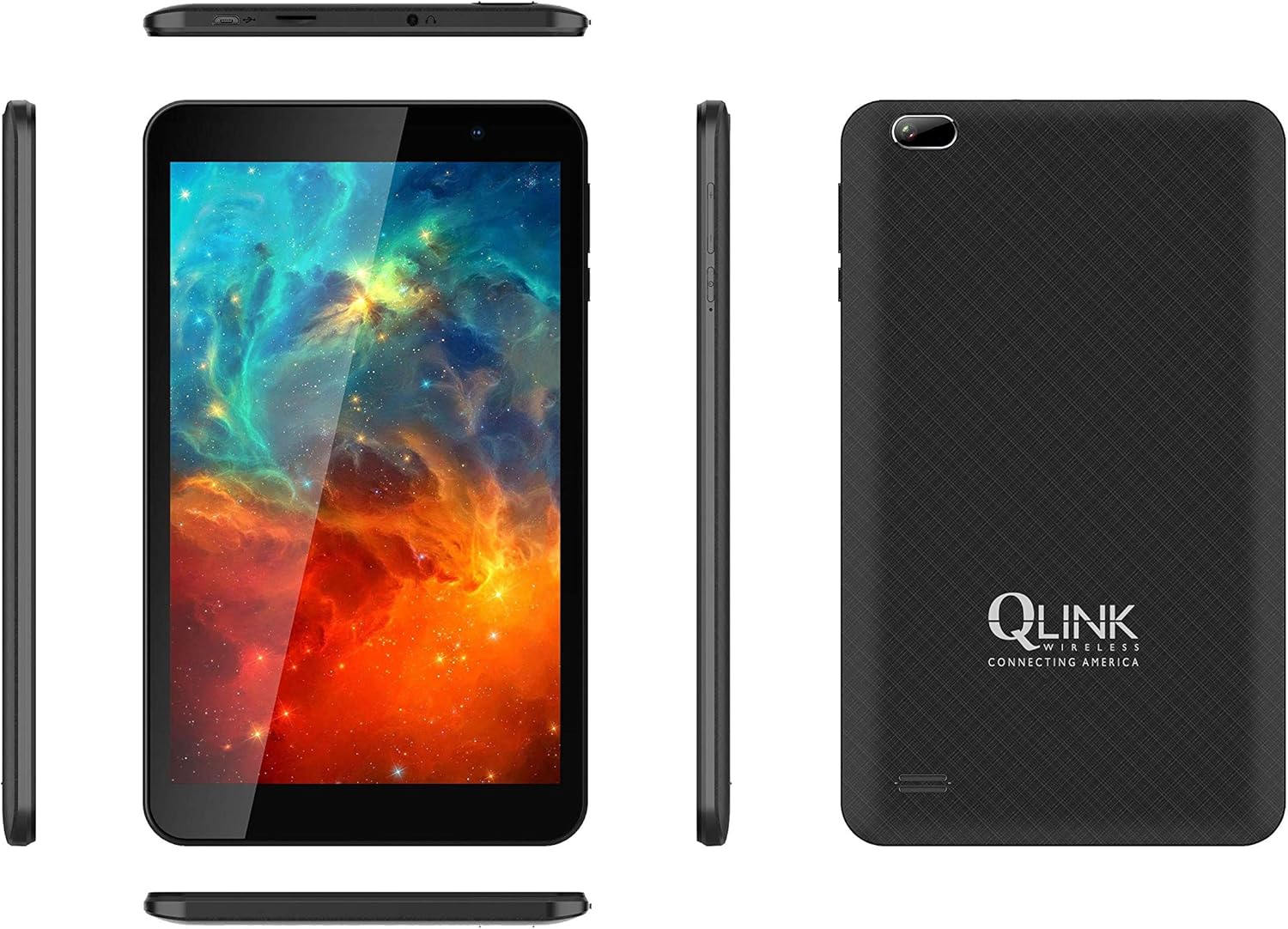
This image displays multiple views of the Q LINK WIRELESS Scepter 8 tablet, including the front with its display, the textured back panel featuring the Q LINK WIRELESS logo, and the slim side profiles showing button and port placements.

A clear front view of the Q LINK WIRELESS Scepter 8 tablet, highlighting its 8-inch IPS display. The screen shows a vibrant, colorful abstract image.

The back view of the Q LINK WIRELESS Scepter 8 tablet, showcasing its textured finish and the Q LINK WIRELESS logo. The rear camera is visible in the upper left corner.
Setup
1. Initial Charging
Before first use, fully charge your Scepter 8 tablet. Connect the included charger to the tablet's charging port and plug it into a power outlet. The battery indicator on the screen will show charging progress.
2. Powering On/Off
- To power on: Press and hold the Power button until the Q LINK WIRELESS logo appears.
- To power off: Press and hold the Power button, then select "Power off" from the options.
3. Initial Setup Wizard
Upon first power-on, the tablet will guide you through an initial setup process. This includes selecting your language, connecting to a Wi-Fi network, setting up your Google account, and configuring basic device settings.
4. Inserting a MicroSD Card (Optional)
To expand storage, locate the MicroSD card slot (usually on the side or top edge). Gently insert a compatible MicroSD card until it clicks into place. Ensure the tablet is powered off before inserting or removing the card.
Operating the Tablet
Navigation Basics
- Touch Gestures: Tap to select, swipe to scroll, pinch to zoom.
- Home Screen: Access apps, widgets, and notifications.
- Notification Panel: Swipe down from the top of the screen to view notifications and quick settings.
- App Drawer: Swipe up from the bottom of the screen to access all installed applications.
Connecting to Wi-Fi
- Go to Settings > Network & Internet > Wi-Fi.
- Toggle Wi-Fi On.
- Select your desired network from the list and enter the password if prompted.
Managing Applications
- Installing Apps: Download apps from the Google Play Store.
- Uninstalling Apps: Press and hold an app icon on the home screen or in the app drawer, then drag it to "Uninstall" or select "App info" and choose "Uninstall".
- Closing Apps: Swipe up from the bottom of the screen and hold to view recent apps, then swipe up on an app to close it.
Camera Usage
The Scepter 8 features a 5 MP rear camera. Open the Camera app from your home screen or app drawer. Tap the shutter button to take photos. You can switch between front and rear cameras using the icon on the screen.
Maintenance
- Cleaning: Use a soft, lint-free cloth to clean the screen and body. Avoid abrasive cleaners or solvents.
- Battery Care: To prolong battery life, avoid extreme temperatures. Do not let the battery fully drain frequently.
- Software Updates: Periodically check for system updates in Settings > System > System update to ensure optimal performance and security.
- Storage Management: Regularly clear unnecessary files and uninstall unused apps to free up storage space. Go to Settings > Storage to manage.
Troubleshooting
| Problem | Solution |
|---|---|
| Tablet is slow or unresponsive. |
|
| Cannot connect to Wi-Fi. |
|
| Battery drains quickly. |
|
| Apps crashing frequently. |
|
Specifications
| Feature | Detail |
|---|---|
| Brand | Q LINK WIRELESS |
| Model Name | Scepter 8 |
| Operating System | Android 11 |
| Screen Size | 8 Inches |
| Screen Resolution | 1280 x 800 pixels |
| RAM | 1 GB |
| Flash Memory Size | 16 GB |
| Processor Brand | Qualcomm |
| Rear Webcam Resolution | 5 MP |
| Wireless Type | 802.11ac |
| Average Battery Life | 12 Hours |
| Item Weight | 1.06 pounds |
| Product Dimensions | 8.2 x 4.9 x 0.36 inches |
Warranty and Support
For warranty information and technical support, please refer to the documentation included with your purchase or visit the official Q LINK WIRELESS website. Keep your proof of purchase for warranty claims.
Online Resources: For additional support, FAQs, and software downloads, please visit the Q LINK WIRELESS support page.
Related documentsScepter 8

Ask a question about this manual
Ask about setup, troubleshooting, compatibility, parts, safety, or missing instructions. Manuals+ will review the question and use this page’s manual context to help answer it.