
Introduction
This manual provides detailed instructions for the proper use and maintenance of your WISE TIGER USB Conference Microphone. Please read this guide thoroughly before operating the device to ensure optimal performance and longevity. Keep this manual for future reference.
Product Overview
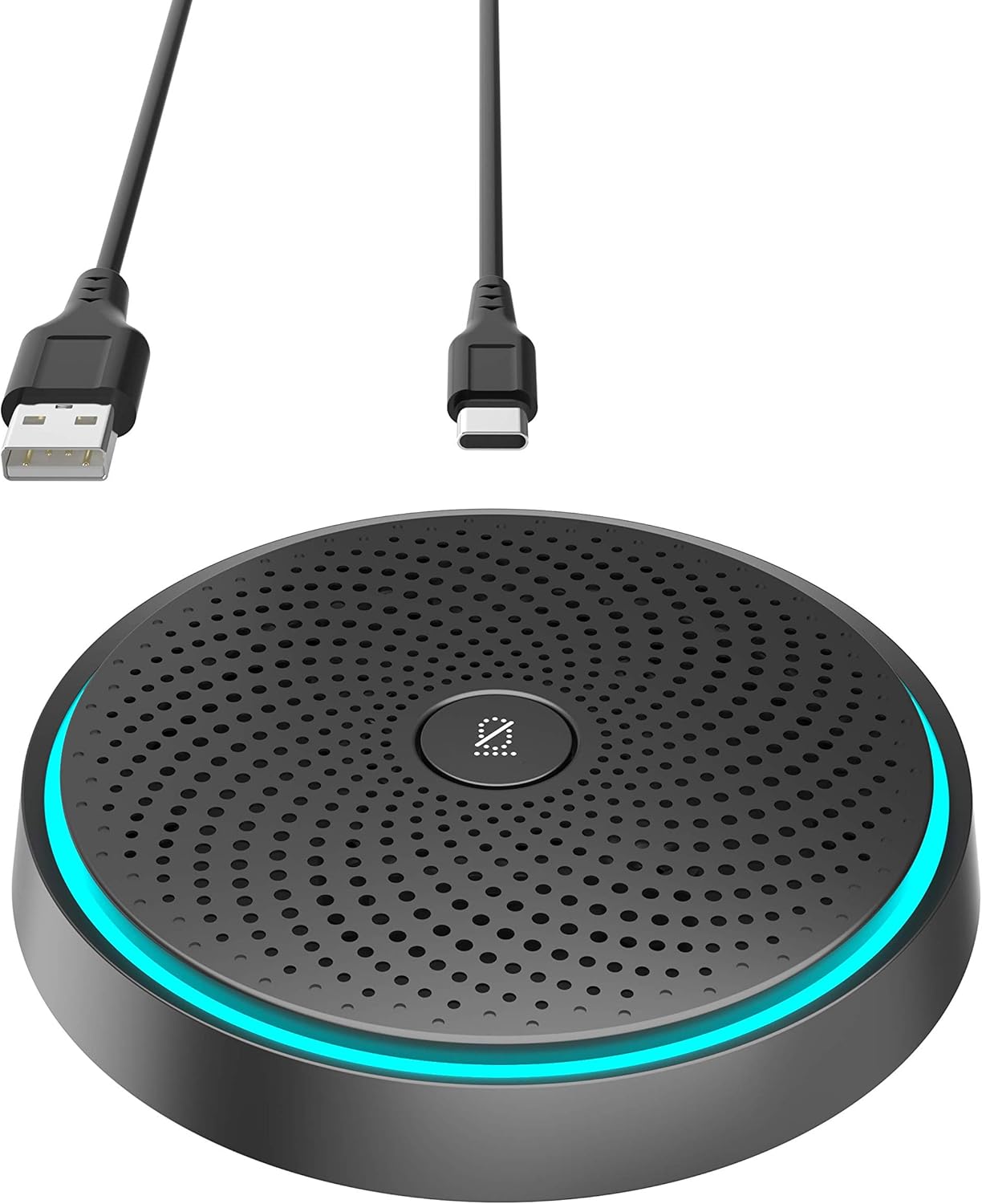
Image: WISE TIGER USB Conference Microphone, showcasing its compact design and included USB-A and USB-C cables for versatile connectivity.
Key Features
- 360° Omnidirectional Condenser Design: Captures sound from all directions for comprehensive audio coverage.
- High-Density Noise-Absorbing Cotton: Enhances sound clarity by reducing ambient noise.
- One-Key Mute Function: Allows for instant muting and unmuting of the microphone.
- Plug & Play Connectivity: Requires no additional drivers or software for installation.
- Extended Voice Pickup Range: Capable of picking up voices up to 10 feet away.
- Compact and Portable Design: Easily fits into pockets or briefcases for on-the-go use.
- Versatile Application: Suitable for online meetings, gaming, video/audio chats, Skype, and Zoom.
Package Contents
- 1 x WISE TIGER USB Conference Microphone
- 1 x USB Cable
- 1 x Battery (pre-installed or included for operation)
Setup
Connecting the Microphone
The WISE TIGER USB Conference Microphone is designed for simple plug-and-play operation. Follow these steps to connect your microphone:
- Locate an available USB port on your computer (laptop or desktop).
- Connect the provided USB cable to the microphone and then to your computer's USB port.
- Your operating system (Windows, macOS, Chrome OS) should automatically detect and install the necessary drivers. This process typically takes a few seconds.
- Once detected, the microphone will be ready for use. You may need to select it as the default input device in your system's sound settings or within your communication application (e.g., Zoom, Skype, gaming software).

Image: The microphone connected to a laptop, illustrating the simple plug-and-play setup process.
Operating Instructions
Using the Mute Function
The microphone features a convenient one-key mute button located on its top surface. This allows you to quickly control your audio input during calls or recordings.
- To Mute: Press the mute button once. The LED indicator light on the microphone will change color (e.g., from blue to red) to indicate that the microphone is muted.
- To Unmute: Press the mute button again. The LED indicator light will return to its active color, signifying that the microphone is now active and picking up sound.

Image: A hand pressing the central mute button on the microphone, with an illuminated ring indicating its status.
Omnidirectional Pickup
The microphone utilizes a 360° omnidirectional pickup pattern, meaning it captures sound equally from all directions around the device. This makes it ideal for:
- Conference calls with multiple participants around a table.
- Group discussions or presentations.
- Environments where sound needs to be captured from various points.
The microphone is equipped with built-in noise reduction technology to minimize background noise and echo, ensuring clear voice transmission.

Image: A visual representation of the microphone's 360-degree omnidirectional sound pickup, distinguishing between noisy and clear voice capture.

Image: A conference room setup showing multiple individuals participating in a virtual meeting, with the microphone centrally placed to capture all voices.
Application Scenarios
The WISE TIGER USB Conference Microphone is versatile and suitable for various environments:

Image: A collage depicting the microphone being used in different settings: home, dormitory, company meeting rooms, and outdoor group discussions.
Maintenance
Care and Cleaning
To ensure the longevity and optimal performance of your microphone, follow these simple maintenance guidelines:
- Cleaning: Use a soft, dry cloth to gently wipe the surface of the microphone. Avoid using harsh chemicals, abrasive cleaners, or solvents, as these can damage the device.
- Storage: When not in use, store the microphone in a cool, dry place, away from direct sunlight and extreme temperatures.
- Handling: Handle the microphone with care. Avoid dropping it or subjecting it to strong impacts.
- Connectivity: Always grasp the USB connector, not the cable, when plugging or unplugging the microphone to prevent damage to the cable or port.
Troubleshooting
Common Issues and Solutions
| Issue | Possible Solution |
|---|---|
| Microphone not detected by computer. |
|
| No sound or low sound pickup. |
|
| Sound quality is poor or distorted. |
|
| Cannot control output volume from the microphone. | This device is a microphone for audio input only, not a speaker for audio output. Output volume control is managed through your computer's system settings or the application you are using for playback. |
Specifications
Technical Details
| Feature | Detail | |
|---|---|---|
| Brand | WISE TIGER | |
| Model Number | B08YJD9TTZ | |
| Microphone Form Factor | Mini | |
| Connectivity Technology | USB | |
| Connector Type | USB | |
| Polar Pattern | Omnidirectional | |
| Audio Sensitivity | 38 Decibels | |
| Signal-to-Noise Ratio | 88 dB | |
| Frequency Response | 20 KHz | |
| Hardware Platform | Gaming Console, Laptop, PC | |
| Item Weight | Package Dimensions | 4.76 x 4.53 x 1.77 inches |
| Manufacturer | WISE TIGER CREATIVITY IS UNLIMITED | |
| UPC | 793420185074 |
Warranty and Support
Warranty Information
Your WISE TIGER USB Conference Microphone comes with a 3-year manufacturer replacement warranty.
Return Policy
A 90-day no-questions-asked return policy is also provided for your peace of mind.
Customer Support
For any support needs, questions, or warranty claims, please reach out to us anytime via Amazon message. Our customer service team is ready to assist you.