
ELECOM TK-G02UMBK
Elecom TK-G02UMBK Wired Gaming Keyboard User Manual
Model: TK-G02UMBK
Introduction
Thank you for purchasing the Elecom TK-G02UMBK Wired Gaming Keyboard. This manual provides detailed instructions for setting up, operating, and maintaining your new keyboard. Please read this manual thoroughly before use to ensure proper functionality and longevity of the product.
Safety Information
- Do not expose the keyboard to extreme temperatures or humidity.
- Avoid dropping or subjecting the keyboard to strong impacts.
- While the keyboard has a drainage function for accidental spills, it is not waterproof. Do not immerse the keyboard in liquid.
- Keep out of reach of children.
- Do not attempt to disassemble or repair the keyboard yourself. Contact qualified service personnel for assistance.
Package Contents
Please check that all items are present in the package:
- Elecom TK-G02UMBK Wired Gaming Keyboard
- Detachable Wrist Rest
- User Manual (this document)
Product Overview
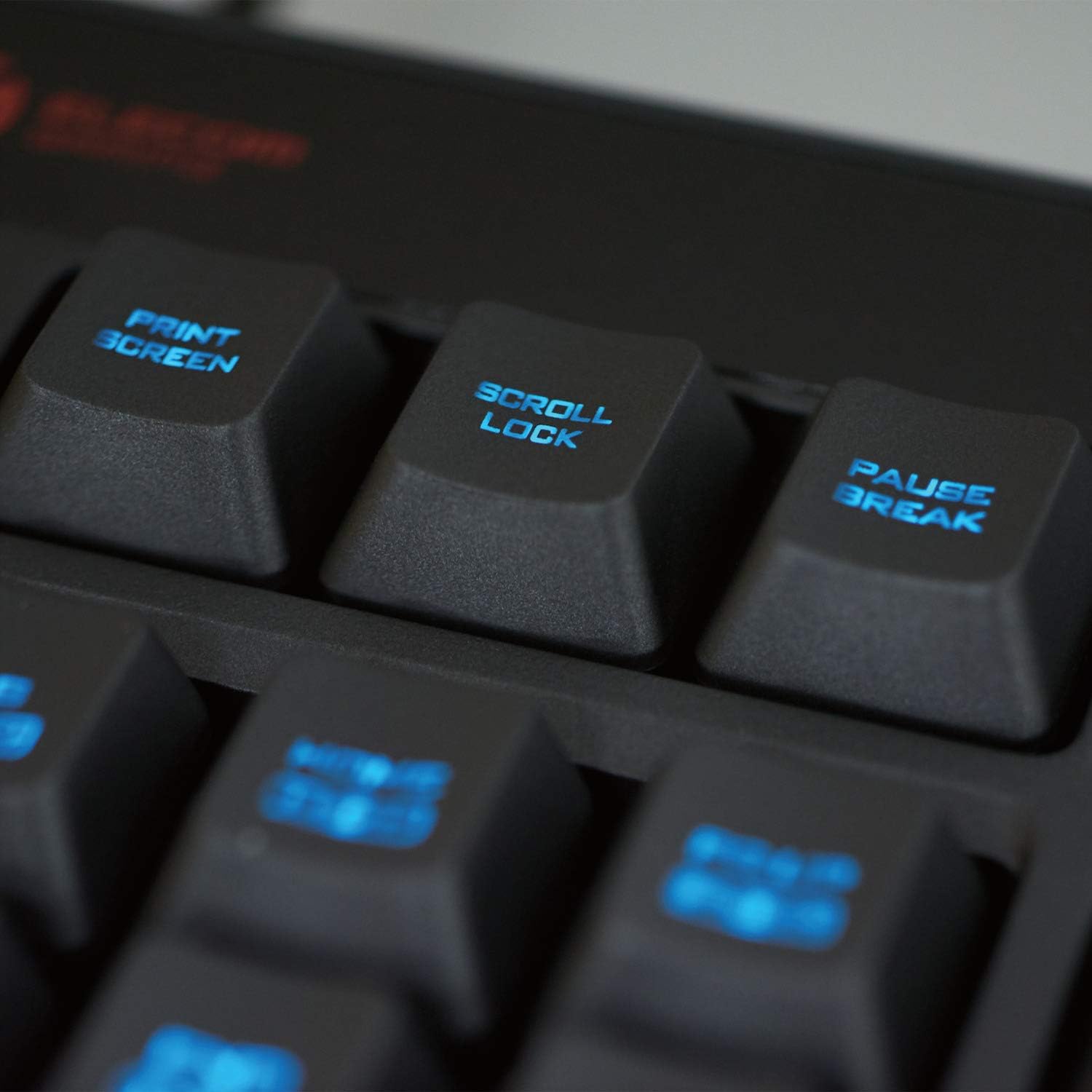
Familiarize yourself with the components of your Elecom TK-G02UMBK keyboard.


Setup
- Connect the Keyboard: Plug the USB-A connector of the keyboard cable into an available USB port on your Windows OS computer.
- Install Wrist Rest (Optional): Align the detachable wrist rest with the front edge of the keyboard and attach it securely. It can be removed if desired for space-saving or increased mouse maneuverability.
- Driver Installation: The keyboard is plug-and-play. Your operating system should automatically detect and install the necessary drivers. No additional software installation is required for basic functionality or RGB customization.
- System Compatibility: Ensure your computer runs Windows 11, Windows 10, or Windows 8.1. Updates to your OS or service pack installations may be required for optimal performance.
Operating Instructions
Volume Control Dial
The keyboard features a dedicated rotary volume knob for quick and intuitive audio adjustments.
- Increase Volume: Rotate the dial clockwise.
- Decrease Volume: Rotate the dial counter-clockwise.
RGB LED Backlight Customization
The keyboard's RGB LED backlight can be customized directly from the keyboard without software.
- Specific key combinations (e.g., Fn + F-keys or dedicated keys) are used to change lighting patterns, colors, and brightness. Refer to the keycap legends for these functions.
- Experiment with different key combinations to find your preferred lighting effects.
Anti-Ghosting (Area Key Rollover)
The keyboard supports "area key rollover" allowing precise simultaneous pressing of up to 16 frequently used keys in gaming scenarios. This ensures accurate key entry during complex operations.
Windows Lock Function
To prevent accidental interruptions during gameplay, the Windows key can be disabled.
- Enable/Disable Windows Lock: Press and hold the FN key, then press the Windows key.
- An LED lamp on the keyboard indicates the status of the Windows Lock, along with Num Lock and Caps Lock.
Maintenance
- Cleaning: Use a soft, dry cloth to wipe the surface of the keyboard. For stubborn dirt, a slightly damp cloth can be used, ensuring no liquid enters the key switches or internal components.
- Spill Management: In case of accidental liquid spills (e.g., water), immediately unplug the keyboard. The drainage holes on the back of the unit will help remove liquid. Allow the keyboard to dry completely before reconnecting. Note: This feature is for minor spills and does not make the keyboard waterproof.
- Storage: When not in use for extended periods, store the keyboard in a cool, dry place away from direct sunlight.
Troubleshooting
| Problem | Possible Cause / Solution |
|---|---|
| Keyboard not responding. |
|
| Keys are not registering correctly (ghosting). |
|
| RGB backlight is not working or stuck. |
|
| Windows key is not working. |
|
Specifications
| Feature | Detail |
|---|---|
| Interface | USB (USB-A Male connector) |
| Compatible OS | Windows 11, Windows 10, Windows 8.1 |
| Key Type | Membrane |
| Key Arrangement | Japanese 107 keys (Full size) |
| Key Pitch | 19.0mm (0.75 inch) |
| Keystroke | 3.7mm |
| Power Source | USB Bus Power |
| Cable Length | Approx. 2.0m (6.6 ft) |
| Dimensions (Main body) | W 451 x D 155 x H 47.6 mm (17.7 x 6.1 x 1.4 inches) (not including stand) |
| Dimensions (Wrist rest) | W 451 x D 66 x H 18 mm (17.7 x 6.0 x 0.7 inches) |
| Weight (Main body) | Approx. 735g (25.0 oz / 2.38 pounds) |
| Weight (Wrist rest) | Approx. 100g (3.5 oz) |
| Backlight | RGB LED |
| Special Features | Rotary Volume Dial, Area Key Rollover (16 keys), Detachable Wrist Rest, Windows Lock Function, Drainage Function (spill resistant) |
Warranty and Support
Warranty Period: This product comes with a 6-month warranty from the date of purchase.
Product Inquiries: For technical support, warranty claims, or general inquiries, please contact Elecom General Information Center.
- TEL: 0570-084-465
- FAX: 0570-050-012
- Reception Time: 10:00 - 19:00, 7 days a week
Please have your product model number (TK-G02UMBK) and proof of purchase ready when contacting support.
Ask a question about this manual
Ask about setup, troubleshooting, compatibility, parts, safety, or missing instructions. Manuals+ will review the question and use this page’s manual context to help answer it.