Introduction
The KODAK Step Instant Photo Printer is a portable device designed to print 2x3-inch color sticky-back photos directly from your iOS or Android smartphone via Bluetooth or NFC. Utilizing Zink Zero Ink technology, it eliminates the need for ink cartridges, toners, or ribbons, producing durable, smudge-proof, water-resistant, and tear-resistant prints. This manual provides essential information for setting up, operating, maintaining, and troubleshooting your printer.
1. Setup
1.1 Charging the Printer
Before initial use, ensure your KODAK Step printer is fully charged. Connect the provided USB charging cable to the micro USB charging port on the device and a power source. The charging indicator light will illuminate during charging.

Figure 1: Printer Ports and Indicators
1.2 Loading Zink Photo Paper
- Gently slide open the paper tray cover on the printer.
- Insert the blue Quality Card from the Zink photo paper pack with the barcode facing down. This card is crucial for printer calibration and should always be loaded first from a new pack.
- Place the Zink photo paper on top of the blue card, with the glossy side facing up. Ensure the paper stack is aligned correctly within the tray.
- Close the paper tray cover securely.

Figure 2: Loading Photo Paper
1.3 App Download and Bluetooth Pairing
- Download the "KODAK STEP Prints" app from your device's app store (available for iOS and Android).
- Turn on your KODAK Step printer by pressing and holding the power button until the status indicator light illuminates.
- Enable Bluetooth on your smartphone.
- Open the KODAK STEP Prints app and follow the on-screen instructions to pair your device with the printer. Select "KODAK Step printer" from the list of available Bluetooth devices.

Figure 3: KODAK STEP Prints App Interface
Video 1: Overview of the KODAK Step Slim Printer, demonstrating basic setup and printing.
2. Operation
2.1 Selecting and Customizing Photos
Once connected, open the KODAK STEP Prints app. You can select photos from your smartphone's gallery. The app offers various editing tools, including filters, borders, stickers, and text options to personalize your images before printing.
2.2 Printing Photos
- After customizing your photo in the app, tap the "Print" button.
- The printer will process the image and eject the 2x3-inch photo from the print slot. Printing typically takes less than 60 seconds.
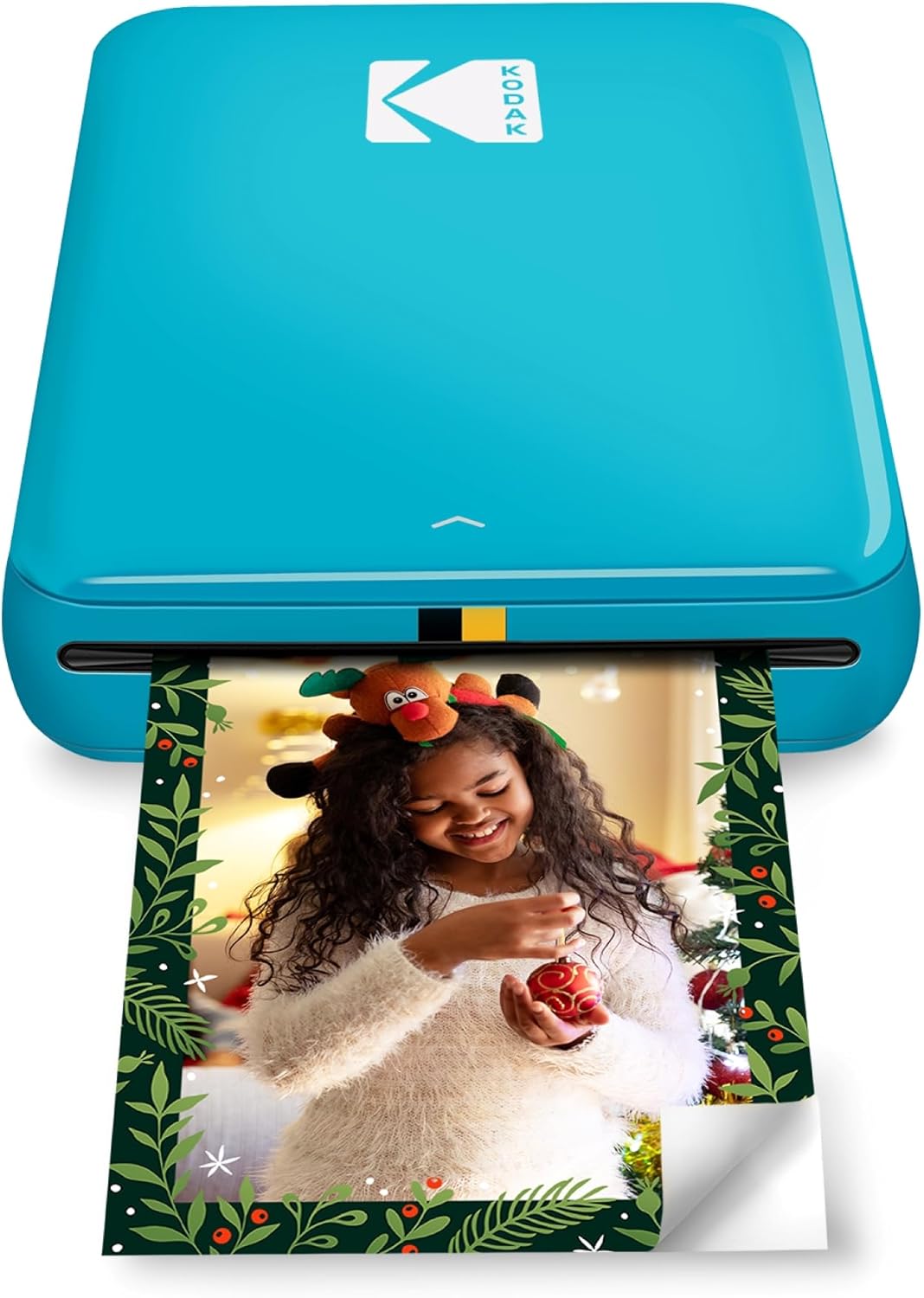
Figure 4: Printer in Operation
Video 2: Demonstrates the compact size and ease of use of the KODAK Step Instant Photo Printer, including loading paper and printing a photo from a smartphone.
3. Maintenance
3.1 Cleaning the Printer Roller
To maintain optimal print quality, periodically clean the printer's internal roller. Use the blue Quality Card from a Zink photo paper pack. Uncover half of the sticky side of the blue card and run it through the printer. The sticky surface will collect dust and debris from the roller.
Video 3: Instructions on how to use the blue calibration card to clean the printer roller for optimal print quality.
3.2 Paper Handling
Always ensure the photo paper is inserted correctly with the glossy side up. Do not cover the printing slot with your hand when a photo is printing to avoid jams or damage to the print.
4. Troubleshooting
- Paper Jam: If a paper jam occurs, turn the printer off and then on again. This action should eject the jammed paper. Do not attempt to pull the paper out by hand, as this may damage the printer.
- "Out of Paper" Error: If the printer indicates it is out of paper despite having paper loaded, ensure the paper stack is correctly seated and not too loose or too tight. Recalibrating with the blue card may also resolve this issue.
- App Disconnecting/Freezing: If the KODAK STEP Prints app frequently disconnects or freezes, try turning off and on your device's Bluetooth, restarting the app, or restarting the printer. Ensure the app is updated to the latest version.
- Color Issues/Streaks on Prints: If prints show inaccurate colors or streaks, recalibrate the printer using the blue Quality Card. Ensure the blue card is inserted barcode-side down from the same pack of paper being used.
5. Specifications
| Feature | Detail |
|---|---|
| Product Dimensions | 1"D x 3"W x 5"H |
| Item Weight | 2.39 ounces (0.07 Kilograms) |
| Connectivity Technology | Bluetooth, NFC |
| Printing Technology | Zink Technology |
| Maximum Media Size | 2x3 inches (2.2 x 3.4 inches supported) |
| Maximum Color Print Resolution | 300 dpi |
| Maximum Print Speed (Color) | 1 ppm |
| Initial Page Print Time | 60 Seconds |
| Compatible Devices | Smartphones (Android, iOS) |
| Included Components | Printer and accessories (USB charging cable, Quick Start Guide, 5-pack ZINK Photo Paper) |
| Battery | 1 Lithium Ion battery (included) |
| Model Number | RODMP20AMZBL |
6. Warranty Information
The KODAK Step Instant Photo Printer comes with a Limited Warranty. For specific terms and conditions, please refer to the warranty documentation included with your product or visit the official KODAK support website.
7. Support
For further assistance, technical support, or to purchase additional Zink photo paper, please visit the official KODAK website or contact their customer service. Keep your product model number (RODMP20AMZBL) handy when seeking support.


