
1. Introduction
This manual provides instructions for the installation, operation, maintenance, and troubleshooting of the Sonicwall TZ670 Network Security Appliance. The TZ670 is designed to provide comprehensive network security for mid-sized organizations and distributed enterprises.
For additional resources and support, please visit the Sonicwall Store.
2. Product Overview
The Sonicwall TZ670 is a next-generation firewall (NGFW) featuring 10 Gigabit Ethernet interfaces. It offers advanced security capabilities including Capture Advanced Threat Protection, Gateway Anti-Virus, Intrusion Prevention, Application Control, and Content Filtering.
2.1. Package Contents
- Sonicwall TZ670 Network Security Appliance
- Power Adapter(s)
- Ethernet Cable
- RM-SW-T9 Rackmount Kit (if included with your purchase)
- Quick Start Guide
2.2. Front Panel Features

Figure 1: Sonicwall TZ670 Front Panel. This image displays the front panel of the Sonicwall TZ670, highlighting the USB 3.0 SuperSpeed ports, Power LEDs, Test LED, Security LED, M.2 SSD LED, LAN/MGMT X0 Port LED, WAN X1 and X2 Port LEDs, X0-X7 RJ45 Port LEDs, X8/X9 SFP/SFP+ Port LEDs, and WWAN LEDs for USB 5G/LTE connectivity.
- USB 3.0 SuperSpeed ports: For connecting external devices.
- Power LEDs: Indicate power status.
- Test LED: Indicates system test status.
- Security LED: Indicates security status.
- M.2 SSD LED: Indicates M.2 SSD activity.
- LAN/MGMT X0 Port LED: Indicates activity on the LAN/Management port.
- WAN X1 and X2 Port LEDs: Indicate activity on WAN ports.
- X0-X7 RJ45 Port LEDs: Indicate activity on the respective RJ45 ports.
- X8/X9 SFP/SFP+ Port LEDs: Indicate activity on the SFP/SFP+ ports.
- WWAN LEDs: For USB 5G/LTE connectivity status.
2.3. Rear Panel Features

Figure 2: Sonicwall TZ670 Rear Panel. This image shows the rear panel of the Sonicwall TZ670, detailing the RJ45 Console Port, Micro-USB Console Port, X8/X9 SFP/SFP+ Ports, X1 WAN RJ45 Port, X3 RJ45 Port, X2 WAN RJ45 Port, X0 LAN RJ45, X4/X5/X6/X7 RJ45 Ports, SafeMode Button, Grounding Screw, Primary Power Input, and Redundant Power Input.
- RJ45 Console Port: For direct console access.
- Micro-USB Console Port: Alternative console access.
- X8/X9 SFP/SFP+ Ports: High-speed fiber or copper connectivity.
- X0 LAN RJ45, X1 WAN RJ45, X2 WAN RJ45, X3 RJ45, X4/X5/X6/X7 RJ45 Ports: Various Ethernet ports for LAN and WAN connections.
- SafeMode Button: For system recovery or factory reset.
- Grounding Screw: For proper grounding.
- Primary Power Input: Main power connection.
- Redundant Power Input: For connecting a secondary power supply for redundancy.
3. Setup Instructions
3.1. Rackmount Installation (RM-SW-T9 Kit)
If you have the RM-SW-T9 Rackmount Kit, follow these steps to install your TZ670 appliance into a 19-inch rack.

Figure 3: Sonicwall TZ670 with RM-SW-T9 Rackmount Kit. This image shows the Sonicwall TZ670 appliance installed within the RM-SW-T9 rackmount kit, ready for integration into a 19-inch server rack. The kit provides a secure and organized mounting solution for the appliance and its cables.
- Attach the rackmount ears to the sides of the TZ670 appliance using the provided screws.
- Slide the TZ670 appliance into the rackmount tray.
- Secure the appliance to the rack using appropriate rack screws.
- Organize and secure cables using the integrated cable management features of the rackmount kit.
3.2. Initial Connection
- Connect Power: Connect the power adapter(s) to the Primary Power Input (and Redundant Power Input if applicable) on the rear panel and plug them into a power outlet.
- Connect WAN: Connect your internet service provider's modem or router to one of the WAN ports (e.g., X1 or X2) on the TZ670.
- Connect LAN: Connect a computer or network switch to one of the LAN ports (e.g., X0) on the TZ670.
- Power On: The device will power on automatically. Observe the front panel LEDs for status.
3.3. Initial Configuration
Access the SonicOS web interface for initial configuration.
- Ensure your computer is connected to a LAN port of the TZ670.
- Open a web browser and navigate to the default IP address (typically
192.168.168.168). - Log in using the default credentials (username:
admin, password:password). You will be prompted to change the password upon first login. - Follow the on-screen setup wizard to configure basic network settings, security services, and administrative passwords.
4. Operating Instructions
Once configured, the Sonicwall TZ670 operates as a network security gateway. Management is primarily performed through the SonicOS web interface.
4.1. Accessing the Web Interface
To manage your TZ670, open a web browser and enter the IP address of the device (e.g., https://192.168.168.168 or the IP address you configured). Log in with your administrative credentials.
4.2. Key Features and Services
- Firewall Rules: Configure rules to control network traffic.
- VPN: Set up Virtual Private Networks for secure remote access or site-to-site connections.
- Security Services: Manage subscriptions and settings for Capture Advanced Threat Protection, Gateway Anti-Virus, Intrusion Prevention, and Content Filtering.
- Network Settings: Configure interfaces, routing, DHCP, and DNS settings.
- Users and Authentication: Manage user accounts and authentication methods.
- Monitoring and Logging: View real-time network activity, security events, and system logs.
5. Maintenance
Regular maintenance ensures optimal performance and security of your Sonicwall TZ670.
- Firmware Updates: Regularly check for and apply the latest SonicOS firmware updates to ensure you have the most recent security patches and features.
- Backup Configuration: Periodically back up your device configuration to a secure location.
- Monitor Logs: Review system and security logs for unusual activity or errors.
- Physical Inspection: Ensure proper ventilation and check for any physical damage or loose connections.
- Security Service Subscriptions: Ensure all security service subscriptions (e.g., TotalSecure Essential Edition) are active and up-to-date.
6. Troubleshooting
This section provides solutions to common issues you might encounter.
- No Power:
- Verify power cables are securely connected to the device and power outlet.
- Check the power adapter and outlet for functionality.
- Cannot Access Web Interface:
- Ensure your computer is connected to a LAN port of the TZ670.
- Verify your computer's IP address is in the same subnet as the TZ670 (e.g., 192.168.168.x).
- Try clearing your browser's cache or using a different browser.
- If the IP address was changed, try the new IP. If forgotten, a factory reset might be necessary (refer to SafeMode Button).
- No Internet Connectivity:
- Check WAN cable connection to your modem/router.
- Verify WAN port status LEDs on the TZ670.
- Confirm your ISP service is active.
- Review WAN interface settings and firewall rules in the SonicOS web interface.
- Slow Performance:
- Check network utilization and security service logs for high traffic or attacks.
- Ensure firmware is up-to-date.
- Review system resources in the SonicOS dashboard.
For advanced troubleshooting, consult the Sonicwall support website or contact technical support.
7. Specifications
The following table outlines the key specifications for the Sonicwall TZ670 Network Security Appliance.

Figure 4: Sonicwall TZ Gen 7 Series System Specifications. This table provides a detailed comparison of specifications across the Sonicwall TZ Gen 7 series, with the TZ670 series highlighted. It includes information on operating system, interfaces, wireless support, PoE support, storage expansion, management, redundant power, SSO users, VLAN interfaces, and supported access points.
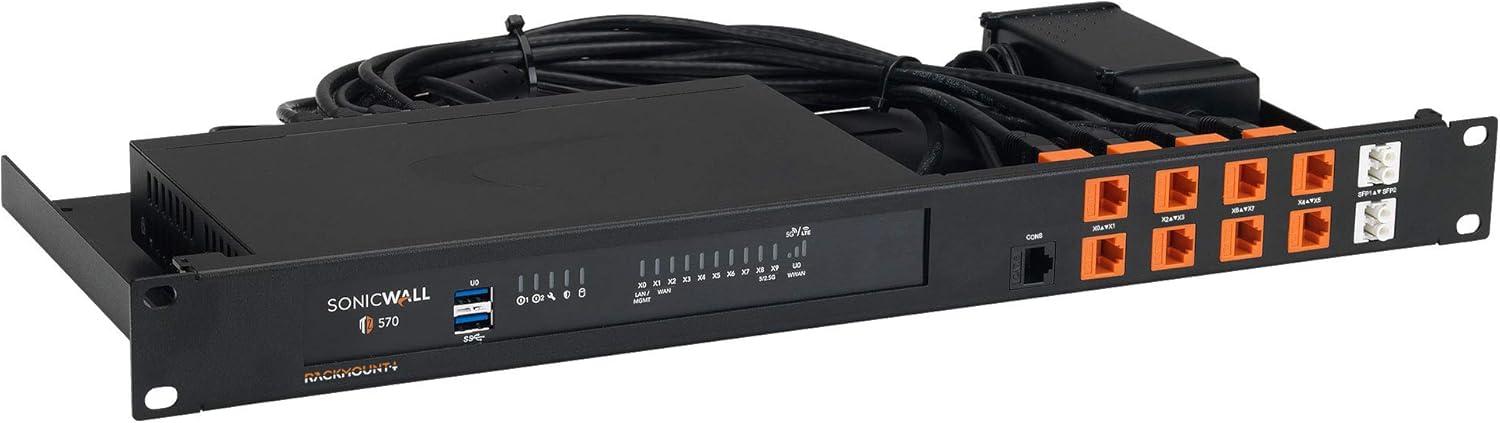
Figure 5: Sonicwall TZ Gen 7 Series Firewall and VPN Performance. This table details the firewall and VPN performance metrics for the Sonicwall TZ Gen 7 series, including the TZ670. It covers firewall inspection throughput, threat prevention throughput, IPS throughput, VPN throughput, maximum connections, site-to-site VPN tunnels, and various security and networking features.
| Feature | Specification |
|---|---|
| Model Number | TZ670 |
| Interfaces | 8x1GbE, 2x10GbE, 2 USB 3.0, 1 Console |
| VLAN Interfaces | 256 |
| Firewall Inspection Throughput | 5.00 Gbps |
| Threat Prevention Throughput | 4.00 Gbps |
| IPS Throughput | 2.5 Gbps |
| IPSec VPN Throughput | 2.10 Gbps |
| Operating System | SonicOS |
| Security Protocol | WPS |
| Storage Expansion Slot | Optional up to 256GB, 32GB included |
| Redundant Power Supply | Yes |
8. Warranty and Support
The Sonicwall TZ670 typically comes with a manufacturer's warranty and support services, often bundled as part of a TotalSecure Essential Edition or similar package.
- TotalSecure Essential Edition: Includes Capture Advanced Threat Protection Service, Gateway Anti-Virus and anti-spyware, Intrusion Prevention Service, Application Control, Content Filtering Service, and 24x7 Support.
- For detailed warranty information and to register your product, please visit the official Sonicwall website.
- For technical assistance, contact Sonicwall support. Ensure you have your product serial number and proof of purchase available.