
1. Introduction
This manual provides essential instructions for the setup, operation, and maintenance of your LifeSmart LS182WH Indoor Air Quality Meter and CO2 Detector. Please read this manual thoroughly before using the device to ensure proper function and safety.
2. Product Overview
2.1 Key Features
- Real-time CO2 detection with industrial-grade sensors.
- Monitors temperature, humidity, and CO2 levels simultaneously.
- LCD screen for real-time data display.
- LED indicator for status alerts.
- Remote viewing and notifications via mobile application.
- Wireless connectivity via COSS protocol.
- Compact design for flexible placement.
- Requires a Smart Station HomeKit control center for full functionality.
2.2 Device Components
The LifeSmart LS182WH features a compact design with essential components for air quality monitoring.
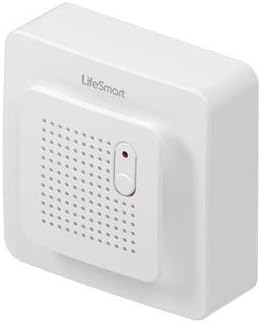
Figure 1: Angled view of the LifeSmart LS182WH Indoor Air Quality Meter. This image shows the front face with the speaker grille, the LifeSmart logo, and the pairing button, providing a general perspective of the device's appearance.

Figure 2: Front view of the LifeSmart LS182WH. This image highlights the central grille for air intake and sensor operation, along with the small pairing button and LED indicator.
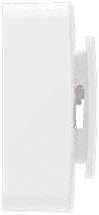
Figure 3: Side view of the LifeSmart LS182WH. This image illustrates the slim profile of the device, showing its depth and overall compact dimensions.

Figure 4: Bottom view of the LifeSmart LS182WH. This image clearly shows the Micro USB interface for power input and several small indicator lights.

Figure 5: Back view of the LifeSmart LS182WH. This image displays the mounting points or clips for installation and the overall rear casing of the device.
3. Setup
3.1 Powering the Device
- Locate the Micro USB port on the bottom of the device (refer to Figure 4).
- Connect a standard 5V DC Micro USB power adapter (not always included) to the device.
- Plug the power adapter into a wall outlet. The device will power on automatically.
3.2 Pairing with Smart Station HomeKit
The LifeSmart LS182WH requires a Smart Station HomeKit control center for full functionality, including remote monitoring and notifications.
- Ensure your Smart Station HomeKit is powered on and connected to your network.
- Open the LifeSmart mobile application on your smartphone or tablet.
- Follow the in-app instructions to add a new device.
- When prompted, press and hold the pairing button on the front of the LS182WH (refer to Figure 2) until the LED indicator flashes, indicating it is in pairing mode.
- Complete the pairing process through the application.
3.3 Placement
For accurate readings, place the device in an area free from direct drafts, extreme temperatures, or high humidity. Avoid placing it near windows, air vents, or heating/cooling appliances. Its compact size allows for versatile placement.
4. Operating Instructions
4.1 Real-time Monitoring
- Once powered on and paired, the device will begin monitoring CO2, temperature, and humidity levels.
- Current readings are displayed on the integrated LCD screen.
- For detailed historical data and remote monitoring, access the LifeSmart mobile application.
4.2 Alarm and Notifications
The device is designed to provide timely warnings for extreme CO2 levels.
- If CO2 levels exceed predefined thresholds, the device will trigger an audible alarm and the LED indicator will change color or flash.
- Simultaneously, a notification will be sent to your paired mobile device via the LifeSmart application.
- Refer to the LifeSmart application settings to customize alarm thresholds and notification preferences.
5. Maintenance
5.1 Cleaning
- Gently wipe the device's exterior with a soft, dry cloth.
- Do not use liquid cleaners, aerosols, or abrasive solvents, as these can damage the device or interfere with sensor operation.
- Ensure the air intake grille remains clear of dust and debris.
5.2 Sensor Calibration
The CO2 sensor is factory-calibrated. Under normal operating conditions, regular user calibration is not required. If you suspect inaccurate readings, consult the LifeSmart application or support resources for potential recalibration options.
6. Troubleshooting
| Problem | Possible Cause | Solution |
|---|---|---|
| Device not powering on. | No power supply or faulty cable. | Ensure the Micro USB cable is securely connected and the power adapter is plugged into a working outlet. Try a different cable or adapter. |
| Cannot pair with Smart Station HomeKit. | Device not in pairing mode, Smart Station offline, or app issue. | Confirm the device's LED is flashing (pairing mode). Check Smart Station's network connection. Restart the LifeSmart app and try again. |
| Inaccurate readings. | Improper placement or sensor obstruction. | Relocate the device away from drafts, direct sunlight, or heat sources. Ensure the air intake grille is clean. |
| No notifications on mobile app. | App notification settings, phone settings, or network issue. | Check notification settings within the LifeSmart app and your phone's operating system. Ensure your phone has an active internet connection. |
7. Specifications
| Feature | Detail |
|---|---|
| Brand | LifeSmart |
| Model Number | LS182WH |
| Connectivity Protocol | COSS (Wireless) |
| Transmission Distance | Up to 200 meters (open field) |
| Sensor Type | CO2, Temperature, Humidity |
| Display | LCD Screen |
| Interface | Micro USB |
| Input Voltage | 5V DC |
| Power Consumption | 450 mW |
| Operating Temperature | -5°C to +45°C (23°F to 113°F) |
| Operating Humidity | 5% to 90% (non-condensing) |
| Housing Material | Ivory ABS Plastic |
| Dimensions (L x W x H) | 71 x 71 x 32 mm (2.8 x 2.8 x 1.3 inches) |
| Weight | 55 g (0.12 lbs) |
8. Warranty and Support
8.1 Warranty Information
If the product is found to be defective, customers have 30 days from the date of purchase to return it for a 100% refund. This warranty covers manufacturing defects under normal use.
8.2 Technical Support
For any technical inquiries, operational assistance, or troubleshooting beyond the scope of this manual, please contact LifeSmart customer support. Contact details can typically be found on the official LifeSmart website or within the LifeSmart mobile application.