
Introduction
This manual provides detailed instructions for the Redragon K630 Dragonborn 60% Wired RGB Gaming Keyboard. It covers setup, operation, maintenance, and troubleshooting to ensure optimal performance and longevity of your device.
Product Overview
The Redragon K630 Dragonborn is a compact 60% wired mechanical gaming keyboard designed for efficiency and portability. It features 61 keys, hot-swappable blue switches, and vibrant RGB backlighting.
Key Features
- 60% Compact Layout: Frees up valuable desk space for mouse movements.
- Hot-Swappable Blue Switches: Offers distinct tactile and audible feedback, rated for 50 million keypresses. Compatible with other Redragon switches.
- Vibrant RGB Backlighting: Features up to 11 preset backlighting modes, with adjustable brightness and flowing speed directly from the keyboard.
- Pro Software Customizable: Expand customization options by designing new modes, effects, and macros using the dedicated software.
- Detachable USB-C Cable: Enhances portability and ensures a stable wired connection.
Package Contents
- 1 x Redragon K630 60% RGB Keyboard
- 1 x Switch/Keycap Puller
- 1 x Switch Backup Box
- 1 x User Manual (This document)
- 1 x USB Cable
 Image: The Redragon K630 Dragonborn keyboard, along with its included accessories: a switch/keycap puller, USB-C cable, and user manual.
Setup
Connecting the Keyboard
The Redragon K630 is a wired keyboard and connects via a detachable USB-C cable.
- Locate the USB-C port on the left side of the keyboard.
- Connect the L-shaped end of the provided USB-C cable to the keyboard's USB-C port.
- Connect the standard USB-A end of the cable to an available USB port on your computer or gaming console.
- The keyboard's RGB lighting will illuminate upon successful connection.
 Image: The Redragon K630 keyboard showing the detachable L-shaped USB-C cable connected to its side port, emphasizing portability and stable connection.
Initial Setup and Driver Installation
The keyboard is plug-and-play for basic functionality. For advanced customization and features, install the Redragon K630 Pro Software.
- Download the official K630 software from the Redragon website: bit.ly/K630_SOFTWARE.
- Follow the on-screen instructions to install the software.
- Once installed, launch the software to customize lighting, macros, and keybindings.
Operating Instructions
RGB Backlighting Control
The Redragon K630 features dynamic RGB backlighting with multiple preset modes.
- To cycle through 11 preset backlighting modes: Press Fn + Alt (M).
- To adjust brightness: Press Fn + P (Increase) or Fn + [ (Decrease).
- To adjust flowing speed: Press Fn + ' (Increase) or Fn + ; (Decrease).
 Image: The Redragon K630 Dragonborn keyboard showcasing its vibrant RGB backlighting across all keys.
Key Functions and Combinations
Due to its 60% compact layout, many functions are accessed via the Function (Fn) key.
| Combination | Function |
|---|---|
| Fn + 1-12 | F1-F12 keys (as marked on keycaps) |
| Fn + P | Increase Backlight Brightness |
| Fn + [ | Decrease Backlight Brightness |
| Fn + ' | Increase Backlight Speed |
| Fn + ; | Decrease Backlight Speed |
| Fn + Alt (M) | Cycle RGB Lighting Modes |
| Fn + Win | Lock/Unlock Windows Key |
Hot-Swappable Switches
The K630 features hot-swappable switches, allowing you to change them without soldering. This enables easy customization and replacement of individual switches.
- Use the provided keycap puller to gently remove the desired keycap.
- Use the switch puller to carefully remove the switch from the keyboard.
- Align the pins of the new switch with the holes on the PCB and press firmly until it clicks into place.
- Replace the keycap.
 Image: Close-up view of the Redragon K630 keyboard with several keycaps and switches removed, illustrating the hot-swappable design and switch sockets.
Software Customization
The dedicated software allows for advanced customization of the keyboard's functions and lighting.
- Key Rebinding: Assign new functions or shortcuts to any key.
- Macro Recording: Create complex sequences of commands for gaming or productivity.
- Lighting Effects: Design custom RGB lighting patterns and effects beyond the preset modes.
- Profile Management: Save and switch between different configurations for various games or applications.
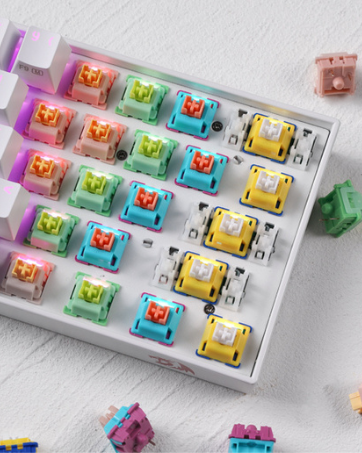 Image: Screenshot of the Redragon K630 software interface, showing options for key remapping, macro creation, and lighting customization.
Maintenance
Cleaning the Keyboard
Regular cleaning helps maintain the keyboard's appearance and functionality.
- Disconnect the keyboard from your computer before cleaning.
- Use a can of compressed air to remove dust and debris from between the keycaps.
- For stubborn dirt, gently remove keycaps using the provided puller and clean the switches and plate with a soft brush or cotton swab.
- Wipe the keycaps and keyboard surface with a slightly damp, lint-free cloth. Avoid excessive moisture.
Storage
When not in use for extended periods, store the keyboard in a dry, cool place away from direct sunlight to prevent damage.
Troubleshooting
| Problem | Solution |
|---|---|
| Keyboard not responding | Ensure the USB-C cable is securely connected to both the keyboard and the computer. Try a different USB port or a different cable. Restart your computer. |
| RGB lighting not working or stuck | Press Fn + Alt (M) to cycle through modes. Check brightness settings (Fn + P / [). Ensure the software is not overriding settings. Reinstall the software if necessary. |
| Certain keys not working | Carefully remove the keycap and switch for the affected key. Check for any debris or bent pins on the switch. Reinsert the switch firmly or replace it with a spare if available. |
| Software not detecting keyboard | Ensure the keyboard is properly connected. Close and reopen the software. Reinstall the software and drivers. Check for any conflicting software. |
Specifications
- Model: K630 Dragonborn
- Layout: 60% (61 Keys)
- Switch Type: Redragon Mechanical Blue Switches (Hot-Swappable)
- Connectivity: Wired (USB-C)
- Backlighting: RGB (16.8 Million Colors)
- Key Rollover: NKRO (N-Key Rollover)
- Dimensions: 12.8 x 5.94 x 2.09 inches (32.5 x 15.1 x 5.3 cm)
- Weight: 1.61 pounds (0.73 kg)
- Compatibility: PC, Gaming Consoles
Warranty and Support
For warranty information and technical support, please visit the official Redragon website or contact their customer service.
Official Redragon Store: Redragon Store on Amazon
User Manual (PDF): Download PDF
Product Videos
No official product videos from the seller are available for embedding at this time.


