
Introduction
The BlueParrott M300-XT is a high-performance mono Bluetooth headset designed for mobile professionals and drivers. It features industry-leading noise cancellation, extended talk time, and a lightweight design for all-day comfort. This manual provides detailed instructions to help you get the most out of your M300-XT headset.
Key features include:
- Industry-Leading Noise Cancellation: Blocks out 80% of noise with 2-microphone technology for clear communication.
- Long Battery Life: Up to 14 hours of talk time on a single charge.
- Extended Wireless Range: Up to 300ft/100m with Bluetooth 5.1 technology.
- Ultra-Small and Lightweight Design: Ensures comfortable wear throughout the day.
- Premium Durability: IP-54 rated for protection against dust and water.
- Easy Customization: Personalize features via the BlueParrott App.
Setup
What's in the Box
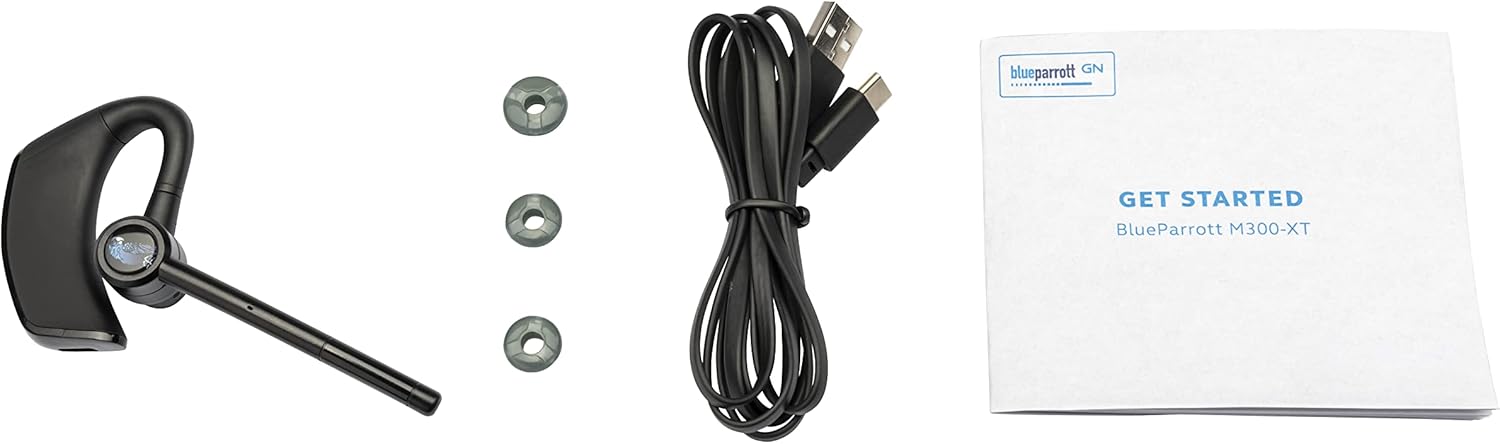
Image: The BlueParrott M300-XT headset, three different sized eargels, a USB-C charging cable, and a 'Get Started' user document.
Your BlueParrott M300-XT package includes:
- BlueParrott M300-XT Headset
- EarGels (various sizes for optimal fit)
- USB-C Charging Cable
- User Documents
Initial Charging

Image: A close-up of the BlueParrott M300-XT headset, highlighting its sleek design and the location of the charging port.
Before first use, fully charge your M300-XT headset. Connect the supplied USB-C cable to the charging port on the headset and plug the other end into a USB power source. The LED indicator will show charging status and turn solid when fully charged. A full charge provides up to 14 hours of talk time.
Wearing the Headset

Image: A man wearing the BlueParrott M300-XT headset comfortably on his right ear, demonstrating its discreet fit.
The M300-XT is designed for comfortable, all-day wear. You can wear it on either ear. To switch ears, rotate the microphone boom upwards and then down on the opposite side. Adjust the eargel for a secure and comfortable fit. The microphone boom should be positioned close to your mouth for optimal voice pickup.
Pairing with a Mobile Device
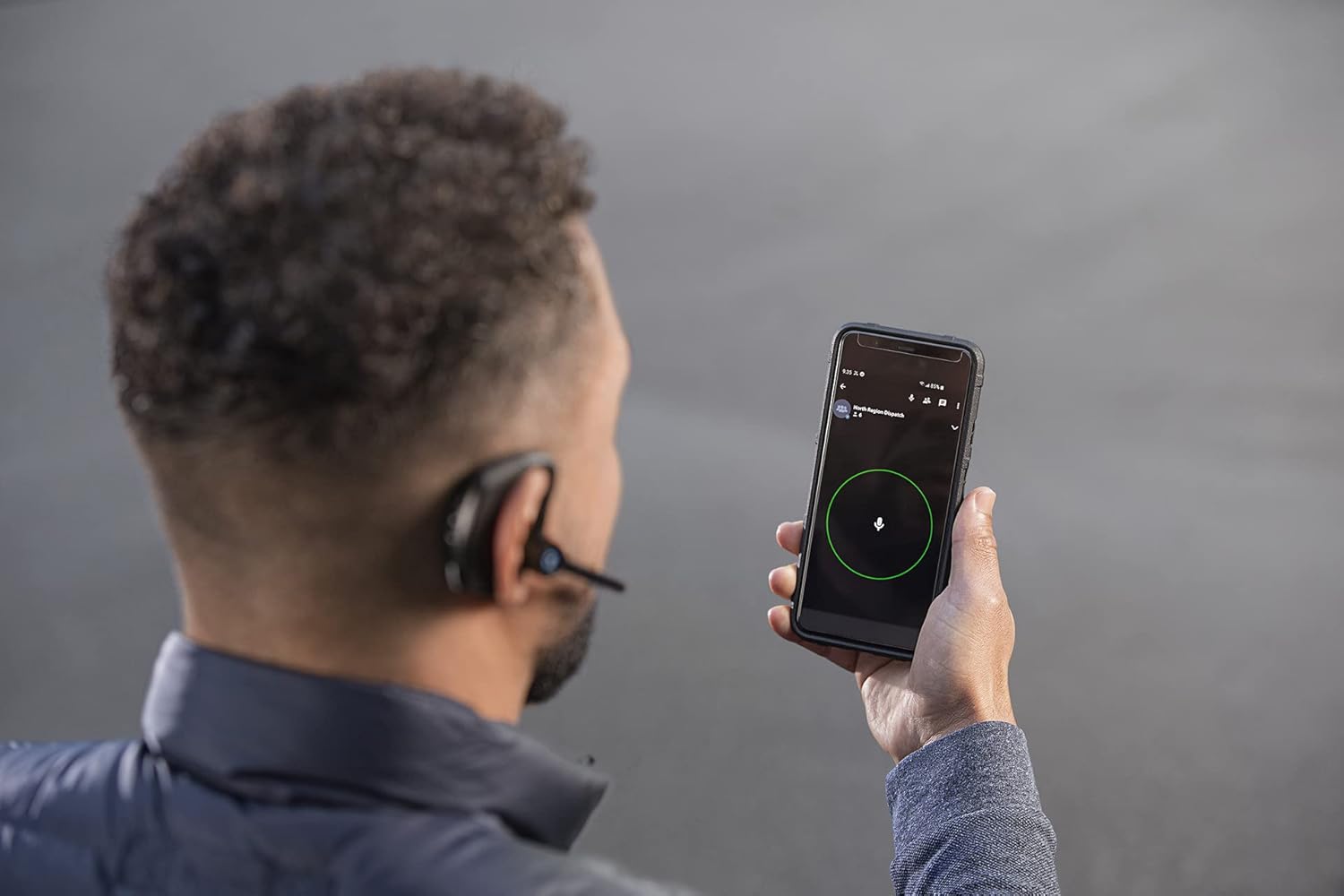
Image: A person holding a smartphone, with the BlueParrott M300-XT headset visible, illustrating the headset's connectivity with a mobile device.
To pair your headset with a mobile device:
- Ensure the headset is charged and turned off.
- Press and hold the Multi-function button (Power button) for approximately 3 seconds until the LED flashes blue. This indicates pairing mode.
- On your mobile device, enable Bluetooth and search for new devices.
- Select 'BlueParrott M300-XT' from the list of available devices.
- Once connected, the LED on the headset will turn solid blue.
Operating the Headset
Controls Overview

Image: A detailed view of the BlueParrott M300-XT headset, highlighting the physical buttons for power, volume control, and the dedicated BlueParrott button.
The M300-XT features intuitive controls:
- Multi-function Button (Power Button): Power on/off, answer/end calls, play/pause audio.
- Volume Up/Down Buttons: Adjust call and media volume.
- BlueParrott Button: Customizable via the BlueParrott App for features like mute, speed dial, or Push-to-Talk.
Making and Receiving Calls
- Answer Call: Press the Multi-function button.
- End Call: Press the Multi-function button.
- Reject Call: Press and hold the Multi-function button for 2 seconds.
- Redial Last Number: Double-press the Multi-function button when not on a call.
- Mute/Unmute Microphone: Press the BlueParrott button (if configured for mute).
Audio Playback
- Play/Pause: Press the Multi-function button.
- Next Track: Press and hold Volume Up button.
- Previous Track: Press and hold Volume Down button.
Maintenance
Cleaning Your Headset
Regular cleaning helps maintain the performance and longevity of your M300-XT. Use a soft, dry cloth to wipe down the headset. For deeper cleaning, a slightly damp cloth with mild soap can be used, ensuring no moisture enters the charging port or microphone openings. Allow to air dry completely before use.
Firmware Updates
Video: This video demonstrates the process of updating the firmware for the BlueParrott M300-XT headset using the BlueParrott Mobile App or a computer. Regular firmware updates are recommended for optimal performance and new features.
It is important to regularly update the firmware on your M300-XT headset to ensure optimal performance and access to the latest features and improvements. Firmware updates can be easily downloaded and installed using the free BlueParrott Mobile App or through the BlueParrott updater on your computer. This process can improve speaker and microphone performance, as well as other general enhancements.
Troubleshooting
If you encounter issues with your BlueParrott M300-XT, try the following solutions:
- No Power: Ensure the headset is fully charged. Connect it to a power source and check the LED indicator.
- Pairing Issues: Make sure Bluetooth is enabled on your device and the headset is in pairing mode (flashing blue LED). Try unpairing and re-pairing the headset.
- Poor Audio Quality: Ensure the microphone boom is positioned correctly near your mouth. Check for obstructions. Update firmware if available.
- No Sound: Check the volume levels on both the headset and your connected device. Ensure the headset is properly connected via Bluetooth.
- Connectivity Issues: Move closer to your connected device to ensure you are within the 300ft/100m wireless range. Avoid physical obstructions.
For more detailed troubleshooting, refer to the BlueParrott App or the official support website.
Specifications
Technical Specifications
| Feature | Specification |
|---|---|
| Model Name | M300-XT |
| Connectivity Technology | Bluetooth 5.1 |
| Talk Time | Up to 14 Hours |
| Wireless Range | 300ft / 100m |
| Noise Control | Active Noise Cancellation (2-mic technology) |
| Water Resistance Level | IP-54 (Dust and Water Resistant) |
| Item Weight | 20 Grams (0.705 ounces) |
| Dimensions | 1 x 4.36 x 2.4 inches |
| Material | Polycarbonate (PC), Silicone, Acrylonitrile Butadiene Styrene (ABS) |
| UPC | 706487021803 |
Warranty and Support
Warranty Information
The BlueParrott M300-XT comes with a manufacturer's warranty. Please refer to the warranty card included in your product packaging or visit the official BlueParrott website for detailed warranty terms and conditions.
Customer Support
For further assistance, product registration, or to access additional resources, you can:
- Download the BlueParrott Mobile App for easy firmware upgrades and feature selection.
- Visit the official BlueParrott support website.
- Access the official PDF User Manual: BlueParrott M300-XT User Manual (PDF)


