
Archuu V8
Archuu V8 Live Sound Card User Manual
Model: V8
Product Overview
The Archuu V8 Live Sound Card is an external USB audio mixer designed for live streaming, voice changing, and audio mixing. It features a variety of sound effects and modes, making it suitable for computer, laptop, and phone live broadcasts. This device enhances your audio experience by providing professional-grade electro-acoustic adjustments and real-time monitoring capabilities.

Front view of the Archuu V8 Live Sound Card, showing the main control knobs and effect buttons.
Key features include 112 kinds of electric sound, 18 kinds of sound effects, and 6 kinds of effect modes. It allows for precise adjustment of echo, microphone volume, high and low tones, and recording volume. The built-in lithium battery provides extended usage, and its Bluetooth connectivity enables wireless accompaniment from mobile devices.
Package Contents
Please verify that all items listed below are included in your package:
- 1 x V8 Live Sound Card
- 3 x Audio Cables
- 1 x USB Cable
- 1 x English User Manual (this document)

The V8 Sound Card shown with its accompanying USB and audio cables.
Note: Due to manufacturing variations, the appearance of the sound card or cables may slightly differ from the images shown, but functionality remains consistent.
Setup Guide
Follow these steps to set up your V8 Live Sound Card for various applications:
Connecting to Devices:
- Power Connection: Connect the sound card to a power source (e.g., computer USB port, USB wall adapter) using the provided USB cable. The sound card has a built-in rechargeable battery for portable use.
- Microphone Connection:
- For condenser microphones, use the "Condenser mic" port.
- For dynamic microphones, use the "Dynamic mic" port.
- Headset/Earphone Connection: Plug your headset or earphones into the "Headset" or "Earphone speaker" ports for monitoring audio.
- Live Broadcast Connections (using Audio Cables):
- Single Phone Live: Connect one audio cable from "LIVE1" or "LIVE2" port on the sound card to the 3.5mm audio jack of your smartphone.
- Dual Phone Live: Connect one audio cable from "LIVE1" to Phone 1, and another audio cable from "LIVE2" to Phone 2.
- Computer Live: Connect the USB cable from the sound card to your computer. The sound card will be recognized as an audio device.
- Computer Accompaniment Phone Live: Connect the USB cable to your computer for accompaniment audio, and an audio cable from "LIVE1" or "LIVE2" to your phone for live broadcast.
- Accompaniment Input: Connect an external audio source (e.g., another phone, tablet) to the "Accompany Instrument" port using an audio cable to play background music.
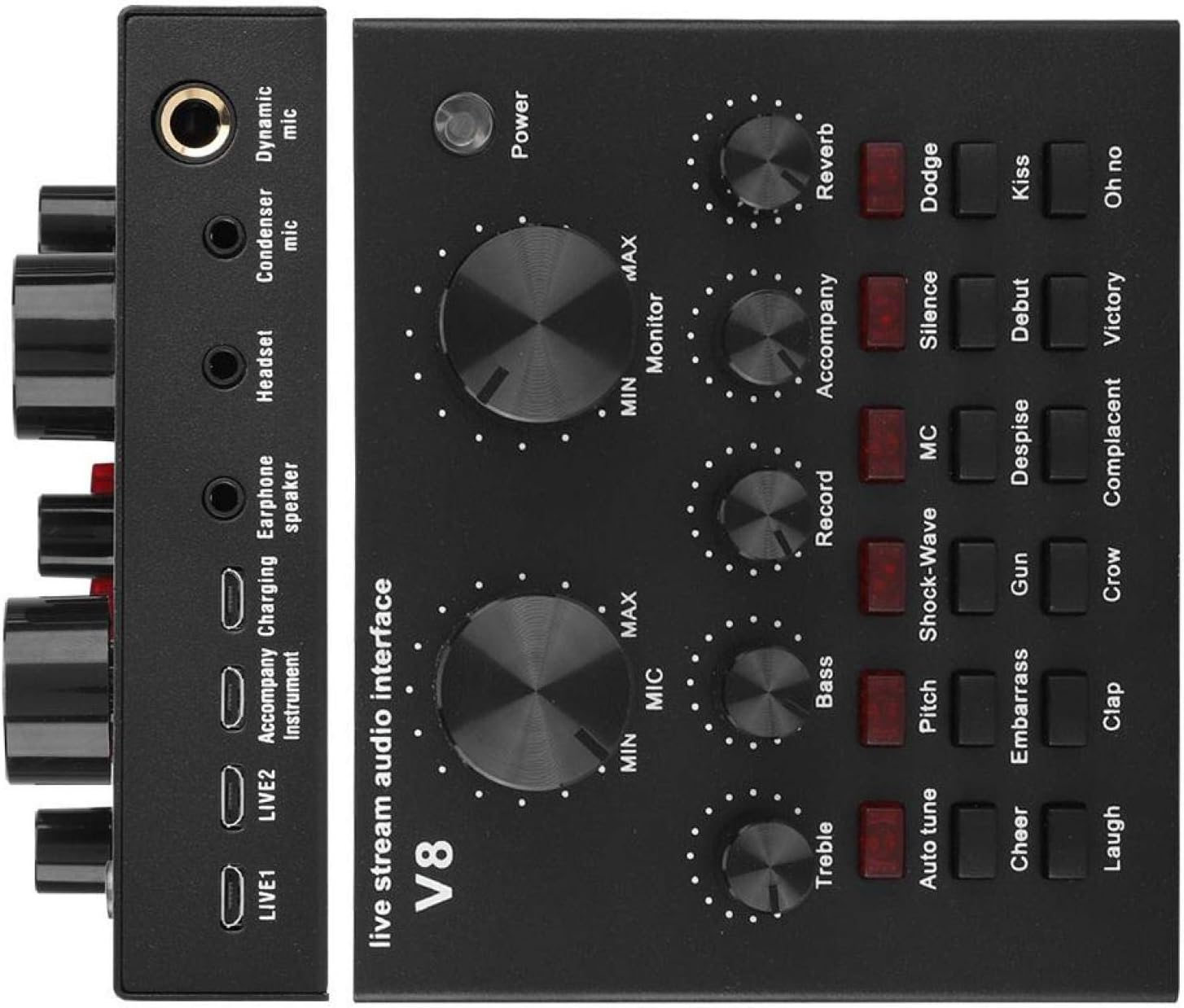
Side view illustrating the various input and output ports for microphones, headsets, and live connections.

Bottom view of the sound card, highlighting additional connection points for live streaming and charging.
Operating Instructions
Familiarize yourself with the controls and functions of the V8 Live Sound Card:

Detailed view of the sound card's control panel, showing knobs and effect buttons.
Control Knobs:
- MIC (Microphone Volume): Adjusts the input volume of your microphone. Turn clockwise to increase, counter-clockwise to decrease.
- Monitor (Headphone Volume): Controls the volume of the audio you hear through your connected headset or earphones.
- Treble: Adjusts the high-frequency components of your voice or audio.
- Bass: Adjusts the low-frequency components of your voice or audio.
- Record: Controls the recording volume level.
- Accompany: Adjusts the volume of the background music or accompaniment input.
- Reverb: Controls the amount of reverberation effect applied to the audio.
Effect Buttons:
The sound card features various effect buttons to enhance your audio. Press a button to activate the corresponding effect. Some effects include:
- Auto tune: Applies automatic pitch correction.
- Pitch: Modifies the pitch of your voice.
- Shock-Wave: Adds a dramatic sound effect.
- MC: Activates a specific microphone mode.
- Silence: Mutes the microphone input.
- Dodge: Automatically lowers background music volume when you speak.
- Cheer, Embarrass, Gun, Despise, Debut, Kiss, Laugh, Clap, Crow, Complacent, Victory, Oh no: These buttons trigger various sound effects for live interaction.
Bluetooth Connection:
To connect your mobile phone or tablet via Bluetooth for wireless accompaniment:
- Ensure the V8 sound card is powered on.
- Enable Bluetooth on your mobile device.
- Search for "V8" or a similar device name in your device's Bluetooth settings.
- Select "V8" to pair. Once connected, you can play music from your device through the sound card as accompaniment.
Maintenance and Care
Proper maintenance ensures the longevity and optimal performance of your V8 Live Sound Card:
- Cleaning: Use a soft, dry cloth to wipe the surface of the sound card. Avoid using liquid cleaners or abrasive materials.
- Storage: Store the sound card in a cool, dry place away from direct sunlight and extreme temperatures.
- Handling: Avoid dropping or subjecting the device to strong impacts.
- Battery Care: For optimal battery life, avoid fully discharging the battery frequently. Charge the device regularly, even if not in use for extended periods.
Troubleshooting
If you encounter issues with your V8 Live Sound Card, refer to the following common problems and solutions:
- No Sound Output:
- Check all cable connections to ensure they are secure.
- Verify that the MIC and Monitor volume knobs are not set to minimum.
- Ensure the "Silence" effect button is not activated.
- Confirm that the connected headset/speakers are functioning correctly.
- If connected to a computer, check your computer's sound settings to ensure the V8 sound card is selected as the default input/output device.
- Microphone Not Working:
- Ensure the microphone is correctly plugged into the appropriate port ("Condenser mic" or "Dynamic mic").
- Increase the MIC volume knob.
- Test the microphone with another device to confirm it is working.
- Bluetooth Connection Issues:
- Ensure the sound card is powered on and within range of your Bluetooth device.
- Turn off and on Bluetooth on both the sound card (if applicable, by restarting) and your mobile device.
- Forget the device on your phone's Bluetooth settings and try pairing again.
- Sound Distortion or Noise:
- Reduce the MIC or Monitor volume to prevent clipping.
- Check for loose cable connections.
- Ensure there are no strong electromagnetic interferences nearby.
Technical Specifications
| Feature | Specification |
|---|---|
| Product Dimensions | 7.87 x 4.72 x 0.79 inches |
| Item Weight | 15.9 ounces |
| Manufacturer | Archuu |
| Model Number | V8 |
| Compatible Devices | Personal Computer, Laptop, Smartphone, Tablet |
| Hardware Interface | Bluetooth, USB |
| Audio Output Mode | Surround |
| Battery Type | Lithium-ion rechargeable battery |
| Material | ABS |
| Color | Black |
Warranty and Customer Support
For warranty information or technical support regarding your Archuu V8 Live Sound Card, please refer to the contact information provided with your purchase or visit the official Archuu website. Keep your purchase receipt as proof of purchase for warranty claims.
Related Documents - V8
 |
Live Sound Card User Manual User manual for the V8 Live Sound Card, detailing setup, connection methods for mobile phones and computers, usage precautions, and product parameters. |
 |
V8 Sound Card: Connection Instructions and Troubleshooting Guide Comprehensive guide to connecting and troubleshooting the V8 sound card for live broadcasting, recording, and voice changing. Includes setup diagrams and solutions to common issues. |
 |
ALPOWL V8 Live Sound Card User Manual - Audio Mixer for Streaming & Broadcasting Comprehensive user manual for the ALPOWL V8 Live Sound Card, detailing setup, features, connection methods for mobile and PC, Bluetooth connectivity, and troubleshooting for live streaming, podcasting, and music production. |
 |
ALPOWL Live Sound Card User Manual: Setup, Features, and Connections Comprehensive user manual for the ALPOWL Live Sound Card, detailing setup, usage precautions, control panel functions, connection methods for mobile and computer, Bluetooth pairing, and troubleshooting for live streaming and podcasting. |
 |
Live Sound Card User Manual User manual for the Live Sound Card, detailing its features, usage precautions, connection methods for mobile phones and computers, and troubleshooting tips. |