
1. Introduction
This manual provides instructions for the INPHIC PG2 Wired RGB Gaming Mouse. It covers product features, setup, operation, maintenance, and troubleshooting to ensure optimal performance and user experience.

Image 1.1: INPHIC PG2 Wired RGB Gaming Mouse, showcasing its ergonomic design and RGB lighting.
2. Package Contents
Verify that all items are present in the package:
- 1 x INPHIC Wired Gaming Mouse
- 1 x User Manual (this document)
3. Setup Instructions
3.1 Connecting the Mouse
- Locate an available USB port on your computer.
- Plug the USB connector of the INPHIC PG2 mouse into the USB port.
- The mouse is plug-and-play. Your operating system will automatically detect and install the necessary drivers within a few seconds.
3.2 Software Installation (Optional for Customization)
To access advanced features such as button programming, macro editing, and extended DPI settings, download and install the official INPHIC PG2 software from the manufacturer's website. Refer to the software's documentation for detailed installation and usage instructions.
4. Operating Instructions
4.1 Basic Mouse Functions
- Left Click: Primary action button.
- Right Click: Secondary action button, typically for context menus.
- Scroll Wheel: Used for vertical scrolling. Can also function as a middle click button.
4.2 DPI Adjustment
The mouse features dedicated DPI adjustment buttons (+ and -) located behind the scroll wheel. Press these buttons to cycle through preset DPI levels. The default DPI settings are 400, 800, 1600, 2400, 3200, and 5000 DPI. The current DPI level is indicated by the LED lights on the mouse.
Using the INPHIC PG2 software, you can customize these DPI levels and extend the range up to 10000 DPI.

Image 4.1: Illustration of the 6 default DPI levels (400-5000) and the DPI adjustment buttons.
4.3 RGB Lighting Modes
The INPHIC PG2 mouse features customizable RGB backlighting with 10 distinct lighting modes and 16 million color options. Lighting modes can be adjusted via the dedicated software. The software also allows for customization of brightness and changing speed.

Image 4.2: Visual representation of the 10 RGB lighting modes available for the INPHIC PG2 mouse.
4.4 Programmable Buttons
The mouse is equipped with 12 programmable buttons, including the standard left/right click, scroll wheel click, DPI buttons, and additional side buttons (P1, P2, P3, P4, and two additional buttons near the left click). These buttons can be assigned various functions, macros, or key combinations using the INPHIC PG2 software.
Note: The grenade-shaped icon on the side of the mouse is a decorative element and is not a functional or programmable button.

Image 4.3: Screenshot of the INPHIC PG2 software interface, showing options for programming the 12 buttons.
4.5 Adjustable Weight System
The INPHIC PG2 features a detachable weight tuning set located on the underside of the mouse. This allows users to adjust the mouse's weight and balance for personalized control and comfort. The mouse comes with three 0.4g weights, which can be added or removed to achieve a desired total weight (e.g., from 150g to 162g).

Image 4.4: Diagram illustrating the location of the adjustable weights on the underside of the INPHIC PG2 mouse and their impact on total weight.
4.6 Ergonomic Design
The mouse is designed with an ergonomic shape and a soft-finish coated, skin-friendly surface. This design aims to provide comfortable gripping, reduce fatigue during extended use, and offer resistance to fingerprints, sweat, and grease.

Image 4.5: Visual highlighting the ergonomic contours and soft-touch surface of the INPHIC PG2 mouse.
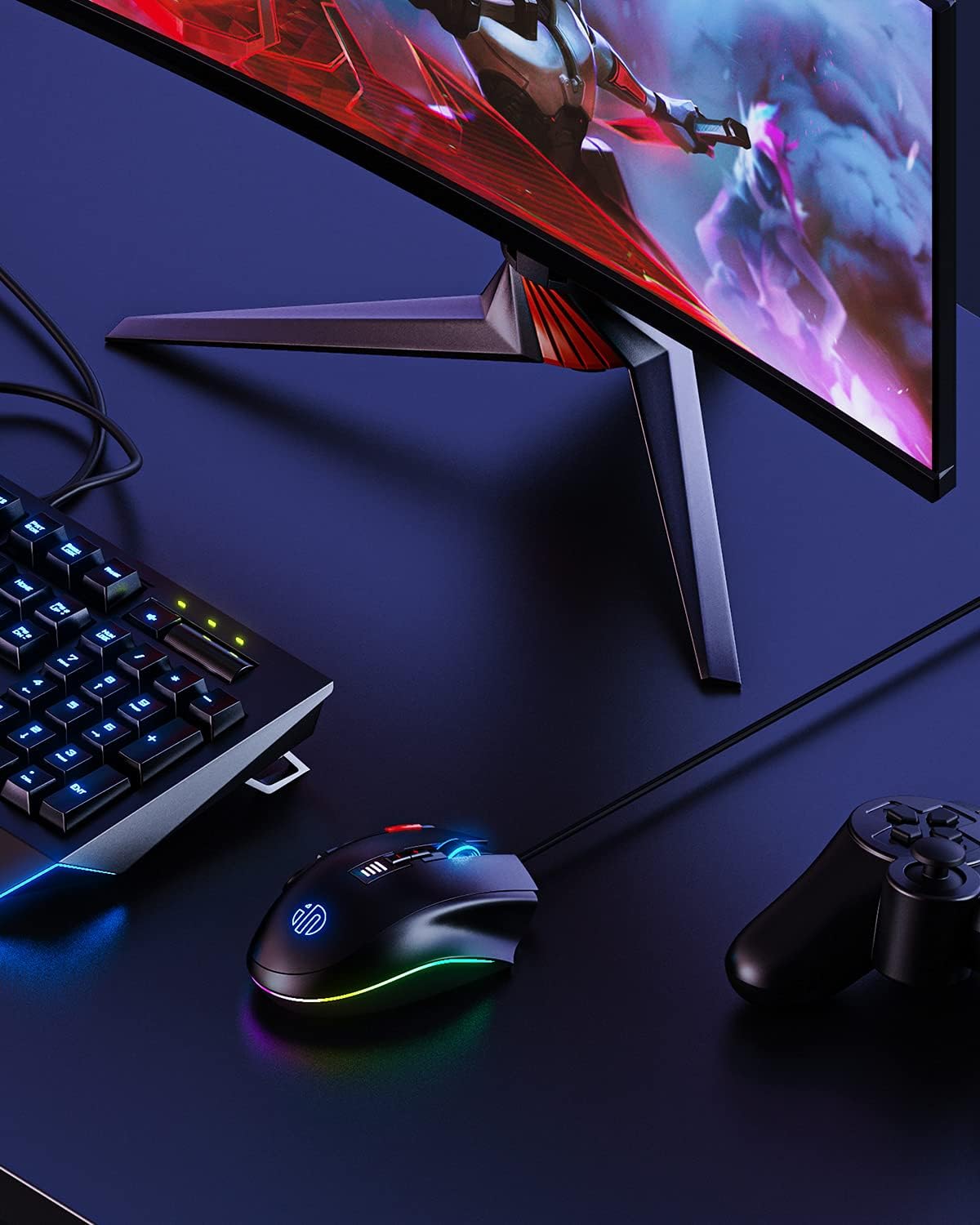
Image 4.6: The INPHIC PG2 mouse positioned on a desk alongside a keyboard and monitor, demonstrating its typical usage environment.
5. Maintenance
5.1 Cleaning
- Disconnect the mouse from your computer before cleaning.
- Use a soft, dry, lint-free cloth to wipe the surface of the mouse.
- For stubborn dirt, slightly dampen the cloth with water or a mild cleaning solution. Avoid harsh chemicals or abrasive materials.
- Use compressed air to clear dust from crevices and around buttons.
5.2 Storage
Store the mouse in a cool, dry place away from direct sunlight and extreme temperatures when not in use for extended periods.
6. Troubleshooting
- Mouse not responding: Ensure the USB cable is securely connected to a functioning USB port. Try a different USB port or computer to rule out port issues.
- Cursor movement is erratic or not smooth: Clean the optical sensor on the underside of the mouse. Ensure the mouse is used on a clean, suitable surface (e.g., a mouse pad). Avoid highly reflective or transparent surfaces.
- RGB lighting not working: Check software settings to ensure lighting is enabled and configured correctly.
- Programmable buttons not working: Ensure the INPHIC PG2 software is installed and the buttons are configured. Verify that the software is running in the background if required for custom profiles.
- DPI adjustment not changing sensitivity: Confirm that the DPI buttons are functioning. If using custom software profiles, ensure the profile is active.
- The grenade-shaped icon does not function as a button: This is by design. The grenade icon is a decorative element and is not a functional button.
7. Specifications
| Feature | Description |
|---|---|
| Brand | INPHIC |
| Model Number | PG2 |
| Connectivity Technology | Wired (USB) |
| Movement Detection Technology | Optical |
| DPI Range | 400-5000 (default), 200-10000 (via software) |
| Programmable Buttons | 12 |
| RGB Backlight | 10 modes, 16 Million colors |
| Special Feature | Ergonomic Design, Adjustable Weight System |
| Color | Black |
| Item Weight | Approximately 0.014 ounces (without adjustable weights) |
| Package Dimensions | 7.83 x 5.12 x 2.01 inches |
8. Warranty and Support
For warranty information, technical support, or service inquiries, please refer to the product packaging or contact INPHIC customer support directly. Contact details can typically be found on the official INPHIC website or through your retailer.