
1. Introduction
Thank you for choosing the MAXTOP Smart Watch. This device is designed to enhance your daily life by providing health monitoring, fitness tracking, and smart notifications directly from your wrist. This manual will guide you through the setup, operation, and maintenance of your new smart watch to ensure optimal performance and user experience.
2. Product Overview
The MAXTOP Smart Watch features a 1.3-inch display and is equipped with various sensors for comprehensive health and activity tracking. It is compatible with both iPhone and Android phones, offering seamless integration with your mobile device.
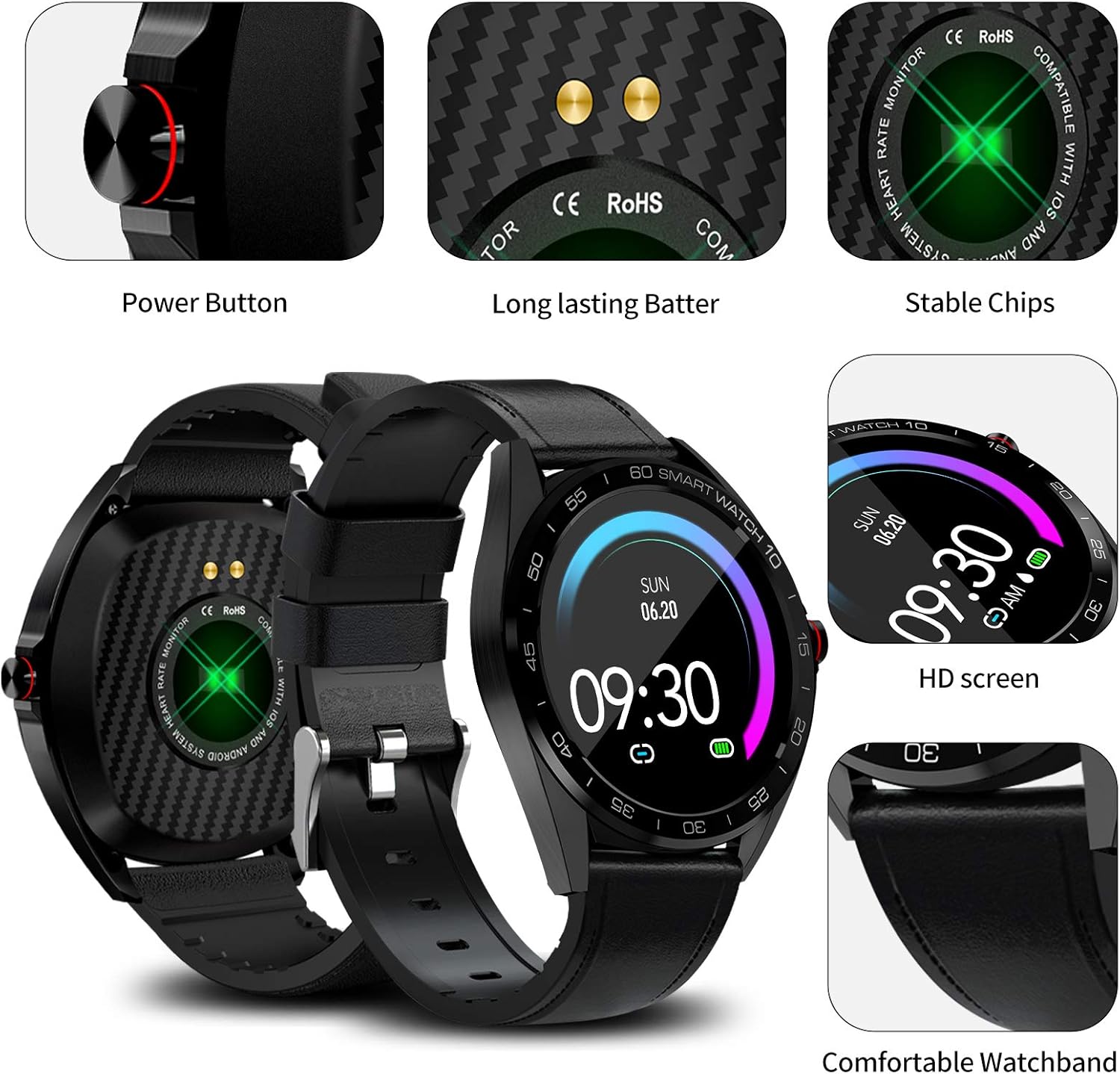
Image: Detailed view of the MAXTOP Smart Watch highlighting its power button, charging contacts, and display.
Video: An official overview of the MAXTOP Smart Watch, demonstrating its various features and functionalities.
3. Setup
3.1 Initial Charging
Before first use, fully charge your smart watch. Connect the provided USB charging cable to the charging contacts on the back of the watch and to a standard USB power adapter (not included). The watch display will indicate charging status.
3.2 App Installation
To unlock all features, download and install the companion app on your smartphone. Search for the app name (usually mentioned in the quick start guide or on the watch screen during initial setup) in the Apple App Store (for iPhone) or Google Play Store (for Android).
3.3 Device Pairing
- Ensure Bluetooth is enabled on your smartphone.
- Open the installed companion app and follow the on-screen instructions to create an account or log in.
- Select 'Add Device' or 'Pair Device' within the app.
- The app will search for your MAXTOP Smart Watch. Select your watch from the list of discovered devices.
- Confirm the pairing request on both your phone and the watch if prompted.

Image: The MAXTOP Smart Watch, charging cables, and documentation, ready for initial setup.
4. Operating Instructions
4.1 Basic Navigation
- Touch Screen: Swipe left/right, up/down to navigate through menus and features. Tap to select.
- Side Button: Press to wake the screen, return to the main watch face, or access the app menu.
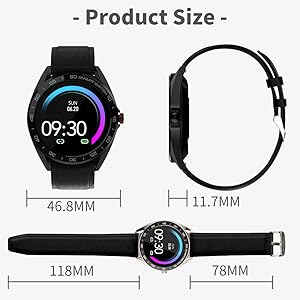
Image: Visual guide to navigating the smart watch using touch gestures and understanding the main interface elements.
4.2 Changing Watch Faces
From the main watch face, press and hold the screen. Swipe left or right to browse available watch faces. Tap to select your preferred design.
5. Health Monitoring
The MAXTOP Smart Watch provides continuous monitoring of key health metrics. For accurate readings, ensure the watch is worn snugly on your wrist.
5.1 Heart Rate and Blood Pressure Monitoring
Access the Heart Rate (HR) or Blood Pressure (BP) function from the app menu. The watch will begin measuring your current heart rate or blood pressure. Readings are displayed on the watch screen and synchronized with the app for historical data and analysis.
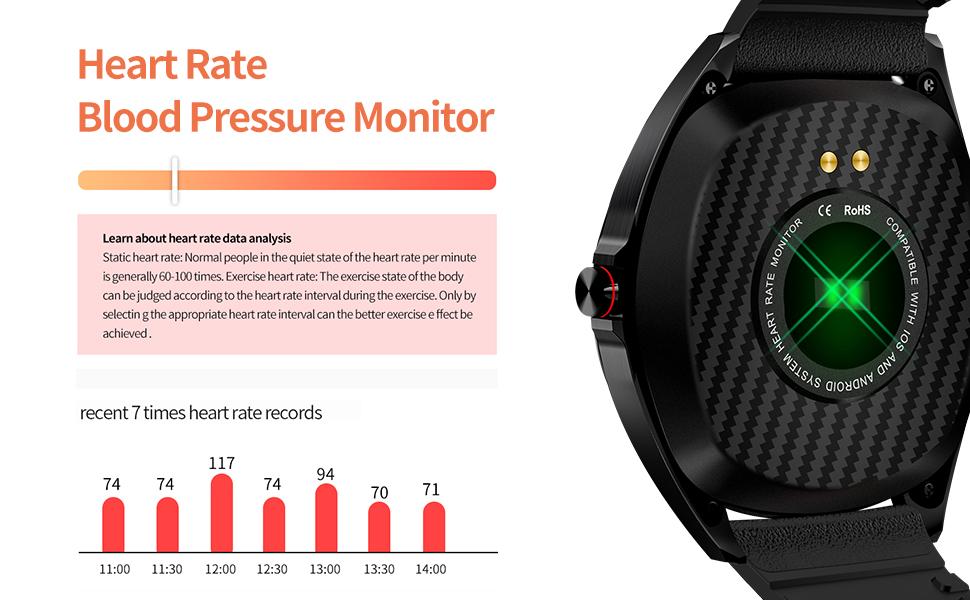
Image: The smart watch actively measuring and displaying heart rate and blood pressure data on the user's wrist.
5.2 Sleep Monitoring
Wear your smart watch to bed to automatically track your sleep patterns. The watch monitors your sleep duration and quality, distinguishing between deep sleep, light sleep, and awake times. View detailed sleep reports in the companion app.

Image: The smart watch interface showing a breakdown of sleep quality, including deep and light sleep durations.
6. Activity Tracking
Your MAXTOP Smart Watch is an activity tracker that records your daily movements and exercise routines.
6.1 Steps, Distance, and Calories
The watch automatically tracks your steps, calculates the distance covered, and estimates calories burned throughout the day. This data is accessible directly on the watch and in more detail within the app.

Image: The smart watch screen showing real-time fitness data, including steps, distance, and calorie consumption.
6.2 Sports Modes
The watch supports 10 different sports modes to accurately record your exercise data. Select the appropriate mode before starting your workout for precise tracking.
- Outdoor Run
- Hiking
- Outdoor Walk
- Star Stepper
- Indoor Run
- Outdoor Cycle
- Indoor Walk
- Stationary Bike
- Elliptical
- Rowing Machine
7. Smart Features
Connect your MAXTOP Smart Watch to your smartphone to access a range of smart features.
7.1 Message and Call Notifications
Receive notifications for incoming calls, SMS messages, and alerts from various social media apps directly on your watch. You can also reject incoming calls from the watch. Ensure notification permissions are granted in your phone's settings and the companion app.

Image: The smart watch screen showing multiple message notifications from different applications.
7.2 Remote Camera Control
Use your smart watch as a remote shutter for your phone's camera. Open the camera function in the watch's app menu, position your phone, and tap the watch screen to take a photo.

Image: The smart watch showing the camera icon, illustrating its remote camera control feature.
7.3 Find Phone
If your phone is misplaced but within Bluetooth range, use the 'Find Phone' feature on your watch to make your phone ring, helping you locate it quickly.
7.4 Female Care
The watch includes a 'Female Care' feature to track menstrual cycles and provide timely reminders. This feature can be configured within the companion app.
8. Water Resistance
The MAXTOP Smart Watch is IP67 waterproof, making it suitable for various activities. It can withstand splashes, snorkeling, rain, snowing, room temperature showers, and short swimming sessions. Avoid hot water, saunas, or diving to prevent damage.

Image: A user wearing the MAXTOP Smart Watch while in a pool, highlighting its IP67 water resistance for various water activities.
9. Maintenance
To ensure the longevity and optimal performance of your MAXTOP Smart Watch, follow these maintenance guidelines:
- Cleaning: Regularly wipe the watch screen and strap with a soft, dry cloth. If necessary, use a slightly damp cloth and mild soap, then rinse and dry thoroughly.
- Charging Contacts: Keep the charging contacts on the back of the watch clean and dry to ensure efficient charging.
- Storage: Store the watch in a cool, dry place away from direct sunlight and extreme temperatures when not in use.
- Avoid Chemicals: Do not expose the watch to strong chemicals, solvents, or detergents, as these can damage the materials.
10. Troubleshooting
If you encounter issues with your MAXTOP Smart Watch, refer to the following common solutions:
- Watch not turning on: Ensure the watch is fully charged. Connect it to the charger for at least 30 minutes.
- Unable to pair with phone:
- Ensure Bluetooth is enabled on your phone.
- Make sure the watch is within Bluetooth range (typically 10 meters).
- Restart both your phone and the watch.
- Clear the app's cache or reinstall the app.
- Inaccurate health readings: Ensure the watch is worn snugly on your wrist, not too tight or too loose. Avoid excessive movement during measurements.
- No notifications: Check that notification permissions are enabled for the companion app and individual apps in your phone's settings. Ensure the watch is connected via Bluetooth.
- Screen unresponsive: Try restarting the watch by pressing and holding the side button. If unresponsive, allow the battery to drain completely and then recharge.
11. Specifications
| Feature | Detail |
|---|---|
| Package Dimensions | 5.51 x 3.46 x 1.93 inches |
| Item Weight | 8.3 ounces |
| ASIN | B08XWYM2FH |
| Date First Available | April 15, 2021 |
| Manufacturer | maxtop |
| Standing screen display size | 1.3 Inches |
| Operating System | Android |
| Special Feature | Activity Tracker, Alarm Clock, Blood Pressure Monitor, Camera, Heart Rate Monitor, Notifications, Pedometer, Sedentary Reminder, Sleep Monitor, Time Display |
| Connectivity Technology | USB |
| Wireless Communication Standard | Bluetooth |
| Battery Cell Composition | Lithium Polymer |
| Shape | Heart |
| Screen Size | 1.3 Inches |
| Brand | MAXTOP |
| Style | Modern |
| Target Audience | Unisex Adult |
12. Warranty and Support
The MAXTOP Smart Watch comes with an 18-month warranty. For warranty claims or technical support, please refer to the contact information provided in your product packaging or visit the official MAXTOP website. Keep your purchase receipt as proof of purchase.


