
1. Compatibility
This keyboard case is designed for the following iPad models:
- iPad Air 5th Generation 10.9 inch 2022 (Models: A2588/A2589/A2591)
- iPad Air 4th Generation 10.9 inch 2020 (Models: A2072/A2316/A2324/A2325)
- iPad Pro 11 inch 3rd Gen (Models: A2377/A2301/A2459/A2460)
- iPad Pro 11 inch 2nd Gen (Models: A2228/A2068/A2230/A2231)
- iPad Pro 11 inch 1st Gen (Models: A1980/A2013/A1934)
Please verify your iPad's model number on the back of the device before use.
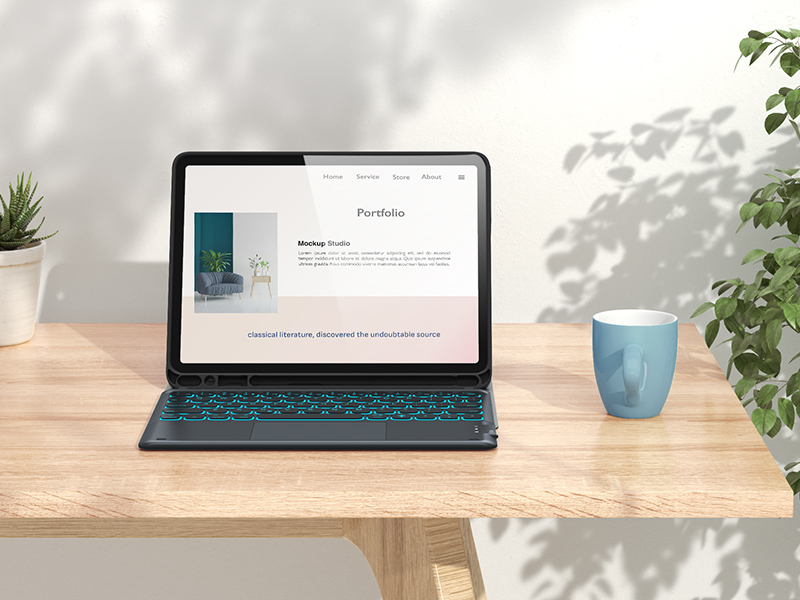
2. Setup
2.1 Package Contents
The package includes:
- 1 x Multi-Function Keyboard with Touchpad
- 1 x Tablet Case
- 1 x User Manual
2.2 Installing Your iPad
- Align your iPad with the case's edges.
- Gently press the iPad into the silicone frame, ensuring all corners are securely fitted.
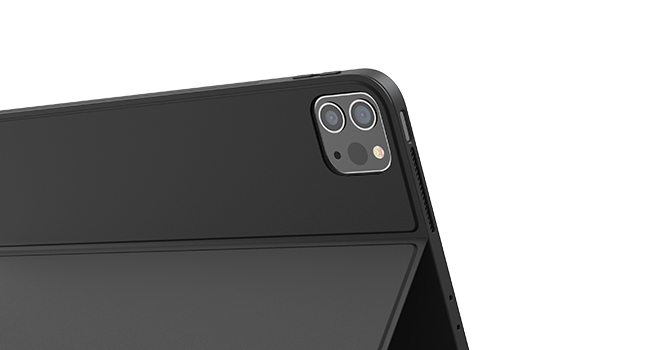
- Confirm that all ports, buttons, and the camera are accessible and unobstructed.
2.3 Bluetooth Pairing
- Ensure the keyboard is charged (see 2.4 Charging).
- Turn on the keyboard using the power switch located on the side. The indicator light will flash.
- On your iPad, go to Settings > Bluetooth.
- Turn on Bluetooth. Your iPad will search for available devices.
- Select "CHESONA Keyboard" (or similar name) from the list of devices.
- Follow any on-screen prompts to complete the pairing process. The indicator light on the keyboard will turn off once successfully paired.
2.4 Charging the Keyboard
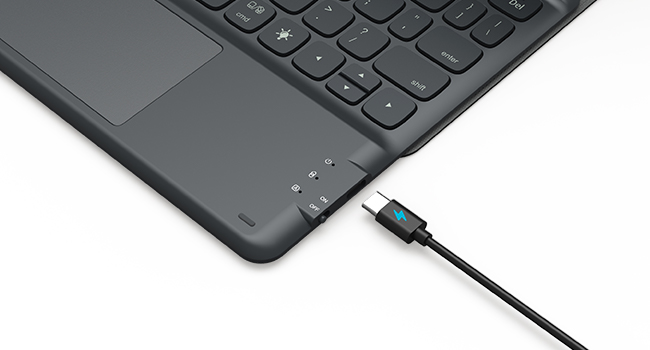
Connect the provided USB-C charging cable to the keyboard's charging port and to a USB power adapter (not included). The charging indicator light will illuminate during charging and turn off when fully charged.
3. Operating Instructions
3.1 Keyboard Backlight Control
The keyboard features 7 solid-color backlights and three adjustable brightness levels.
- Press the Light Bulb key to cycle through backlight colors.
- Press Fn + Light Bulb keys to adjust backlight brightness (three levels).

3.2 Detachable Keyboard Functionality
The keyboard is magnetically detachable from the case, allowing you to switch between laptop and tablet modes as needed. Simply pull the keyboard away from the magnetic strip in the case to detach it.

3.3 Smart Trackpad Usage
The integrated trackpad supports multi-finger gestures for enhanced navigation within the iOS system.
- Single Finger Tap: Left-click.
- Two Finger Tap: Right-click (context menu).
- Two Finger Scroll: Scroll up/down or left/right.
- Pinch to Zoom: Use two fingers to zoom in or out.
- Three Finger Swipe Up: Open App Switcher.
- Three Finger Swipe Down: Return to Home Screen.
- Four Finger Swipe Left/Right: Switch between open applications.
The trackpad function can be turned off if not desired.

3.4 Multi-Angle Adjustment
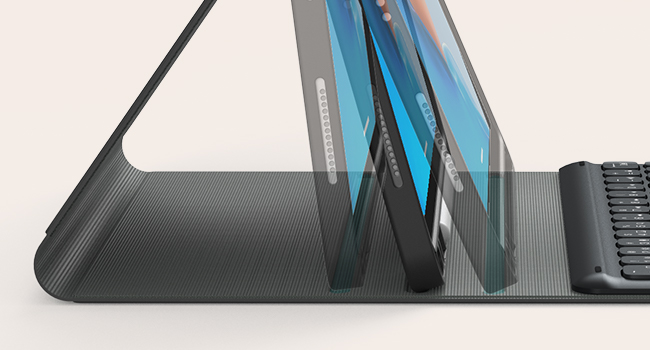
The case features three horizontal stand angles to provide optimal viewing and typing positions. Adjust the iPad's position within the grooves of the case to find your preferred angle.
3.5 Pencil Holder
A built-in holder is provided for your Apple Pencil, ensuring it is securely stored and easily accessible. It supports wireless charging for the Apple Pencil.
3.6 Keyboard Key Structure
The keyboard utilizes a scissor-key structure for a tactile and responsive typing experience.

3.7 Official Product Videos
Video: CHESONA iPad Air 4th Generation Case with Keyboard. This video provides an overview of the CHESONA keyboard case, demonstrating its features and how it functions with the iPad Air 4th Generation.
Video: Keyboard for iPad Air 4th Generation 10.9 2020/Pro 11. This video showcases the keyboard's compatibility and features when used with the iPad Air 4th Generation and iPad Pro 11-inch models.
4. Maintenance
4.1 Cleaning
- To clean the case, gently wipe it with a soft, damp cloth. Avoid harsh chemicals or abrasive materials.
- For the keyboard, use a soft, dry cloth. A can of compressed air can be used to remove debris from between the keys.
- Ensure the keyboard is powered off before cleaning.
4.2 Storage
When not in use for extended periods, store the keyboard case in a cool, dry place. It is recommended to fully charge the keyboard before long-term storage to maintain battery health.
5. Troubleshooting
5.1 Keyboard Not Connecting
- Ensure the keyboard is powered on and fully charged.
- Check that Bluetooth is enabled on your iPad.
- Forget the device in your iPad's Bluetooth settings and attempt to re-pair.
- Restart both your iPad and the keyboard.
5.2 Keys Not Responding
- Ensure the keyboard is properly connected via Bluetooth.
- Check for low battery on the keyboard.
- Clean any debris from around the keys.
5.3 Trackpad Not Working
- Ensure the trackpad function is enabled (if there is a dedicated toggle).
- Check Bluetooth connection.
- Ensure your iPad's operating system is up to date, as trackpad functionality relies on iOS/iPadOS support.
For further assistance, please refer to the official User Manual PDF available online or contact customer support.
Link to User Manual (PDF): CHESONA Keyboard Case User Manual
6. Specifications
| Feature | Detail |
|---|---|
| Brand | CHESONA |
| Model Number | 309-10.9/11 |
| Connectivity Technology | Bluetooth |
| Keyboard Description | Wireless, Detachable |
| Special Features | Backlit, Trackpad, Pencil Holder |
| Backlight Colors | 7 Colors |
| Brightness Levels | 3 Levels |
| Keyboard Layout | QWERTY |
| Product Dimensions | 10.4"L x 7.48"W x 0.79"H |
| Material | Silicone (Enclosure) |
| Power Source | Battery Powered |
| Minimum Required OS | iOS 12 |
7. Warranty and Support
This CHESONA product comes with a 1-year warranty from the date of purchase. This warranty covers manufacturing defects and issues arising from normal use.
For warranty claims, technical support, or any inquiries, please refer to the contact information provided on your product packaging or the seller's platform where the product was purchased. Keep your proof of purchase for warranty validation.


