
1. Introduction
This manual provides comprehensive instructions for the setup, operation, maintenance, and troubleshooting of your Logitech G915 Mechanical Gaming Keyboard and Logitech G502 Lightspeed Wireless Gaming Mouse Bundle. These devices are engineered to deliver high-performance wireless gaming experiences.

Figure 1.1: Logitech G915 Mechanical Gaming Keyboard and G502 Lightspeed Wireless Gaming Mouse Bundle.
2. Product Features
- LIGHTSPEED Wireless Technology: Provides lag-free performance and freedom from cords for both the G915 keyboard and G502 mouse.
- Tunable Weights (G502): Allows customization of the mouse's feel for optimal comfort and control.
- LIGHTSYNC RGB Technology: Next-generation customizable RGB lighting on both G915 keyboard and G502 mouse.
- G915 Keyboard Switches: Features low-profile GL Linear mechanical switches for speed and accuracy.
- G502 Mouse Sensor: Utilizes the HERO 25K sensor for precise tracking.
- Durable Construction: G915 keyboard is made from aircraft-grade aluminum alloy for a thin, durable, and rigid design.
- PowerPlay Compatibility (G502): The G502 mouse is compatible with the Logitech G Powerplay wireless charging system (sold separately) for continuous charging.
- Extended Battery Life: G915 offers 30 hours of battery life, while G502 provides up to 60 hours of uninterrupted gaming.
3. Setup
3.1. What's in the Box
- Logitech G915 Mechanical Gaming Keyboard
- Logitech G502 Lightspeed Wireless Gaming Mouse
- USB Cable (for charging and wired connection)
- LIGHTSPEED USB Receiver
3.2. Initial Connection
- Charge Devices: Before first use, connect both the keyboard and mouse to a USB power source using the provided USB cable to ensure they are fully charged.
- Connect LIGHTSPEED Receiver: Insert the LIGHTSPEED USB receiver into an available USB port on your computer.
- Power On: Turn on the power switch for both the G915 keyboard and G502 mouse. The devices should automatically connect to the receiver.
- Install Logitech G HUB Software: For full customization of G-keys, LIGHTSYNC RGB, and mouse settings, download and install the Logitech G HUB software from the official Logitech G website.

Figure 3.1: G915 Keyboard featuring LIGHTSPEED Wireless indicator.

Figure 3.2: G502 Mouse featuring LIGHTSPEED Wireless indicator.
4. Operating Instructions
4.1. Logitech G915 Keyboard
- G-Keys: The dedicated G-keys on the left side of the keyboard can be programmed for macros, system commands, or application-specific functions using Logitech G HUB.
- LIGHTSYNC RGB: Customize per-key lighting effects, colors, and animations through Logitech G HUB. Lighting can also react to in-game action, audio, or screen color.
- Media Controls: Use the dedicated media keys and volume roller for quick control over audio and video playback.
- Game Mode: Activate Game Mode to disable keys that might interrupt gameplay, such as the Windows key.

Figure 4.1: G915 Keyboard showcasing LIGHTSYNC RGB lighting.
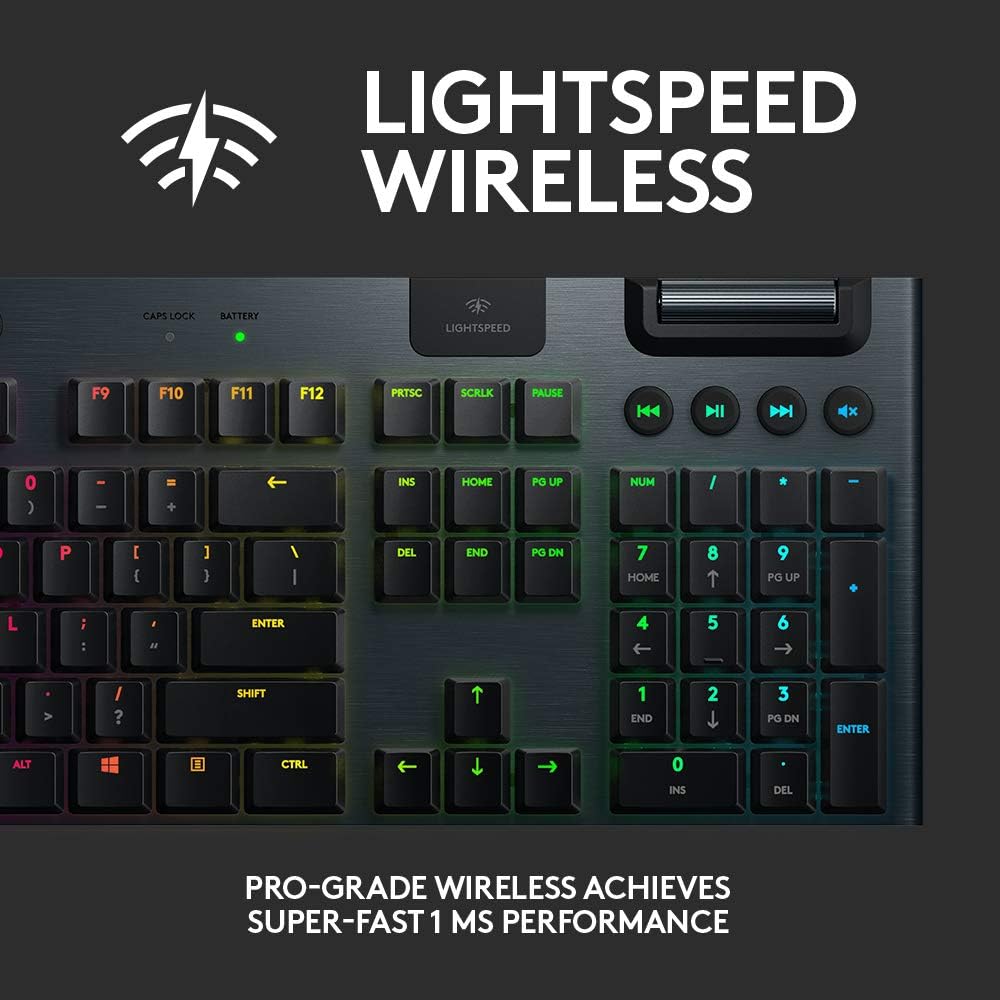
Figure 4.2: G915 Keyboard's ultra-thin profile.
4.2. Logitech G502 Mouse
- Programmable Buttons: The G502 features 11 programmable buttons. Assign custom commands, macros, or keybinds using Logitech G HUB.
- DPI Shifting: Quickly switch between different DPI sensitivities using the dedicated DPI shift buttons, ideal for precision aiming or rapid movement.
- Tunable Weights: Open the weight compartment on the mouse to add or remove the included weights, allowing you to adjust the mouse's balance and feel.
- Hyper-Fast Scroll Wheel: Toggle between a precise click-to-click scrolling mode and a free-spinning hyper-fast mode for quick navigation of long documents or web pages.

Figure 4.3: Logitech G502 Lightspeed Wireless Gaming Mouse.
5. Maintenance
- Cleaning: Use a soft, lint-free cloth to wipe down the surfaces of the keyboard and mouse. For stubborn dirt, slightly dampen the cloth with water or a mild cleaning solution. Avoid harsh chemicals.
- Keycaps (G915): The low-profile keycaps can be carefully removed for deeper cleaning if necessary. Use a keycap puller to avoid damage.
- Sensor (G502): Periodically clean the optical sensor on the underside of the mouse with a cotton swab to ensure optimal tracking performance.
- Battery Care: To prolong battery life, avoid fully discharging the devices frequently. Charge them when the battery indicator shows low power.
6. Troubleshooting
- No Connection/Lag:
- Ensure the LIGHTSPEED USB receiver is securely plugged into a working USB port.
- Verify both devices are powered on and fully charged.
- Try moving the receiver closer to the devices or using a USB extender to reduce interference.
- Check for firmware updates via Logitech G HUB.
- RGB Lighting Not Working:
- Ensure Logitech G HUB software is installed and running.
- Check lighting settings within G HUB to ensure RGB is enabled and configured as desired.
- Restart the G HUB software or your computer.
- Buttons/Keys Not Responding:
- Clean around the affected button/key to remove any debris.
- Test the device on another computer to rule out software or system issues.
- Perform a factory reset if possible (refer to Logitech G HUB or online support for instructions).
- Battery Draining Quickly:
- Reduce RGB brightness or disable lighting effects when not needed.
- Ensure devices are fully charged before use.
- Check for background processes or software that might be excessively polling the devices.
7. Specifications
| Feature | Specification |
|---|---|
| Brand | Logitech G |
| Hardware Platform | PC |
| Operating System Compatibility | Windows 7 or later, Mac OS X 10.11 or later, Chrome OS |
| Color | Black |
| Power Source | Battery Powered |
| Connectivity Technology | USB, LIGHTSPEED Wireless |
| Keyboard Type | Mechanical, Gaming (Low-profile GL Linear switches) |
| Keyboard Number of Keys | 104 |
| Keyboard Backlighting | RGB (LIGHTSYNC) |
| Mouse Sensor | HERO 25K (100 - 25,600 DPI) |
| Mouse Buttons | 11 programmable buttons |
| G915 Battery Life | Up to 30 hours |
| G502 Battery Life | Up to 60 hours |
| USB Report Rate | 1000 Hz (1ms) |
8. Warranty and Support
Logitech G products are designed for durability and performance. For specific warranty information regarding your Logitech G915 Keyboard and G502 Mouse, please refer to the warranty card included with your product or visit the official Logitech G support website.
For technical support, FAQs, and driver downloads, please visit the Logitech G Official Store or their dedicated support pages.


