
CALEX Smart Security (Model 5501000300)
CALEX Smart Mini Indoor IP Camera User Manual
Model: Smart Security (5501000300)
1. Introduction
This manual provides comprehensive instructions for the installation, operation, and maintenance of your CALEX Smart Mini Indoor IP Camera. Please read this manual thoroughly before using the product to ensure proper functionality and safety.
The CALEX Smart Mini Indoor IP Camera is a Wi-Fi surveillance camera offering 1080P Full HD resolution, night vision capabilities, two-way audio communication, and flexible storage options via MicroSD card or cloud.
2. Package Contents
Verify that all items are present in the package:
- 1 x CALEX Smart Mini Indoor IP Camera
- 1 x Power Adapter (AC 220-240 V, 50/60 Hz input; DC 5 V output)
- 1 x USB Cable
- 1 x User Manual (this document)
- Mounting accessories (if applicable, not explicitly listed but common for cameras)

Figure 2.1: CALEX Smart Mini Indoor IP Camera and its retail packaging. The packaging highlights 1080P Full HD, Wi-Fi 2.4 GHz, and compatibility with the Calex Smart app.
3. Product Overview
Familiarize yourself with the components of your CALEX Smart Mini Indoor IP Camera.
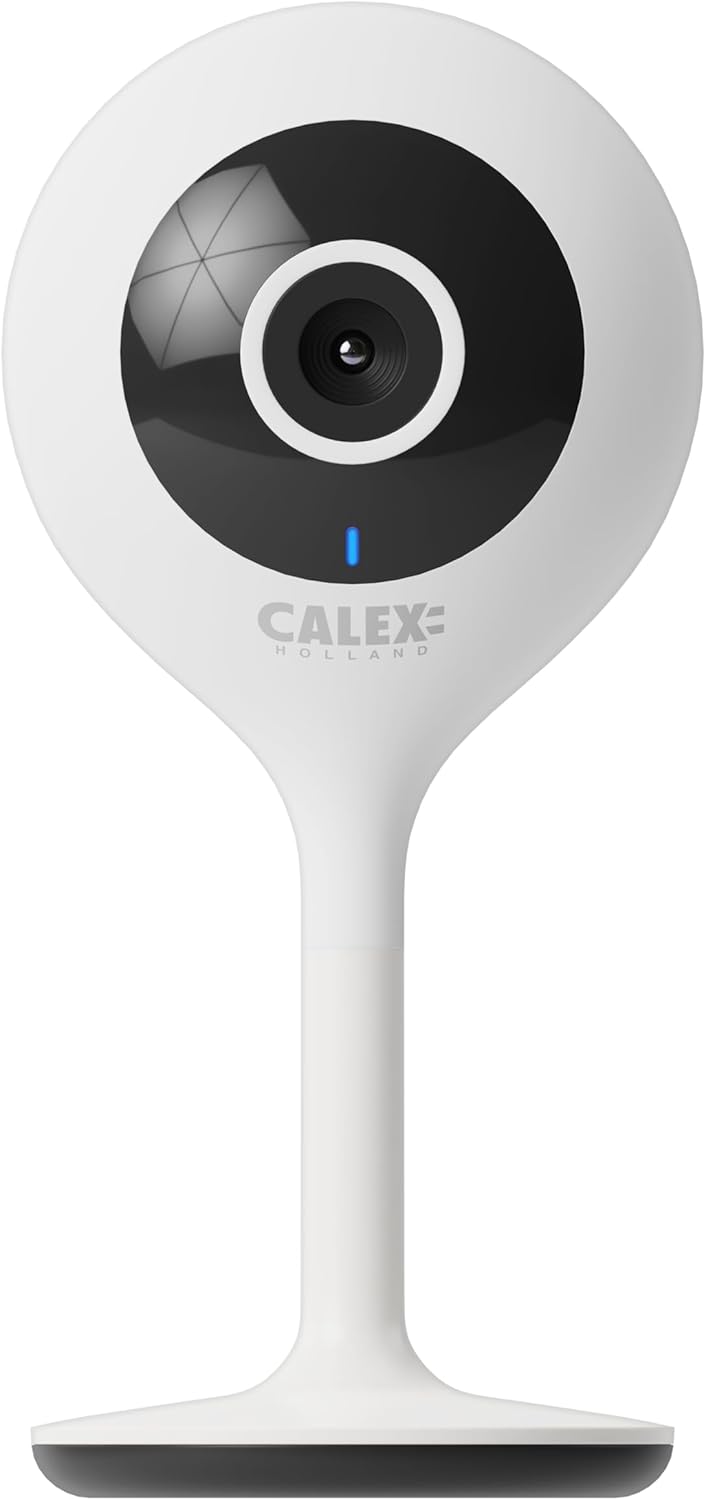
Figure 3.1: Front view of the CALEX Smart Mini Indoor IP Camera. It features a central lens, an indicator light, and the CALEX HOLLAND logo.

Figure 3.2: Rear view of the CALEX Smart Mini Indoor IP Camera. This view shows the speaker grille, a reset button, and the MicroSD card slot. The USB power input is located at the base.
Key Features:
- Full HD 1080P Resolution: Provides clear and detailed video footage.
- Night Vision: Equipped with infrared LEDs for clear monitoring in low-light or dark conditions.
- Two-Way Audio: Built-in microphone and speaker for communication.
- Wi-Fi Connectivity: Connects to your home Wi-Fi network (2.4 GHz only).
- Local Storage: Supports MicroSD card for continuous recording or event-triggered recording.
- Cloud Storage: Optional cloud storage service for secure off-site recording.
- Motion Detection: Alerts and records upon detecting movement.
- Mobile App Control: Manage and view live feed via the Calex Smart app.
- Voice Assistant Compatibility: Works with Amazon Alexa and Google Home.
4. Setup and Installation
4.1 Before You Begin
- Ensure your Wi-Fi network is 2.4 GHz. The camera does not support 5 GHz Wi-Fi.
- Have your Wi-Fi network name (SSID) and password ready.
- Download the "Calex Smart" app from your mobile device's app store.
- Place the camera within range of your Wi-Fi router.

Figure 4.1: QR codes for downloading the Calex Smart app. Scan the appropriate QR code for your device (iOS or Android) to download the application.
Download the Calex Smart app here: iOS App Store | Google Play Store
4.2 Initial Setup Steps
- Power On: Connect the camera to a power outlet using the provided USB cable and power adapter. The camera's indicator light will begin to flash, indicating it is ready for pairing.
- Open Calex Smart App: Launch the Calex Smart app on your smartphone. If you are a new user, register an account. If you already have an account, log in.
- Add Device: Tap the "+" icon in the top right corner of the app to add a new device. Select "Security & Video Surveillance" and then "Smart Camera".
- Confirm Indicator Status: Follow the in-app instructions. Confirm that the indicator light on your camera is flashing rapidly.
- Enter Wi-Fi Details: Enter your 2.4 GHz Wi-Fi network name and password when prompted.
- Scan QR Code: The app will generate a QR code. Hold your phone with the QR code approximately 15-20 cm (6-8 inches) in front of the camera lens. The camera will emit a sound when it successfully scans the QR code.
- Connection: Tap "I heard a prompt" in the app. The camera will then attempt to connect to your Wi-Fi network. Once connected, the indicator light will turn solid blue.
- Name Device: Once connected, you can name your camera (e.g., "Living Room Camera", "Nursery Camera").


Figure 4.2: Examples of the Calex Smart app interface. The left image shows a live camera feed with options for screenshot, speaking, and recording. The right image shows a settings screen within the app.
5. Operating Your Camera
5.1 Live View
Open the Calex Smart app and select your camera from the device list to access the live video feed. You can view the feed in portrait or landscape mode.

Figure 5.1: A user viewing the live feed from the CALEX Smart Mini Indoor IP Camera on their smartphone.
5.2 Two-Way Audio
While in live view, tap the microphone icon to speak through the camera's speaker. Tap the speaker icon to listen to audio from the camera's microphone.
5.3 Recording and Playback
- Manual Recording: Tap the "Record" button in the live view interface to start or stop manual recording. Recordings are saved to your phone's gallery.
- Screenshot: Tap the "Screenshot" button to capture a still image from the live feed.
- MicroSD Card Recording: Insert a MicroSD card (up to 128GB, not included) into the camera's slot for continuous or event-triggered recording. Ensure the card is formatted within the app settings.
- Cloud Storage: Subscribe to the cloud storage service via the app for secure, off-site storage of event recordings.
- Playback: Access recorded footage from the "Playback" section within the camera's settings in the app.

Figure 5.2: The Calex Smart app interface displaying options for cloud storage and video playback. This allows users to review recorded events.
5.4 Motion Detection and Alerts
Configure motion detection sensitivity and alert settings in the app. You will receive push notifications on your smartphone when motion is detected.
5.5 Voice Control (Alexa/Google Home)
To integrate your camera with Amazon Alexa or Google Home, follow the instructions in the respective voice assistant app to enable the "Calex Smart" skill/action. You can then use voice commands to view the camera feed on compatible smart displays.

Figure 5.3: A couple using voice commands with an Amazon Echo device, demonstrating the camera's compatibility with smart home ecosystems like Alexa and Google Home.
6. Maintenance
- Cleaning: Use a soft, dry cloth to clean the camera lens and body. Do not use liquid cleaners or aerosols.
- Firmware Updates: Periodically check the Calex Smart app for available firmware updates for your camera. Keeping the firmware updated ensures optimal performance and security.
- Resetting the Camera: If you experience connectivity issues or need to reconfigure the camera, locate the reset button on the back of the device (refer to Figure 3.2). Use a pin or a straightened paperclip to press and hold the reset button for approximately 5-10 seconds until the indicator light flashes rapidly. This will restore the camera to factory settings.
7. Troubleshooting
| Problem | Possible Cause | Solution |
|---|---|---|
| Camera fails to connect to Wi-Fi. | Incorrect Wi-Fi password; 5 GHz Wi-Fi network; camera too far from router; Wi-Fi signal interference. |
|
| No live video feed. | Camera offline; poor internet connection; app issue. |
|
| MicroSD card not recognized. | Card not inserted correctly; card corrupted; unsupported card size/format. |
|
| Two-way audio not working. | Microphone/speaker muted in app; low volume; app permissions. |
|
8. Specifications
| Feature | Detail |
|---|---|
| Model Name | Smart Security |
| Model Number | 5501000300 |
| Resolution | 1080p Full HD |
| Connectivity | Wi-Fi (2.4 GHz only) |
| Power Input | AC 220-240 Volts, 50/60 Hz |
| Power Output (Adapter) | DC 5 Volts |
| Power Consumption | 5 Watts |
| Dimensions (L x W x H) | 3.2 x 5.3 x 11 cm (1.26 x 2.09 x 4.33 inches) |
| Weight | 167 Grams (0.37 lbs) |
| Material | Plastic |
| Color | White |
| Storage Options | MicroSD (up to 128GB), Cloud Storage |
| Special Features | Night Vision, Two-Way Audio, Motion Detection, Compatible with Alexa/Google Home |
| Usage Environment | Indoor |
9. Warranty and Support
CALEX products are designed and manufactured to the highest quality standards. For warranty information and technical support, please refer to the official CALEX website or contact their customer service directly.
Manufacturer: CALEX
For further assistance, visit the CALEX Official Website.
10. Safety Information
- Do not expose the camera to water or moisture. This product is designed for indoor use only.
- Do not attempt to disassemble or repair the camera yourself. Refer all servicing to qualified personnel.
- Use only the provided power adapter and cable to prevent damage or fire.
- Keep the camera away from direct sunlight, heat sources, and strong magnetic fields.
- Ensure the camera is placed on a stable surface to prevent it from falling.
Related documentsSmart Security (Model 5501000300)


Ask a question about this manual
Ask about setup, troubleshooting, compatibility, parts, safety, or missing instructions. Manuals+ will review the question and use this page’s manual context to help answer it.