
AMprime 702248614222
AMprime Android Single Din Car Stereo User Manual
Model: 702248614222
Introduction
This manual provides detailed instructions for the installation, operation, and maintenance of your AMprime Android Single Din Car Stereo. Please read this manual thoroughly before using the product to ensure proper function and safety. This unit features a 6.9-inch touchscreen, Bluetooth connectivity, FM radio, Mirror Link functionality, Wi-Fi, GPS navigation, dual USB ports, split-screen capability, and supports steering wheel controls and a backup camera.
Product Features
- 6.9-inch Touch Screen: High-definition display for intuitive control.
- Android Operating System: Provides access to various applications and features.
- Bluetooth Connectivity: Supports hands-free calling and audio streaming (A2DP).
- FM Radio: Built-in tuner for radio reception.
- Mirror Link: Compatible with iOS (one-way) and Android (two-way) devices for screen mirroring.
- Wi-Fi Function: Enables internet access and app downloads.
- GPS Navigation: Integrated GPS module for accurate positioning and navigation.
- Dual USB Ports: For media playback and device charging.
- Split Screen Function: Allows simultaneous display of two applications.
- Steering Wheel Control (SWC): Supports integration with vehicle's steering wheel buttons.
- Rear View Camera Input: Supports external backup camera for parking assistance (camera optional).
- DVR Input: Optional input for a Digital Video Recorder.

Image: Front view of the AMprime car stereo display, showing the user interface, along with the included remote control and a backup camera.
Package Contents
Please verify that all items listed below are included in your package:
- AMprime Android Single Din Car Stereo Unit
- Power Harness
- RCA Input/Output Cables
- GPS Antenna
- USB Cables (x2)
- Aux Adapter
- Remote Control
- Backup Camera (if included in specific package)
- Mounting Screws
- Instruction Manual

Image: Various components included with the car stereo, such as the GPS antenna, wiring harnesses, USB cables, RCA cables, and the instruction manual.
Installation Guide
Professional installation is recommended. Ensure the vehicle's battery is disconnected before beginning installation to prevent electrical damage.
Dimensions and Mounting
The unit is designed for single DIN slots. Refer to the dimensions below to ensure compatibility with your vehicle's dashboard.
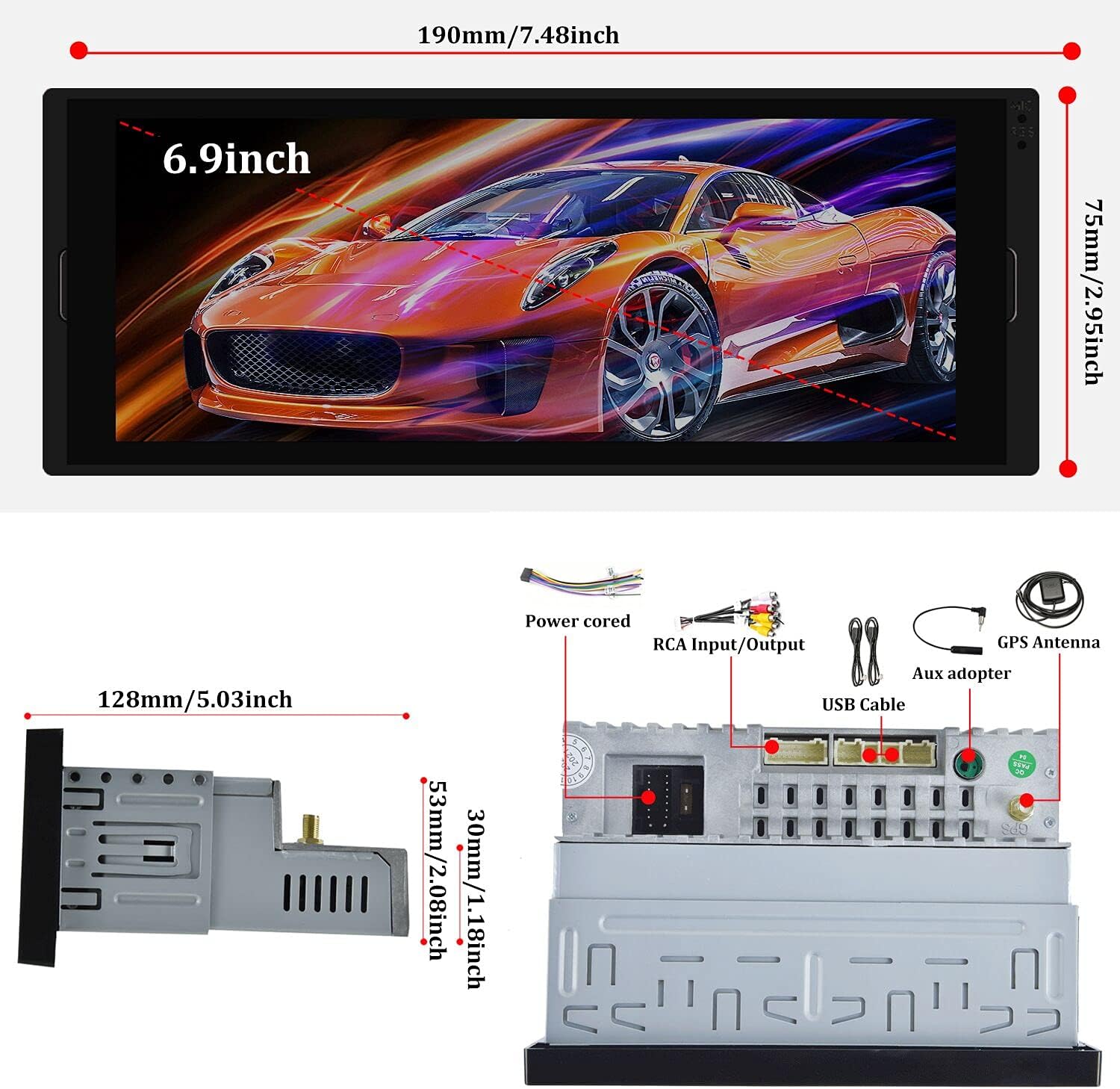
Image: Diagram showing the front and side dimensions of the 6.9-inch car stereo unit, including its depth and width.
Wiring Connections
Carefully follow the wiring diagrams for proper connection. Incorrect wiring can damage the unit or vehicle's electrical system.

Image: Simplified wiring diagram illustrating connections for power, ground, backlight, and reverse camera input to the car stereo.

Image: Detailed wiring harness diagram showing connections for front/rear speakers, power (ACC, B+, GND), antenna, steering wheel controls, video inputs/outputs, and reverse camera signal.
- Power Connections: Connect the yellow wire (B+) to constant 12V, red wire (ACC) to switched 12V, and black wire (GND) to vehicle ground.
- Speaker Connections: Connect front and rear speaker wires according to polarity (FL+, FL-, FR+, FR-, RL+, RL-, RR+, RR-).
- Steering Wheel Control (SWC): Connect KEY1 and KEY2 wires to your vehicle's SWC wires. Refer to your vehicle's manual for specific wiring.
- Reverse Camera: Connect the reverse camera's video output to the "REVERSE CONT" input and the camera's power to the reverse light circuit.
- GPS Antenna: Mount the GPS antenna in a location with a clear view of the sky.
Operating Instructions
Basic Operation
- Power On/Off: Press the power button on the front panel or remote control.
- Volume Control: Use the volume buttons on the front panel or remote.
- Touch Screen: Navigate the interface by touching icons and menus on the screen.
Bluetooth Function
Pair your mobile device via Bluetooth for hands-free calling and audio streaming.
- Go to the Bluetooth menu on the stereo.
- Enable Bluetooth on your mobile device and search for available devices.
- Select "AMprime" (or similar device name) from the list and enter the PIN (usually "0000").
- Once paired, you can make/receive calls and play music through the stereo.

Image: The Bluetooth interface on the car stereo screen, showing a phone call in progress and options for device pairing and music playback.
FM Radio
Access the FM radio tuner to listen to your favorite stations.
- Select the "Radio" icon from the main menu.
- Use the arrow buttons to manually tune or "AS" for auto-scan and save stations.
- "DX" button enhances distant station reception.
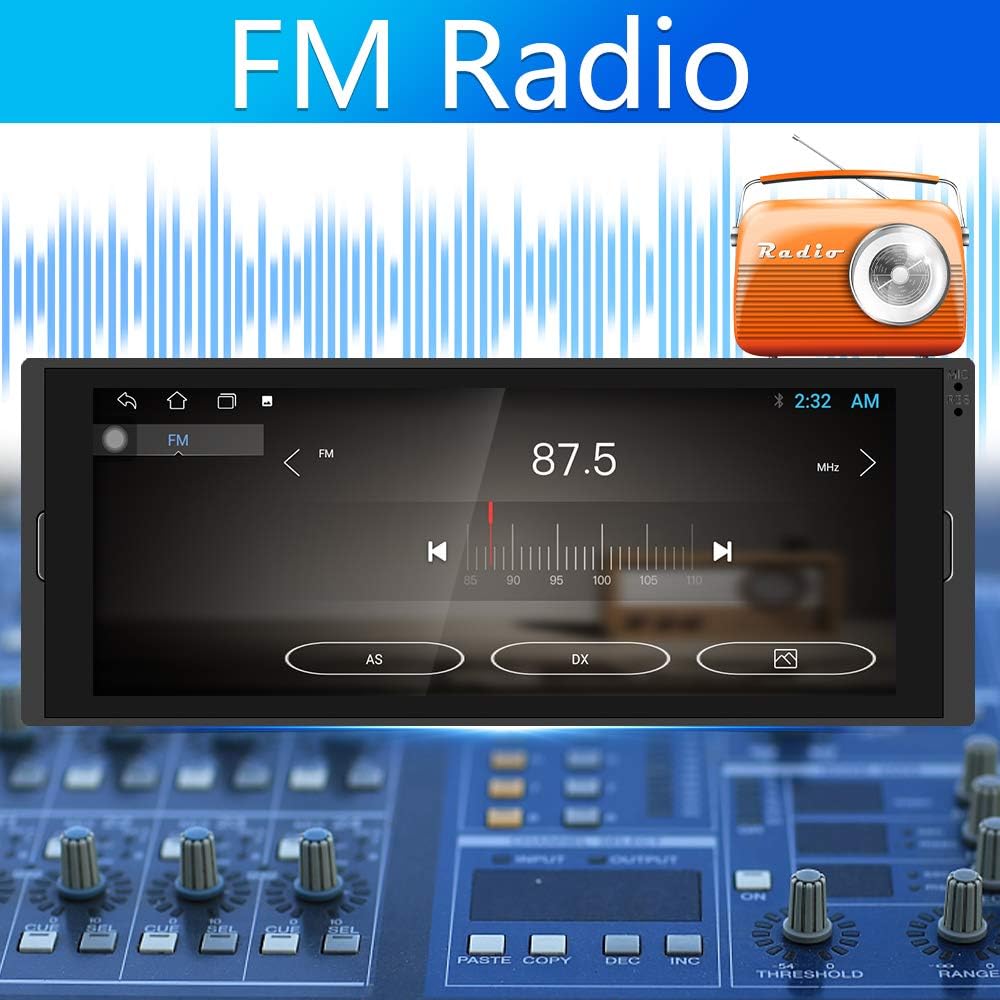
Image: The FM radio interface displaying a frequency of 87.5 MHz, with controls for tuning and station presets.
Mirror Link
Mirror your smartphone's screen to the car stereo display. Supports iOS one-way and Android two-way control.
- Connect your smartphone to the stereo via USB cable.
- Enable USB debugging on Android or trust the device on iOS.
- Open the "Mirror Link" application on the stereo and follow on-screen prompts.
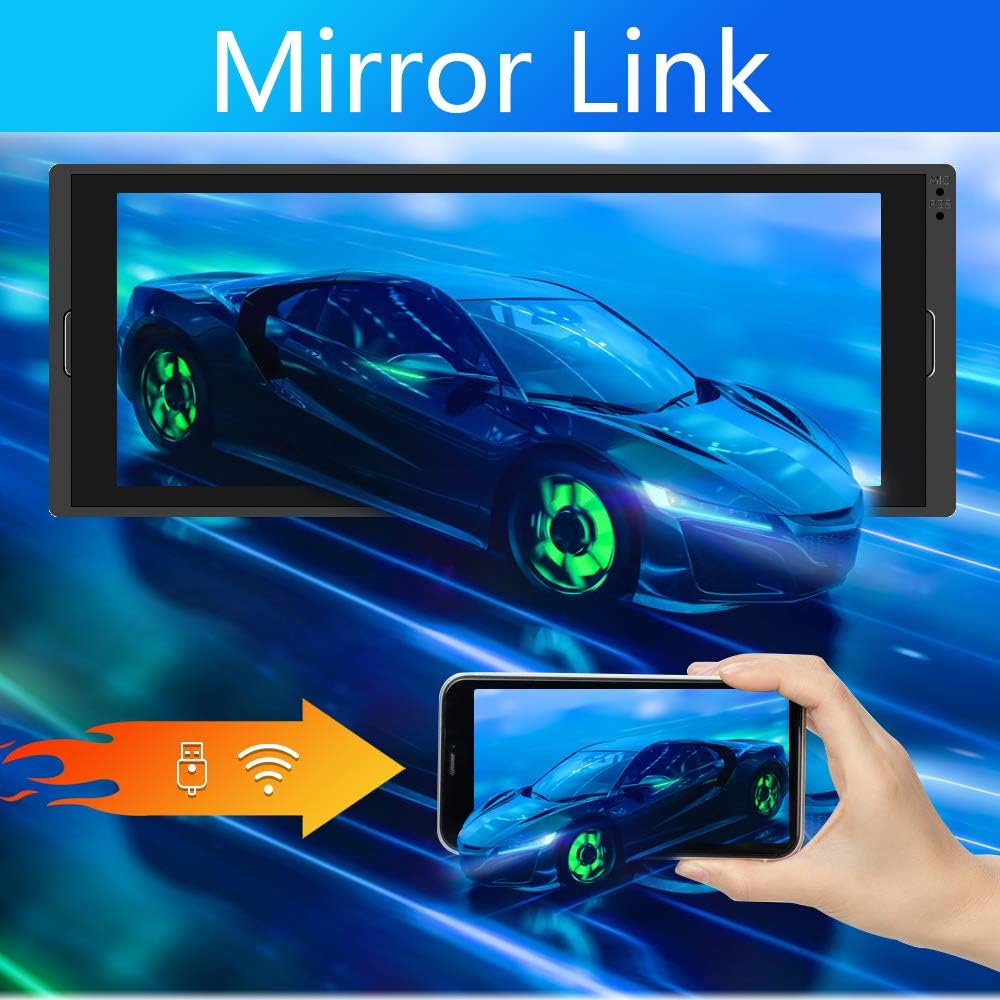
Image: Illustration of the Mirror Link feature, showing a smartphone screen being mirrored onto the car stereo display, with icons for USB and Wi-Fi connectivity.
Wi-Fi and GPS Navigation
Connect to Wi-Fi for internet access and use the integrated GPS for navigation.
- Wi-Fi: Go to Settings > Network & Internet > Wi-Fi to connect to a hotspot.
- GPS: The unit comes with pre-installed navigation software or allows installation of third-party apps. Ensure the GPS antenna is properly installed.
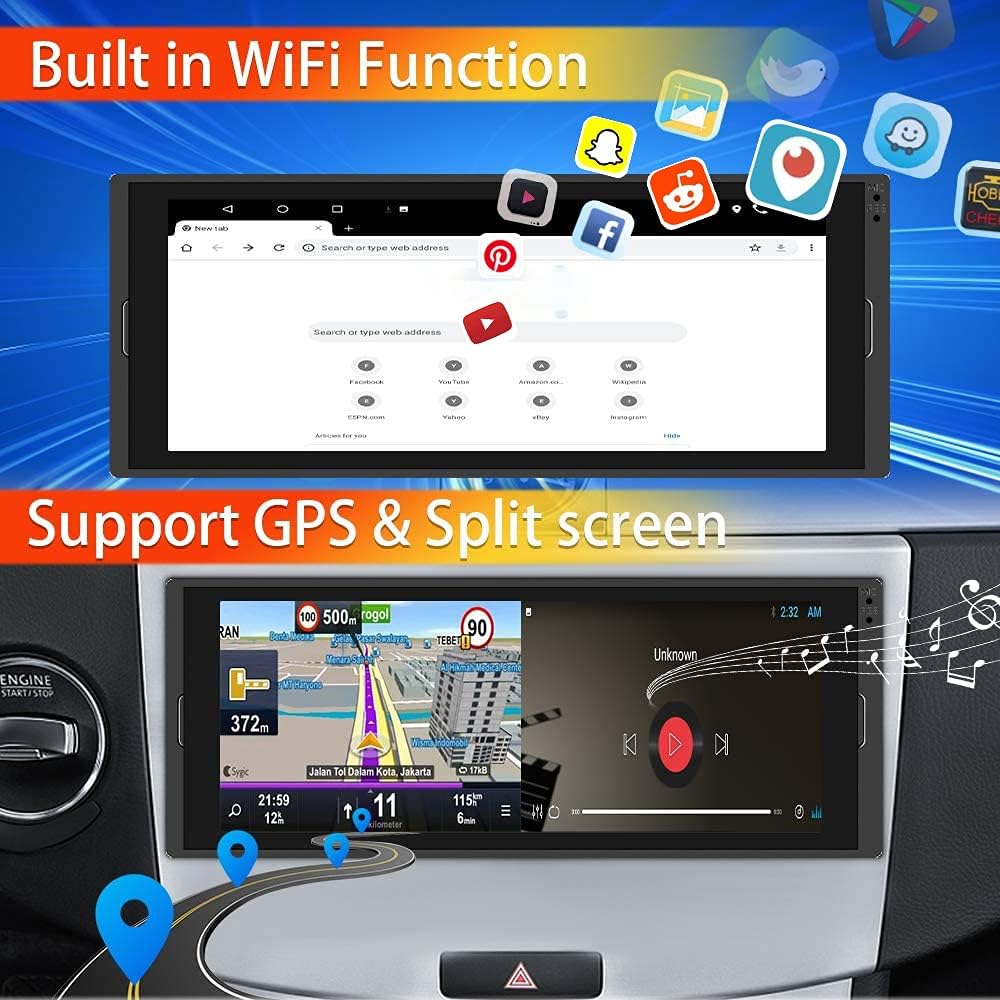
Image: The top part shows the car stereo displaying a web browser with various app icons floating above. The bottom part shows the stereo in split-screen mode, with GPS navigation on one side and a media player on the other.
Split Screen Function
Run two applications simultaneously on the screen.
- While an app is open, long-press the recent apps button or drag from the side (depending on Android version) to activate split-screen mode.
- Select a second app to display alongside the first.
Steering Wheel Control (SWC)
Configure your vehicle's steering wheel buttons to control the stereo.
- Go to Settings > Steering Wheel Control.
- Follow the on-screen instructions to program each button by pressing the button on the steering wheel and then selecting the corresponding function on the stereo screen.

Image: The steering wheel control setup screen on the car stereo, showing various functions that can be assigned to steering wheel buttons.
Rear View Camera and DVR Input
The unit supports a rear view camera for parking assistance and an optional DVR for recording.
- Rear View Camera: When the vehicle is shifted into reverse, the stereo automatically displays the camera feed.
- DVR Input: If an optional DVR is connected, access its functions through the dedicated DVR application on the stereo.

Image: The car stereo displaying a rear view camera feed with parking guidelines, alongside an illustration of a backup camera and film reel representing DVR input.
Troubleshooting
| Problem | Possible Cause | Solution |
|---|---|---|
| No Power | Incorrect wiring; Blown fuse; Loose connection. | Check power (yellow, red) and ground (black) wires. Inspect vehicle's fuse box and stereo's fuse. Ensure all connections are secure. |
| No Sound | Incorrect speaker wiring; Volume too low; Mute activated. | Verify speaker connections and polarity. Increase volume. Check if mute function is active. |
| Bluetooth Not Connecting | Device not in pairing mode; Incorrect PIN; Interference. | Ensure Bluetooth is enabled on both devices and in pairing mode. Re-enter PIN. Move closer to the unit. |
| GPS Signal Lost | Antenna obstruction; Poor antenna placement. | Ensure GPS antenna has a clear view of the sky. Relocate antenna if necessary. |
| Mirror Link Not Working | Incorrect USB connection; USB debugging not enabled (Android); Incompatible device. | Use original USB cable. Enable USB debugging in developer options (Android). Check device compatibility. |
Specifications
| Feature | Detail |
|---|---|
| Model Number | 702248614222 |
| Screen Size | 6.9 inches (Visible screen diagonal: 7" / 18 cm) |
| Product Dimensions (L x W x H) | 7.48 x 5.04 x 2.09 inches (190 x 128 x 53 mm) |
| Item Weight | 2.55 pounds |
| Connectivity Technology | Bluetooth, RCA, USB, Wi-Fi |
| Controller Type | Android, iOS |
| Audio Output Mode | Stereo |
| Surround Sound Channel Configuration | 4.0 |
| Color | Black |
Maintenance
- Cleaning the Screen: Use a soft, lint-free cloth to clean the touchscreen. Do not use abrasive cleaners or solvents.
- Software Updates: Periodically check for software updates through the unit's settings or the manufacturer's website to ensure optimal performance and access to new features.
- General Care: Avoid exposing the unit to extreme temperatures, direct sunlight for prolonged periods, or excessive moisture.
Warranty and Support
For warranty information and technical support, please refer to the warranty card included with your product or visit the official AMprime website. Keep your purchase receipt as proof of purchase for warranty claims.
For further assistance, you may contact AMprime customer service through their official channels.
Ask a question about this manual
Ask about setup, troubleshooting, compatibility, parts, safety, or missing instructions. Manuals+ will review the question and use this page’s manual context to help answer it.