
Introduction
This manual provides comprehensive instructions for the setup, operation, and maintenance of your Seagate One Touch SSD 2TB External Portable SSD. Designed for high-speed data transfer and reliable storage, this device offers a convenient solution for managing your digital content across various platforms.
What's in the Box
- Seagate One Touch SSD Black 2TB USB 3.1 TYPE C
- USB-C cable
- Quick Start Guide
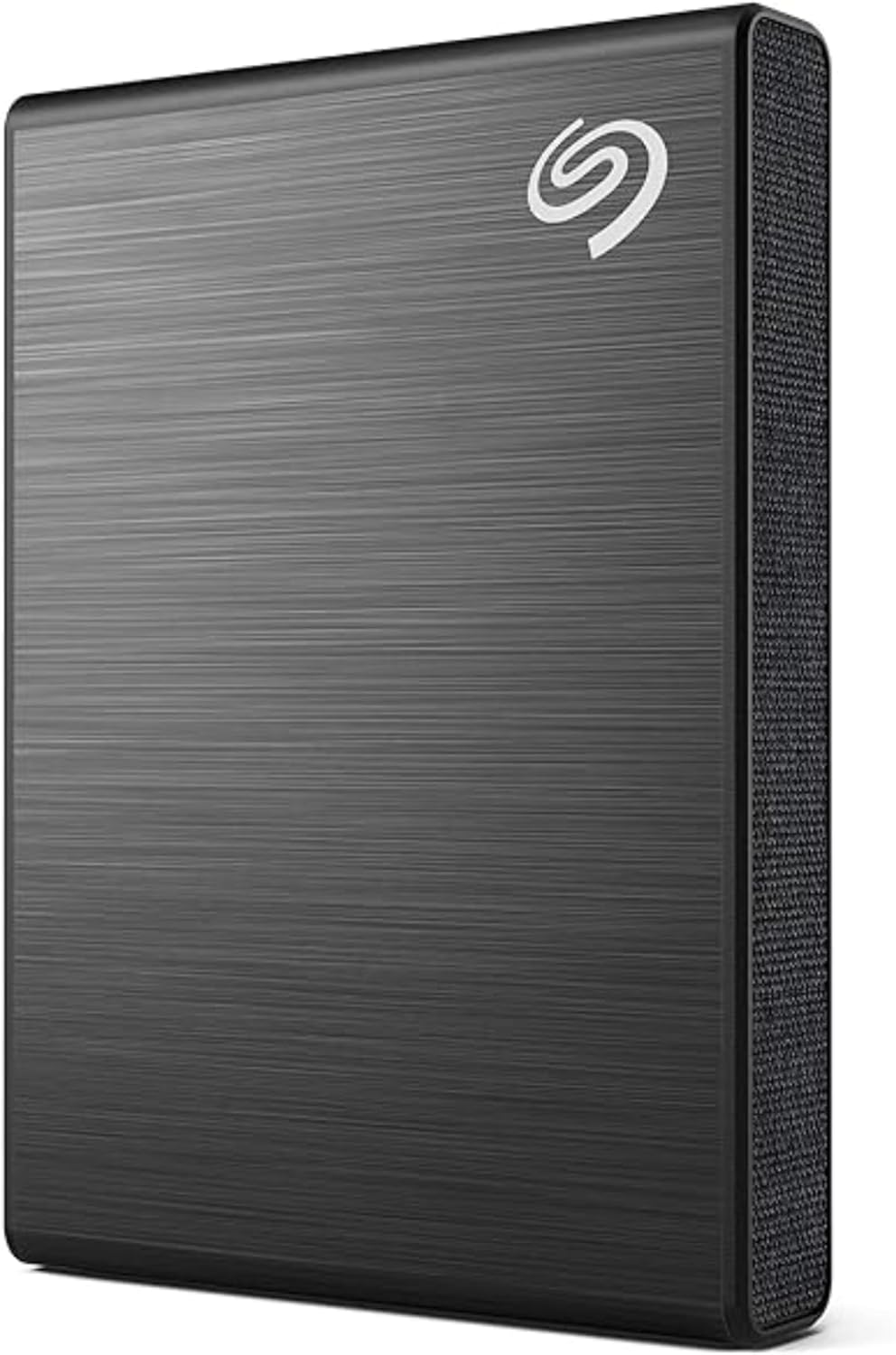
Image: The Seagate One Touch SSD in black, shown with its accompanying USB-C cable.
Product Features
- Compact and Portable: The One Touch SSD features a lightweight, textile design, ideal for travel and daily commutes.
- High-Speed Transfers: Achieve speeds up to 1030MB/s for rapid transfer of large files, photos, and videos.
- Ample Storage Capacity: With 2TB of storage, keep your movies, photos, and other important content in one secure location.
- Universal Compatibility: Simple plug-n-play USB-C compatibility with Windows and Mac operating systems.
- Android Backup App: Utilize the Android app to back up photos and videos, freeing up space on your mobile devices.
- Included Software Subscriptions: Organize your photos with a Mylio Photos+ complimentary subscription and enjoy automatic backups with a Dropbox Backup plan free trial (terms apply).
- Data Recovery Services: Benefit from included three-year limited warranty and Rescue Data Recovery Services for added peace of mind.

Image: The Seagate One Touch SSD connected to a laptop, demonstrating its use in a workspace.
Setup
- Connect the SSD: Use the provided USB-C cable to connect the Seagate One Touch SSD to an available USB-C port on your computer (Windows or Mac). If your computer only has USB-A ports, you may need a USB-C to USB-A adapter (not included).
- Automatic Recognition: Your computer should automatically detect the SSD. A new drive icon will appear in your file explorer (Windows) or Finder (Mac).
- Install Software (Optional): The drive may contain pre-loaded software or a link to download Seagate Toolkit. Install this software to enable features like automatic backups and password protection.

Image: Illustration showing the Seagate One Touch SSD with its USB-C connection and compatibility with Windows and Mac operating systems.
Operating the Device
Data Transfer
- Drag and Drop: To transfer files, simply drag them from your computer's storage to the Seagate One Touch SSD icon in your file explorer/Finder, or vice versa.
- Copy and Paste: Alternatively, right-click on files or folders, select "Copy," then navigate to the desired location on the SSD, right-click, and select "Paste."
Backup Solutions
- Seagate Toolkit: If installed, use the Seagate Toolkit software to set up scheduled backups, mirror folders, or perform on-demand backups.
- Mylio Photos+: Utilize the included Mylio Photos+ subscription to organize and manage your photo library across devices, with the SSD serving as a central storage hub.
- Dropbox Backup: Activate your Dropbox Backup plan free trial for cloud-based automatic backups, complementing your local storage.
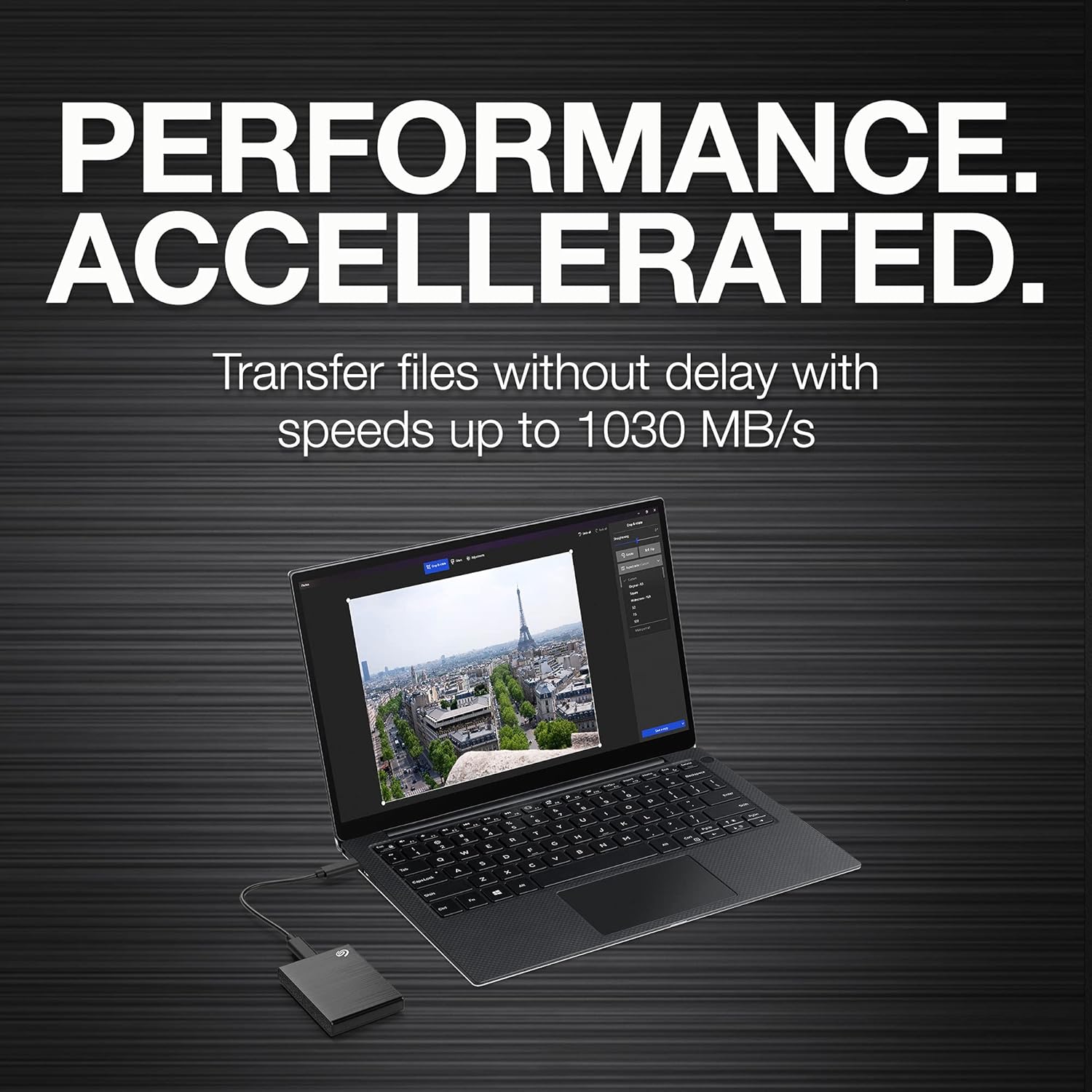
Image: Graphic highlighting the high-speed data transfer capabilities of the Seagate One Touch SSD, reaching up to 1030 MB/s.
Maintenance
- Safe Ejection: Always safely eject the SSD from your computer before disconnecting it to prevent data corruption.
- Physical Care: Keep the SSD in a clean, dry environment. Avoid dropping or exposing it to extreme temperatures or moisture.
- Firmware Updates: Periodically check the Seagate website for any available firmware updates for your device to ensure optimal performance and compatibility.
Troubleshooting
Device Not Recognized
- Check Cable Connection: Ensure the USB-C cable is securely connected to both the SSD and your computer. Try a different USB port or cable if available.
- Restart Computer: Sometimes a simple restart can resolve connectivity issues.
- Check Disk Management (Windows) / Disk Utility (Mac): Verify if the drive appears in your system's disk management tools. It might need to be initialized or formatted if it's a new drive or if the file system is incompatible.
Slow Transfer Speeds
- Use USB 3.0/3.1/3.2 Port: Ensure you are connecting the SSD to a high-speed USB port on your computer (typically blue or marked with "SS"). Older USB 2.0 ports will result in significantly slower speeds.
- Close Background Applications: Other running applications or processes can consume system resources and affect transfer speeds.
- Check Drive Health: Use Seagate Toolkit or your operating system's disk utility to check the health of the SSD.
Specifications
| Feature | Detail |
|---|---|
| Brand | Seagate |
| Series | One Touch SSD |
| Model Number | STKG2000400 |
| Digital Storage Capacity | 2 TB |
| Hard Disk Interface | USB-C |
| Connectivity Technology | USB |
| Max Transfer Speed | Up to 1030MB/s |
| Hardware Platform | Mac, PC |
| Item Weight | 1.59 ounces |
| Product Dimensions | 2.76 x 1.97 x 0.39 inches |

Image: The Seagate One Touch SSD with its physical dimensions (2.76" x 1.97" x 0.39") clearly indicated.
Warranty and Support
The Seagate One Touch SSD comes with a three-year limited warranty, covering manufacturing defects and ensuring product reliability.
Additionally, the product includes Rescue Data Recovery Services. In the event of unexpected data loss, these services provide expert assistance to help retrieve your valuable files.
For further assistance, technical support, or to learn more about your warranty and data recovery options, please visit the official Seagate support website or refer to the contact information provided in your product packaging.


