
MECHEER PM1
MECHEER Power Meter Plug Instruction Manual
Model: PM1
Brand: MECHEER
1. Introduction
The MECHEER Power Meter Plug is an advanced electricity usage monitor designed to help you track and manage the power consumption of your home appliances. This device provides detailed insights into various electrical parameters, enabling you to identify energy-intensive devices and optimize your electricity usage.
It features a large, clear LCD display with adjustable backlight, multiple display modes, and built-in overload protection, making it a versatile tool for energy monitoring.
2. Safety Information
WARNING!
- DO NOT use this device in a wet environment.
- DO NOT connect the power meter to a multi-plug outlet to measure multiple electrical appliances simultaneously, as this may cause the total power to exceed the threshold of 1800W and result in a short circuit.
NOTICE:
- Consumption and time will NOT be measured or counted when your device is in standby or not working, or if the rated power of your device is smaller than 0.5 watts. However, energy consumption is always measured once the device is plugged in.
- The device saves electricity quantity, cost, electricity price, and cumulative time. It does NOT save current, voltage, power, or power factors.
- If there is an abnormal display or no response, reset the electric meter by pressing the RESET button.
- The power of electrical appliances connected to this device must not exceed 1800W.
3. Product Overview
The MECHEER Power Meter Plug is designed for ease of use and clear data presentation. It consists of the main unit with a display and control buttons, and an integrated power plug for connecting to a wall outlet.
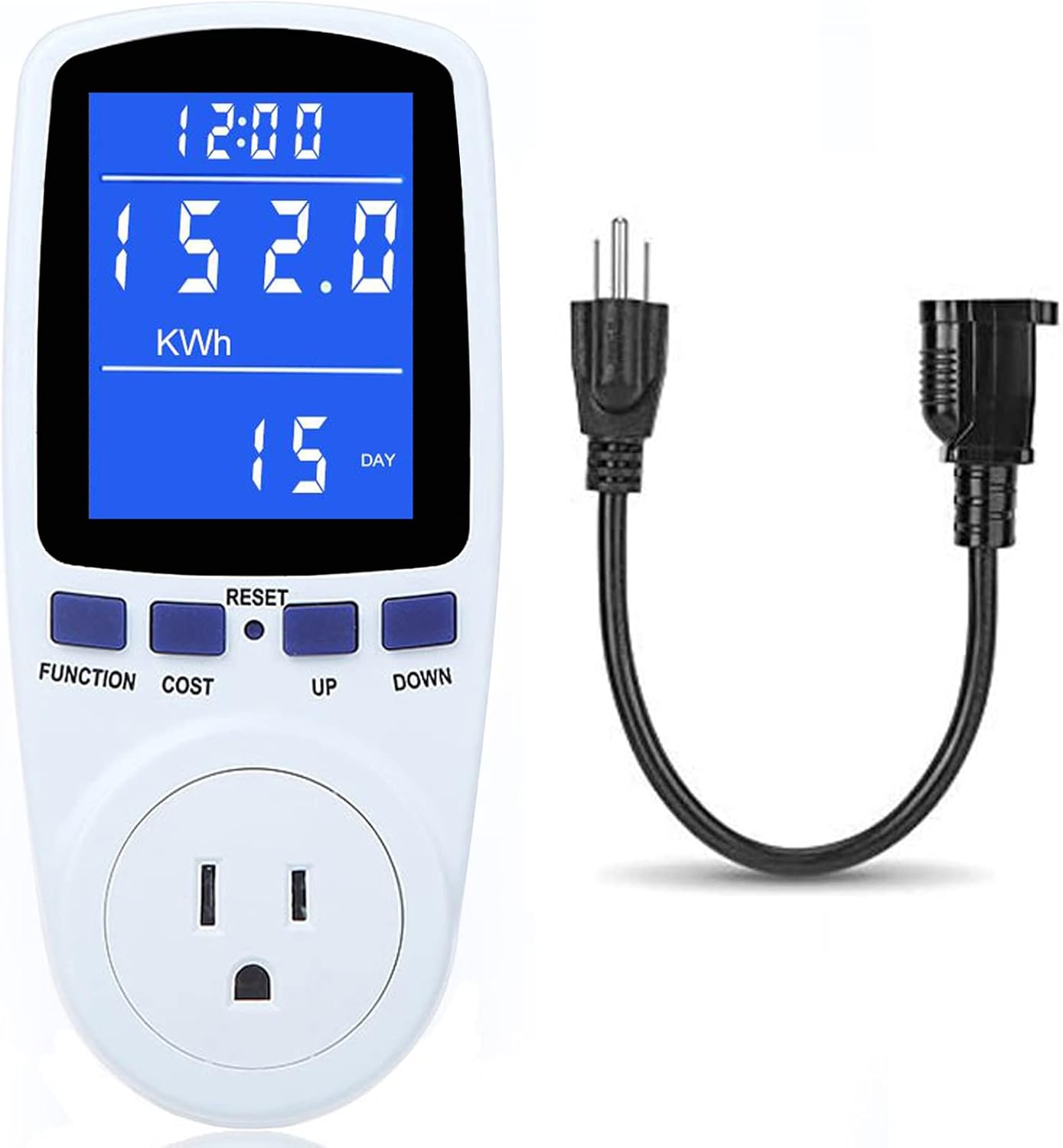
Figure 3.1: MECHEER Power Meter Plug with its integrated cord for flexible placement.
3.1. Components
- Main Unit: Houses the LCD display, control buttons, and internal circuitry.
- LCD Display: Large screen for clear viewing of various electrical parameters.
- Control Buttons: FUNCTION, COST, UP, DOWN, and a recessed RESET button.
- Power Plug: Integrated plug for connecting to a standard wall outlet.
- Appliance Socket: Standard outlet on the front for connecting the appliance to be monitored.
3.2. Display Features
The LCD display offers a 180° full wide viewing angle, ensuring clear and visible readings from various positions, day or night, thanks to its backlit feature.

Figure 3.2: The power meter's display offers a wide viewing angle for easy readability.
4. Setup
Setting up your MECHEER Power Meter Plug is straightforward. Follow these steps to begin monitoring your appliance's electricity usage.
4.1. Initial Connection
- Plug the MECHEER Power Meter Plug into a standard wall outlet.
- The LCD display will illuminate, indicating the device is powered on.
- Connect the appliance you wish to monitor into the socket on the front of the power meter.

Figure 4.1: The power meter can be used directly or with an extension cord for convenience, preventing blockage of adjacent sockets.
4.2. Backlight Activation
The backlight automatically turns off after a set period. To wake up the backlight, press any button on the device.

Figure 4.2: The display before and after the backlight is activated, showing improved visibility.
5. Operating Instructions
The MECHEER Power Meter Plug offers 7 display modes to monitor various electrical parameters. Use the FUNCTION and COST buttons to navigate through these modes and settings.
5.1. Display Modes
Press the FUNCTION button to cycle through the 7 display modes:

Figure 5.1: Overview of the 7 display modes available on the power meter.
- Mode 1: Time/Watt/Cost Display - Shows cumulative time, current power consumption (Watts), and estimated cost.
- Mode 2: Time/Cumulative Electrical Quantity Display - Shows cumulative time and total energy consumed (kWh).
- Mode 3: Time/Voltage/Frequency Display - Shows cumulative time, current voltage (Volts), and frequency (Hertz).
- Mode 4: Time/Current/Power Factor Display - Shows cumulative time, current amperage (Amps), and power factor.
- Mode 5: Time/Minimum Power Display - Shows cumulative time and the minimum recorded power (Watts).
- Mode 6: Time/Maximal Power Display - Shows cumulative time and the maximum recorded power (Watts).
- Mode 7: Time/Price Display - Shows cumulative time and allows setting the electricity price. You can access Mode 7 directly by pressing the COST button.
5.2. Setting Electricity Price (Mode 7)
To calculate the cost of electricity, you need to set the price per kilowatt-hour (kWh).
- Press the COST button to enter Mode 7.
- Use the UP and DOWN buttons to adjust the electricity price per kWh.
- Press the COST button again to save the setting.
5.3. Adjustable Backlight Time
The backlight duration can be customized to suit your needs.

Figure 5.2: Backlight setting options for the power meter.
- Press and hold the UP and DOWN buttons simultaneously for a few seconds to enter the backlight time setting. The display will show "bL-0" and flash.
- Press UP or DOWN to select the desired backlight time option:
- bL-0 = 10 minutes (default)
- bL-1 = 1 hour
- bL-2 = 4 hours
- bL-3 = 8 hours
- bL-4 = Always on
- Press the COST button to save the backlight time setting.
- To manually turn off the backlight, press the DOWN button.
5.4. Overload Protection
The device features overload protection to prevent damage. The default overload power is 3680W, but it is recommended to set it to 1800W for typical household use.
- To adjust the overload power, press the FUNCTION button for more than 3 seconds.
- Use the UP and DOWN buttons to set the desired overload threshold (0 to 3680W).
- Press the FUNCTION button again to save the setting.
When the power of the connected appliance exceeds the set overload threshold, the LCD will display "OVERLOAD" to warn the user. All buttons will become unresponsive until the load power is reduced or removed.
5.5. Data Memory Function
The power meter automatically saves cumulative data (electricity quantity, cumulative cost, cumulative time) even when removed from the socket or during a sudden power failure. This allows you to view the last recorded data when you use it again.

Figure 5.3: The power meter retains data even after being unplugged, thanks to its data memory function.
5.6. Operation Guide Video
For a visual guide on operating the MECHEER Power Meter Plug, please refer to the official operation video below:
Video 5.1: Official Operation Guide for MECHEER Power Meter Plug. This video demonstrates how to navigate through the different display modes and utilize the device's features.
6. Maintenance
To ensure the longevity and accurate performance of your MECHEER Power Meter Plug, follow these simple maintenance guidelines:
- Cleaning: Wipe the device with a soft, dry cloth. Do not use abrasive cleaners, solvents, or immerse the device in water.
- Storage: Store the device in a cool, dry place away from direct sunlight and extreme temperatures when not in use.
- Handling: Handle the device with care to avoid dropping or subjecting it to strong impacts, which could damage internal components.
7. Troubleshooting
If you encounter issues with your MECHEER Power Meter Plug, refer to the following common problems and their solutions:
| Problem | Possible Cause | Solution |
|---|---|---|
| Display is blank or unresponsive. | No power; device malfunction; backlight off. | Ensure the device is securely plugged into a live outlet. Press any button to activate backlight. If issue persists, perform a reset. |
| "OVERLOAD" message displayed. | Connected appliance exceeds set power limit. | Unplug the appliance or reduce its load. Ensure total power does not exceed 1800W. |
| Data not saving or resetting unexpectedly. | Incorrect reset procedure; very low consumption. | Ensure you are using the correct reset method (soft vs. hard reset). Data may not save if testing time is less than 1 hour or total kWh is less than 0.1 kWh. |
| Inaccurate readings. | Device malfunction. | Perform a full reset. If the problem persists, contact customer support. |
7.1. Resetting the Device
- Clear Cumulative Data (Keep Price Setting): Press and hold the FUNCTION and UP buttons simultaneously for over 3 seconds. This will clear electricity quantity, cumulative cost, and cumulative time.
- Full Reset (Clear All Settings): Use the provided reset tool (or a similar blunt object, avoid needles) to press the recessed RESET button. This will reset all settings to factory defaults.
8. Specifications
| Parameter | Value |
|---|---|
| Brand | MECHEER |
| Model Number | PM1 |
| Power Source | Electricity |
| Style | Digital |
| Color | Blue, White |
| Item Weight | 10 Ounces |
| Min. Operating Voltage | 110 Volts (AC) |
| Measurement Type | Ammeter, Wattmeter, Voltmeter, Kilowatt-hour meter |
| Max Load Capacity | 1800W (recommended setting) / 3680W (default max) |
| Display Size | 2.36 inch x 1.85 inch |
9. Warranty and Support
For any questions regarding your MECHEER Power Meter Plug or for technical assistance, please contact MECHEER customer support. Refer to your purchase documentation for specific warranty details and contact information.
You can also visit the official MECHEER store for more information and support resources: MECHEER Store on Amazon
Related documentsPM1


Ask a question about this manual
Ask about setup, troubleshooting, compatibility, parts, safety, or missing instructions. Manuals+ will review the question and use this page’s manual context to help answer it.