1. Product Overview
The Cable Matters 8K DisplayPort 1.4 to HDMI 2.1 Adapter is designed to connect a DisplayPort-enabled source device to an HDMI 2.1 compatible display. This adapter supports high resolutions and refresh rates, making it suitable for demanding visual applications such as gaming and professional multimedia editing.

Image 1: The Cable Matters 8K DisplayPort 1.4 to HDMI 2.1 Adapter, showcasing its compact design and braided cable.
2. Setup Instructions
Follow these steps to correctly set up your Cable Matters DisplayPort to HDMI adapter:
- Identify Ports: Locate the DisplayPort output on your source device (e.g., computer, laptop, graphics card) and an available HDMI input on your display (e.g., TV, monitor, projector).
- Connect DisplayPort: Plug the DisplayPort (male) end of the adapter into the DisplayPort output on your source device. Ensure it clicks securely into place.
- Connect HDMI Cable: Connect a Certified HDMI 2.1 cable (sold separately) to the HDMI (female) port of the adapter.
- Connect to Display: Plug the other end of the HDMI 2.1 cable into an HDMI input on your display.
- Power On: Power on both your source device and your display. Select the correct HDMI input on your display.
Important Note:
- This adapter is uni-directional and only works from a DisplayPort source to an HDMI display. It will not convert HDMI to DisplayPort.
- Not compatible with PS5 or Xbox consoles.
- A Certified HDMI 2.1 cable is required to achieve optimal performance and supported resolutions.

Image 2: Diagram illustrating the uni-directional connection from DisplayPort sources (Desktop, Mini PC) to HDMI targets (Monitor, TV, Projector), explicitly noting PS5 and Xbox are not supported.
Video 1: An official Cable Matters video demonstrating the connection of a DisplayPort to HDMI adapter to a computer and display.
3. Operating Instructions
The adapter supports advanced video and audio features:
- High Resolution Support: Enjoy video resolutions up to 8K@60Hz, 4K@120Hz, and 4K@240Hz.
- Immersive HDR: Supports High Dynamic Range (HDR) for vibrant visuals and enhanced contrast.
- Audio Experience: Supports surround sound for a complete audio-visual experience.
- Optimized for Gaming: Ideal for connecting high-end graphics cards (e.g., NVIDIA RTX 4090/4080/4070, AMD RX 7900/6900) to 8K or 4K Smart TVs and 120Hz/240Hz gaming monitors.
Limitations:
- Variable Refresh Rate (VRR), G-Sync, or FreeSync technologies are not supported by this adapter.

Image 3: A skier on a snowy mountain, illustrating a smooth 8K video experience with the adapter.
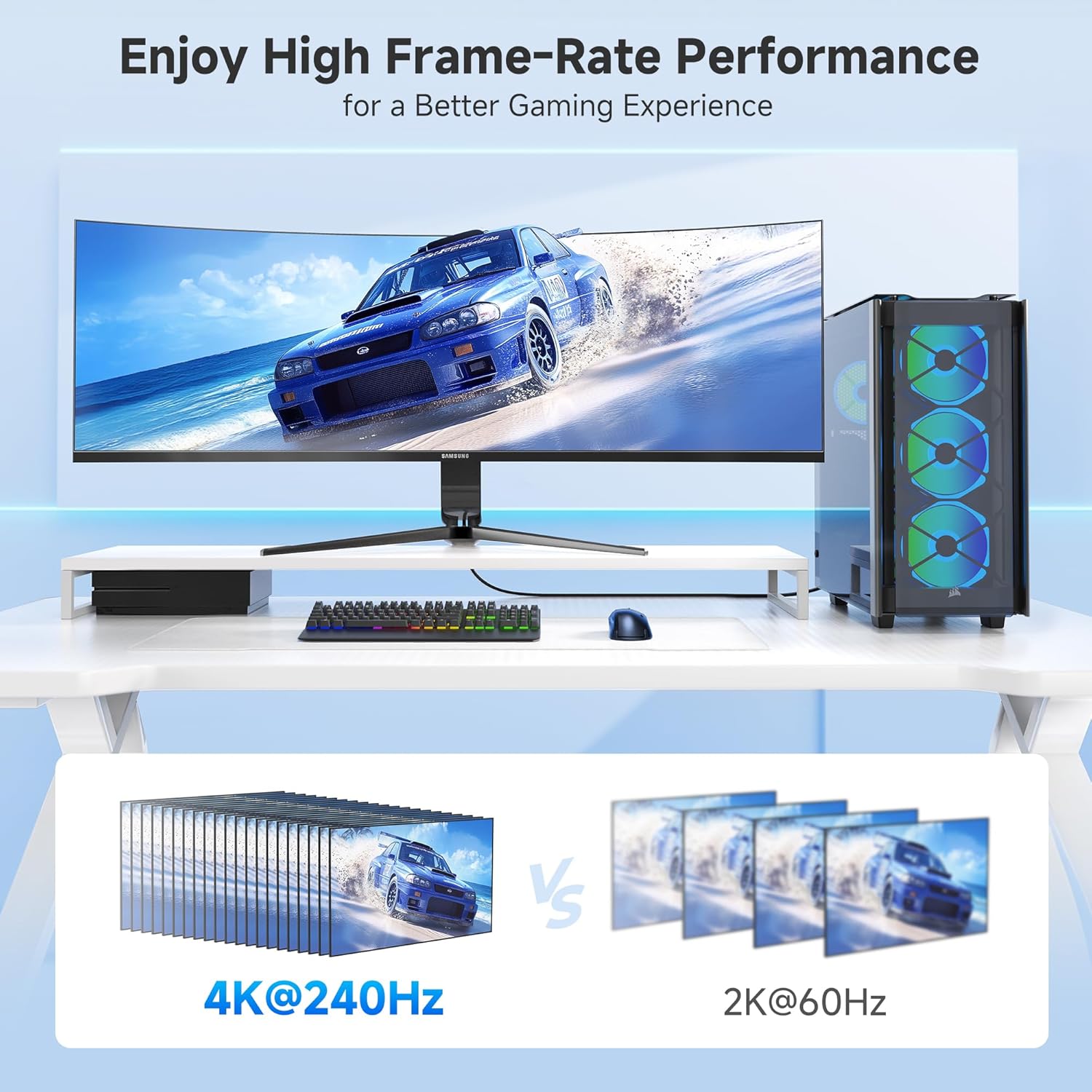
Image 4: A gaming setup featuring a monitor displaying a racing game, highlighting high frame-rate performance at 4K@240Hz compared to 2K@60Hz.
4. Maintenance
To ensure the longevity and optimal performance of your adapter, consider the following maintenance tips:
- Handle with Care: Avoid excessive bending or pulling on the cable, especially near the connectors. The braided cable jacket and molded strain relief are designed for durability, but proper handling extends product life.
- Keep Connectors Clean: Periodically inspect the DisplayPort and HDMI connectors for dust or debris. Use a soft, dry cloth or compressed air to clean them if necessary.
- Storage: When not in use, store the adapter in a cool, dry place away from direct sunlight and extreme temperatures. Use the included Velcro straps for tidy storage.
- LED Indicator: The integrated LED indicator confirms an active connection. If the LED is not lit, check all connections and ensure both source and display devices are powered on.

Image 5: Close-up view of the adapter highlighting the Power LED and the premium nylon braided cable for enhanced durability.
5. Troubleshooting
If you encounter issues with your adapter, try the following troubleshooting steps:
- No Display/Signal:
- Ensure all connections are secure.
- Verify that your source device's DisplayPort output, HDMI display, and HDMI cable all support the desired resolution and refresh rate.
- Confirm the display is set to the correct HDMI input.
- Check the adapter's LED indicator for an active connection.
- Flickering or Intermittent Signal:
- Ensure you are using a high-quality, Certified HDMI 2.1 cable.
- Reduce the resolution or refresh rate in your source device's display settings to see if stability improves.
- Update your graphics card drivers to the latest version.
- No Audio:
- Check your computer's sound settings to ensure the HDMI output is selected as the default audio device.
- Verify that your display's audio is not muted or set to a very low volume.
- Resolution/Refresh Rate Not as Expected:
- Confirm that your source device's DisplayPort version (1.4 required for 8K/4K high refresh rates), graphics card, HDMI cable, and display all support the desired specifications.
- Some 8K TVs or monitors may require manual enabling of 4K@120Hz or 8K support in their settings.
6. Specifications
| Feature | Detail |
|---|---|
| Product Dimensions | 4.17 x 2.76 x 0.59 inches |
| Item Weight | 2.11 ounces |
| Model Number | 102101-BLK |
| Connector Type | DisplayPort Male to HDMI Female |
| Color | Black |
| Max Resolution | 8K@60Hz, 4K@240Hz |
| HDR Support | Yes |
| VRR/G-Sync/FreeSync | Not Supported |
| Uni-Directional | Yes (DP Source to HDMI Display) |
| Cable Jacket | Braided |
| LED Indicator | Yes |
7. Warranty and Support
For warranty information and technical support, please refer to the official Cable Matters website or contact their customer service directly. Keep your purchase receipt for warranty claims.
For further assistance, you may visit the Cable Matters Store on Amazon.