
Introduction
The YCOO Robo Up is a programmable robot designed for interactive play and practical tasks. It features dynamic movements, object carrying capabilities, and interactive games. This manual provides detailed instructions for setting up, operating, and maintaining your Robo Up robot.
Safety Information
Warning: Small parts. Choking hazard. Not suitable for children under 3 years due to small parts.
- Always supervise children during play.
- Do not attempt to disassemble or modify the robot.
- Keep away from water and extreme temperatures.
- Ensure batteries are inserted correctly with the correct polarity.
- Remove batteries if the robot will not be used for an extended period.
Package Contents
- 1 x YCOO Robo Up Robot
- 1 x Remote Control
- 2 x Paper Boxes (for Flex-Tray interaction)
- 1 x Instruction Manual (this document)
Setup
Battery Installation
The Robo Up robot and its remote control require batteries for operation.
- For the Robo Up Robot: Locate the battery compartment on the robot. Insert 4 x AA batteries, ensuring correct polarity (+/-). Secure the battery compartment cover.
- For the Remote Control: Locate the battery compartment on the remote control. Insert 2 x AAA batteries, ensuring correct polarity (+/-). Secure the battery compartment cover.
Always use new batteries of the same type. Do not mix old and new batteries or different types of batteries.
Initial Power-On
- Turn on the power switch located on the back of the Robo Up robot.
- Turn on the power switch on the remote control.
- The robot's LED eyes will illuminate, indicating it is ready for operation.
Operating Instructions
Basic Movement and SmartControl™
Use the remote control to guide Robo Up. The SmartControl™ technology allows for dynamic movements, including squats and lifts.
- Use the directional pad on the remote for forward, backward, left, and right movements.
- Press the "UP" button to command Robo Up to stand or lift.
- Press the "DOWN" button to command Robo Up to squat or lower.
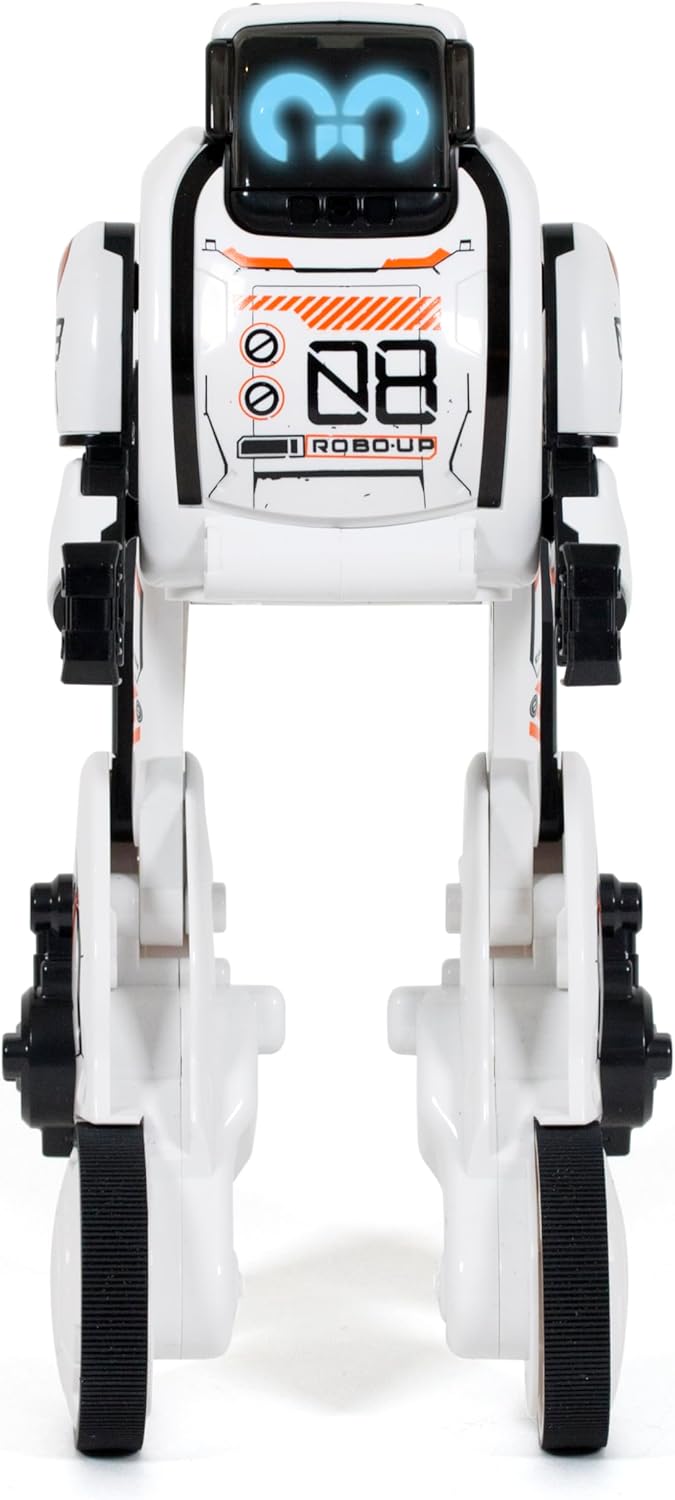
Figure 1: Front view of the Robo Up robot in its standing position.
Flex-Tray™ Functionality
Robo Up is equipped with a versatile Flex-Tray™ that can be used in two modes: Tray Mode and Hook Mode.
- Tray Mode: Extend the Flex-Tray to balance and carry objects. Place an object (like the included paper boxes) on the tray, and Robo Up will balance and walk forward.
- Hook Mode: Retract the Flex-Tray to use it as a hook. Attach an object to the hook, and Robo Up can pull and transport it.

Figure 2: Robo Up with its Flex-Tray extended for carrying objects.

Figure 3: Robo Up demonstrating its ability to hold and transport a box.
Programmable Precision
Robo Up can be programmed for sequences of up to 50 steps. This allows for customized movement patterns and actions.
- Press the "MODE" button on the remote control to enter programming mode.
- Input your desired sequence of movements (e.g., forward, turn left, lift, squat) using the directional pad and action buttons.
- Press the "START" button to execute the programmed sequence.
- Press the "CLEAR" button to erase the current program.
Direct Control
For immediate control, use the remote control to navigate Robo Up in real-time. This provides a hands-on experience for precise movement.

Figure 4: The remote control for Robo Up.
Auto-Following and Auto-Balancing Technology
- Auto-Following: Robo Up can respond to its environment and follow commands. Refer to the remote control for the "FOLLOW ME" button.
- Auto-Balancing: The robot is engineered with auto-balancing capabilities to maintain stability during movement, even on slight inclines or when carrying objects.
LED Eyes and Sound Effects
Robo Up features tri-color LED eyes that display various expressions and lively sound effects that accompany its movements and actions, enhancing the interactive experience.

Figure 5: Overview of Robo Up's interactive features.
Interactive Games
Robo Up includes built-in games to enhance interaction and demonstrate its capabilities.
- Powerlifting Game: Engage in a game that tests Robo Up's strength and precision in lifting objects.
- Pull & Transport Game: Utilize the Flex-Tray in hook mode to move objects, showcasing the robot's ability to pull and transport items.
Maintenance
- Cleaning: Wipe the robot with a dry, soft cloth. Do not use water or cleaning solutions.
- Storage: Store the robot and remote control in a cool, dry place away from direct sunlight. Remove batteries if storing for extended periods.
- Battery Care: Replace all batteries at the same time. Do not dispose of batteries in fire. Recycle used batteries responsibly.
Troubleshooting
| Problem | Possible Cause | Solution |
|---|---|---|
| Robot does not turn on. | Batteries are low or incorrectly installed. | Check battery polarity and replace with fresh batteries. Ensure power switch is ON. |
| Robot does not respond to remote. | Remote batteries are low or robot is out of range. | Replace remote batteries. Ensure robot and remote are within operating range. |
| Robot loses balance frequently. | Uneven surface or excessive weight on Flex-Tray. | Operate on a flat, smooth surface. Reduce the weight being carried by the Flex-Tray. |
| Programmed actions are incorrect. | Programming sequence error. | Clear the program and re-enter the sequence carefully. |
Specifications
- Model Number: 88050
- Brand: YCOO
- Manufacturer: Silverlit
- Product Dimensions: 5 x 11 x 12 inches
- Item Weight: 15 ounces
- Recommended Age: 5 years and up
- Robot Batteries: 4 x AA (not included)
- Remote Control Batteries: 2 x AAA (not included)
- Programmable Steps: Up to 50
Warranty and Support
For warranty information or technical support, please refer to the packaging or contact the manufacturer, Silverlit, directly. Keep your purchase receipt as proof of purchase.
Manufacturer: Silverlit
