
Introduction
The TiVo Bolt VOX is a digital video recorder (DVR) designed to enhance your television viewing experience. It integrates live TV, recorded content, and streaming services into a single, user-friendly interface. This device supports 4K Ultra HD resolution, features four tuners for simultaneous recording, and includes voice control capabilities. This manual provides essential information for setting up, operating, maintaining, and troubleshooting your TiVo Bolt VOX.
What's Included
Your TiVo Bolt VOX package typically includes the following items:
- TiVo Bolt VOX 500GB DVR Unit
- TiVo VOX Remote Control (with 2 AA batteries)
- Power Adapter
- HDMI Cable
- Ethernet Cable
- Quick Start Guide
Setup
Follow these steps to set up your TiVo Bolt VOX:
1. Connect to Television
Connect one end of the HDMI cable to the HDMI OUT port on the TiVo Bolt VOX and the other end to an available HDMI input on your television.
2. Connect to Cable or Antenna
- For Cable TV: Connect your cable TV line to the CABLE IN port on the TiVo Bolt VOX. A CableCARD may be required from your cable provider for encrypted channels.
- For HD Antenna: Connect your HD antenna to the ANTENNA IN port on the TiVo Bolt VOX.
3. Connect to Network
The TiVo Bolt VOX can connect to your home network via Ethernet or Wi-Fi.
- Ethernet: Connect one end of the Ethernet cable to the ETHERNET port on the TiVo Bolt VOX and the other end to an available port on your router or network switch.
- Wi-Fi: If using Wi-Fi, the device will prompt you to select your network and enter the password during the guided setup.
4. Connect Power
Connect the power adapter to the POWER port on the TiVo Bolt VOX and then plug the adapter into an electrical outlet. The device will automatically power on.
5. Initial Setup
Follow the on-screen instructions to complete the guided setup, which includes connecting to the TiVo service, scanning for channels, and configuring settings.
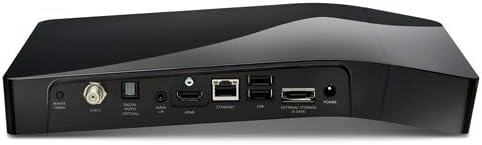
Figure 1: Rear view of the TiVo Bolt VOX, illustrating the available connection ports for cable/antenna, HDMI, Ethernet, USB, and power input.
Operating Instructions
The TiVo Bolt VOX offers several features to enhance your viewing experience:
Voice Control
Press the Voice button on your remote and speak clearly into the remote to search for shows, movies, actors, or launch apps. For example, say "Find Mission: Impossible" or "Launch Netflix."
OnePass
OnePass gathers every available episode of a series, whether from live TV, streaming apps, or on-demand, into a single list for easy access. To create a OnePass, find a show, select it, and choose the 'Create OnePass' option.
SkipMode
For recorded shows that support it, press the 'SKIP' button on your remote to jump past entire commercial breaks with a single press.
QuickMode
While watching a recorded show, press the 'PLAY' button twice to activate QuickMode, which plays the program 30% faster with pitch-corrected audio, allowing you to watch more content in less time.
Streaming Apps
Access popular streaming services like Netflix, Prime Video, HBO Go, Hulu, and Pandora directly from the TiVo interface. Navigate to the 'Apps' section or use voice control to launch your desired application.

Figure 2: The TiVo VOX Remote Control, featuring dedicated buttons for navigation, playback, voice commands, and streaming services.
Maintenance
To ensure optimal performance and longevity of your TiVo Bolt VOX:
- Cleaning: Use a soft, dry cloth to clean the exterior of the unit. Avoid liquid cleaners or abrasive materials.
- Ventilation: Ensure the unit is placed in a well-ventilated area. Do not block the ventilation openings.
- Power Cycle: If the unit becomes unresponsive, unplug it from the power outlet for 30 seconds, then plug it back in to perform a power cycle.
- Software Updates: The TiVo Bolt VOX automatically downloads and installs software updates. Ensure your unit is connected to the internet for these updates.
Troubleshooting
If you encounter issues with your TiVo Bolt VOX, try the following:
- No Picture/Sound: Verify all HDMI and audio cables are securely connected. Ensure your TV is set to the correct HDMI input.
- Remote Not Responding: Check the batteries in the remote control and replace them if necessary. Ensure there are no obstructions between the remote and the TiVo unit.
- Cannot Connect to Network: Check your Ethernet cable connection or Wi-Fi settings. Restart your router and modem.
- Recording Issues: Ensure your cable or antenna connection is secure and that your CableCARD (if applicable) is properly installed and activated. Check the available storage space on your DVR.
- System Unresponsive: Perform a power cycle by unplugging the unit for 30 seconds and plugging it back in.
Specifications
Key specifications for the TiVo Bolt VOX (Model: TCD849500V):
| Feature | Specification |
|---|---|
| Brand | TiVo |
| Model Name | Bolt VOX |
| Item Model Number | TCD849500V |
| Memory Storage Capacity | 500 GB |
| Resolution | 4K Ultra HD |
| Tuners | 4 |
| Connectivity Technology | Ethernet, HDMI, IR, USB, Wi-Fi |
| Supported Internet Services | Hulu, Netflix, Pandora (and others) |
| Controller Type | Remote Control (Voice-enabled) |
| Compatible Devices | Television |
| Item Weight | 4.47 pounds |
| Color | Black |
Warranty and Support
For warranty information and technical support, please refer to the documentation provided with your purchase or visit the official TiVo support website. Keep your proof of purchase for warranty claims.


