
HyperX HKBO1S-RB-US/G
HyperX Alloy Origins 60 Mechanical Gaming Keyboard User Manual
Brand: HyperX | Model: HKBO1S-RB-US/G
1. Product Overview
The HyperX Alloy Origins 60 is a supremely portable 60% form factor keyboard designed to provide more room for mouse movements. It features a durable, full aluminum body and reliable HyperX switches optimized for speed and performance, rated for 80 million keypresses. The double shot PBT keycaps include secondary functions printed on them for quick access. The exposed LED design of the HyperX switches allows for stunning RGB lighting effects. Further customization, including macros and personalized lighting profiles, can be achieved using HyperX NGENUITY software.

Figure 1.1: HyperX Alloy Origins 60 Mechanical Gaming Keyboard with vibrant RGB backlighting.
2. Key Features
- Petite 60% Form Factor: Maximizes desk space for mouse movement.

Figure 2.1: The compact 60% form factor of the keyboard.
- Full Aircraft-Grade Aluminum Body: Ensures structural soundness and stability.

Figure 2.2: Illustration of the durable full aluminum body construction.
- Double Shot PBT Keycaps with Side Printing: Durable keycaps resistant to wear, with secondary functions clearly printed.

Figure 2.3: Double shot PBT keycaps with secondary functions printed on the sides.
- HyperX Mechanical Switches: Custom-designed for speed and accuracy, rated for 80 million keypresses.

Figure 2.4: HyperX mechanical switches designed for optimal performance.
- RGB Backlit Keys with Radiant Lighting Effects: Enhanced RGB lighting due to exposed LED design.

Figure 2.5: The keyboard displaying its radiant RGB lighting effects.
- Advanced Customization with HyperX NGENUITY: Software for Game Mode, macros, and per-key lighting.

Figure 2.6: HyperX NGENUITY software for advanced customization.
- Three Adjustable Keyboard Angles and Detachable USB-C Cable: For ergonomic comfort and portability.

Figure 2.7: The keyboard's adjustable feet for three different tilt angles.
- Included Keycap Puller and Additional Keycaps: For customization and maintenance.
Figure 2.8: Included accessories for keycap customization.
- Multi-Platform Compatibility: Compatible with PC, PS5, PS4, Xbox Series X|S, and Xbox One.
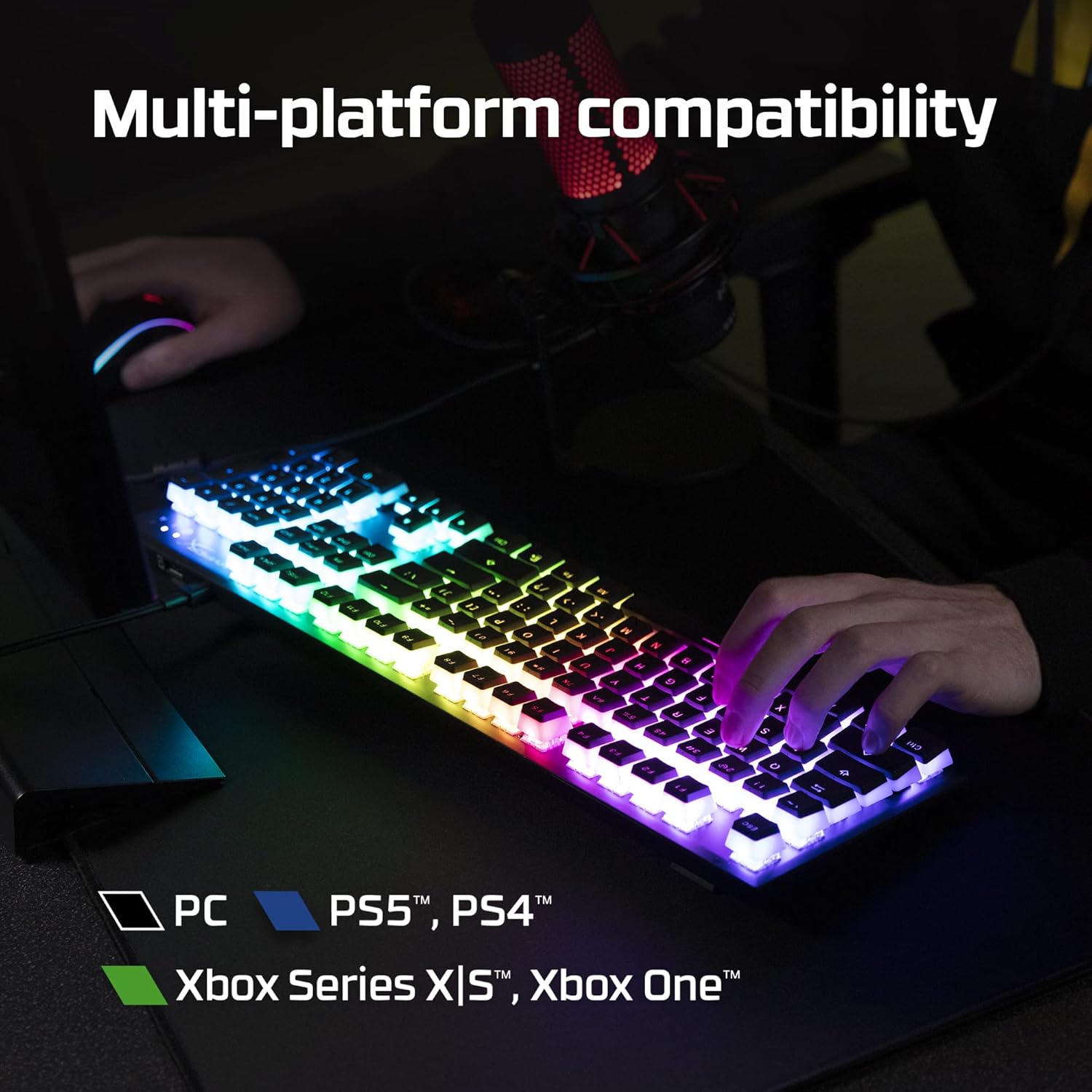
Figure 2.9: The keyboard's multi-platform compatibility.
3. Setup Guide
3.1 Package Contents
Before you begin, ensure all items are present in the package:
- HyperX Alloy Origins 60 Mechanical Gaming Keyboard
- Detachable USB-C to USB-A Cable
- Keycap Puller
- Additional Keycaps (e.g., alternate Esc key, special spacebar)
Figure 3.1: All components included in the HyperX Alloy Origins 60 package.
3.2 Connecting the Keyboard
- Locate the detachable USB-C to USB-A cable.
- Connect the USB-C end of the cable to the USB-C port on the back of the HyperX Alloy Origins 60 keyboard.
- Connect the USB-A end of the cable to an available USB-A port on your PC or gaming console.
- The keyboard will automatically be detected and drivers will install if necessary. The RGB lighting will illuminate upon successful connection.

Figure 3.2: Connecting the detachable USB-C cable to the keyboard.
3.3 Adjusting Keyboard Angle
The keyboard features two-step keyboard feet, allowing you to set it at three different tilt angles (3°, 7°, 11°) for optimal ergonomic comfort.
- Flip the keyboard over to access the feet on the underside.
- Extend the smaller feet for a moderate tilt.
- Extend both the smaller and larger feet for the maximum tilt.

Figure 3.3: Adjusting the keyboard's tilt angle using the integrated feet.
4. Operating Instructions
4.1 Basic Functions
The HyperX Alloy Origins 60 is a 60% keyboard, meaning it omits the number pad, function row, navigation cluster, and arrow keys to achieve its compact size. These functions are typically accessed via a combination of the Fn key and other keys.
- Fn + [Key]: Activates the secondary function printed on the side of the keycap. Refer to the side legends for specific functions.
- Game Mode: Prevents accidental presses of the Windows key during gaming. Activate/deactivate via NGENUITY software.
4.2 HyperX NGENUITY Software
For advanced customization of your keyboard, download and install the HyperX NGENUITY software from the official HyperX website. This software allows you to:
- Customize RGB lighting effects and colors on a per-key basis.
- Create and manage macros for complex commands.
- Set up and switch between multiple onboard profiles.
- Adjust Game Mode settings.

Figure 4.1: HyperX NGENUITY software for comprehensive keyboard control.
5. Maintenance
Proper maintenance ensures the longevity and optimal performance of your HyperX Alloy Origins 60 keyboard.
5.1 Cleaning the Keyboard
- Disconnect the keyboard from your computer before cleaning.
- Use a can of compressed air to remove dust and debris from between the keycaps.
- For surface cleaning, gently wipe the keycaps and frame with a soft, lint-free cloth dampened with a small amount of water or a mild, non-abrasive cleaning solution. Avoid excessive moisture.
- Do not spray cleaning solutions directly onto the keyboard.
5.2 Keycap Removal and Replacement
The included keycap puller can be used to safely remove and replace keycaps for cleaning or customization.
- Gently place the keycap puller over the keycap you wish to remove, ensuring the wires hook onto opposite sides of the keycap.
- Pull straight up with even pressure until the keycap detaches from the switch stem.
- To replace a keycap, align it with the switch stem and press down firmly until it clicks into place.

Figure 5.1: Using the keycap puller to remove keycaps.
6. Troubleshooting
If you encounter issues with your HyperX Alloy Origins 60 keyboard, try the following troubleshooting steps:
| Problem | Possible Cause / Solution |
|---|---|
| Keyboard not responding / No lighting |
|
| RGB lighting not working correctly |
|
| Keys not registering or double-typing |
|
If these steps do not resolve the issue, please contact HyperX customer support for further assistance.
7. Specifications
| Feature | Detail |
|---|---|
| Product Dimensions | 11.7 x 1.5 x 4.2 inches |
| Item Weight | 2.14 pounds |
| Manufacturer | HP Inc. |
| Language | English |
| ASIN | B08XBQ79MN |
| Item model number | HKBO1S-RB-US/G |
| Brand | HyperX |
| Compatible Devices | Gaming Console, PC |
| Connectivity Technology | USB-C to USB-A |
| Keyboard Description | Mechanical, Gaming |
| Recommended Uses For Product | Gaming |
| Special Feature | Backlit, Lighting, Portable |
| Color | Black |
| Number of Keys | 61 |
| Keyboard backlighting color support | RGB |
| Style | HyperX Red |
8. Warranty and Support
For detailed warranty information and technical support, please refer to the official HyperX resources:
- Official User Guide (PDF): Download User Guide
- HyperX Brand Store: Visit HyperX Store on Amazon
- For further assistance, contact HyperX customer support through their official website.
Related documentsHKBO1S-RB-US/G


Ask a question about this manual
Ask about setup, troubleshooting, compatibility, parts, safety, or missing instructions. Manuals+ will review the question and use this page’s manual context to help answer it.